

Mock servers
A mock server returns simulated API responses during a run, so a test does not have to call the real backend service. Mock servers work in dry runs, test plan executions, and local executions.
Create a mock server
Section titled “Create a mock server”-
Go to Test Data > Mock Servers. The Endpoints page of the Mock Server application opens.
-
Click Create Endpoint.
-
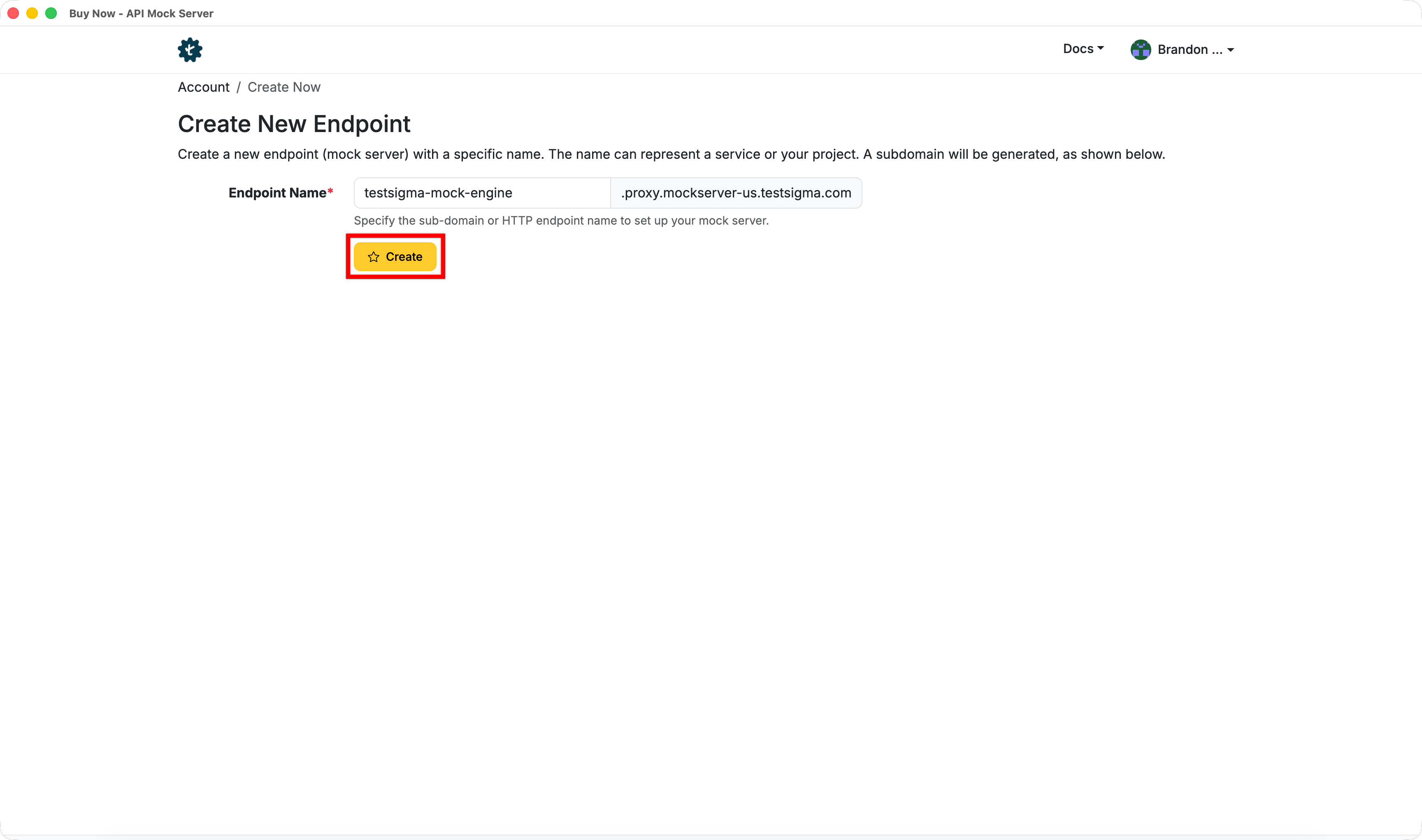
Enter a subdomain for the endpoint on the Create New Endpoint page.
-
Click Create.
Use a mock server in a dry run
Section titled “Use a mock server in a dry run”-
Go to Create Tests > Test Cases and open the test case.
-
Click Run in the action panel.
-
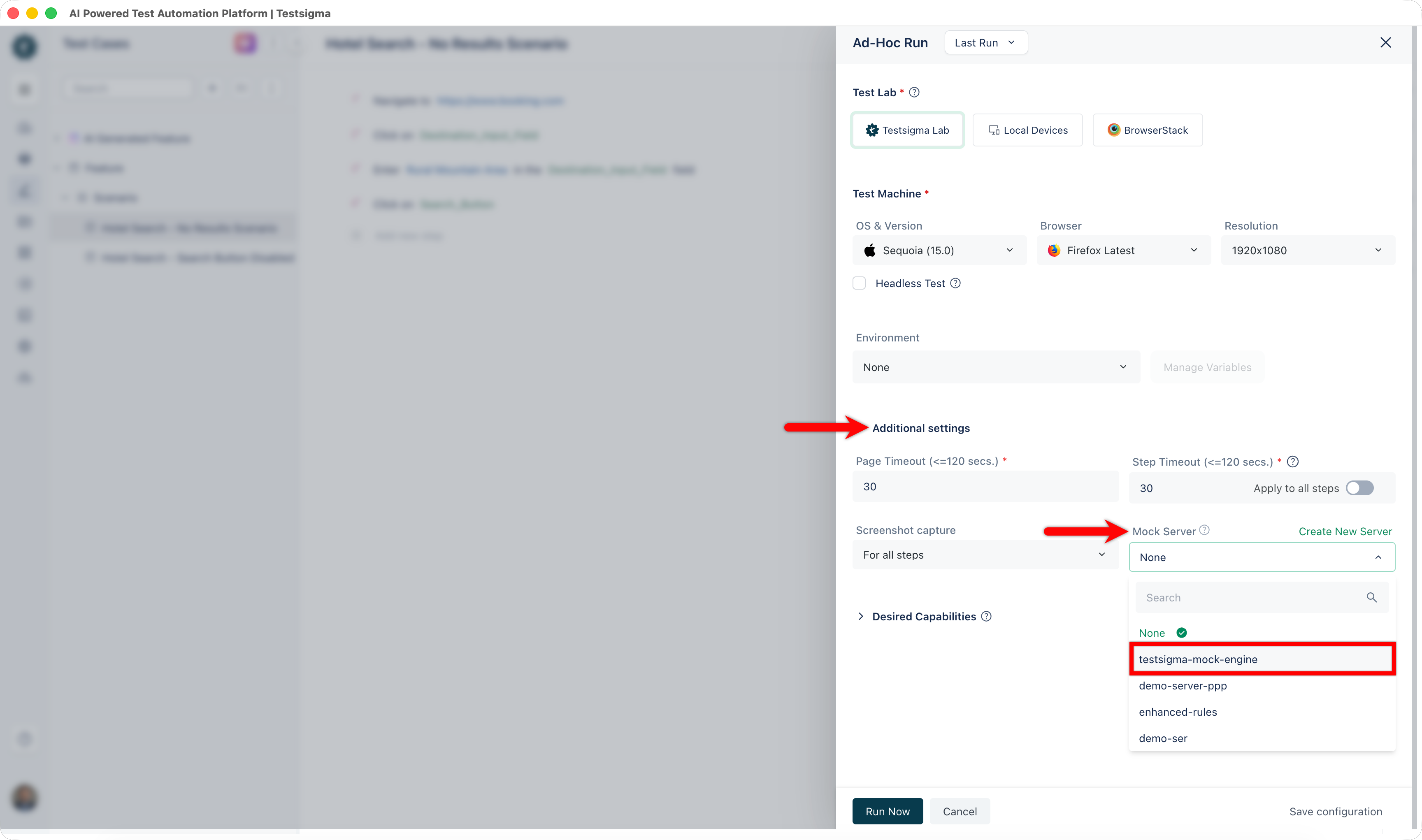
In the Ad-Hoc Run overlay, configure Test Lab, Machine, and Environment.
-
Expand Additional Settings and select the server from the Mock Server dropdown.
-
Click Run Now.
Use a mock server in a test plan
Section titled “Use a mock server in a test plan”-
Go to Test Plans and open the plan.
-
Go to Test Plan Settings.
-
Select the server from the Mock Server dropdown under Additional Settings.
-
Click Update, or Create for a new plan.
-
Click Run Now.
Review what was mocked
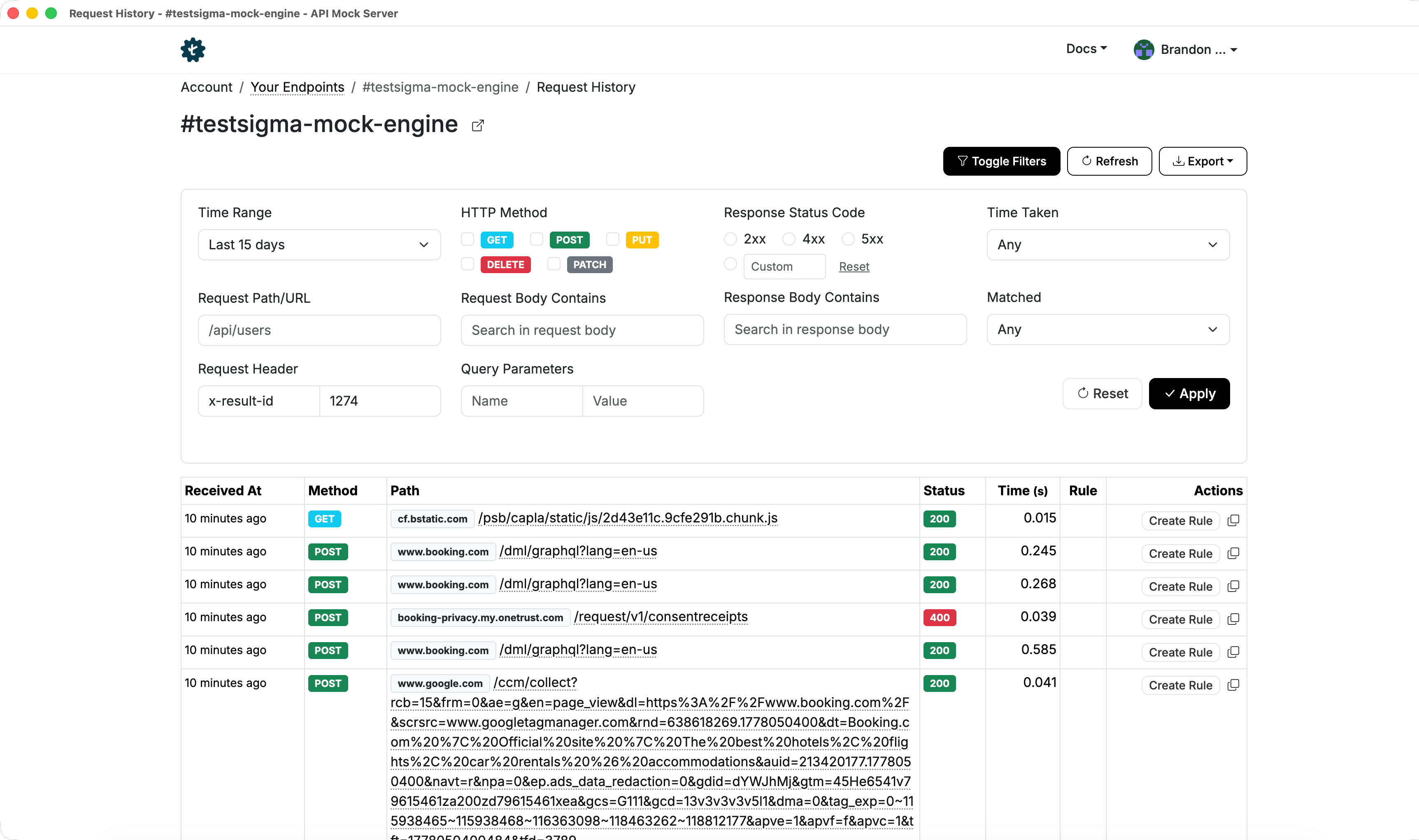
Section titled “Review what was mocked”After a run, open the results page, click More Details, go to Machine Details, and select the mock server used. The Mock Server History section lists the rules that matched.
Add a mock rule
Section titled “Add a mock rule”A mock rule decides which API calls the server intercepts and what it returns. Rules are created from the calls a real run made, so run the test once first.
-
Open the test case results page and click More Details.
-
Go to Machine Details and select the mock server used.
-
Find the API call you want to mock in the API Results table, and click Create Rule in its Action column.
-
Update the rule details in the Mock Rules dialog.
-
Click Save.
The server returns the configured response for matching calls from the next execution onward.
Was this page helpful?
Thanks for the feedback.