

Create an Android test case
An Android test case runs against an .apk build on a real device or an emulator. There are 4 ways to build one, and they differ in what you start from.
| Route | Start from | Best when |
|---|---|---|
| NLPs | Nothing | You know the flow and want exact control |
| Recorder | The application on a streamed device | The flow is quicker to perform than to describe |
| Testsigma Copilot | The application on a streamed device | You want Copilot to draft steps as you record |
| QI Home | Requirements, designs, or prompts | You are covering a feature rather than one flow |
Before you start, you need a project and an Android application, the .apk itself, and a device or emulator available as a Test Machine. Recording on a local device also needs Testsigma Terminal installed.
Create the test case
Section titled “Create the test case”-
Go to Create Tests > Test Cases.
-
Expand a folder in Test Case Explorer and click the + icon next to a subfolder.
-
Confirm the folder and subfolder, enter a name, and click Create.
The first step is created for you as Launch App, since a mobile test has to open the application before it can act on it.
Add the steps
Section titled “Add the steps”- Click Add New Step on the Test Case Details page.
- Select the NLP for the action you want, then supply its test data and elements.
- Repeat until the flow is complete.
Android NLPs use Tap on rather than Click on, since the interaction is a tap. See Create test cases for the full action list and the step types.
- Click Record on the Test Case Details page.
- In the Record test steps overlay, select a Test Lab and a Test Machine.
- Supply the application under App Source, either by pasting an external public link or by clicking Upload and browsing to the
.apk. - Click Record and wait for the application to load fully.
- Perform the actions you want as test steps. The recorder converts each interaction into a step.
- Click Create Step on the Test Case Details page.
- Click Copilot.
- Configure the Test Machine and App Source in the Copilot overlay, and click Launch. Copilot opens a mirrored session of your application inside Testsigma.
- Click Rec and perform the actions you want as test steps.
- Click Stop Recording.
- Click Exit Copilot, then Stop Copilot in the Stop & Exit Copilot dialog.
See Copilot for debugging and step management.
The Generator agent in QI Home generates whole test cases from requirements, Figma designs, qTest, Confluence, video, files, or a live recording, rather than steps for one flow. On mobile, Figma frames are usually the best starting point, since the design is the specification. See AI agents.
Recorder controls
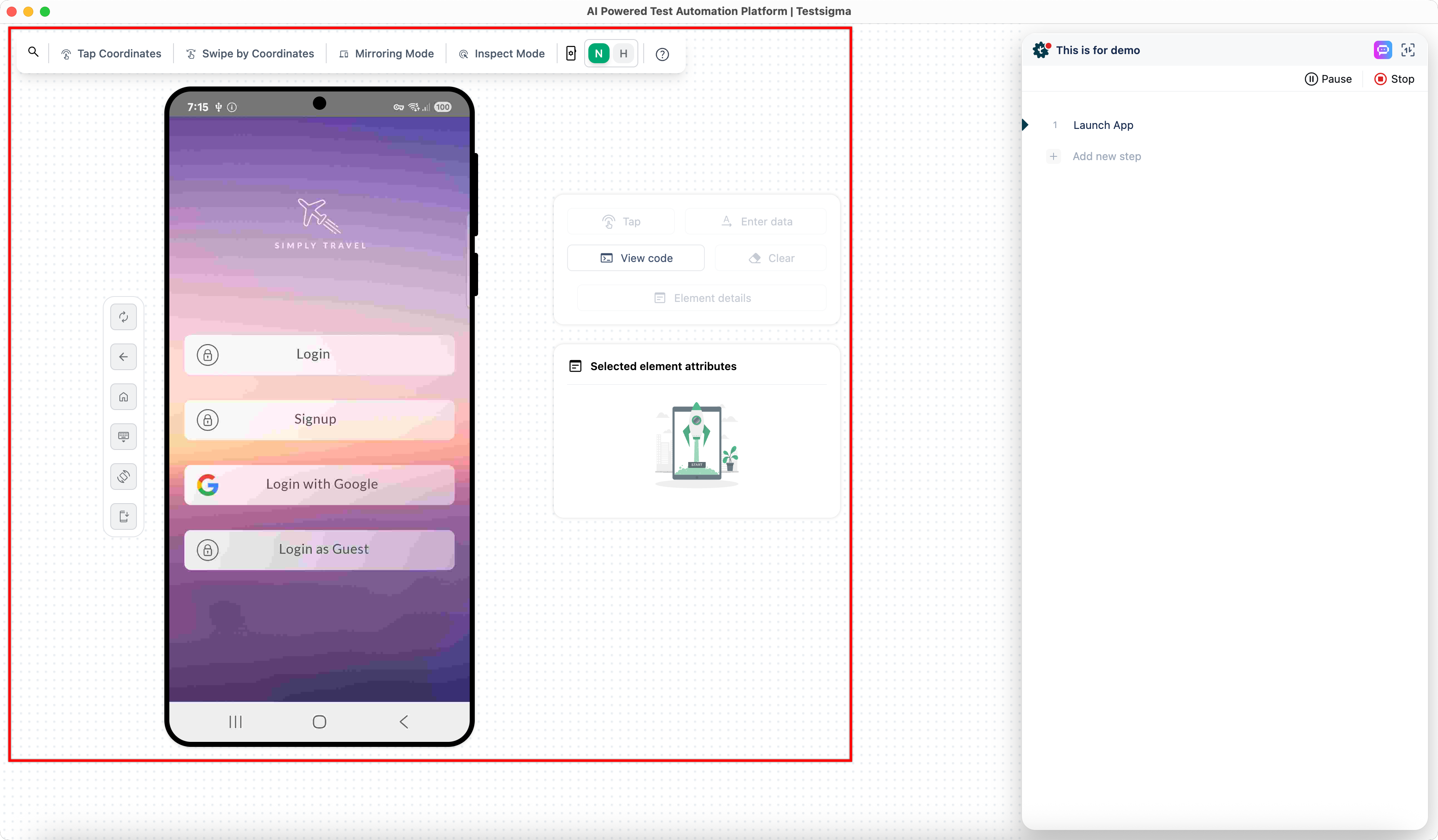
Section titled “Recorder controls”Recording streams a device from a Test Lab, so the recorder carries controls the web recorder has no need for.
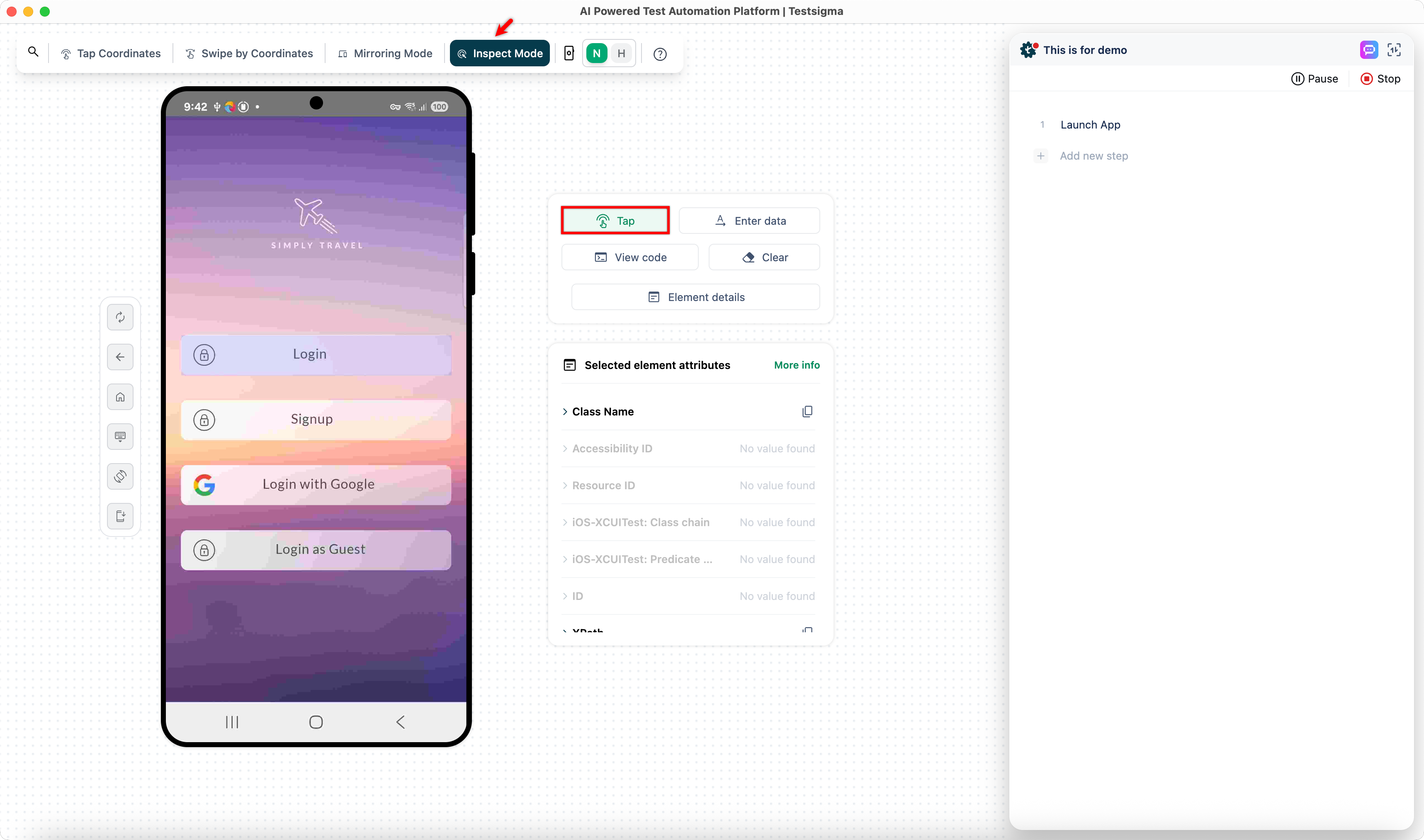
- Device controls: Install App, Mirroring mode, Inspect Mode, which shows element attributes without recording a step, Swipe By Coordinates, Tap By Coordinates, Search Element, Go back, Home, Hide Keyboard, and Rotate Screen
- Element actions: Tap, Enter Data, View Code, Clear, and Element Details
Elements
Section titled “Elements”Android supports 5 locator types, in this order of preference:
- Accessibility ID: the first choice. The same value carries across Android and iOS, which makes a test easier to port, and it is the least likely to change when the source is restructured
- ID: the second choice. Every element is supposed to have a unique one
- XPATH: parses the source to reach the element
- Class Name: the value of the element’s Class Name attribute
- Name: the value of the element’s Name attribute
See Elements for capturing, editing, and importing them.
Record inside a WebView
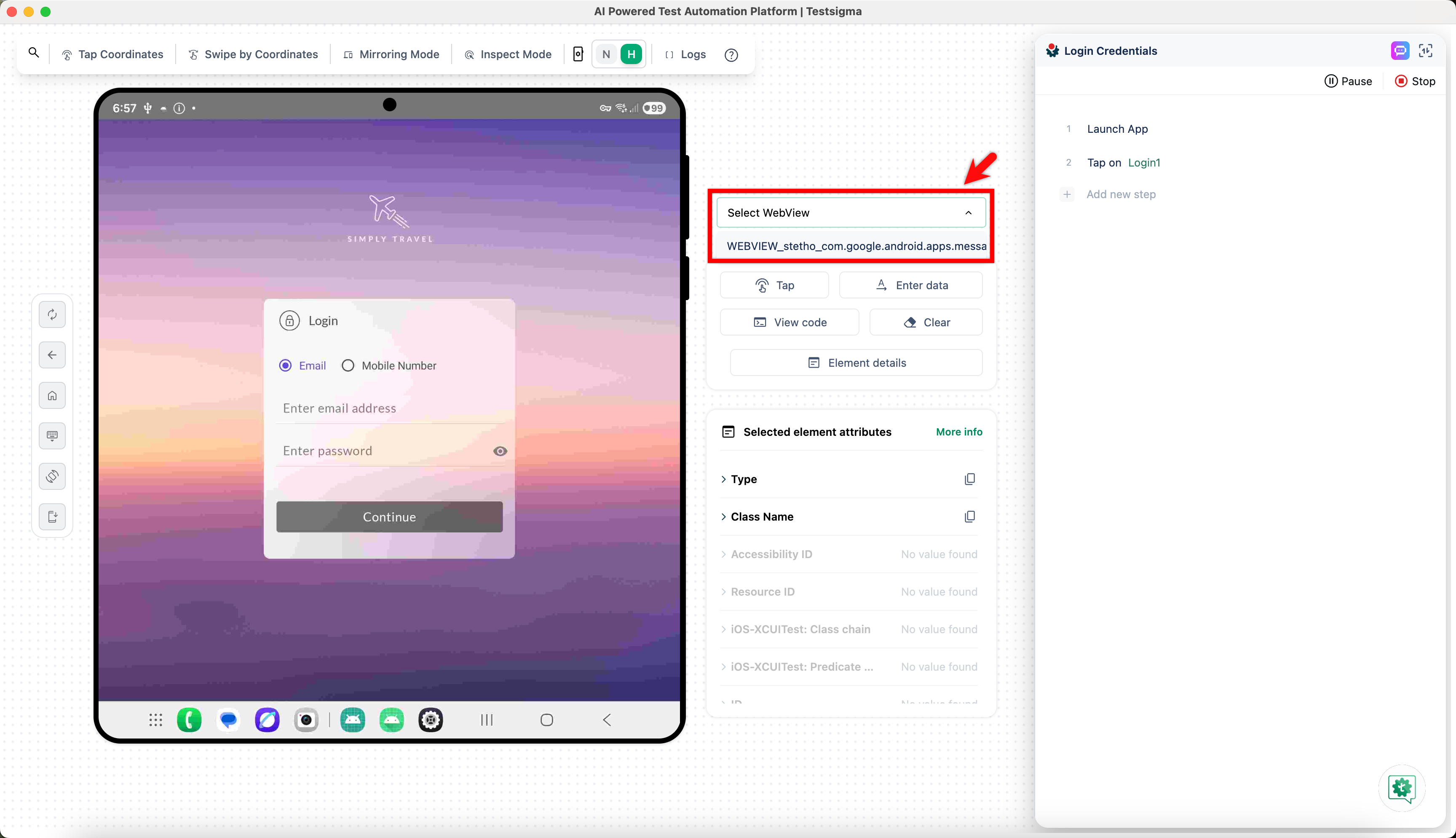
Section titled “Record inside a WebView”A blank screen with no selectable elements usually means a hybrid application rendering a WebView.
Refresh the page first. If the screen is still blank, click H in the recorder panel and select the WebView to switch context. Each switch is recorded as its own step:
Switch to Webview contextwhen you enter the WebViewSwitch to Native App Contextwhen you return to the native applicationSwitch to context with name WEBVIEW_6890.1when you pick a named view
Find the app package and activity
Section titled “Find the app package and activity”Testsigma needs 2 details to locate an Android application and the page to test: the App Package Name, which identifies the app, and the App Activity Name, which identifies the screen. An activity is to an Android app what a page is to a website.
Android SDK has to be installed and set up on the machine.
-
Connect the device or emulator, and open the app you want to inspect.
-
Run
adb devicesin a terminal to confirm the device is listed. -
Read the currently focused app:
- macOS and Linux:
adb shell dumpsys window | grep -E 'mCurrentFocus' - Windows:
adb shell dumpsys window | find "mCurrentFocus"
- macOS and Linux:
-
The output gives both values. For WhatsApp,
com.whatsappis the package name andcom.whatsapp.HomeActivityis the activity name.
Install a specific app version
Section titled “Install a specific app version”A test case can install a particular build rather than the latest one, which is how you test across app versions.
-
Go to Test Data > Uploads, click the ellipsis icon
⋮against the uploaded file, and click Upload New Version. -
Click Browse File, upload the new build, and set its name and version.
-
In the test case, add the
Install the app name app-name and version app-versionNLP. -
Click app-name and select the build, then click app-version and select the version.
-
Click Create Step.
Frequently asked questions
Section titled “Frequently asked questions”Why do local runs on a real device fail with a permission error?
Section titled “Why do local runs on a real device fail with a permission error?”Device-level settings are off by default, and which ones differ by brand.
- Realme and Oppo: turn on Developer Options, USB Debugging, and Disable Permission Monitoring
- OnePlus: the same 3, plus configure or disable battery optimization for the app under test
- Xiaomi: turn on Developer Options, USB Debugging, and USB Debugging (Security Settings), and turn off MIUI Optimization
Why does Scroll to Element fail?
Section titled “Why does Scroll to Element fail?”The NLP acts only on an element already rendered in the current viewport. When the element exists in the app but has not scrolled into view, the step has no target.
Can I record on an emulator?
Section titled “Can I record on an emulator?”Yes. Start the emulator first, then the Testsigma agent, then select Local Devices and confirm the emulator appears under Test Machine. An emulator started after the agent is not detected.
Why does app data reset when I restart the app mid-session?
Section titled “Why does app data reset when I restart the app mid-session?”Closing and relaunching an Android app in the same session resets its data, which iOS does not do. The difference comes from the automation capabilities of the two platforms. The fix is a desired capability set in Test Environment Settings. See Desired capabilities.
Why does the mobile test recorder fail to start?
Section titled “Why does the mobile test recorder fail to start?”Check the recorder’s logs first, since they name the actual cause. A common one on Android is the activity name in the manifest not matching the real splash screen activity, so the recorder launches the wrong screen. Find the real one with ADB, as in Find the app package and activity.
Why are my resource IDs breaking in other environments?
Section titled “Why are my resource IDs breaking in other environments?”The package name in a resource ID changes between builds. Store only the <id_value> portion and let Testsigma append the package name of the selected app.
Was this page helpful?
Thanks for the feedback.