

Xray
Xray integration links Xray artifacts to their Testsigma counterparts: test to test case, test set to test suite, test plan to test plan.
Prerequisites
- A working Jira integration.
- Your Jira Account URL, plus Xray’s Client ID and Client Secret.
Connect Xray
Section titled “Connect Xray”-
Open integrations: navigate to Settings > Integrations.
-
Enable Xray: turn on the toggle on the Xray widget.
-
Enter credentials: in the Xray Details dialog, enter the Jira Account URL, Client Id, and Client Secret, then click Save & Enable.
You can generate the Client ID and Client Secret in Xray. See Xray’s Global Settings: API Keys.
Link artifacts
Section titled “Link artifacts”Each Xray artifact links to one Testsigma artifact:
| Xray | Testsigma | Where to link |
|---|---|---|
| Test | Test case | Test case details page |
| Test set | Test suite | Test suite details page |
| Test plan | Test plan | Test plan details page |
The Xray ID is the key at the end of the artifact’s Jira URL. For https://testserver.atlassian.net/browse/PT-10, the ID is PT-10.
Link a test case
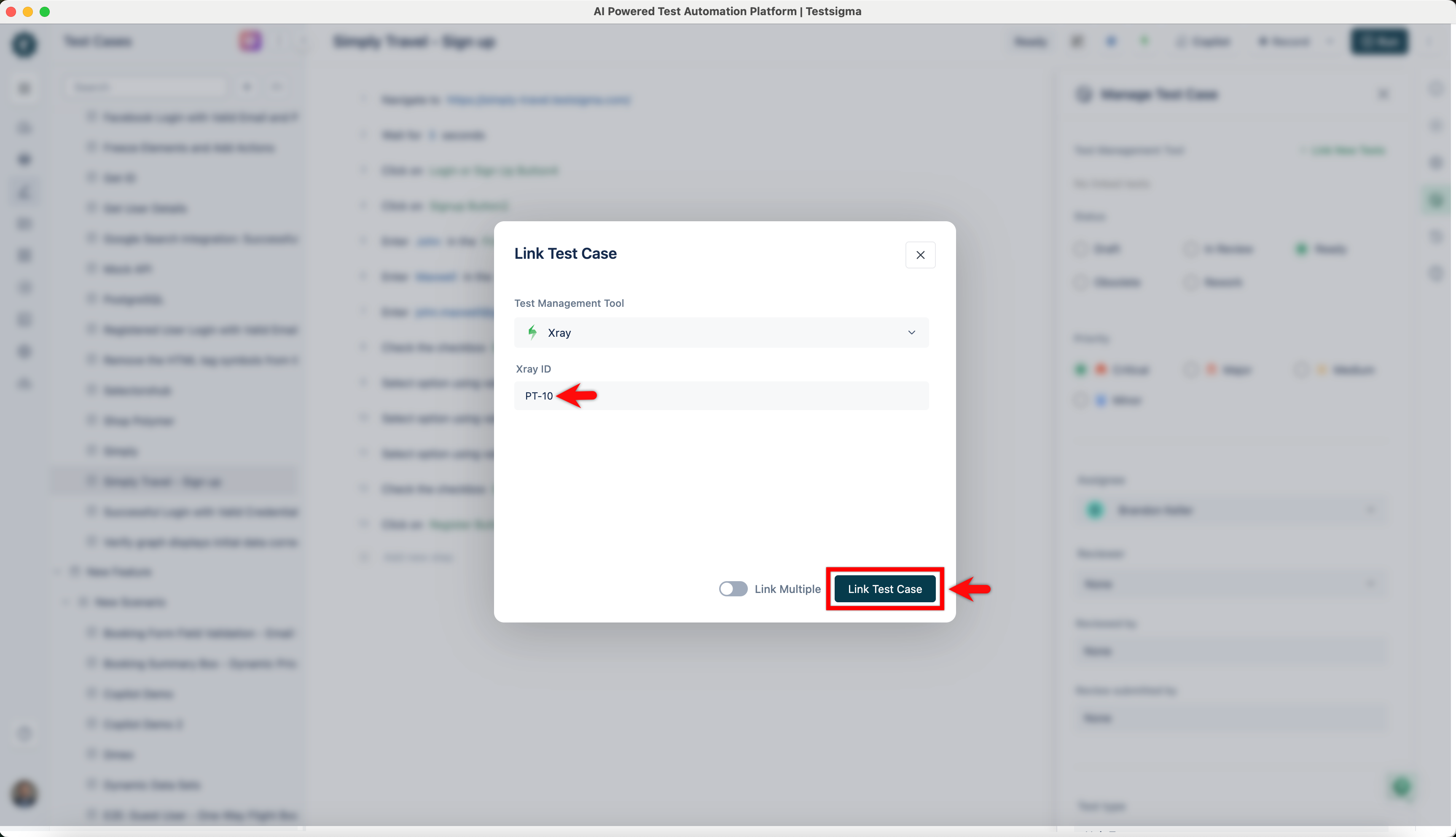
Section titled “Link a test case”Get the ID of the test from Xray. Open the matching test case details page in Testsigma, enter the Xray ID, and click Link Test Case.
Link a test set
Section titled “Link a test set”Get the ID of the test set from Xray (for example, PT-11). Open the matching test suite details page, enter the Xray ID, and click the link button.
Link a test plan
Section titled “Link a test plan”Get the ID of the test plan from Xray (for example, PT-12). Open the matching test plan details page, enter the Xray ID, and click Link Test Plan.
When you execute the test plan in Testsigma, the execution status updates for the linked test sets in Xray.
Was this page helpful?
Thanks for the feedback.