

Recorder extension
The Testsigma Recorder is a browser extension that turns your interactions with a web application into test steps. It captures clicks, text entry, and navigation, writes each one as an NLP step in plain English, and learns the elements it touches along the way.
The extension is needed for recording web and mobile web test steps and for capturing elements. Testsigma Copilot loads it too, through the profile mode set under Settings > Preferences > Copilot & Recorder Extension; see Set up a browser profile for recording. The Android and iOS recorders are separate and do not use it.
Install the extension
Section titled “Install the extension”- Go to the Testsigma Recorder listing on the Chrome Web Store.
- Click Add to Chrome.
- Click Add extension on the permission prompt.
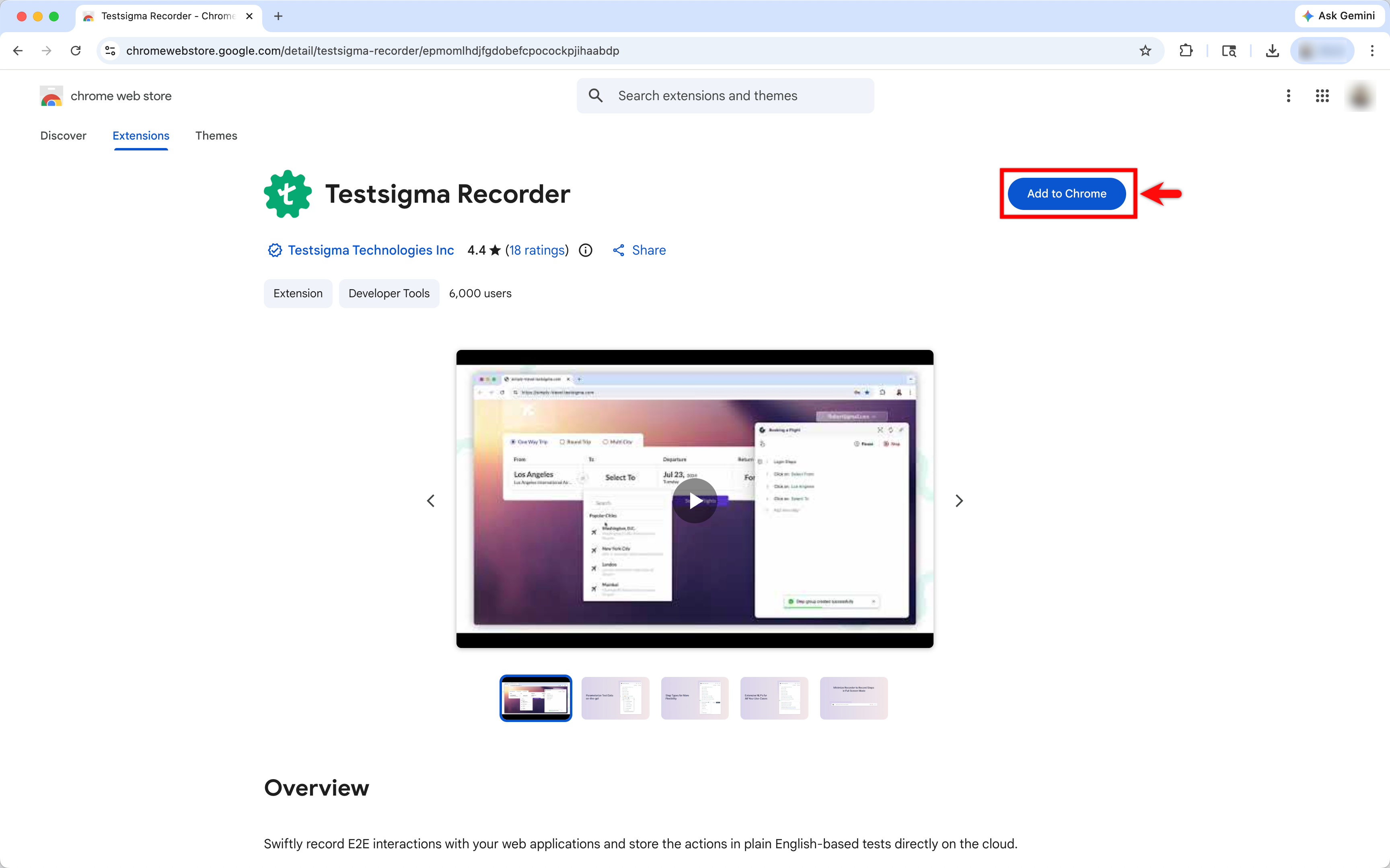
A confirmation message appears when the installation finishes.
To record in incognito mode, which keeps no browsing history or cookies, right-click the Testsigma extension icon, select Manage extension, and turn on Allow in Incognito.
- Go to the Testsigma Recorder listing on Edge Add-ons.
- Click Get.
- Click Add Extension on the permission prompt.
A confirmation message appears when the installation finishes.
To record in InPrivate mode, which keeps no browsing history or cookies, go to Extensions, click the ellipsis icon (⋯) on the Testsigma extension, select Manage Extension, and turn on Allow in InPrivate.
- Open the Testsigma Recorder listing on Firefox Add-ons.
- Click Add to Firefox.
- Click Add on the permission prompt.
Firefox needs 2 more settings before the recorder can read every page.
Allow the extension to access data:
- Click the Extension icon and go to Manage extensions.
- Click the menu icon on Testsigma Recorder and select Manage.
- Open the Permission tab and turn on Access your data for all websites.
Relax tracking protection:
- Click the menu icon and select Settings.
- Go to Privacy & Security and select Custom under Enhanced Tracking Protection.
- Select Cookies from unvisited websites in the dropdown next to Cookies.
- Click Reload All Tabs.
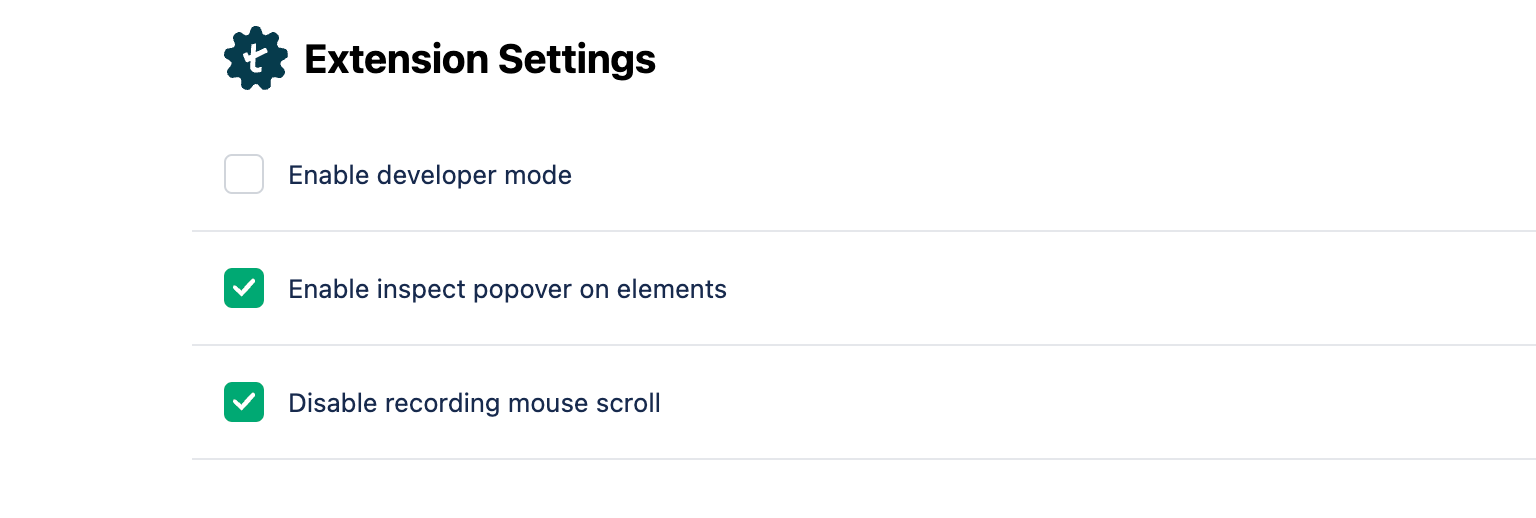
Extension options
Section titled “Extension options”Three options change how the recorder behaves, and the route to them differs by browser:
- Chrome: go to Extensions > Manage Extensions, click Details on the Testsigma widget, then click Extension Options.
- Firefox: go to Extensions > Extension Settings > Manage Extensions, click the ellipsis icon (⋯) on Testsigma Recorder Extension Details, and select Preferences.
| Option | What it does |
|---|---|
| Enable Inspect Popover on Elements | Highlights each element with a green rectangle while you record, so you can see what you are about to select. On by default |
| Disable Recording Mouse Scroll | Stops scroll NLPs being added automatically, which keeps a test case clean on a static application with no infinite loading. On by default |
| Enable Developer Mode | Turns on the browser’s developer mode for inspecting elements, troubleshooting locators, and examining application behavior |
Freeze an element to add a verification or action
Section titled “Freeze an element to add a verification or action”Freezing holds an element still so you can act on it without repeating the workflow that got you there. Use it to add a verification, such as checking text, an attribute, or a value, or to add a click, an entry, or a selection.
-
Open a test case and click Record.
-
Enter the URL of the site to record in the new window.
-
Hover over the element and press Ctrl + Shift + F on Windows, or Command + Shift + F on macOS.
-
Click the Show More icon.
-
Expand the menu and select the verification or action you want.
-
Supply the test data value if prompted.
-
Click Stop when you have finished recording.
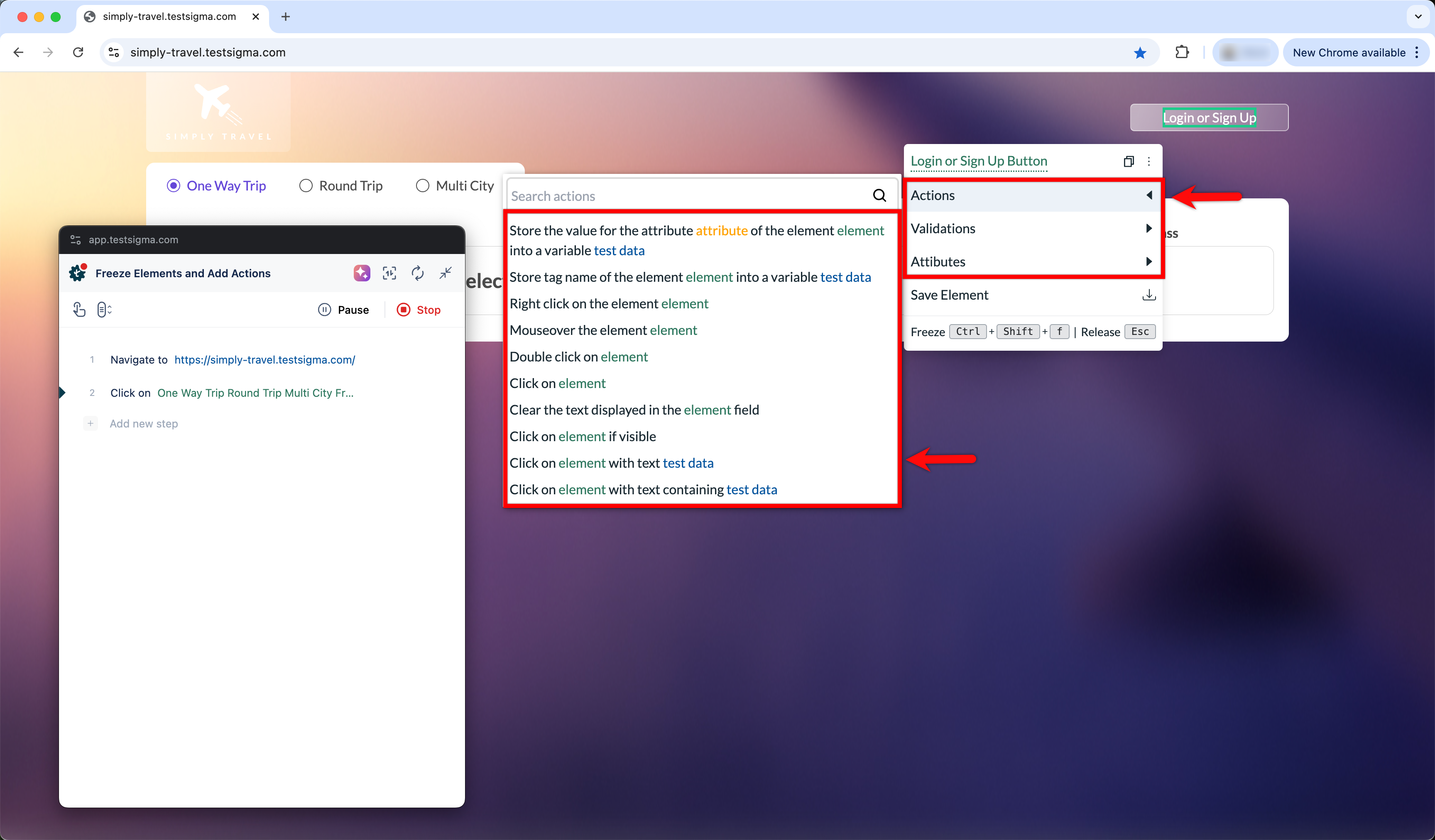
The recorded steps appear on the Test Case Details page.
Exclude attributes and classes
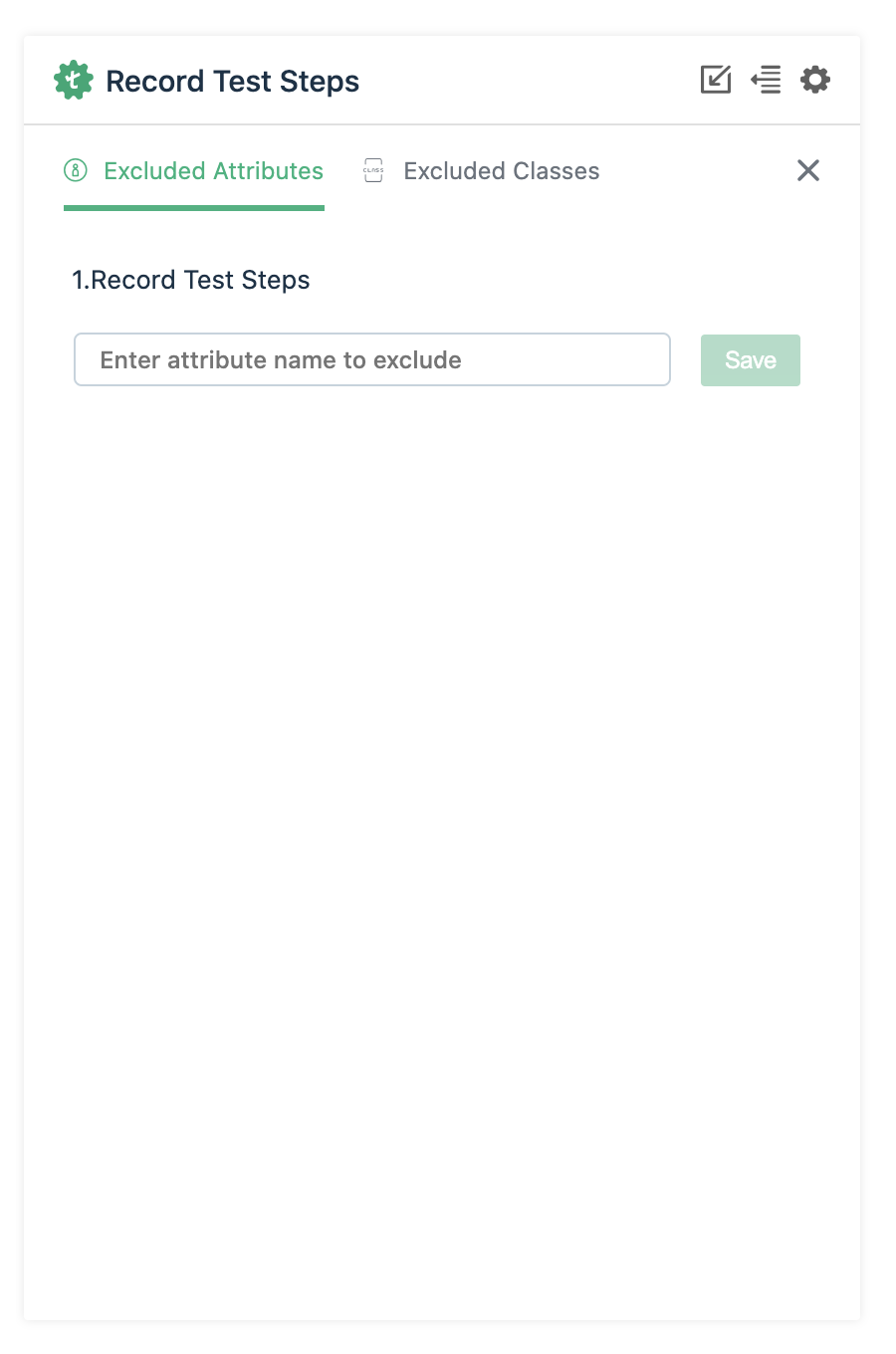
Section titled “Exclude attributes and classes”An element captured on an attribute that changes soon afterwards produces a locator that stops matching. Excluding those attributes and classes keeps captured elements stable.
-
Start recording a test case.
-
Hover over the settings button in the recorder.
-
Click Excluded Attributes.
-
Add the attributes and classes to leave out while recording.
Frequently asked questions
Section titled “Frequently asked questions”Why does Testsigma need a browser extension?
Section titled “Why does Testsigma need a browser extension?”Modern web applications are built from generic HTML elements such as div and span, so a test needs locators that identify each element within the page structure. The extension reads that structure while you record, which is how Testsigma captures usable locators.
Why does the recorder show a blank screen with no elements?
Section titled “Why does the recorder show a blank screen with no elements?”On web, check the extension is installed, then open Chrome > Settings > Privacy and security > Third-party cookies and turn on Block third-party cookies in Incognito mode. On a hybrid mobile application the blank screen is a WebView instead, which is a different problem.
Can I record without installing anything?
Section titled “Can I record without installing anything?”Not for web. Copilot also loads the recorder extension, though it can manage the browser profile that holds it for you. Recording on Android and iOS uses the streamed device recorder rather than a browser extension.
Was this page helpful?
Thanks for the feedback.