

YouTrack
YouTrack integration pushes bugs from a run result straight into a YouTrack project. Screenshots, annotations, and step context travel with the ticket. Connecting takes your account URL and a permanent API token.
Prerequisites
- Your organization’s YouTrack Account URL and a YouTrack API Key (permanent token).
Create the API token
Section titled “Create the API token”-
Open your profile: in YouTrack, go to your profile.
-
Start a token: go to Account Security and click New Token.
-
Create it: in New Permanent Token, enter the Name and Scope, then click Create.
-
Copy it: click Copy Token.
Connect YouTrack
Section titled “Connect YouTrack”-
Open integrations: go to Settings > Integrations.
-
Enable YouTrack: turn on the toggle on the Youtrack widget.
-
Enter the details: in the Youtrack Details dialog, enter the Organization URL and Access Key (your token), then click Save & Enable.
Report a bug
Section titled “Report a bug”-
Open the result: go to Run Results and open the Test Case Result where you want to add a bug.
-
Start the report: click Report Bug.
-
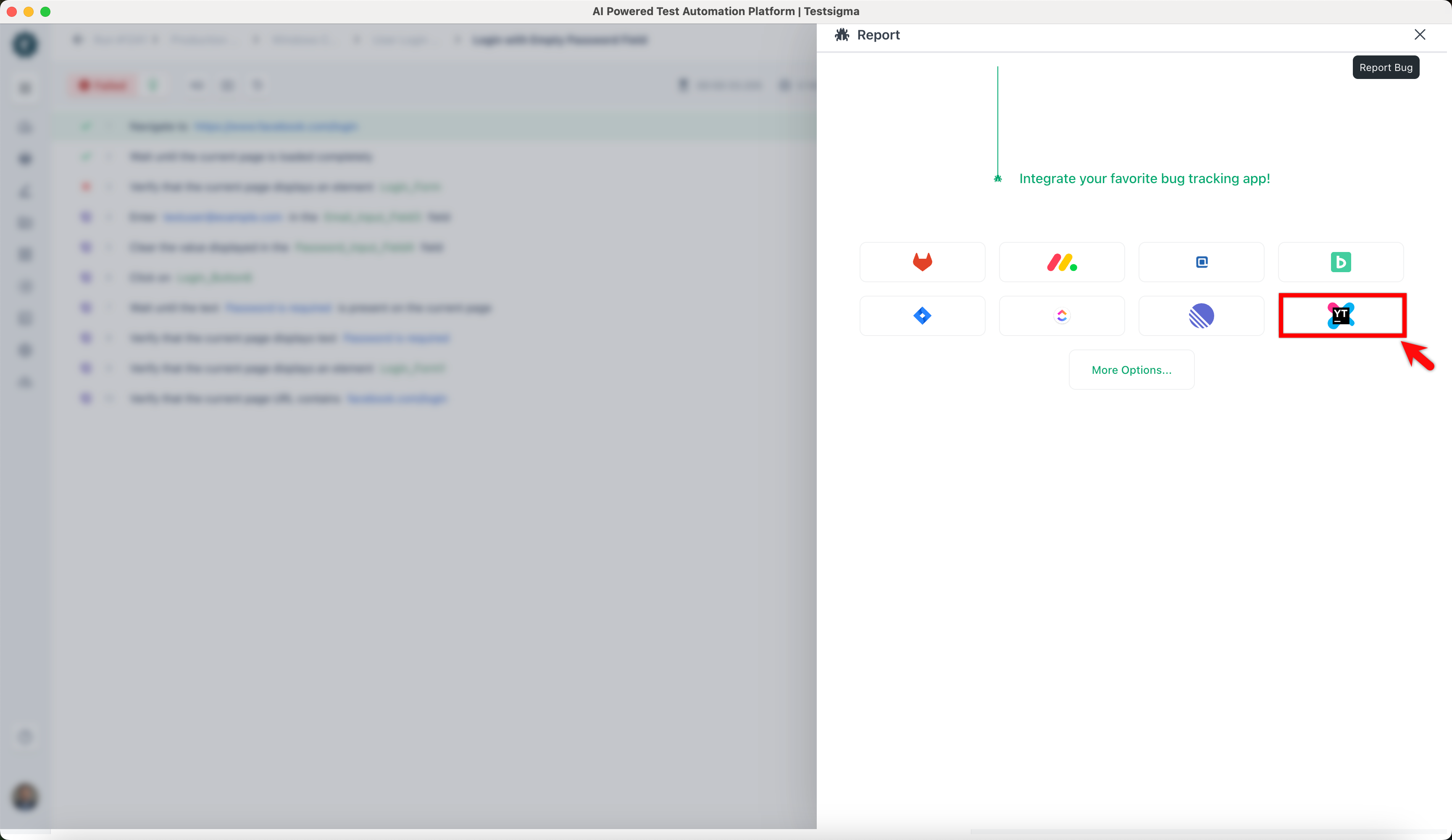
Pick YouTrack: in the Report overlay, click the Youtrack icon.
-
File it: review the details and click Report Bug.
When the bug is created, Testsigma automatically adds test result context to the YouTrack issue, including the test execution video and step screenshots.
Was this page helpful?
Thanks for the feedback.