

Agentic Learning
Agentic Learning explores your application to turn a generated test case into a working one. Where Run with Copilot executes the steps you already have, Agentic Learning finds the steps you are missing and verifies each one live. Learning runs inside a Testsigma Copilot session.
| Question | Agentic Learning | Run with Copilot |
|---|---|---|
| What is it for? | Discovering and correcting the test flow | Executing and validating the generated steps |
| How does it work? | Explores the application to find missing or incorrect steps | Runs the defined steps to check they work |
| What does it focus on? | The accuracy of the test flow | Reliable step execution |
| When does it run? | During generation and learning | After generation, before you save |
| What do you do? | Little. It runs mostly on its own | Debug and validate interactively |
| What do you end up with? | A refined, complete test flow | A test case ready to automate and execute |
The agent executes the manual steps of a generated test case one at a time, observes how the application responds, and writes the automated steps that reproduce each action. It adds steps the manual test case does not state, such as dismissing a sign-in dialog or verifying that the expected page loaded. It corrects steps that deviate from the real user journey, and retries a step with an alternative action when the first attempt fails.
Use it when the generated flow is incomplete, when steps are missing or out of order, or when the navigation path through the application is unclear.
| Stage | What happens | What you do |
|---|---|---|
| Launch | You choose the test lab, environment, and browser or device. The application opens, locally or in the cloud, and the Live Editor opens beside it with the manual steps preloaded | Configure and launch |
| Learn | The agent executes each manual step, observes the application, and generates the automated steps for it. The Analyzer diagnoses failures as they happen | Monitor the run, and guide the agent when it asks |
| Review | The steps are now in an ordinary Copilot session | Run, inspect, and change steps |
| Accept | You keep or discard the result and choose where the test case is saved | Accept or reject |
A session runs on Local Devices through Testsigma Terminal or on Testsigma Lab, the same as any Copilot session. See Choose where the session runs. It consumes an agentic session rather than a Copilot parallel.
Choose how decisions are made
Section titled “Choose how decisions are made”At several points in a run the agent has to make a call: which of two matching elements to use, how to get past a screen it did not expect, or whether to apply a fix the Analyzer suggested. The mode selector in the message field of the Live Editor decides who makes it.
| Mode | What the agent does at a decision point | When to use it |
|---|---|---|
| Auto (default) | Picks the recommended option and continues without waiting | Converting a batch of test cases, or any run you do not want to sit with |
| Manual | Stops, shows its recommendation, and waits for you to choose | Flows where you want to approve each choice, or the first run on a new application |
Change the mode before you click Start learning, or at any pause during the run.
Before you start
Section titled “Before you start”- Turn on Generator (Live App) under Settings > Preferences > Agentic AI > Generator.
- Generate the test case with the Generator agent so it has manual steps. Agentic Learning learns from them, so review the Manual Steps tab first and use Edit or Refine manual steps if they need changes. See Generate the test cases.
- For Local Devices, start Testsigma Terminal and confirm it is online. For Android or iOS on a local device, connect the device to Testsigma as well.
- Create the environment the test case will use, with any variables it needs.
Launch a session on web
Section titled “Launch a session on web”-
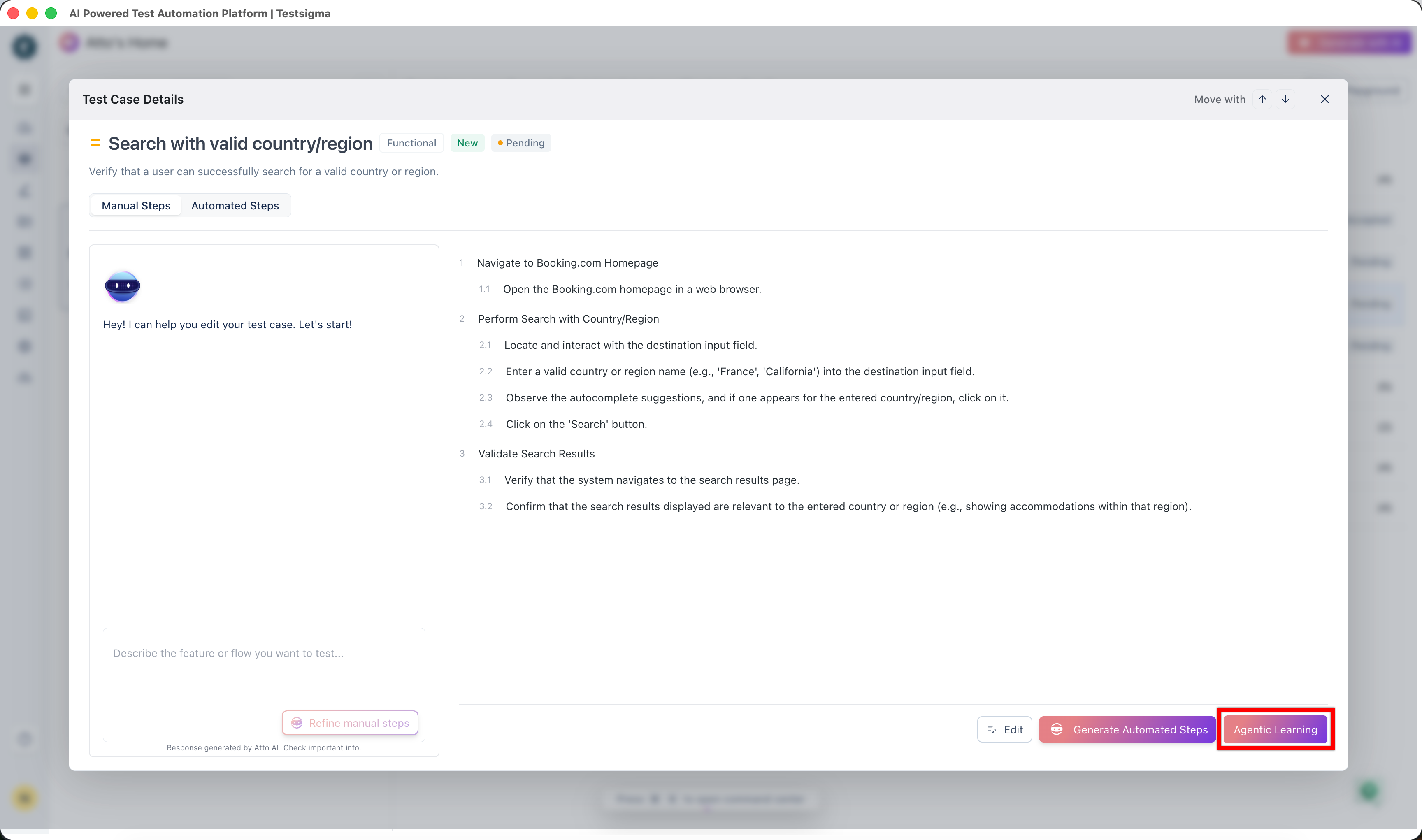
In QI Home, expand a scenario in the generated test case list and select a test case. The Test Case Details dialog opens on the Manual Steps tab.
-
Click Agentic Learning. The Agentic Learning overlay opens.
-
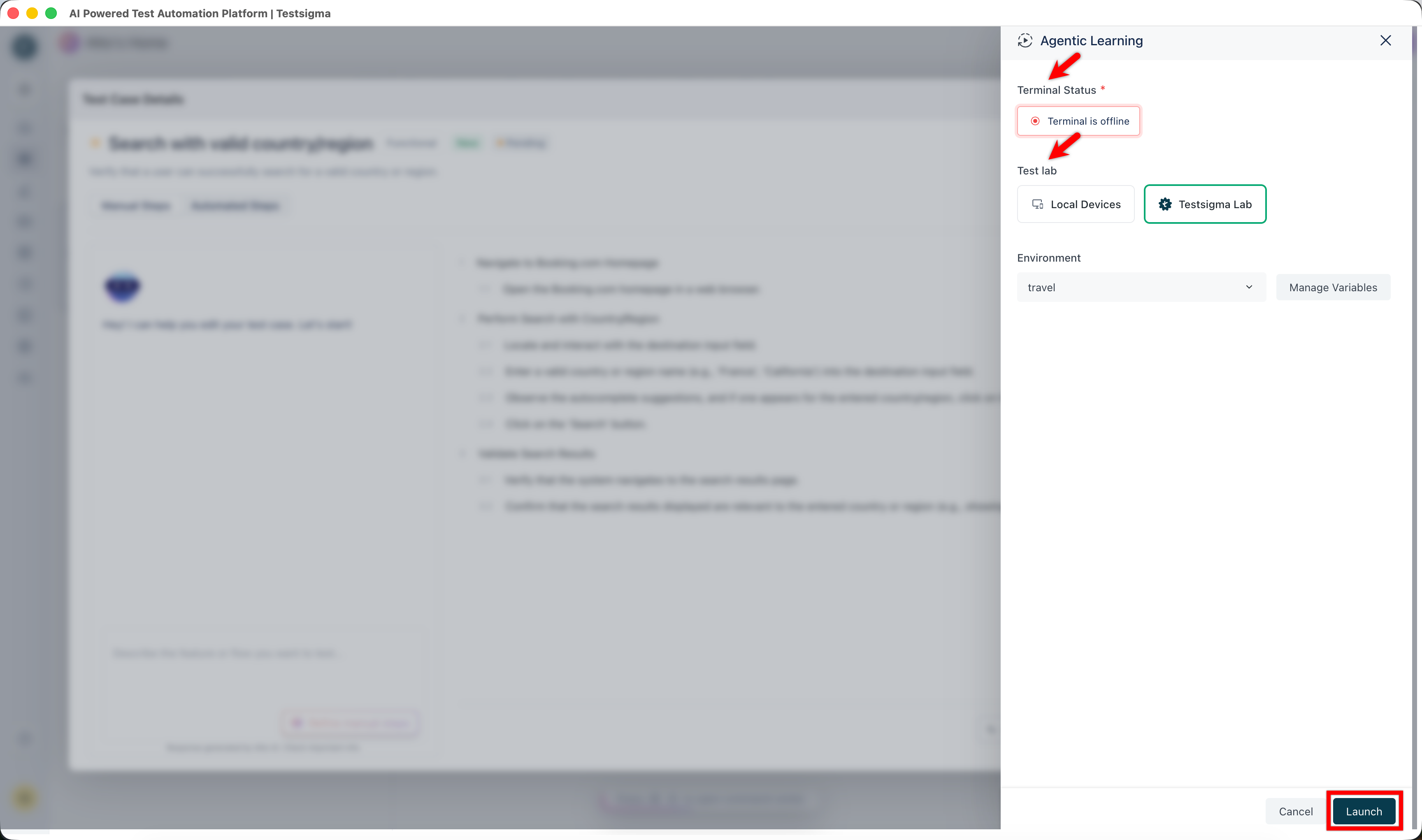
Under Test lab, select Local Devices or Testsigma Lab.
-
(Optional): In the Environment dropdown, select the environment for the session. Click Manage Variables to review or change its variables.
-
For Local Devices, select the Browser. The field reads Checking terminal… until the Terminal reports the browsers on your machine.
-
Click Launch.
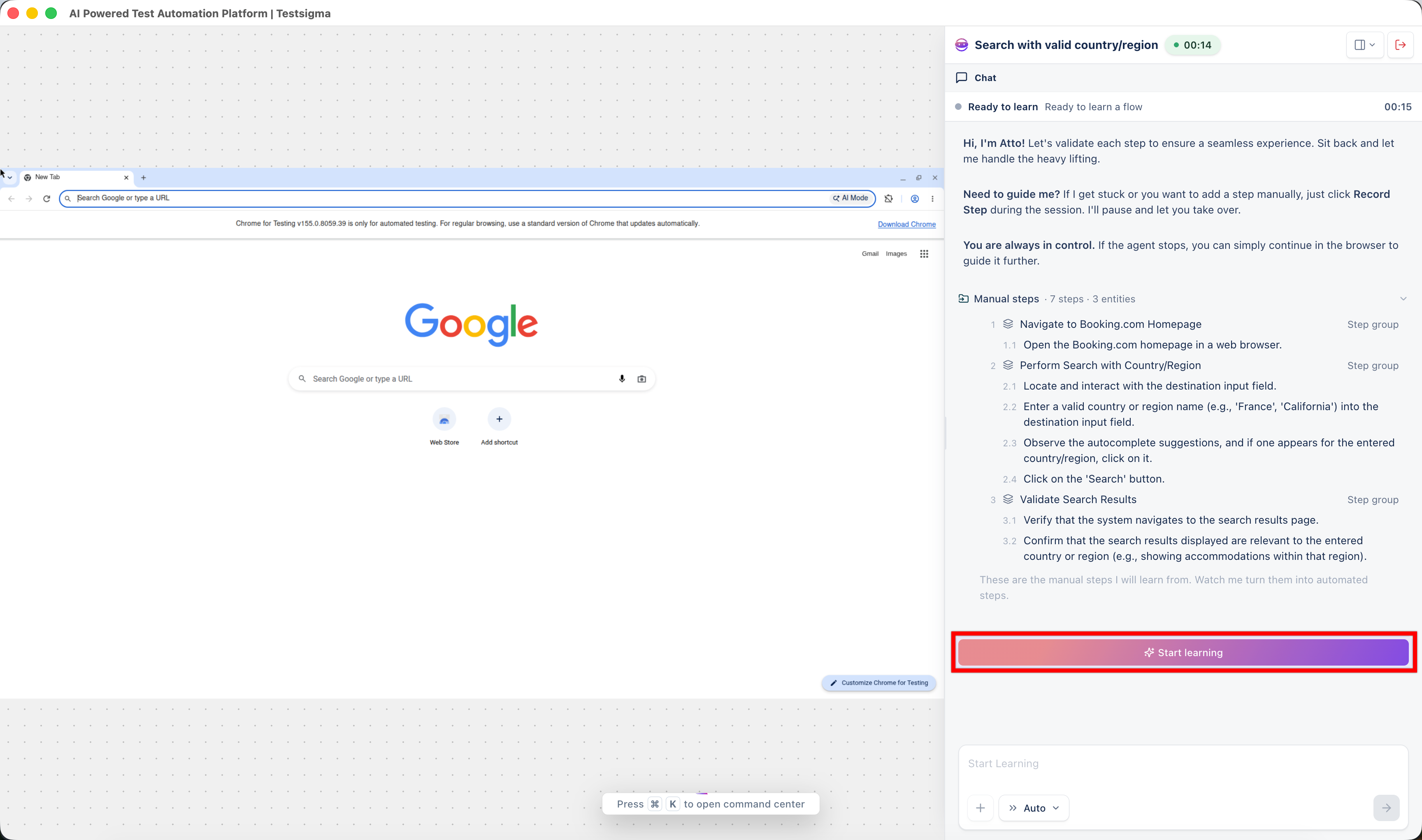
On Local Devices, a Chrome browser opens on your machine. On Testsigma Lab, a new tab opens with Spinning up your cloud browser while the cloud VM is provisioned, and the cloud browser appears in the tab when it is ready.
The Live Editor opens beside the browser as a Chat panel. The header shows the test case name and the session timer. The panel lists the manual steps under Manual steps with their step and entity counts.
-
Select Auto or Manual in the message field.
-
Click Start learning. The agent executes the first manual step in the browser.
Launch a session on Android or iOS
Section titled “Launch a session on Android or iOS”A mobile session runs on a device connected to your machine or on a cloud device from Testsigma Lab. The panel, controls, and Analyzer behave the same as on web.
-
In QI Home, expand a scenario and select a mobile test case. The Test Case Details dialog opens.
-
Click Agentic Learning.
-
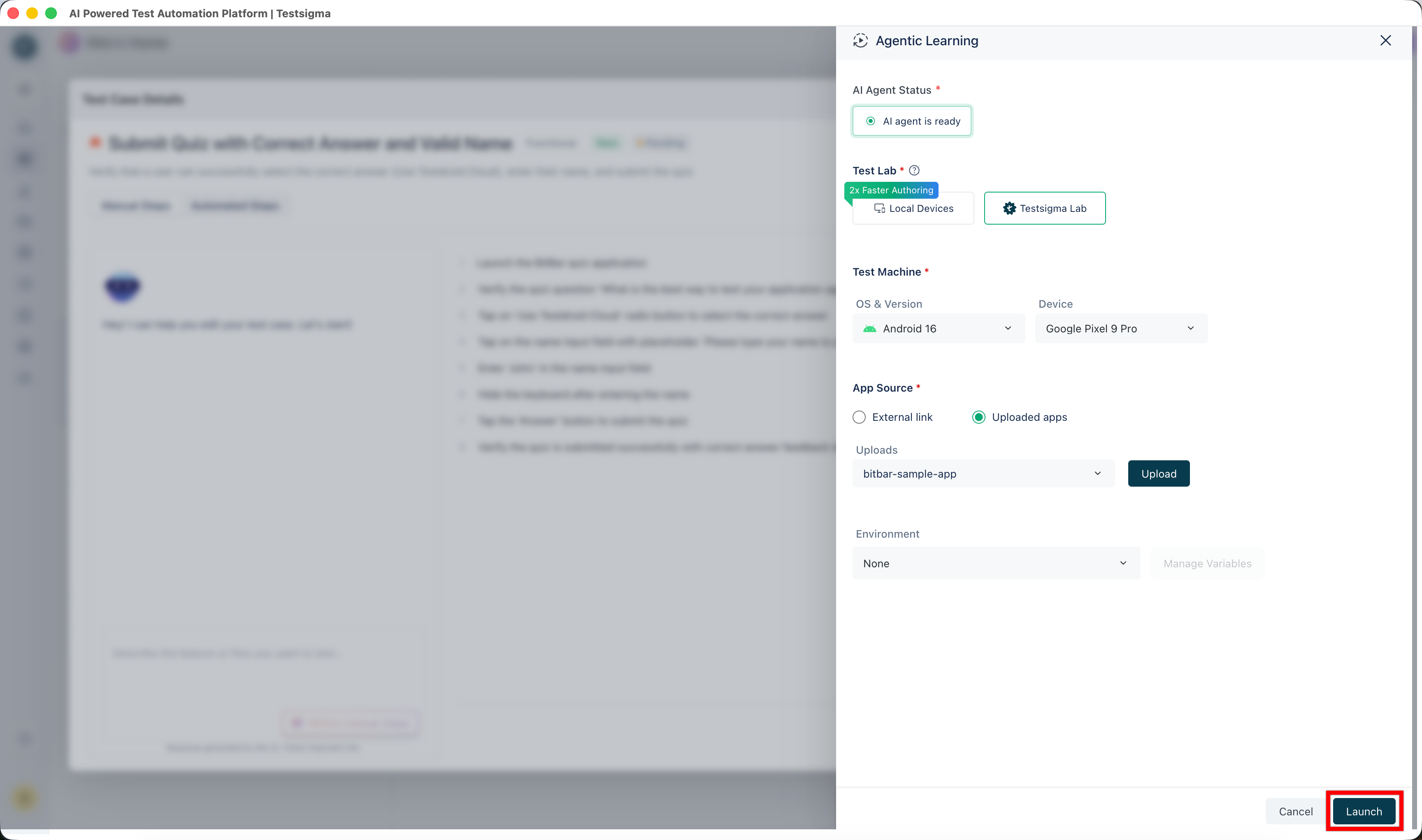
Under Test lab, select Local Devices or Testsigma Lab.
-
Under Test Machine, select the OS & Version and the Device.
-
Under App Source, select External link for a publicly accessible URL, or Uploaded apps to pick an app from Uploads. Click Upload to add a new build.
-
(Optional): In the Environment dropdown, select the environment for the session. Click Manage Variables to review or change its variables.
-
Click Launch. The device screen opens beside the Live Editor.
-
Select Auto or Manual, then click Start learning.
Follow the session
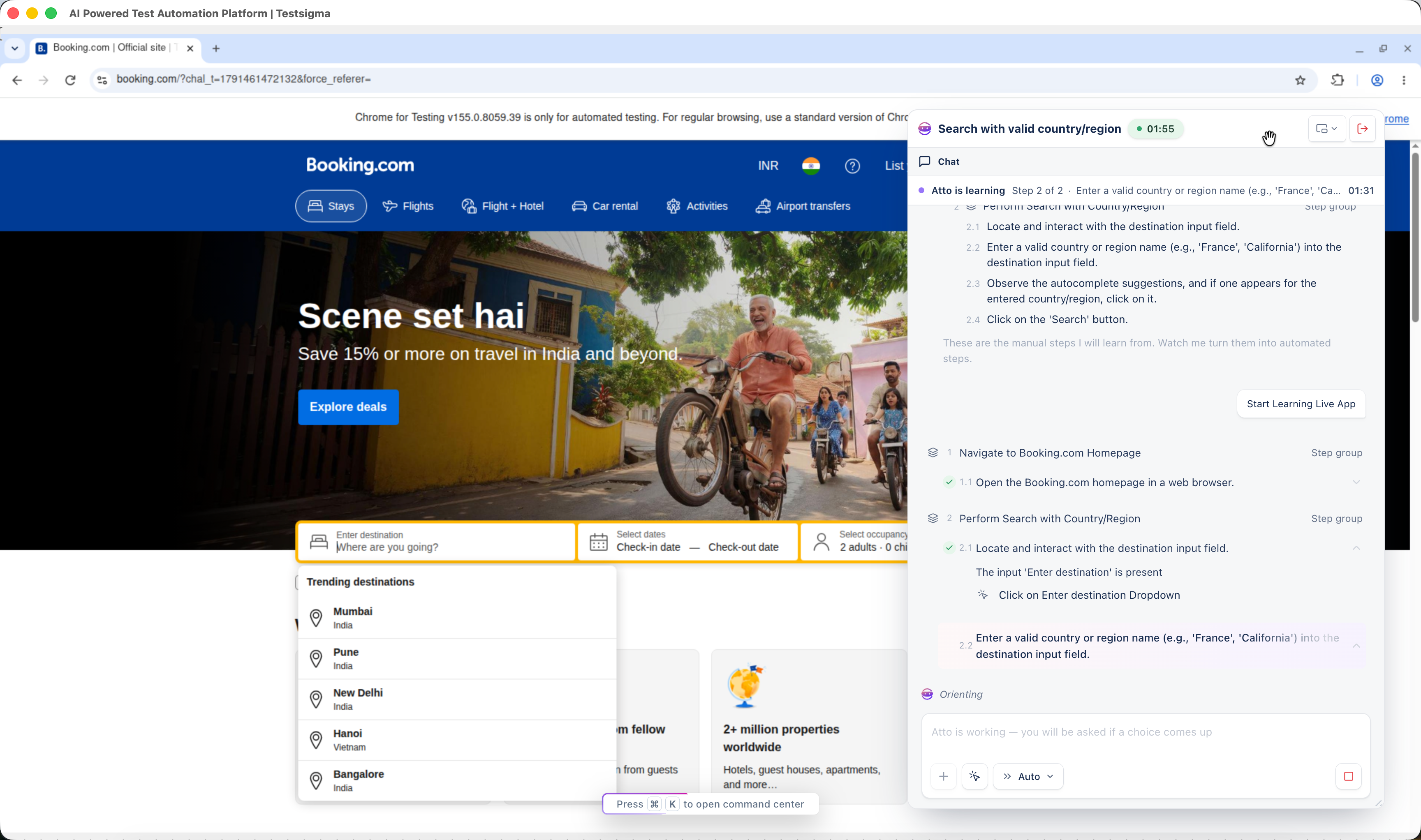
Section titled “Follow the session”Each manual step gets a check mark when it is learned, and the automated steps the agent produced for it appear nested beneath it. One manual step often becomes several automated steps. A manual step to navigate to the homepage can become a navigate step, a step that dismisses a sign-in dialog, and a step that verifies the page URL.
The browser or device view beside the panel is a live stream, so what you see matches the step being executed. If you pause the run and interact with the application, your actions register against the current screen.
When a step fails
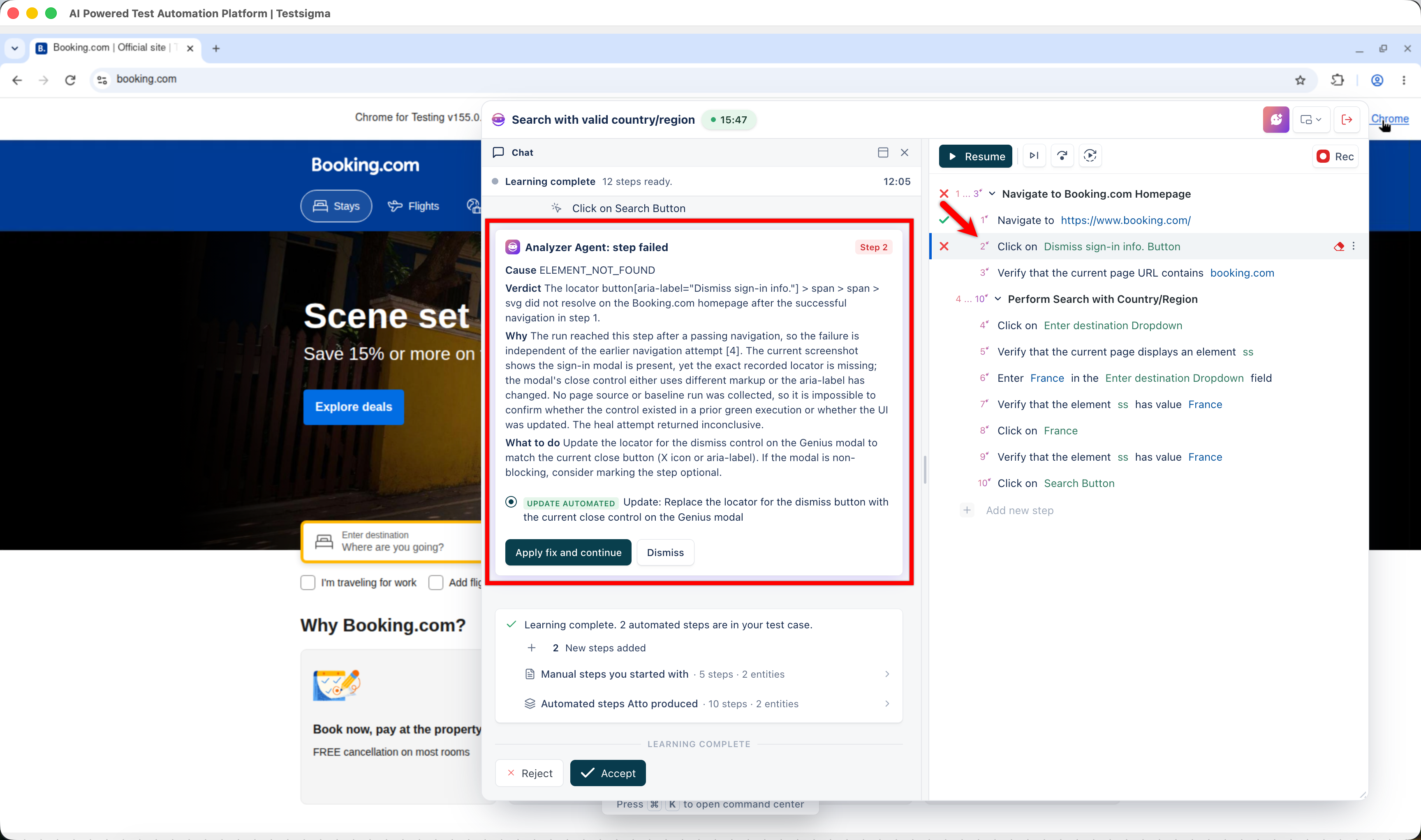
Section titled “When a step fails”When a step fails, the Analyzer runs on its own and posts Analyzer Agent: step failed in the chat, with the cause, a verdict, the evidence, and what to do. See Diagnose a failed step.
In Auto mode, the agent applies the recommended fix and continues the run. In Manual mode, it waits for you to apply it. Either way, the applied change updates the element and the step in the test case.
Guide the agent
Section titled “Guide the agent”- Continue in the application. If the agent stops, perform the next action yourself in the browser or on the device. The agent resumes from there.
- Record a step manually. If the agent gets stuck, such as on an OTP screen, a custom date picker, or a third-party checkout, click Record Step. The agent pauses, you perform the actions in the application, and the recorded steps are added to the test case. The agent continues from the last recorded step.
- Answer a choice. In Manual mode, the agent asks you in the chat whenever it cannot decide between two paths and marks the option it recommends. In Auto mode, the message field reads QI is working, you will be asked if a choice comes up, and a question appears only when there is no recommended option.
- Minimize the panel. Click the minimize icon in the panel header to work directly in the application. Click it again to return to the step list. The session state is kept.
- Stop the session. Click the stop button in the message field to end learning.
Review the result
Section titled “Review the result”When every manual step has been learned, the header changes to Learning complete with the number of steps ready. The panel reports how many automated steps are in the test case and how many new steps the agent added, and groups them as Manual steps you started with and Automated steps QI produced, each with its step and entity counts.
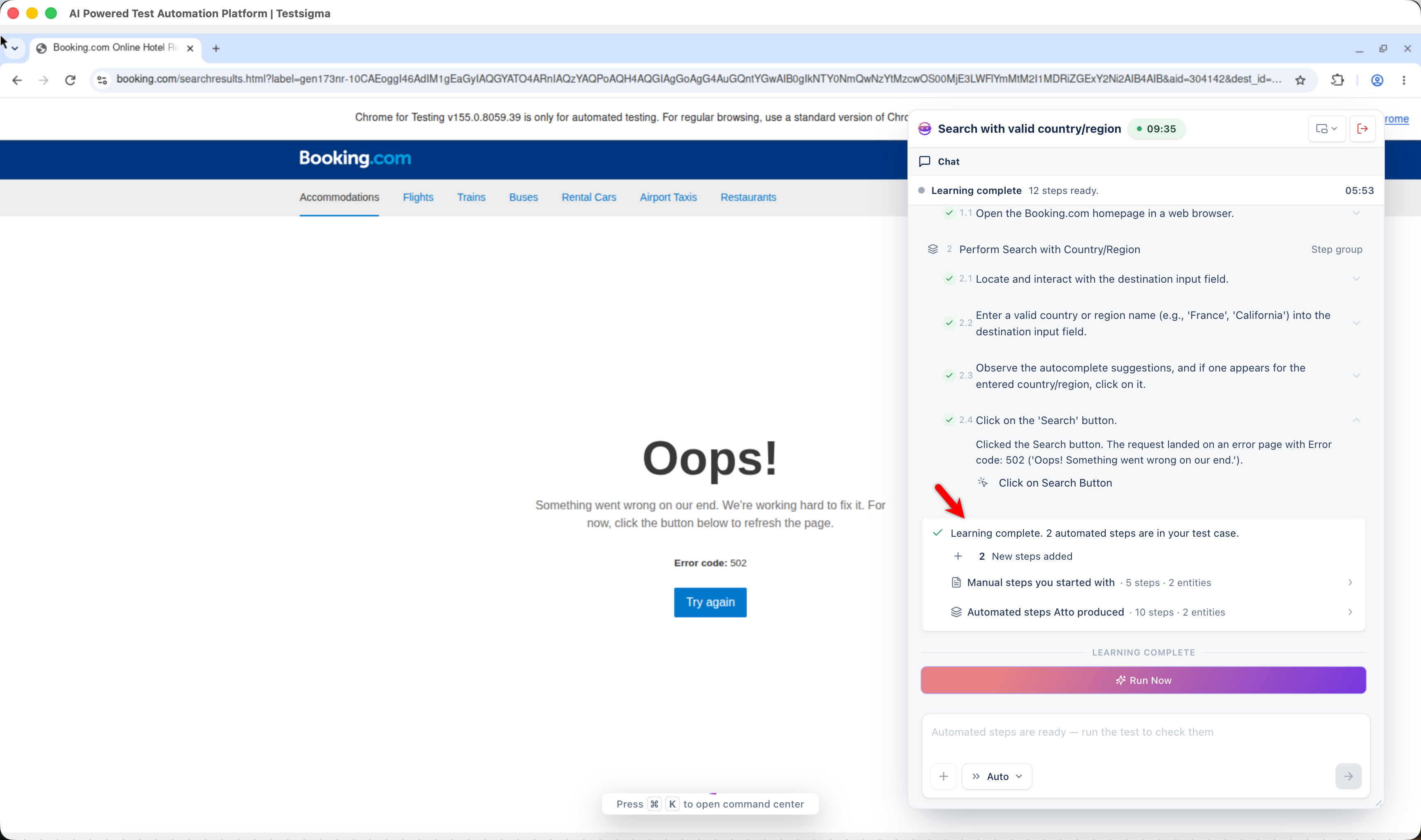
From here the session is an ordinary Copilot session. Running the steps is plain execution, with no agent involved:
- Run them, pause on a step, or restart from the debug toolbar. See Debug a test case.
- Change, add, record, or bulk-update steps. See Record and edit steps.
- Diagnose a failed step and apply a fix. See Apply the suggested fix.
Accept or reject the test case
Section titled “Accept or reject the test case”Click Reject to discard the generated steps. The session ends and the Test Case Details dialog opens again with the manual steps unchanged, so you can refine them and start another run.
To keep the test case:
-
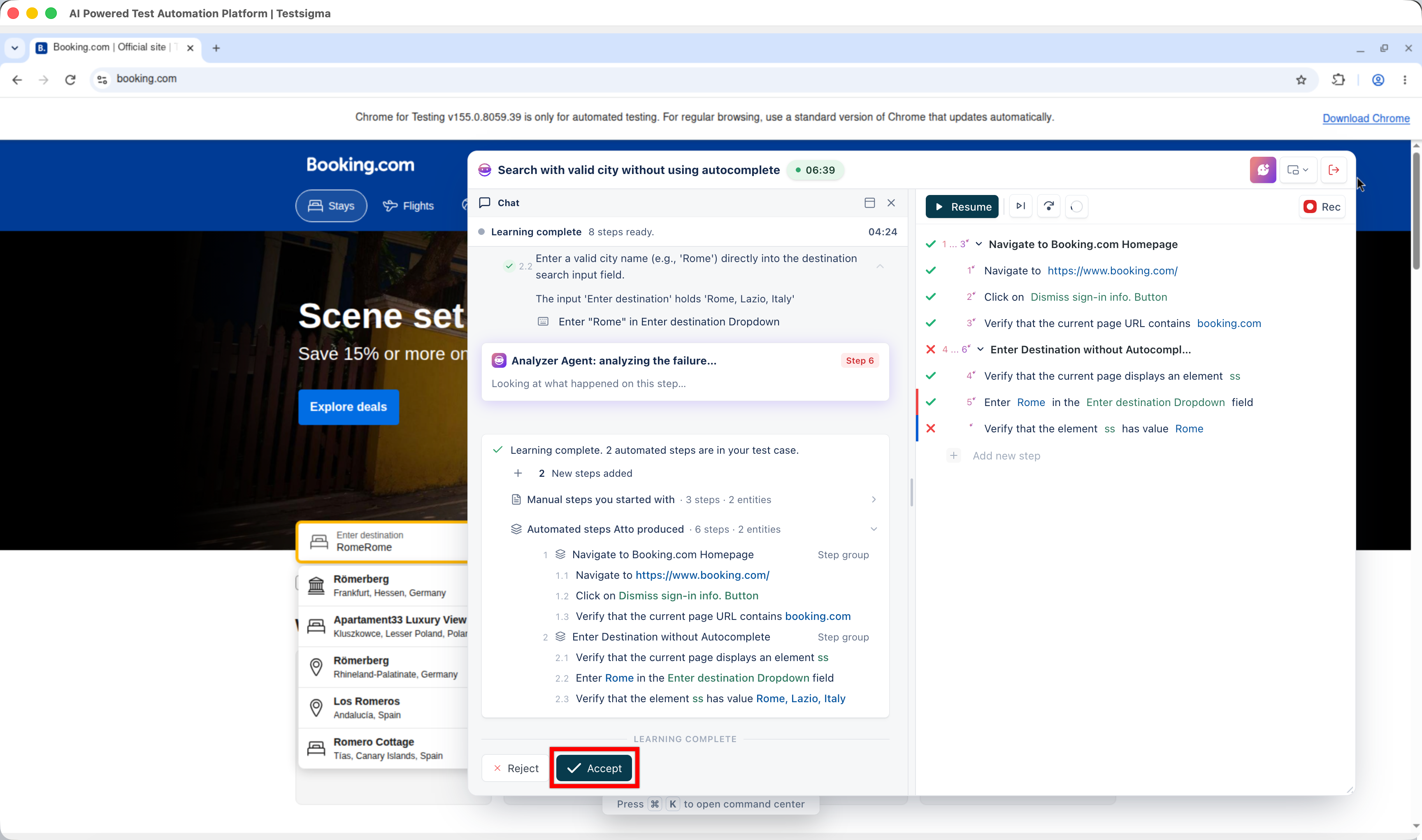
Click Accept.
-
In Select location, select the folder for the test case. Target Folder shows the selected folder.
-
Click Confirm.
The session ends, and the test case opens in Test Cases with the automated steps saved under the step groups from the manual test case.
Resume a cloud session
Section titled “Resume a cloud session”A Testsigma Lab session is tied to its URL. If the tab closes or the browser crashes, open the same URL to return to it. The panel shows Session connected, and the step list, chat history, and run state are as you left them.
Frequently asked questions
Section titled “Frequently asked questions”Do I need Testsigma Terminal for Agentic Learning?
Section titled “Do I need Testsigma Terminal for Agentic Learning?”Only for sessions on Local Devices. A Testsigma Lab session runs on a Testsigma-hosted browser or device and does not use the Terminal. See Testsigma Terminal.
Why does the overlay say Terminal is offline?
Section titled “Why does the overlay say Terminal is offline?”The Terminal is not running on your machine, or it has not finished connecting. Start it and wait for Terminal Status to update, or select Testsigma Lab to run the session without it.
What is the difference between Agentic Learning and Copilot?
Section titled “What is the difference between Agentic Learning and Copilot?”Agentic Learning starts from manual steps and discovers the automated steps. Copilot starts from a test case that already has automated steps and lets you execute, debug, and record them. After learning completes, the session is a Copilot session with the same debug toolbar and step options.
Does a learning session use a Copilot parallel?
Section titled “Does a learning session use a Copilot parallel?”No. A session launched through Agentic Learning consumes an agentic session. A Copilot session launched from the action panel consumes a Copilot parallel.
Was this page helpful?
Thanks for the feedback.