

Review management
Review management puts a test case or an element through approval before it counts as ready, so nothing reaches a test suite unchecked. It works the same way for both, and there are 2 shapes it can take.
- Self-review: the person who created the asset reviews their own work, for a team where a second pair of eyes is not practical
- Peer review: the asset goes to someone else, which makes the whole team responsible for the quality of the automation rather than only its author
Turn it on
Section titled “Turn it on”Both are off by default and are enabled separately.
-
Go to Settings > Preferences.
-
Turn on Test Case Review Management to review test cases, or Element Review Management to review elements.
-
Turn on Self-Review Management as well if reviewers should be able to review their own work.
Submit a test case for review
Section titled “Submit a test case for review”-
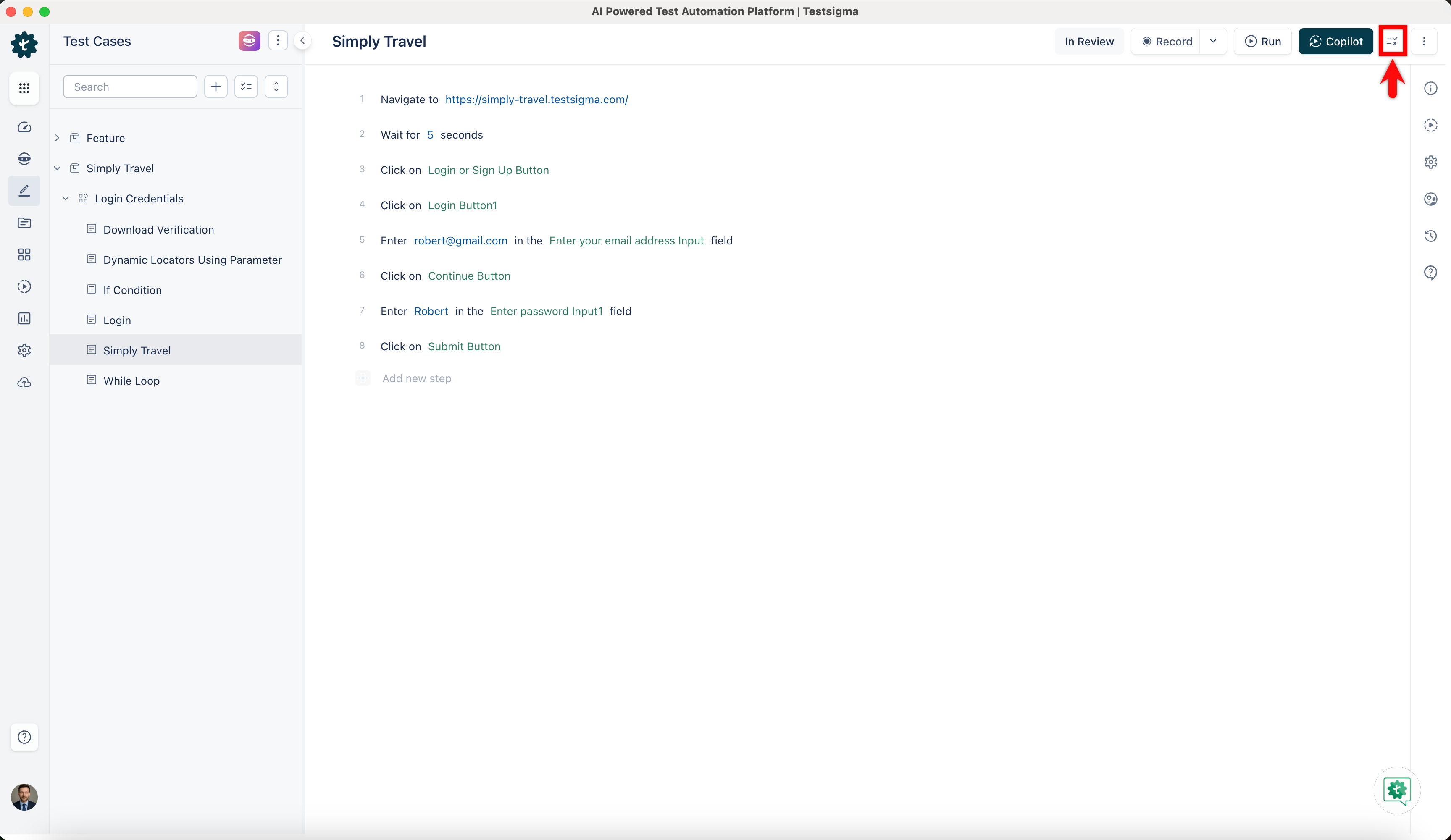
Open the test case and click Submit for Review.
-
Select a Reviewer from the dropdown.
-
Select Notify Assignee and Reviewer to email them both.
-
Add a comment if the reviewer needs context.
-
Click Submit.
The test case appears under Submitted for Review on the Dashboard, so you can see what is waiting on someone else.
Submit an element for review
Section titled “Submit an element for review”-
Go to Create Tests > Elements and click the element.
-
Click Edit in the Element Details overlay.
-
Click Submit for Review in the Update Element overlay.
-
Select a Reviewer, select Notify Assignee and Reviewer, add a comment, and click Submit.
Review what is assigned to you
Section titled “Review what is assigned to you”You get an email when something is assigned to you, and work waiting on you also sits under Assigned for your review on the Dashboard, split into test cases and elements.
For a test case, open it from the email link or from that section, click Review Testcase, then in the Update Review Status overlay select Notify Assignee and Reviewer, add comments, and click Approve or Rework.
For an element, click Elements in that section and open the element. Hover over it, select Edit from the ellipsis icon ⋮, and click Review element. Mark the status as Approve or Rework, then click Update Element to save it.
A test case can go round more than once. Rework sends it back to its author, who fixes it and submits again, until it is approved.
Was this page helpful?
Thanks for the feedback.