

Step types
A test step is a natural language action by default. Change its type to call an API, reuse a saved sequence, repeat steps over test data, branch on a condition, or group steps under a label.
Click the option on the left side of a step to open the step type panel, and select the type.
| Step type | What it does |
|---|---|
| Natural language | Runs one action or assertion, written in plain English |
| Rest API | Calls an API from inside the test case |
| Step group | Calls a reusable sequence of steps |
| For loop | Repeats its child steps once per data set of a test data profile |
| While loop | Repeats its child steps while a condition holds |
| If condition | Runs its child steps only when a condition is true |
| Block | Labels consecutive steps as a named group, without making them reusable |
Loops, conditions, and blocks hold child steps, added with their own Step Inside control. Child steps are numbered under their parent, such as 2.1 and 2.2.
Natural language
Section titled “Natural language”The default type. Enter the action in plain English, and suggestions appear as soon as you type an action word.
These action words have suggestions: Click, Tap, Verify, Scroll, Check, Clear, Close, Uncheck, Store, Double Click, Drag, Enter, Swipe, Switch, Execute, Select, Wait, and Mouseover.
Rest API
Section titled “Rest API”Select Rest API from the step type panel to open the REST API screen. It carries the request itself, with a title, an endpoint, an HTTP method, and the parameters, body, headers, authorization, and settings the call needs. Four more panels sit alongside it: Verification for the response body, headers, and status; Stored Variables for the parts of the response you want to reuse; Attachments for files the request sends; and Global Objects for reusable project objects. See REST API steps.
Step group
Section titled “Step group”Select Step Group in the panel, select the group, and click Create Step. A step group can hold another step group, up to 3 levels. See Step groups for building, nesting, and reusing them.
For loop
Section titled “For loop”A for loop repeats its child steps once per data set of a test data profile. It ends at the last data set, or at a break. Use it to run one test case against a subset of a profile, such as rows 1 to 3.
-
Click the option on the left side of the step and select For Loop. A dropdown of the NLPs you can use inside the step opens.
-
Select the NLP for the data sets you want to iterate over, and create the step.
The NLP decides which data sets run:
| To iterate over | Select the NLP that filters by |
|---|---|
| Every data set | Nothing. It runs the profile from start to end |
| A range of data sets | A start index and an end index |
| Data sets whose name matches | Set name, with contains, starts with, ends with, or IN |
| Data sets whose parameter matches a value | Parameter value |
| Data sets whose parameter is filled in or blank | Parameter value, empty or not empty |
While loop
Section titled “While loop”A while loop repeats its child steps while a condition holds, then moves to the next step.
-
Click the option on the left side of the step and select While Loop. The while condition is added to the step.
-
Hover over the step and click Step Inside Loop to add child steps.
While loops can also be added during recording, on web, mobile web, Android, and iOS. In the recorder, select While Loop from the same panel, add child steps with Step Inside Loop, and click Stop Recording when the steps are complete.
Iteration count
Section titled “Iteration count”The iteration count is the count currently being iterated. Inside a for loop, a while loop, or a step group, the Store NLP saves it into a variable for later use. Data set values from the iterated profile can be compared inside an if condition, using the String Compare add-on.
If condition
Section titled “If condition”An if condition runs its child steps only when the condition is true.
-
Click the option on the left side of the step, hover over Conditional Step Types, and click If Natural Language. The IF condition is added to the step.
-
Select the NLP that forms the condition.
-
Hover over the step and click Step Inside IF to add child steps. They run only when the condition is true.
-
To branch, hover over the IF step and click Else If or Else.
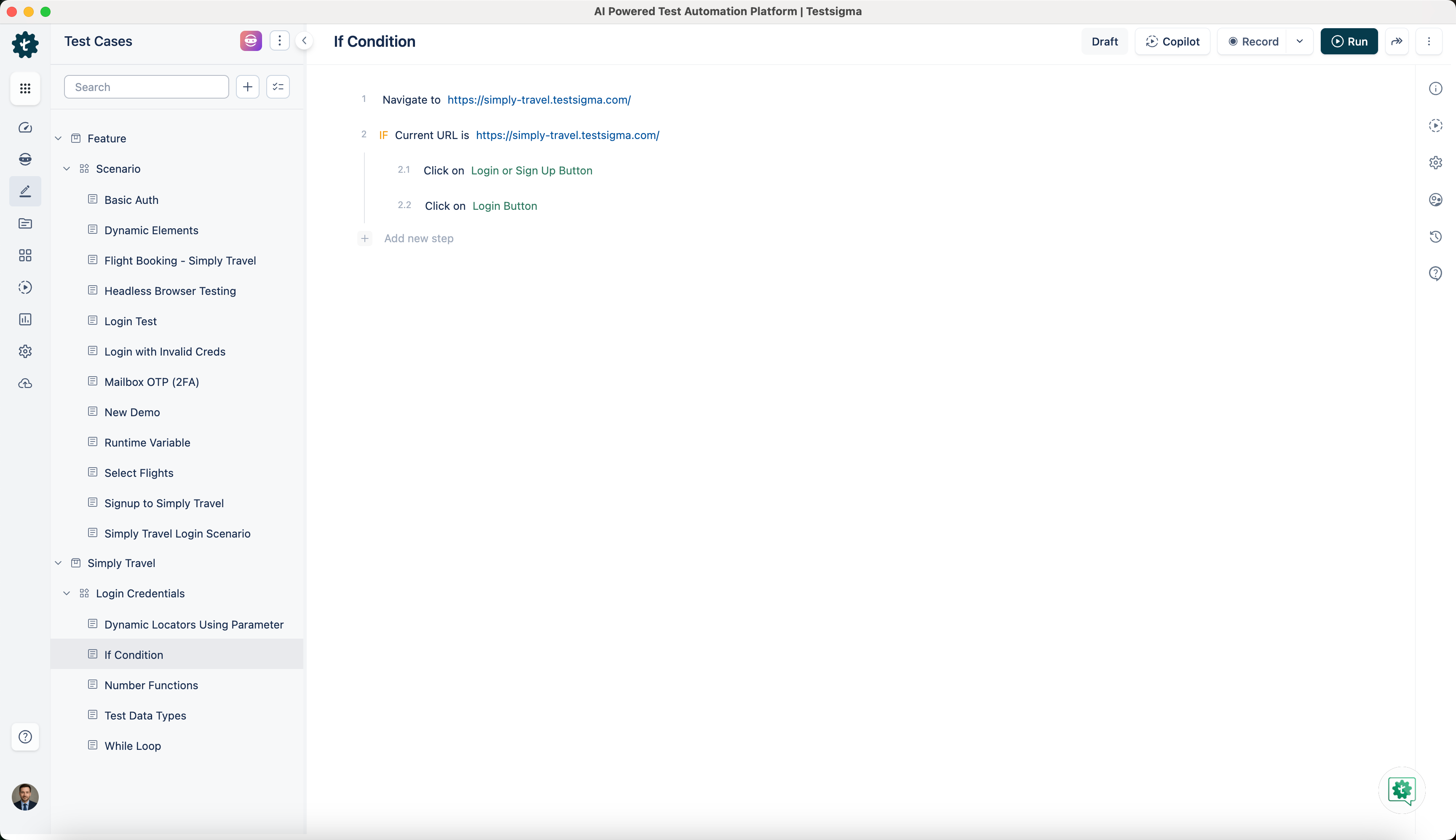
In the recorder, the same type is labeled Conditional If.
A block is a named label around consecutive steps: structure without reuse. Build one from the step type panel, or from steps you already have.
To create a block from the step type panel:
-
Click + Add new step where the block should go.
-
Click the Test Step Type button before the step and select Create a Block.
-
Enter a title and click Create Step.
-
Add steps with Step Inside Block, or a step after the block with Step After Block.
To create one from steps you already have:
-
Select the consecutive steps to include.
-
Click Create Block in the menu bar.
-
Enter the title in the Create Block pop-up and click Create.
-
Click > to expand the block and see the steps inside it.
To rename a block, select it, edit the name, and click Update Step. To delete one, click Delete on the block step. Deleting a block removes the label and leaves its steps in place.
You can reorder the steps inside a block, and move the block and its steps to another position in the test case.
Blocks cannot nest inside other blocks, and a block cannot be converted back into a regular step.
Database query steps
Section titled “Database query steps”Database steps are natural language steps, not a type of their own. The mysql_queries add-on adds NLPs that run MySQL over a JDBC URL. Install it from the add-ons page.
The connection string takes this form:
jdbc:mysql://<hostname>:<port>/<database>?user=<user>&password=<password>Its NLPs cover:
- Executing a query, a create-procedure statement, a stored procedure call, an update, or a
.sqlscript file - Storing a select result into a variable
- Verifying a select result, or the affected-row count of a query
- Comparing two queries on one connection, or the same query across two connections
Was this page helpful?
Thanks for the feedback.