

Debug a test case
Testsigma Copilot pauses a run at a debug point or on a failure, so you can inspect the application. The debug toolbar then controls the run, and the Analyzer explains a failure and proposes a fix you can apply.
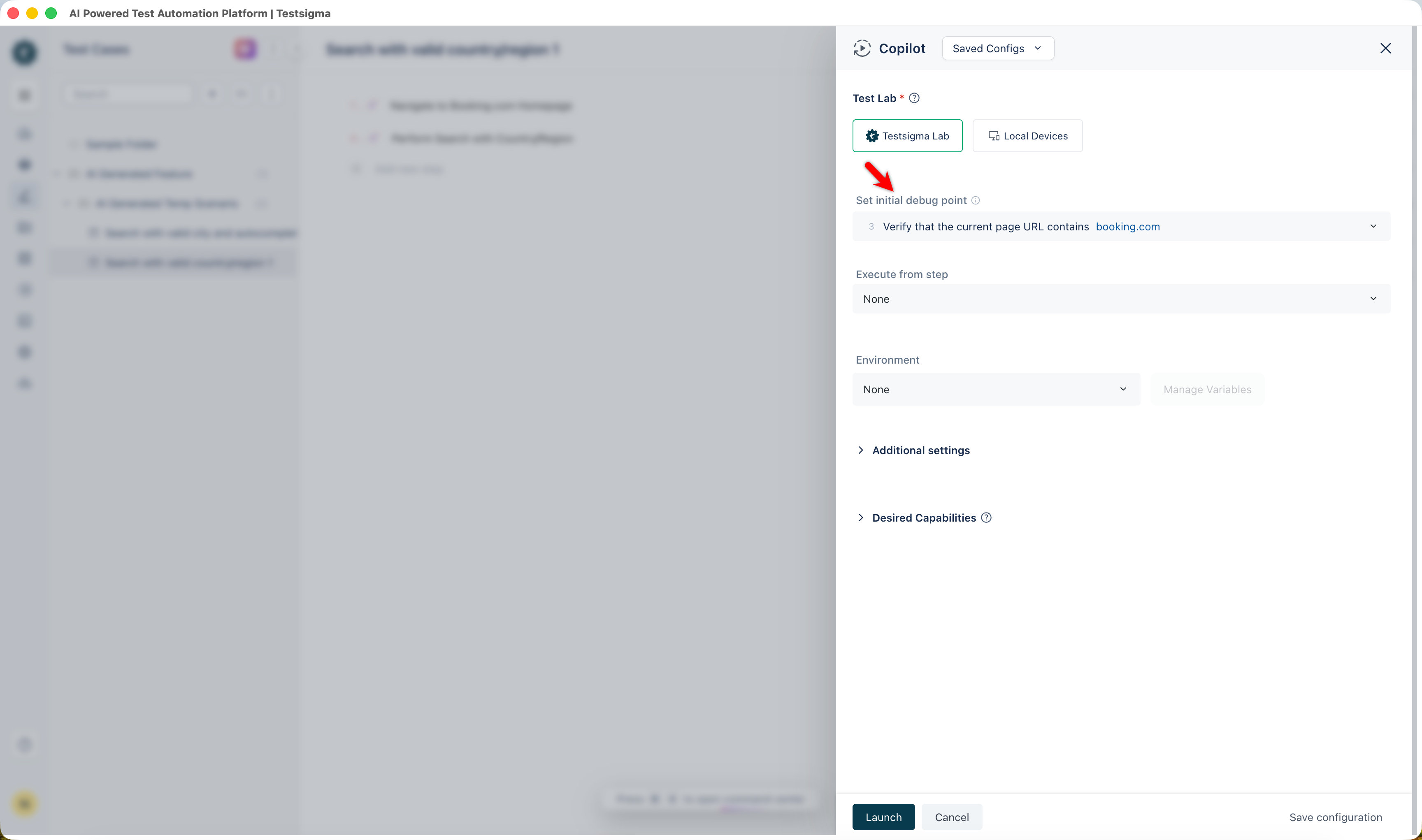
Set debug points
Section titled “Set debug points”A debug point is a checkpoint on a step that pauses a run there. Add them before a session from Set Initial Debug Point, or during a run.
Hover over a step that has not executed yet and click the Place Debug Point icon. Repeat on any other steps you want to pause at. To clear a debug point, click its red dot again, and execution continues past that step.
The step widget marks both the debug point and the execution point.
Use the debug toolbar
Section titled “Use the debug toolbar”The toolbar is global, and its controls are enabled when a run is paused at a debug point or on a failure.
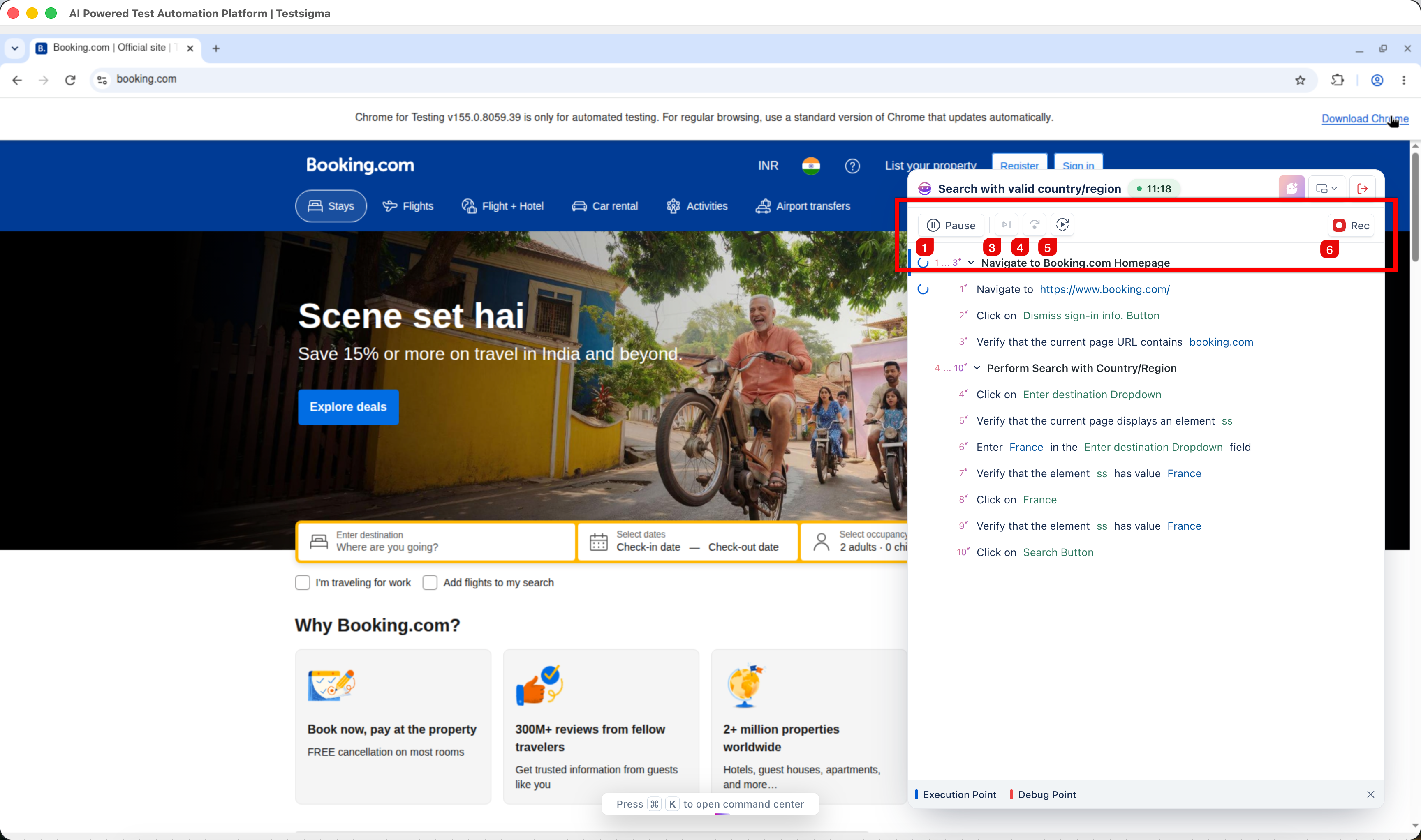
- Resume: continues from the next step, without restarting. Use it to validate a change you made while paused
- Pause: stops the run after the current step finishes. Use it when something looks wrong and you want to review the state before deciding
- Step Over: runs the paused step, then pauses on the next one. Use it to move through a test one step at a time
- Skip Over: skips the paused step without running it, and pauses on the next one. Use it to get past a failing step instead of fixing it now
- Restart Execution: clears the session and starts fresh from the first step. Use it after larger changes, when you want a clean run. It is available only while execution is paused
- Rec: records further steps from the application. See Record test steps
Click the minimize icon in the panel header to work directly in the application, and click it again to return to the step list. The session state is kept.
Debug steps inside a loop
Section titled “Debug steps inside a loop”Inspect or change loop behavior once execution has paused, failed, or finished.
To see how many times a loop has run, select the Iteration dropdown next to the step and review the execution count.
Inside a loop, added steps follow the same rule as anywhere else. A step added below the execution point runs in the current iteration. A step added above it runs from the next iteration onward.
While execution is paused, you can add steps to the loop sequence, drag steps into a different order, create elements on a step in the iteration, and delete steps you do not need. Click Resume afterwards to continue from the next step that has not run.
Diagnose a failed step
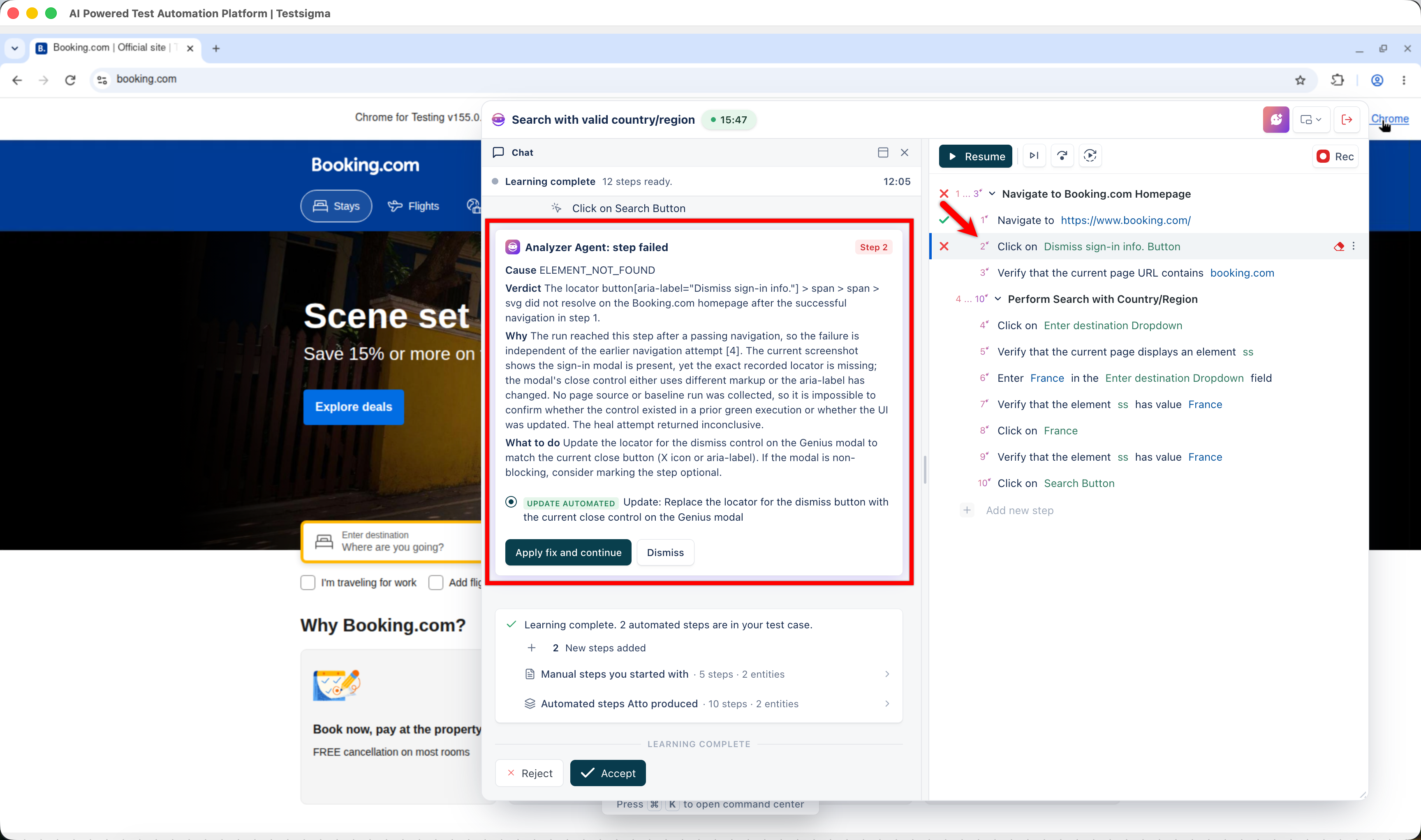
Section titled “Diagnose a failed step”Copilot pauses and highlights the step when a run fails. The Analyzer runs on its own and posts Analyzer Agent: step failed in the chat against the failing step number, with four parts:
- Cause: the error type, such as
ELEMENT_NOT_FOUND - Verdict: what went wrong on the application, in one sentence
- Why: the evidence behind the verdict, such as what the locator targets and what the page source and screenshot show
- What to do: the suggested fix, with alternatives where there are several
When the Healer corrects a locator during the run, a heal banner appears against the affected step, so you can see which step changed and judge the fix. See Healer for approving or reverting a heal.
Apply the suggested fix
Section titled “Apply the suggested fix”Click Step Options on the failed step, then Analyze with QI.
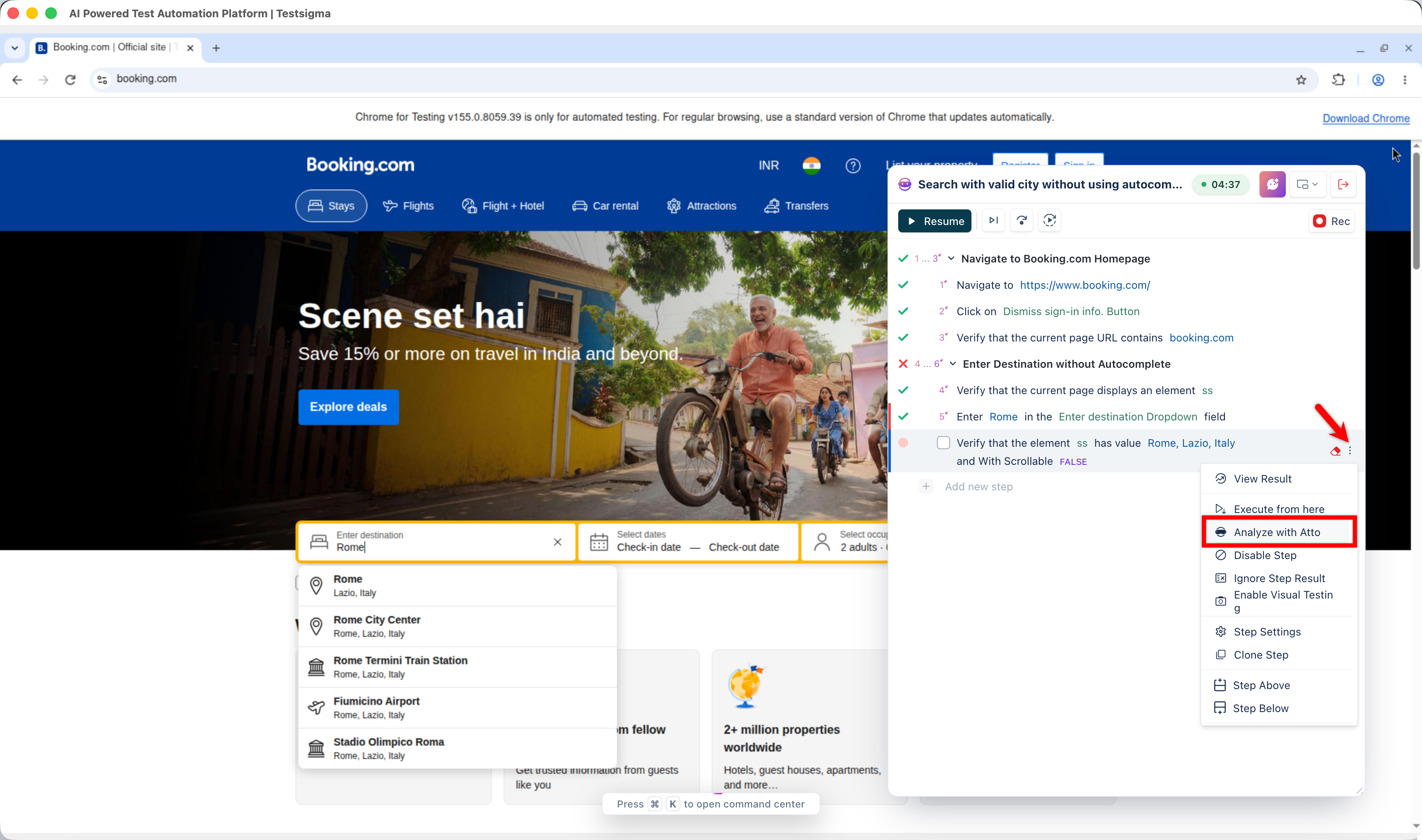
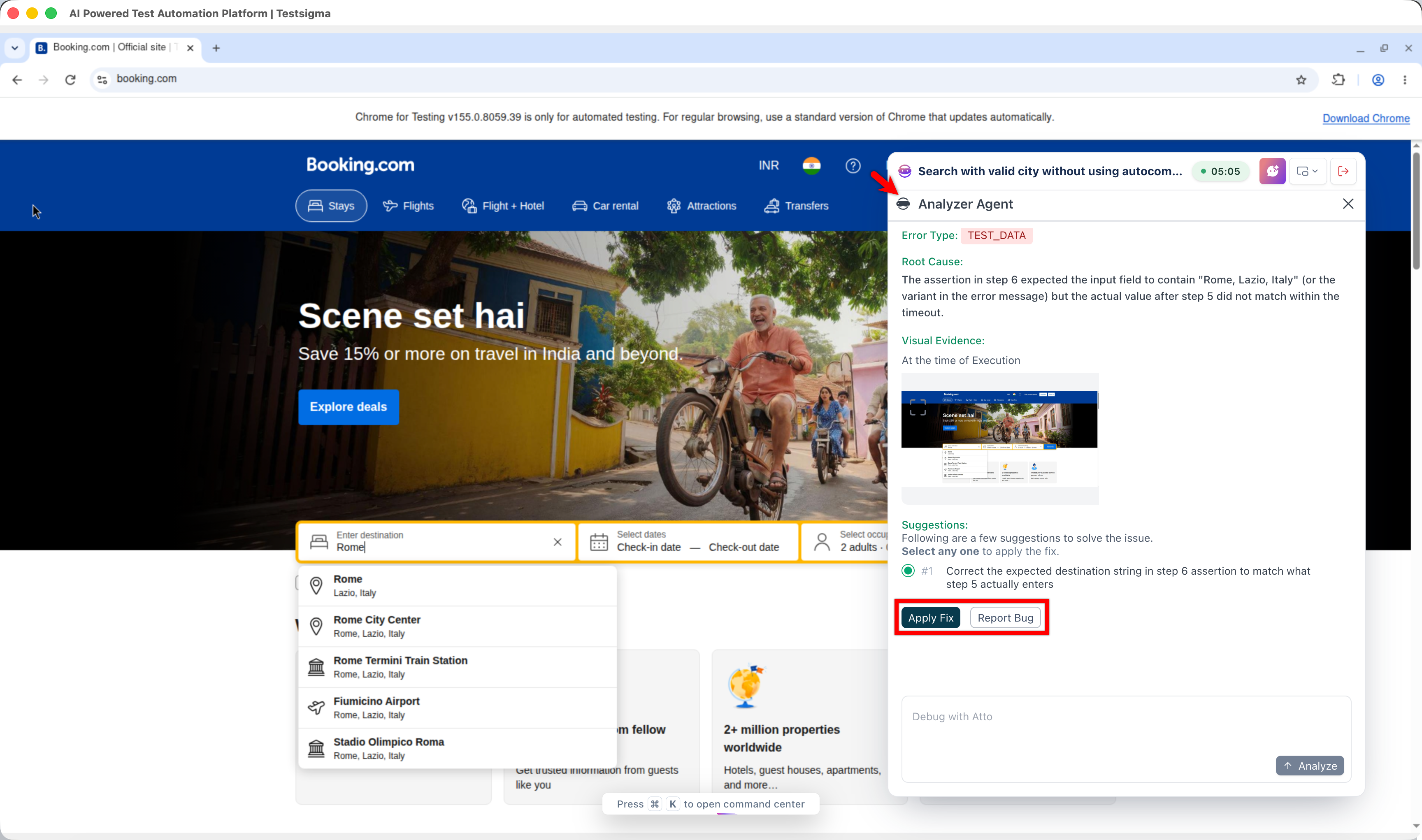
The Analyzer Agent panel shows the Error Type, the Root Cause, Visual Evidence with the screen at the time of recording beside the screen at the time of execution, and numbered Suggestions.
- Select a suggestion and click Apply Fix. The corrected element is created or updated in Elements, and the step in the test case is updated. Click Resume to continue the run.
- Click Report Bug to raise the failure in your bug tracker. See Bug Reporter.
- Enter a question in Debug with QI and click Analyze to ask about the failure before you apply anything.
Inspect the step result
Section titled “Inspect the step result”Click Step Options on the step, then View Result, and review the diagnostic data: Error Message, Element, Test Data, Step Settings, Metadata, and Step Details. Mobile sessions also carry screenshots.
Fix an “Element Not Found” error
Section titled “Fix an “Element Not Found” error”The element is on the page, but Testsigma cannot identify it from the properties stored against it. The Analyzer usually proposes the corrected locator for this error. Use the steps below when you want to fix the element yourself.
Click Step Options, then View Result, and click the element name to see its identification properties. Compare those properties against the current application UI to find why the match failed. Update the element, click Update Step, and restart the execution.
Was this page helpful?
Thanks for the feedback.