

Azure DevOps Boards
Azure DevOps Boards integration creates work items in your Azure project from Testsigma. Bugs, epics, tasks, and stories flow from run results, and test cases link across both tools.
Prerequisites
- Your Azure DevOps organization URL and a Personal Access Token (Security > Personal Access Tokens).
Connect Azure DevOps
Section titled “Connect Azure DevOps”-
Open integrations: Go to Settings > Integrations.
-
Enable the widget: Turn on the toggle on the Azure DevOps Boards widget.
-
Enter the details: In the Azure DevOps Boards details prompt, enter the Organization URL and Access Key, then click Save & Enable.
The organization URL is your Azure domain name. Check with your Azure admin if you need help finding either value.
Report a work item
Section titled “Report a work item”-
Open the result: Go to Run Results and open the Test Case Result where you want to add a bug.
-
Start the report: Click Report Bug.
-
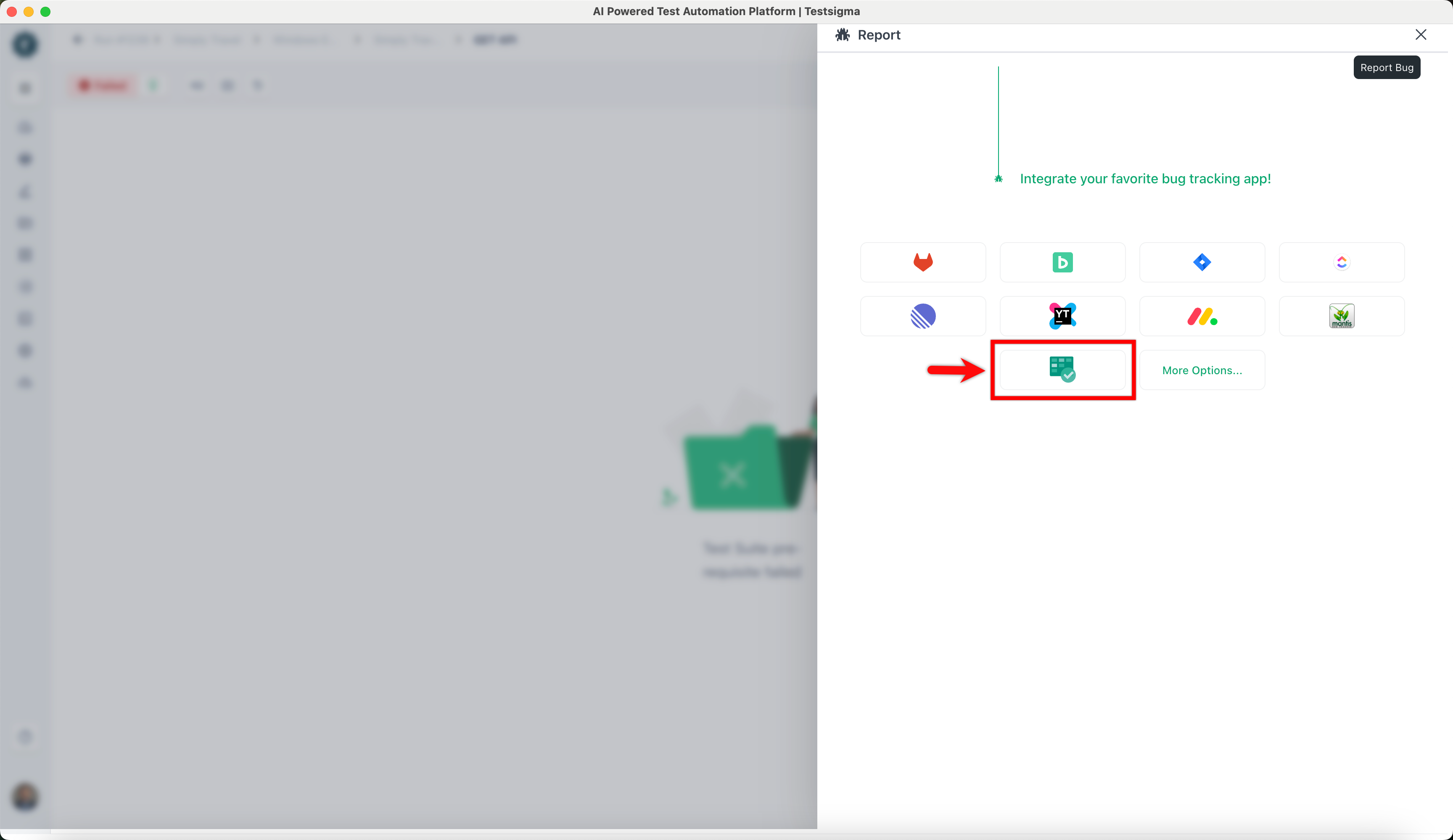
Pick Azure DevOps: On the Report overlay, click the Azure DevOps icon.
-
Send it: Review the details and click Report Bug.
Testsigma attaches the execution video and step screenshots to the created work item automatically.
Link test cases
Section titled “Link test cases”You can also pair a Testsigma test case with an Azure DevOps test case. Copy the test case ID from Azure DevOps. In Testsigma, go to Create Tests > Test Cases and open the test case. In the top right corner of the test case details page, enter the ID in the Enter Azure DevOps ID box. The two test cases are now linked.
Was this page helpful?
Thanks for the feedback.