

Guest access
Guest access gives the Testsigma support team temporary, revocable access to your account, so they can diagnose an issue against your real data rather than asking you to reproduce it. Every action they take is logged under the user guest@testsigma.com, and shown as Testsigma Guest on the assets it touched.
Grant access
Section titled “Grant access”-
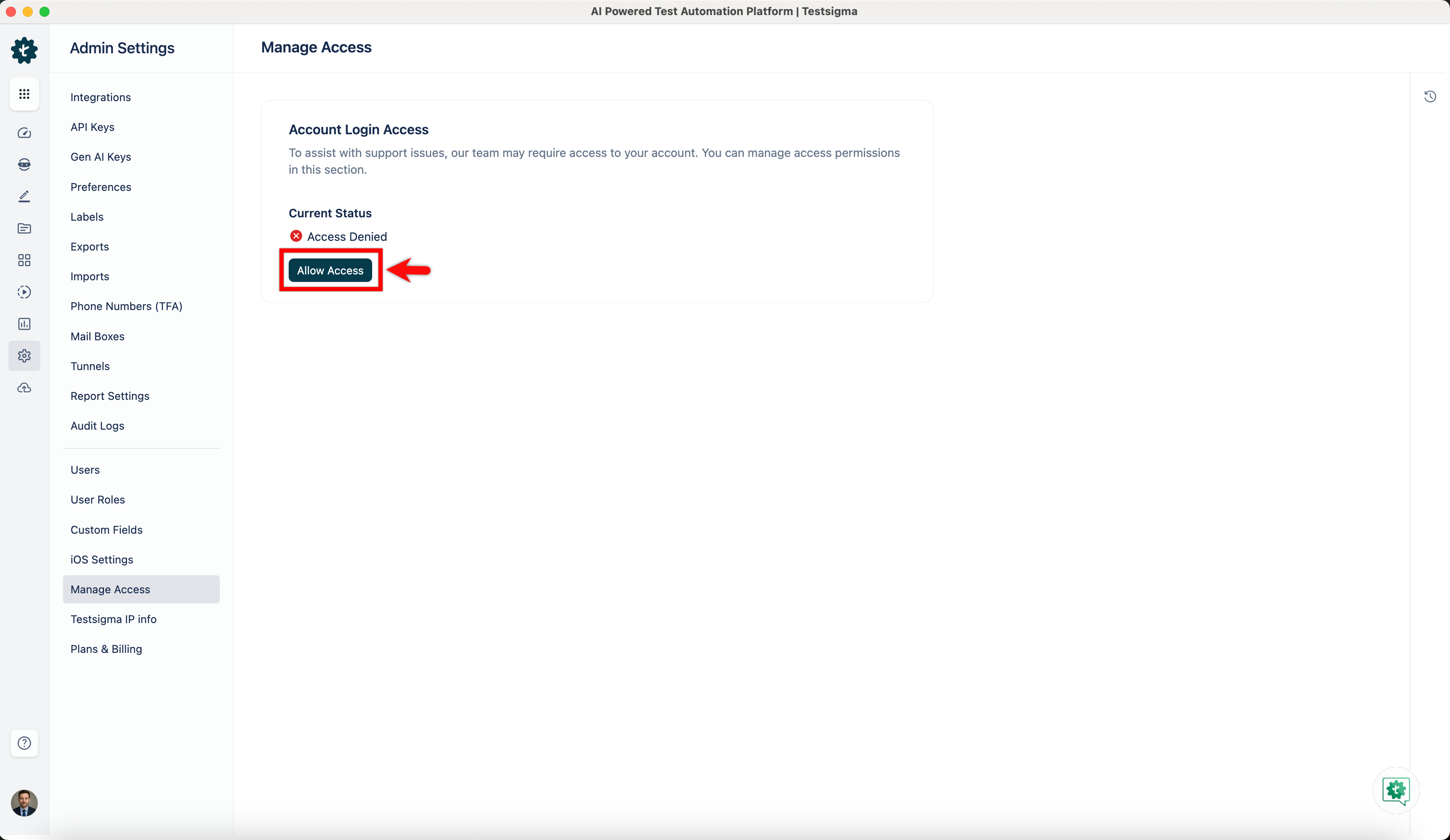
Go to Settings > Admin Settings > Manage Access.
-
Click Allow Access.
-
Select the Access Type.
-
Describe the issue in Describe the Issue.
-
Select the consent checkbox and click Submit.
The same page shows the Current Status and the Access Expiry.
Revoke or extend it
Section titled “Revoke or extend it”Click Manage on the Manage Access page to update or revoke the access. You do not have to wait for it to expire.
What the access covers
Section titled “What the access covers”- Access is limited to what the issue requires
- Every support action is logged under
guest@testsigma.com, so each one is attributable to the session rather than to your own users - You can revoke it at any time
Read what was done
Section titled “Read what was done”Click Activity in the utility panel to see the access log. Logs are kept for 3 years.
Actions by Testsigma Guest also appear on the individual test cases, elements, test suites, and test plans they touched, so you can check a specific asset rather than scanning the whole log.
Was this page helpful?
Thanks for the feedback.