

Step groups
A step group is a sequence of steps saved once and called from any test case. Logging in comes before a fund transfer, before deleting a beneficiary, and before downloading a statement, so the login steps belong in a step group rather than in all three test cases.
Editing the group changes every test case that calls it.
Create a step group
Section titled “Create a step group”-
Go to Create Tests > Step Groups and click Create Step Group.
-
Enter a Name.
-
Click Add new step and write the steps, or click Record to record them.
The group is ready to use in any test case as soon as its steps exist.
Create a step group from a test case
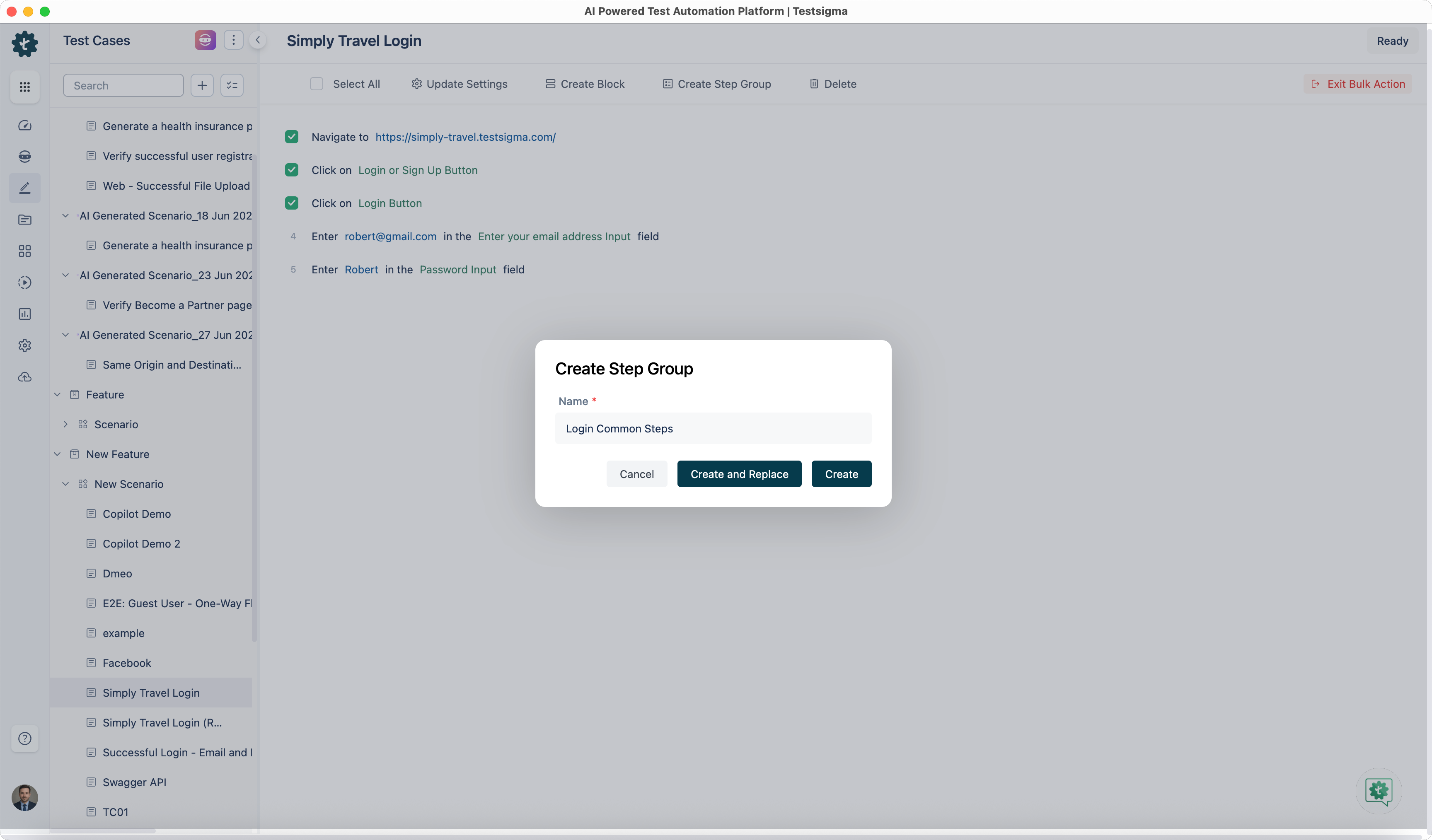
Section titled “Create a step group from a test case”Select the steps in an open test case, and click Create Step Group in the option bar that appears above them. Enter a name, then choose what happens to the steps you selected:
- Create builds the group and leaves the test case as it is
- Create and Replace builds the group and swaps the selected steps for a call to it
Use a step group in a test case
Section titled “Use a step group in a test case”-
Open the test case.
-
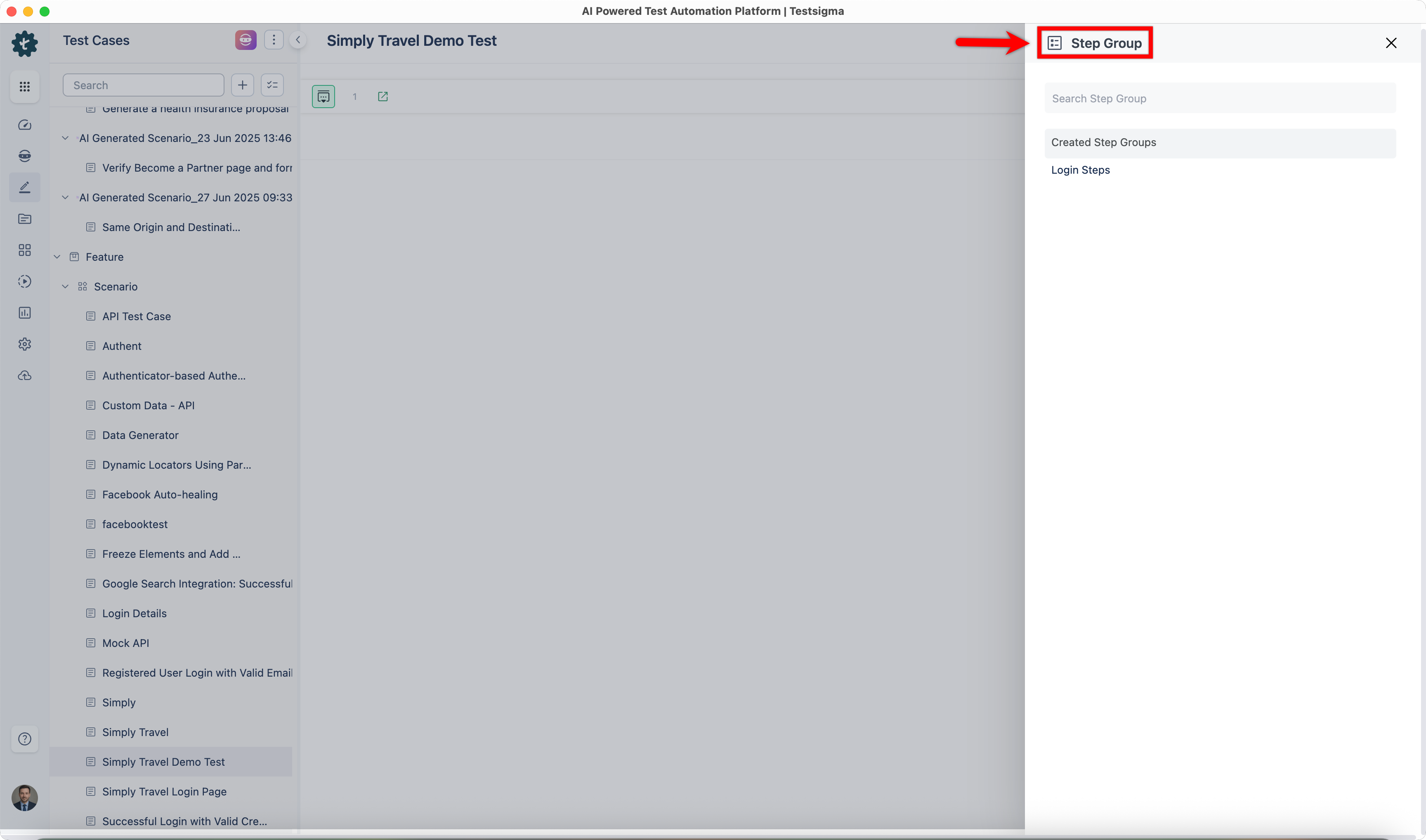
Click the option on the left of a step and select Step Group.
-
Select the group from the Step Group list overlay.
-
Click Create Step.
Use a step group from another project
Section titled “Use a step group from another project”-
Open the test case, click the option next to a step, and select Step Group.
-
Click Reuse Step Group in the list overlay.
-
Select the project, application, and version.
-
Select the group from the Reuse Step Group dropdown.
-
Click Create Step.
Create a data-driven step group
Section titled “Create a data-driven step group”A data-driven step group iterates a test data profile of its own, separately from the test case that calls it.
-
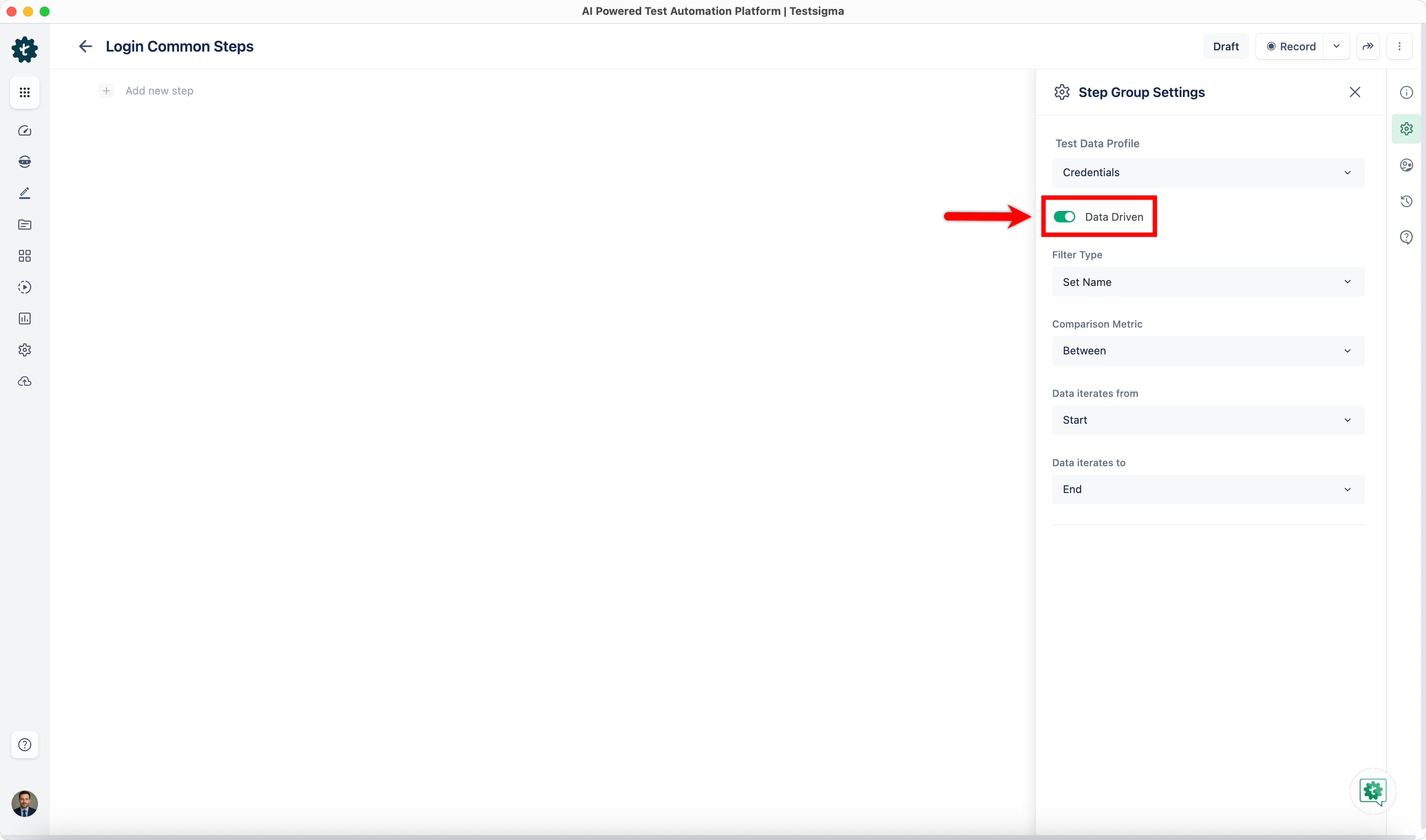
Create the step group and click Step Group Settings.
-
Select the Test Data Profile to associate with the group.
-
Turn on Data Driven.
-
Create the steps.
A data-driven step group can be called from a data-driven test case. The group then iterates its own data sets on every iteration of the test case.
Two more things work on the iteration count inside a group. The Store NLP saves the current iteration count into a variable for later use. Data set values from the iterated profile can be compared inside an if condition, through the String Compare add-on.
Nest step groups
Section titled “Nest step groups”A step group can contain another step group, up to 3 levels, in both a test case and a step group.
In a test case, select the steps, click Create Step Group, enter a Name, and click Create and Replace.
In a step group, create the steps first, select the ones to nest, then enter a Name and click Create and Replace.
Edit a step group
Section titled “Edit a step group”Go to Create Tests > Step Groups, open the group, and make the changes.
To change a group for one test case only, open that test case, expand the step group, and edit the test data or the element on a step. Click Update Step to save.
Label a step group
Section titled “Label a step group”Open the group and select the labels under Manage Step Group > Labels.
Delete a step group
Section titled “Delete a step group”-
On the Step Groups list page, click the ellipsis icon (⋮) next to the group and click Delete.
-
Read the affected test cases listed in Deletion Warning.
-
Enter
DELETEand click I understand, delete this Step Group.
Was this page helpful?
Thanks for the feedback.