

Projects and applications
A project holds the applications you test, and each application holds its versions. Test cases, elements, test data, and everything else you author belong to one application version.
Create a project
Section titled “Create a project”-
Click Create New and select Project.
-
Enter the Project Name and an optional Description.
-
To hold more than one application, select Allow adding multiple applications in this project. Click Add Application, select the Application Type, and enter a Name. A project holds a single application by default.
-
To hold more than one version per application, select Allow multiple versions for applications.
-
Click Create.
To edit a project, go to Project > Project Settings. The Edit Project dialog updates the project details, the multiple applications and versions settings, the project members, the test case types, and the requirement types. Click Update to save.
To switch projects, click the current project on the Dashboard, select the Project, Application, and Version, then click Go to project.
Execution engines
Section titled “Execution engines”Testsigma runs tests on 2 engines, Classic and Modern. Modern waits for elements and for the page state before it interacts with them, which reduces timing-related failures, and it handles Shadow DOM and web components more natively than Classic.
You select the engine when you create an application, and the engines on offer depend on the application type.
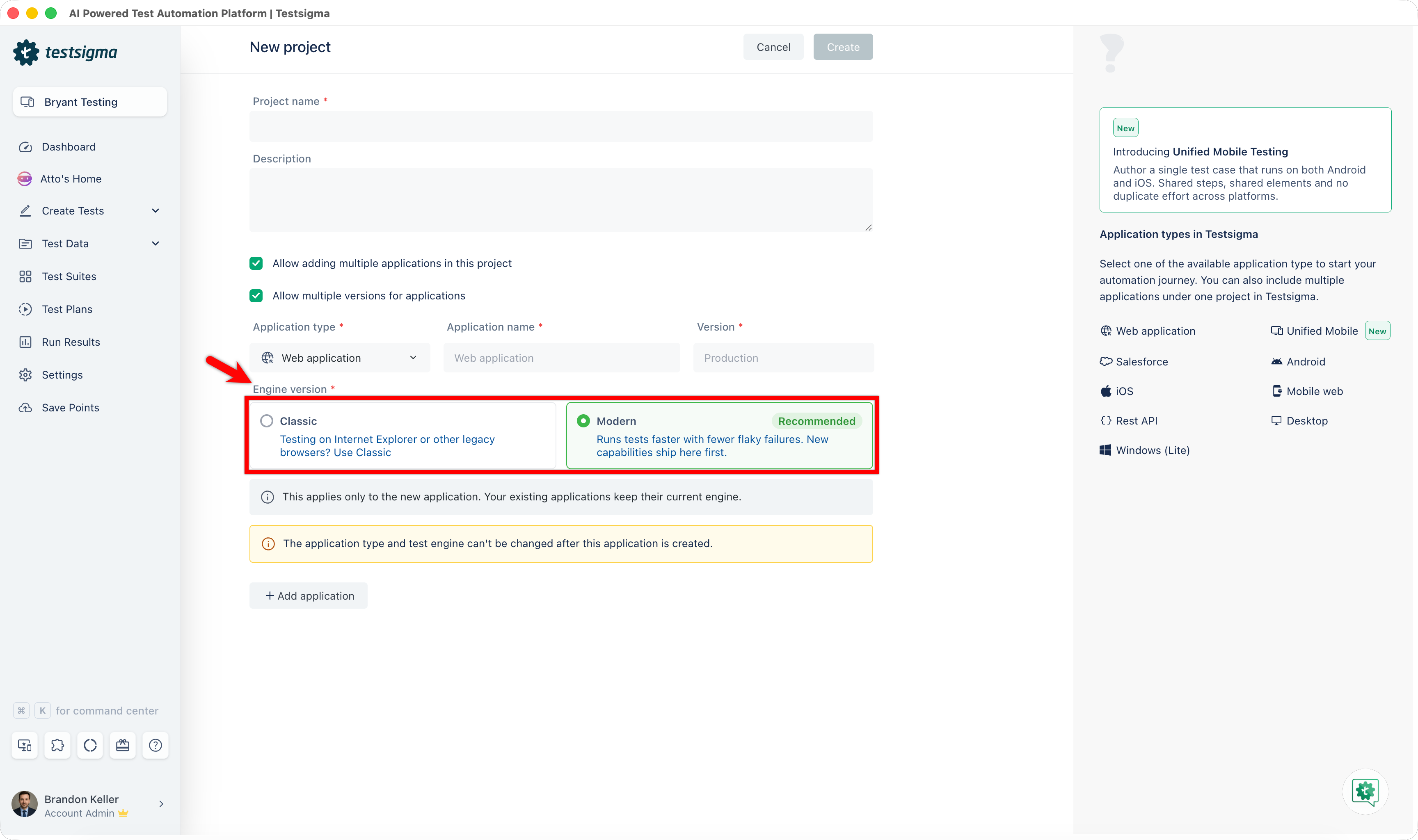
| Application type | Available engines |
|---|---|
| Web application | Classic and Modern |
| Unified (Android and iOS) | Modern |
| Android | Classic |
| iOS | Classic |
| Mobile Web | Classic |
| Salesforce | Classic |
| REST API | Classic |
| Desktop | Classic |
| Windows | Classic |
Addons are engine-specific. A Classic addon is written in Java and a Modern addon in TypeScript, so moving one to the other engine means rebuilding it.
Manage applications
Section titled “Manage applications”Applications live under Project Settings > Edit Project > Applications.
To add an application, click New Application, enter the Application name, Description, and Version name, select the Application type, and click Create.
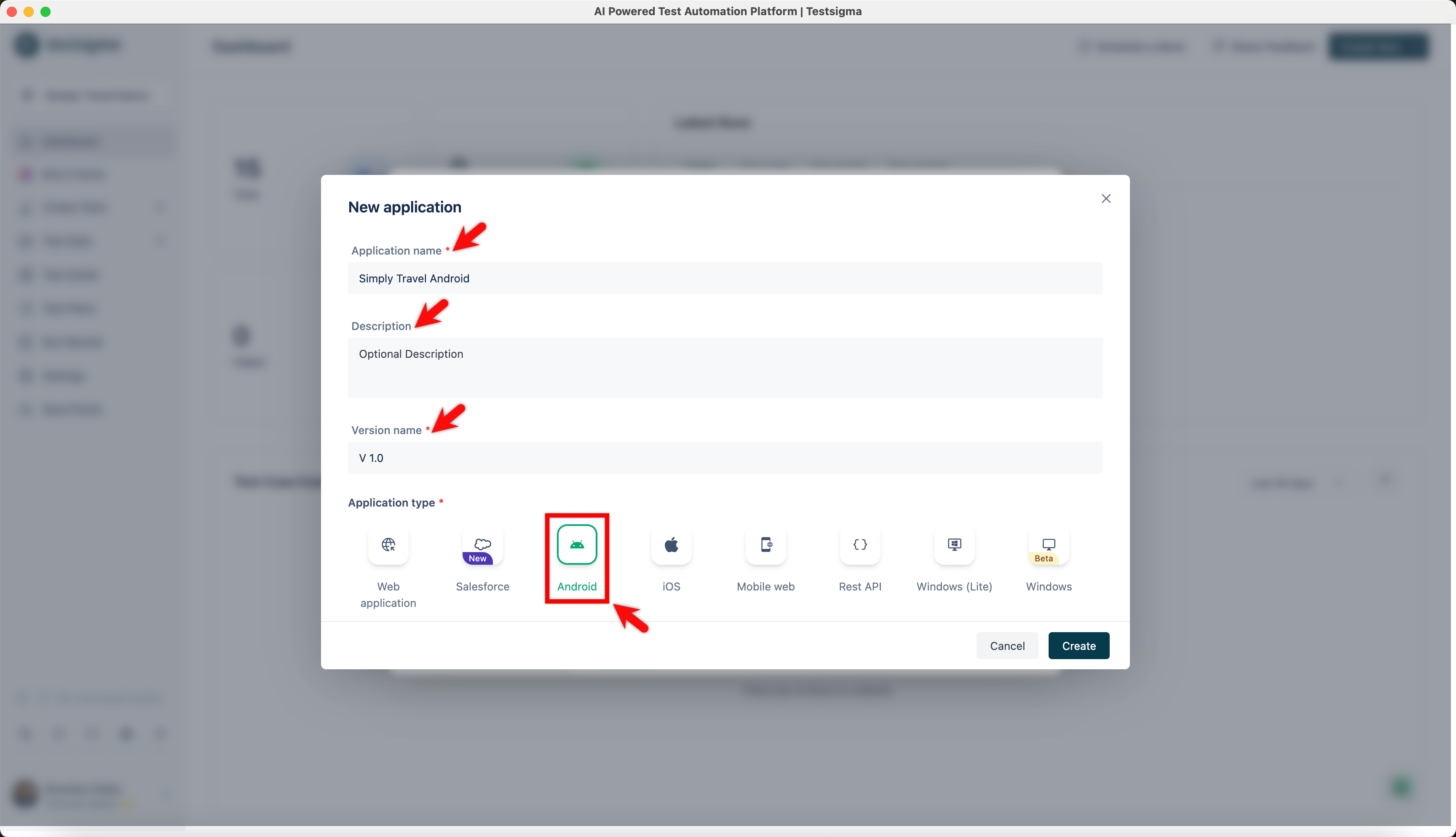
To edit one, select it from the dropdown, make the changes, and click Update.
To delete one, select it from the dropdown, click Delete Application, enter DELETE, and click Delete.
Manage application versions
Section titled “Manage application versions”A version keeps one line of tests separate from another. If you have 10 tests against version 1.0.0 and a beta build is in development, copy the version, rename the copy to 1.0.0-beta, and add the beta tests there. Work on 1.0.0-beta leaves the tests in 1.0.0 untouched.
Versions live under Project Settings > Edit Project > Versions.
-
Click New version.
-
Enter a Name, an optional Description, and the Start Date - End Date.
-
(Optional) Turn on Copy Data from Previous Versions and select the models to carry forward.
-
Click Create.
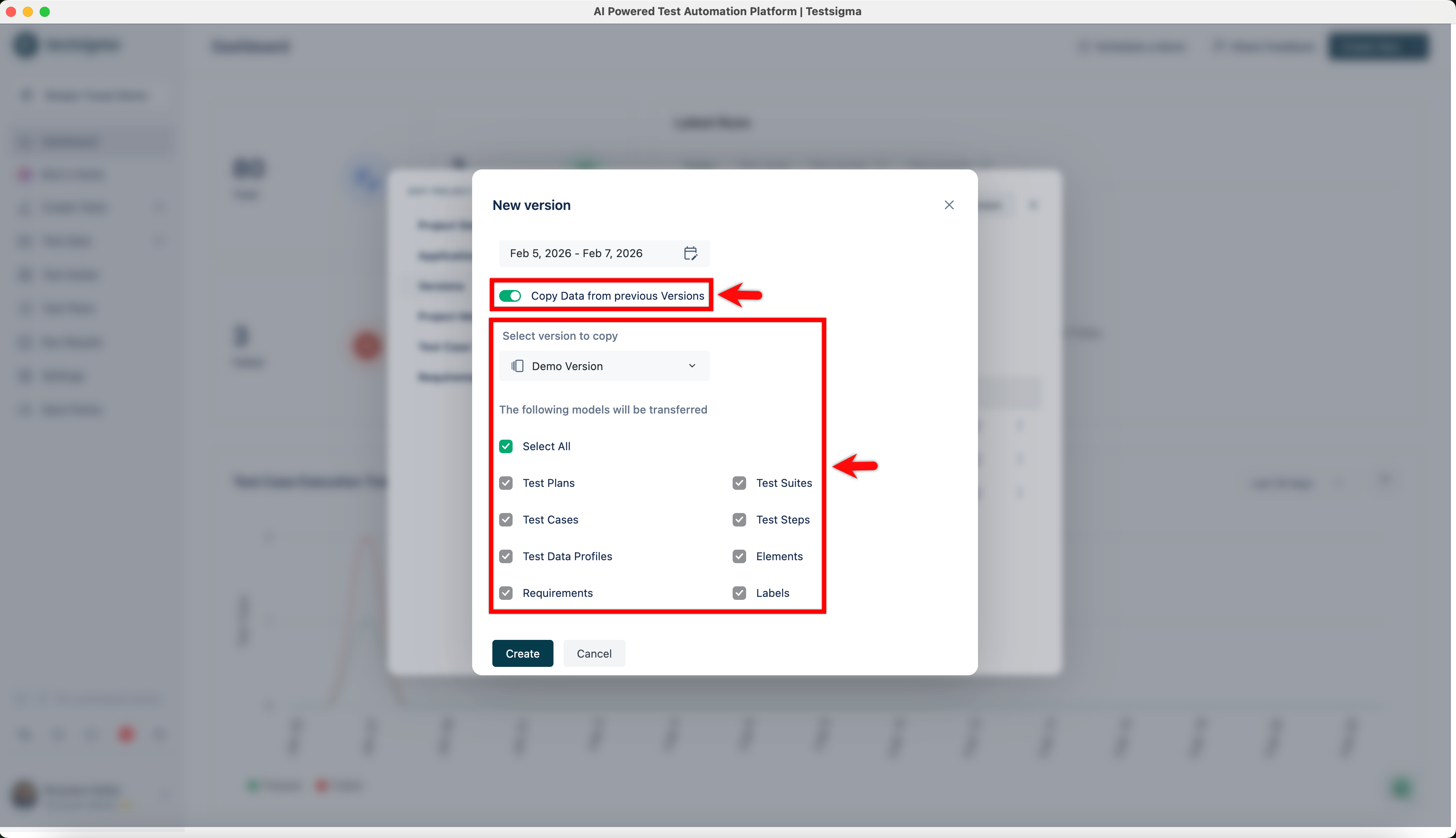
To edit or delete a version, click the ellipsis icon ⋮ next to it and select Edit Version or Delete Version. Deleting asks you to enter DELETE and click I understand, delete this.
To find a version’s ID, hover over the version name and click Copy.
Requirements
Section titled “Requirements”A requirement is a condition or capability the application has to meet, and mapping test cases to requirements is how you track coverage against them. A requirement is functional, non-functional, or domain.
Requirements are created from a test case, not from project settings.
-
Open a test case and click Manage Test Case in the utility panel.
-
Click Create New in the Requirement field.
-
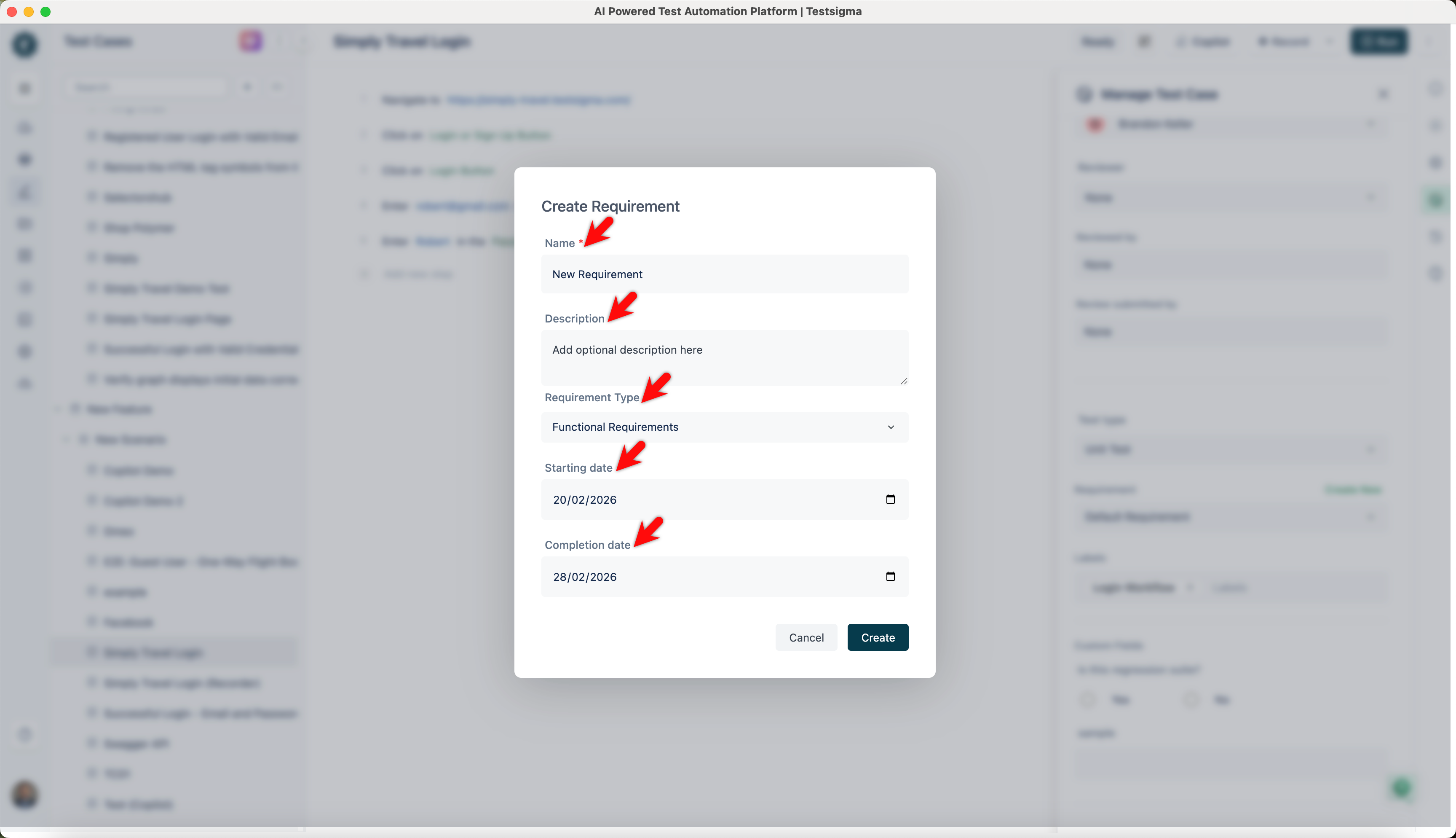
Enter a Name and an optional Description.
-
Select the Type.
-
Select the Start Date and Completion Date.
-
Click Create.
To edit one, expand the Requirement field in Manage Test Case and click Edit.
Project settings
Section titled “Project settings”Three lists in Project > Project Settings classify test cases. Each is per project, and Testsigma supplies defaults for all of them. They feed the filters on the test case library and the grouping in run results, which is what makes them worth maintaining.
| List | Defaults | What you can change |
|---|---|---|
| Requirement types | Customer Requirements, User Interface Requirements, Functional Requirements, Non-Functional Requirements | Add, rename, and delete |
| Test case types | Functional, non-functional, integration, and others | Add, rename, and delete |
| Test case priorities | Critical, Major, Medium, Minor | Nothing. The defaults are fixed |
To add a requirement type or test case type, open Project Settings, click Requirement Types or Test Case Types, click Add Type, type the name in the blank row, and press Enter. To rename one, hover over it, click Edit, change the text, and press Enter. To delete one, hover over it and click Delete.
Save points
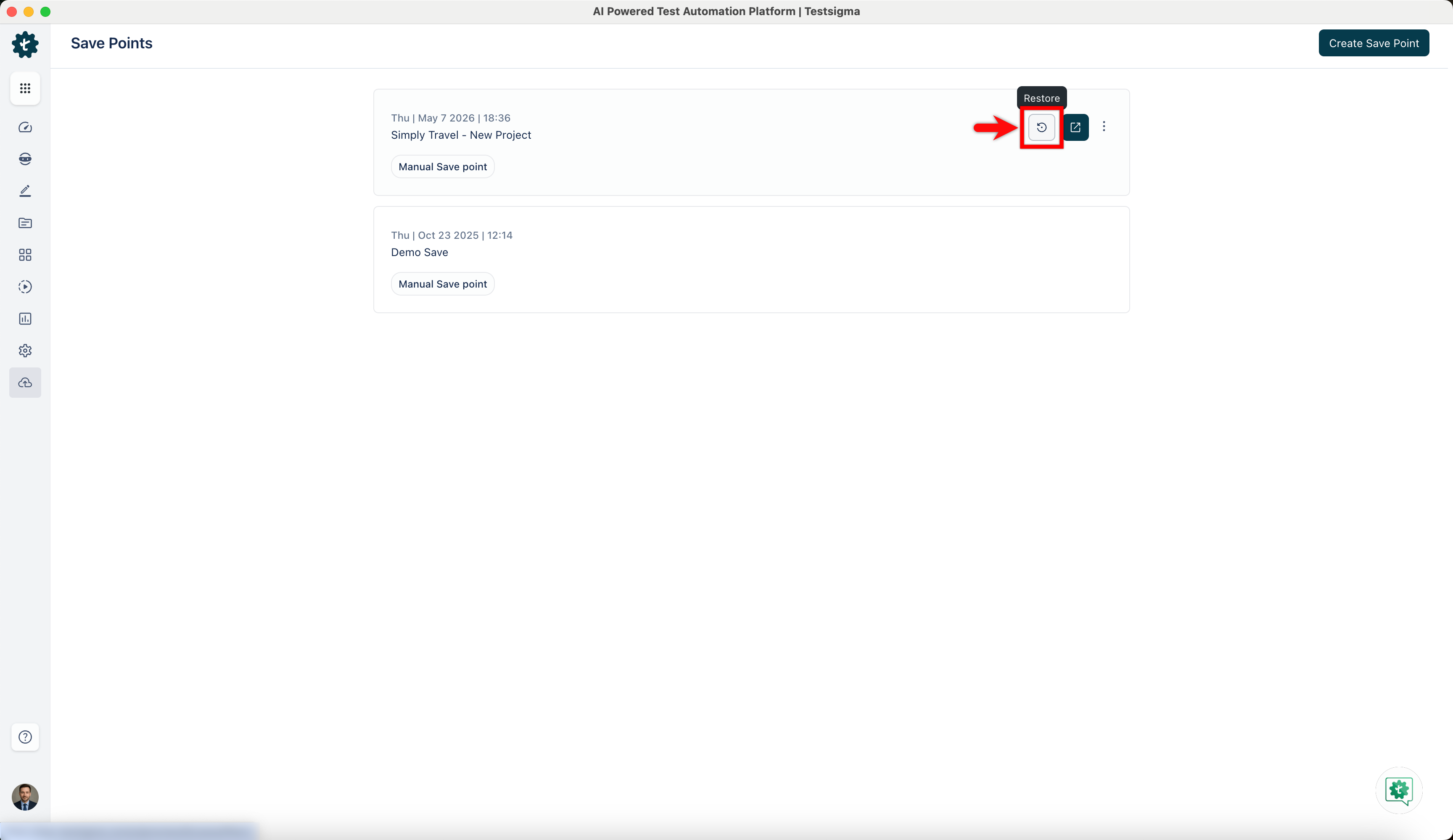
Section titled “Save points”A save point stores the state of a whole project: its test cases, elements, test data profiles, and step groups. Restore one to roll the project back to that state. Testsigma stores a maximum of 10 save points at a time, and importing test cases creates one automatically.
To create a save point, go to Save Points, click Create Save Point, enter a name, and click Create. A save point opens in a new tab, so you can check its contents before you use it. From its ellipsis icon ⋮, you can edit its note or delete the save point by entering DELETE.
To restore a save point, click Restore on it, enter RESTORE, and confirm.
Delete a project
Section titled “Delete a project”-
Go to Project > Project Settings.
-
Click Delete.
-
Enter
DELETEand click Delete in the Delete project dialog. -
Enter
DELETEand click Delete at the Delete project prompt.
Frequently asked questions
Section titled “Frequently asked questions”Can I use both engines in the same account?
Section titled “Can I use both engines in the same account?”Yes. Each application carries its own engine, so Classic and Modern applications run side by side. The choice is permanent per application, not per account.
Is the Classic engine being discontinued?
Section titled “Is the Classic engine being discontinued?”No. Classic has no planned end date, and some application types run on Classic only.
Is the Modern engine a beta?
Section titled “Is the Modern engine a beta?”No. Modern is a production engine. Its coverage is still expanding across application types, which is why some types run on Classic today.
What do I gain from the Modern engine?
Section titled “What do I gain from the Modern engine?”Modern waits for elements and for the page state before it interacts with them, which reduces timing-related failures. It also handles Shadow DOM and web components more natively than Classic.
Does the engine change how I author tests?
Section titled “Does the engine change how I author tests?”No. The low-code editor, the recorder, and AI-assisted generation work the same on both engines. The engine affects execution only. The one exception is AI Step, which is available on Classic and not currently on Modern.
Do my Classic addons work on the Modern engine?
Section titled “Do my Classic addons work on the Modern engine?”No. Classic addons are written in Java and Modern addons in TypeScript, and the 2 are not interchangeable. Moving an addon to Modern means rebuilding it in TypeScript.
Was this page helpful?
Thanks for the feedback.