

Test suites
A test suite is a group of test cases collected around a shared function or scenario, and it is what a test plan runs. One test case can belong to several suites.
Testsigma has 2 kinds. A static suite holds the test cases you pick, and stays as you left it. A dynamic suite holds a filter, so it picks up every test case matching that filter, including ones created later.
| Static suite | Dynamic suite | |
|---|---|---|
| Test cases come from | The ones you select | A filter you define |
| When a new test case matches | Nothing happens | It joins the suite |
| Inside a test plan | The test cases can be edited | The test cases cannot be edited |
Create a static test suite
Section titled “Create a static test suite”-
Go to Test Suites and click Create Test Suite.
-
Enter a Name.
-
(Optional) Turn on the Description toggle and describe what the suite covers.
-
(Optional) Set a Pre-Requisite, such as the test data, system configuration, or environment the suite needs. To control what the prerequisite does when the plan is rerun, see Set the prerequisite rerun options.
-
(Optional) Assign a Label, for filtering and grouping later.
-
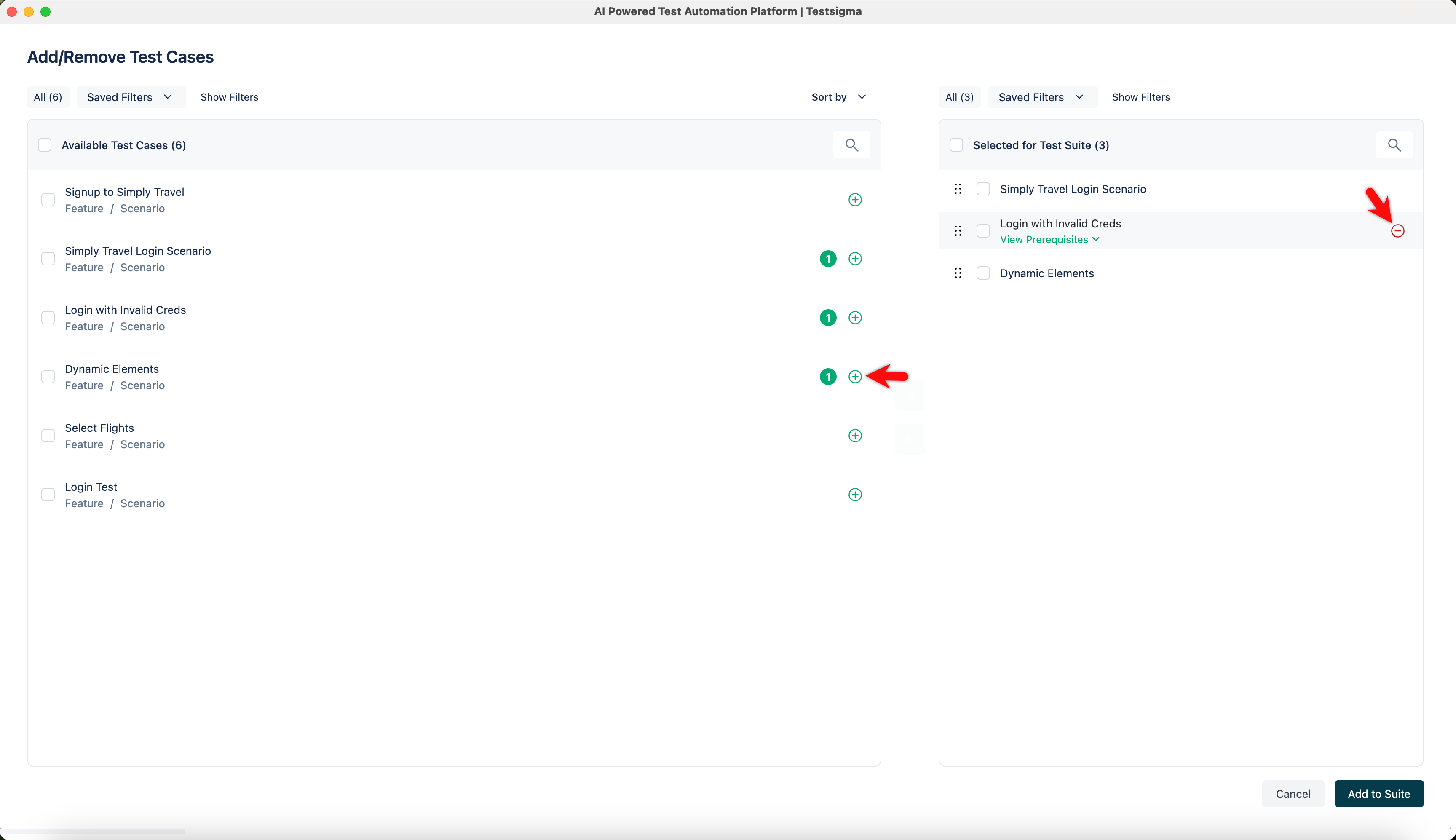
Click Add/Remove Test Cases.
-
Select the test cases in the Available Test Case list, or click the + icon beside each one, to move them to Selected for Test Suite. Drag them to set the run order.
-
Click Add to Suite.
-
(Optional) Turn on AfterTest Suite under Test Suite settings and add the test cases to run afterwards.
-
Click Create.
Create a dynamic test suite
Section titled “Create a dynamic test suite”-
Go to Test Suites, expand Create Test Suite, and click Create Dynamic Test Suite.
-
Enter a Name in the Basic Details section.
-
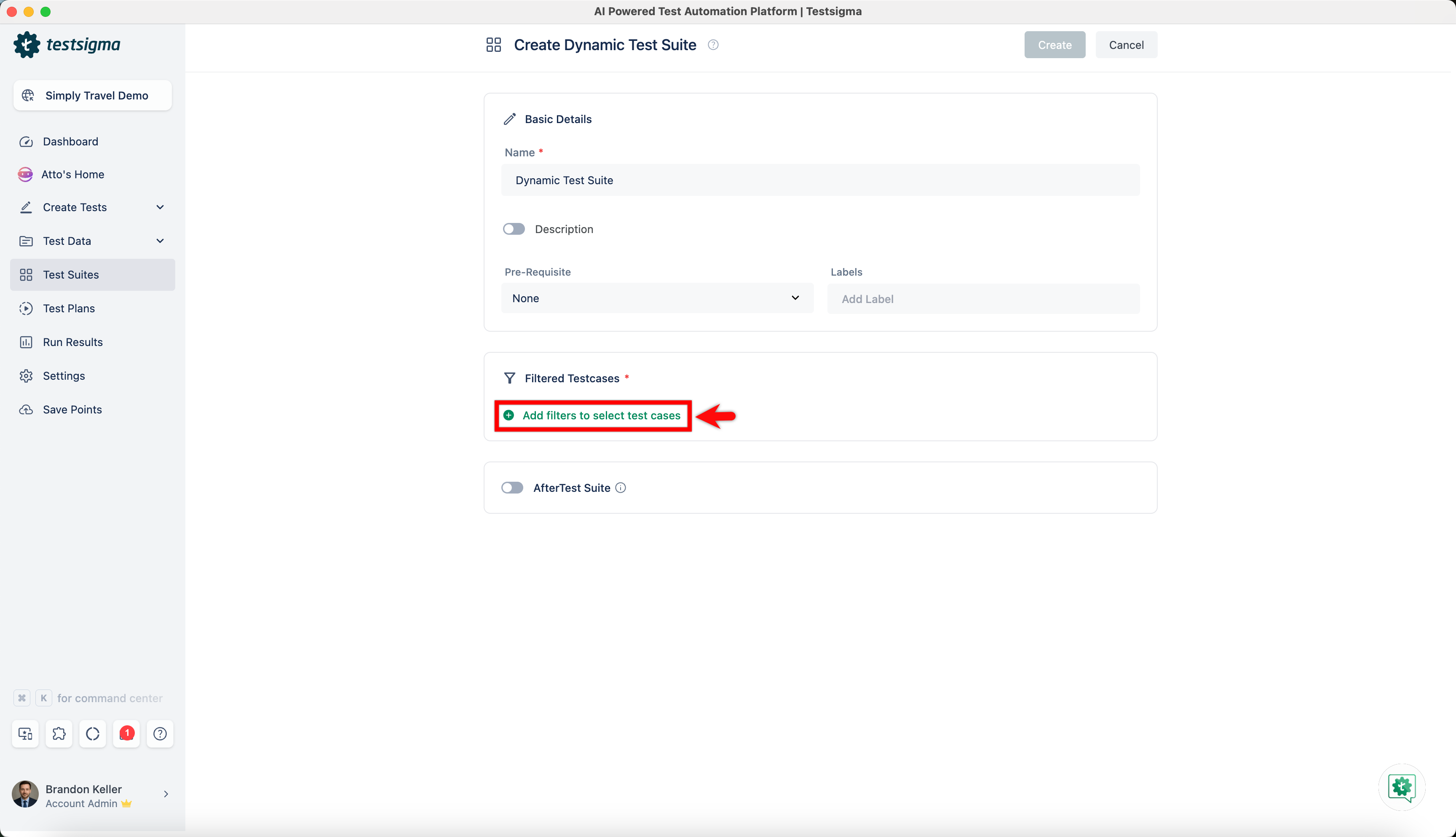
Click Add filters to select test cases in the Filtered Testcases section.
-
Expand Add Filters on the Add/Remove filters to select test cases screen and select the filters you want. Testsigma selects the matching test cases as you go.
-
(Optional) Expand Sort by to order the matched test cases.
-
(Optional) Expand Save Filter, select As New, name the filter in the Save filter config as dialog, select Mark as Public to share it, and click Save.
-
Click Add to Suite.
-
Click Create.
Set the prerequisite rerun options
Section titled “Set the prerequisite rerun options”Choose whether a prerequisite test suite runs again in full, or only its failed iterations run, when you rerun the test plan.
-
Go to Test Suites and click Create Test Suite. To change an existing suite, click the ellipsis icon for it and click Edit.
-
Select the prerequisite test suite from the Pre-Requisite list.
-
Click Rerun options. The Pre-Requisite Rerun Options dialog opens.
-
Select an option:
- Always run Pre-Requisite: runs the prerequisite test suite again in full on every rerun of the test plan
- Only execute failed Pre-Requisite iteration(s): runs only the prerequisite iterations that failed in the selected run
-
Click Save, then click Create.
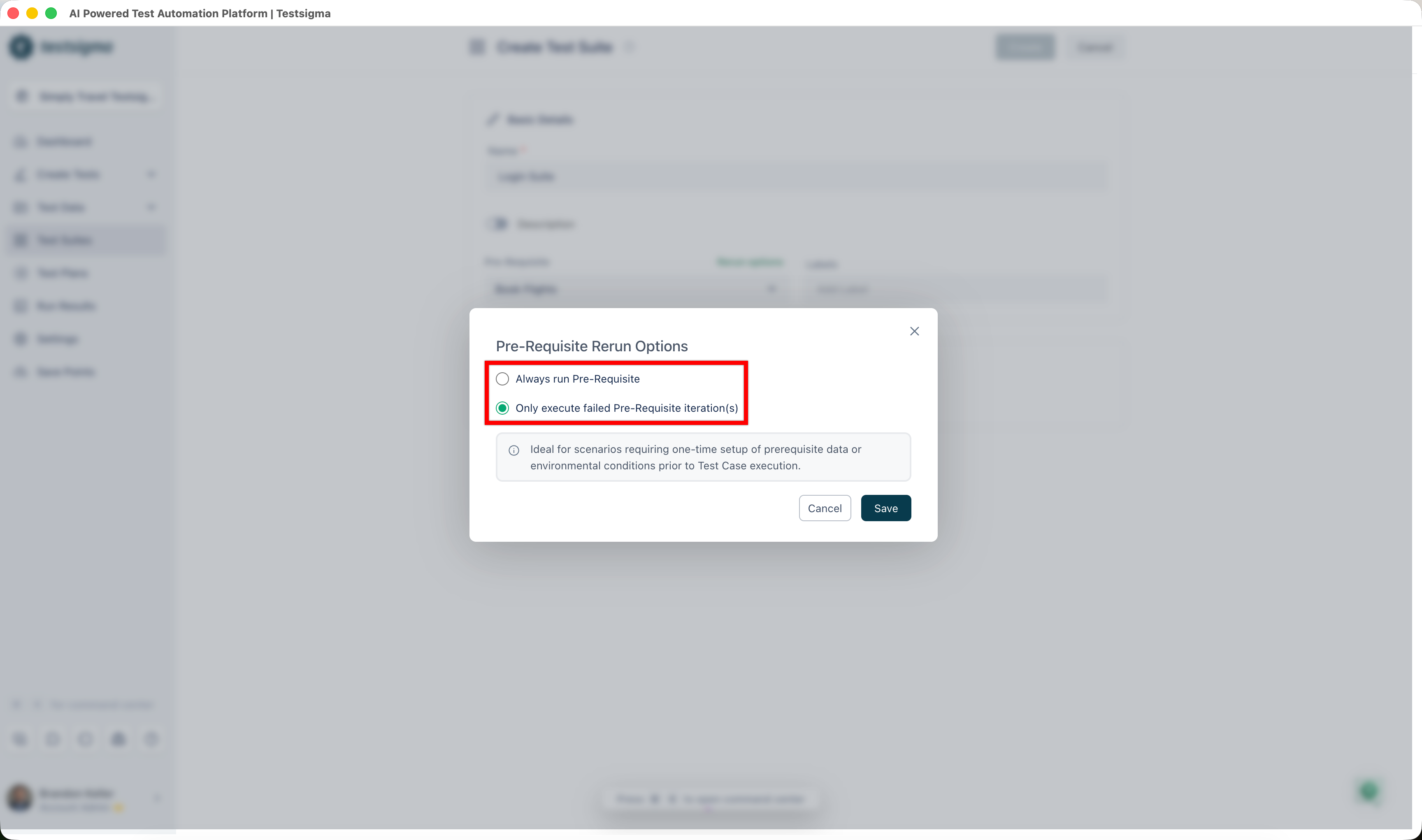
Select Always run Pre-Requisite when the prerequisite generates runtime data that later test cases use, such as an order ID or a session token.
AfterTest Suite
Section titled “AfterTest Suite”AfterTest Suite holds the test cases that run once the suite’s own test cases finish, for clean-up or other post-test work. Turn on the AfterTest Suite toggle under Test Suite settings while creating or editing a suite, then set both dropdowns:
- When to Execute AfterTest Suite: Once After All Test Cases runs the block once at the end. For Every Test Case runs it after each test case in the suite.
- If AfterTest Suite fails: Fail the test suite marks the suite failed when any after-test action fails. Show the test suite result reports the suite’s own result regardless.
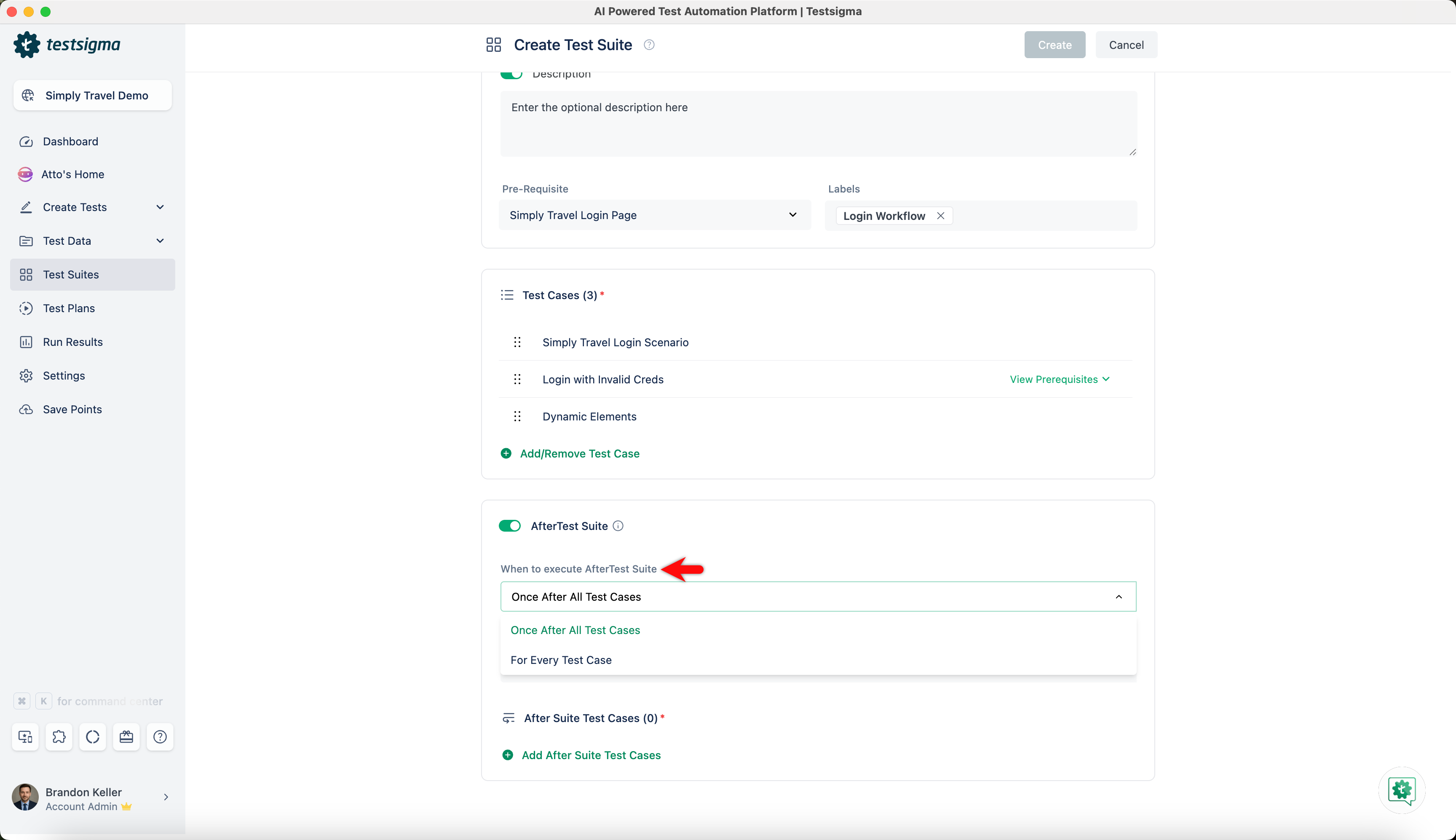
Then click Add After Suite Test Cases, select the test cases in the prompt, and click Add to Suite.
Two NLPs let an after-test case branch on what already happened. Both work only inside an IF condition:
Test Case Result is Passed/Failed/Not Executedbranches on how a test case finished.Test Suite Result is Passed/Failed/Not Executedbranches on how the suite finished, and works correctly only with Once After All Test Cases selected.
Edit a test suite
Section titled “Edit a test suite”Open a suite from the Test Suites list, or click the ellipsis icon (⋮) beside it and select Edit. The Test Suite Details page shows the test cases and the test plans linked to the suite.
From there:
- Add/Remove Test Cases changes which test cases the suite holds.
- Test Suite Settings, in the right navigation bar, holds Pre-Requisite and AfterTest Suite.
- Test Suite Info holds the Name, Type, and Description, with the created and updated details.
- Activity holds the history and the comments.
To edit a dynamic suite, click the ellipsis icon (⋮), select Edit, then click Edit Test Suite and change the filters. Expanding Save Filter then offers As New, which opens Save filter config as, or Replace Existing, which opens Update filter config. Click Add to Suite when the filters are right.
Delete a test suite
Section titled “Delete a test suite”Click the ellipsis icon (⋮) beside the suite and select Delete, or open the suite and click Delete. Enter DELETE in the confirmation dialog and click I understand, delete this Test Suite.
Add a test suite to a test plan
Section titled “Add a test suite to a test plan”-
Go to Test Plans and click Create Test Plan.
-
Enter the name in the Basic Details tab and click Continue.
-
Click + Add Test Suites in the Add Test Suites & Link Machine Profiles tab.
-
Click the + icon beside each suite you want.
-
Click Add to Plan.
-
Click + Link Test Machine.
-
Select the machines in the Select test machine profiles overlay and click Save selections.
-
Click Continue.
-
Configure the Test Plan Settings tab and click Create.
Change the suites in a test plan
Section titled “Change the suites in a test plan”A plan needs at least one test suite, and the suites can be changed 2 ways after the plan exists.
From the plan itself, click Edit, open the Add Test Suites & Link Machine Profiles section, and add or remove suites there.
From the test plan details page, hover over the test machine whose suites you want to change, click the kebab menu, and click Edit. In the Edit test machine/device profile overlay, click Add/Remove Test Suites. In the Add test suites to plan overlay, click + on a suite under Available Test Suites to add it, or - on one under Selected for Test Plan to remove it. Click Update Machine when you are done.
Add a test suite to a scheduled run
Section titled “Add a test suite to a scheduled run”-
Go to Test Plans.
-
Expand Schedule for the suite and click Schedule Partial Run.
-
Enter a Name in the Schedule Partial Test Plan overlay.
-
Click the calendar icon in the Date field and select the date.
-
Click the clock icon in the Time field and select the time.
-
Expand Repeat and select how often the run repeats.
-
Select the suites under Test Suites to Include.
-
Click Schedule.
Find a test suite
Section titled “Find a test suite”The Test Suites list shows each suite’s title, type, creation date, creator, and status. Sort, filter, or search from the same page.
Was this page helpful?
Thanks for the feedback.