

Testsigma Terminal
Testsigma Terminal is the desktop application that runs local test execution and debugging. Testsigma Copilot connects to it when you author or debug a test case against a local machine, and it downloads and manages the agent and everything the agent needs.
System requirements
Section titled “System requirements”| Component | Requirement |
|---|---|
| Operating system | Windows 10 or 11 (64-bit), macOS 12 or later, or Linux (64-bit) |
| Architecture | Apple Silicon (M1, M2, M3) or Intel on Mac, x64 on Windows and Linux |
| Memory | 8 GB minimum, 16 GB where the machine also runs IDEs or other heavy applications |
| Free disk space | 20 GB to 30 GB, because the Terminal downloads the agent, Chrome for Testing, drivers, and the recorder at runtime |
| Processor | Dual-core or higher |
| Permissions | Rights to install a desktop application and load a browser extension |
The download is around 850 MB and extracts to around 1.5 GB. The ZIP is deleted after a successful extraction.
Local ports
Section titled “Local ports”| Port | Used for |
|---|---|
| 8383 | Agent HTTP, on loopback |
| 8484 | Agent HTTPS |
| 8585 | Agent control channel |
| 18329 | The debugger component, where installed |
Reconfigure any of them from Terminal > Settings > Ports if a default is already in use. Each concurrent instance needs its own set, so assign a distinct port block per instance.
Network
Section titled “Network”*.testsigma.comandlocal.testsigmaagent.comare allowed through the firewall, the proxy, and web filtering.- Outbound ports 443 and 80 are open to the Testsigma cloud and asset hosts.
- The outbound ephemeral range 10000 to 65535 is not blocked, since live test sessions and device communication use it.
- The machine resolves
local.testsigmaagent.comto127.0.0.1.
Proxy and certificates
Section titled “Proxy and certificates”- The no-proxy bypass list includes
local.testsigmaagent.com,localhost, and127.0.0.1. That traffic stays on the local machine and must never route through the proxy. - Self-signed or internal corporate SSL certificates used on the test environment are trusted by the machine.
- Where SSL inspection is active, through Zscaler, Netskope, Cisco Umbrella, Forcepoint, Blue Coat, Palo Alto, or Fortinet, the Testsigma domains are excluded from inspection, or the inspection root CA and its full chain are added to the Terminal’s trust store.
Endpoint security
Section titled “Endpoint security”The Terminal runs from the user profile, at .testsigma, and not from Program Files, which matters for two kinds of tooling.
- Endpoint protection and EDR tools, such as CrowdStrike, SentinelOne, Microsoft Defender ATP, or Carbon Black, allow the agent path and its child processes: Node.js, Java, ADB, and the browser drivers.
- Application allow-listing tools, such as AppLocker and WDAC, allow the agent to run from the user profile.
- The machine downloads and runs
.exe,.zip, and.crxfiles without them being blocked or quarantined.
Browsers
Section titled “Browsers”Browser policy allows installing and enabling extensions, since the recorder loads as one. Where loading unpacked extensions is disabled by policy, which is common on Edge, IT allows the recorder’s extension ID.
Non-public applications and mobile
Section titled “Non-public applications and mobile”An application that is not publicly reachable needs Testsigma Tunnel. IP whitelisting cannot reach a locally hosted application, so Tunnel is the only route. IT allows downloading and running it, antivirus and endpoint security do not block its process, outbound connectivity to the Testsigma environment is confirmed, and any proxy configuration is applied to the Tunnel itself.
For mobile testing, Android needs ADB available on the machine to run against a local physical device or emulator, and iOS may need a supervision profile. Testing exclusively on cloud devices needs no local installation at all.
Install the Terminal
Section titled “Install the Terminal”Go to Agents and click Testsigma Terminal, or take the direct download for your machine:
| Operating system | Installer |
|---|---|
| Windows | |
| macOS (Apple silicon) | |
| macOS (Intel) | |
| Linux |
A Docker image is available as well, and is documented separately.
- Select your machine configuration in the dialog. The download starts automatically.
- Install and open the application.
- Click Configure Settings to set security and certificates, network and proxy rules, or runtime and JVM preferences, then Continue to save them. To accept the defaults, click Continue without configuring anything.
- Click Login to Testsigma, which redirects you to Testsigma.
- Click Open the desktop app.
- Wait while the Terminal downloads the files it needs and finishes installing.
Linux ships as an AppImage, which has to be made executable before it will launch.
- Click Download for Linux.
- Find the downloaded file, click the More Options icon, and select Open in Terminal.
- Run
chmod a+x fileName.AppImage, substituting the name of your download. - Click the file again to launch it. The Terminal downloads automatically.
- Open the application and click Login to Testsigma.
- Click Open the desktop app.
The Terminal and the agent
Section titled “The Terminal and the agent”Testsigma Terminal manages the execution agent for you, so the two are not installed separately.
- Only one active agent runs on a machine. Testsigma Terminal detects an existing Java agent and uses it for Copilot and for test executions.
- During installation the old agent is detected, upgraded, and converted into the Testsigma Terminal Java agent. Where no inactive agent is found, a new one is installed and registered again.
- The agent registration process itself is unchanged. See Testsigma Agent.
- That one agent serves remote executions, ad-hoc runs, and Copilot.
The agent starts automatically when Testsigma Terminal launches and runs in the background. To manage either by hand:
| Action | Testsigma Terminal | Agent |
|---|---|---|
| Start | Launch it from your applications | Run sh Start.sh from the agent location |
| Stop | Click Quit Session | Run sh Stop.sh from the agent location |
| Restart | Stop it and launch it again | Relaunch Testsigma Terminal, or click Restart on the Copilot home page |
The agent writes its logs to its data folder. See File locations for the path on each OS.
The Terminal interface
Section titled “The Terminal interface”The left panel holds 2 execution sections, Copilot and Agentic, and 5 pages for monitoring and configuration.
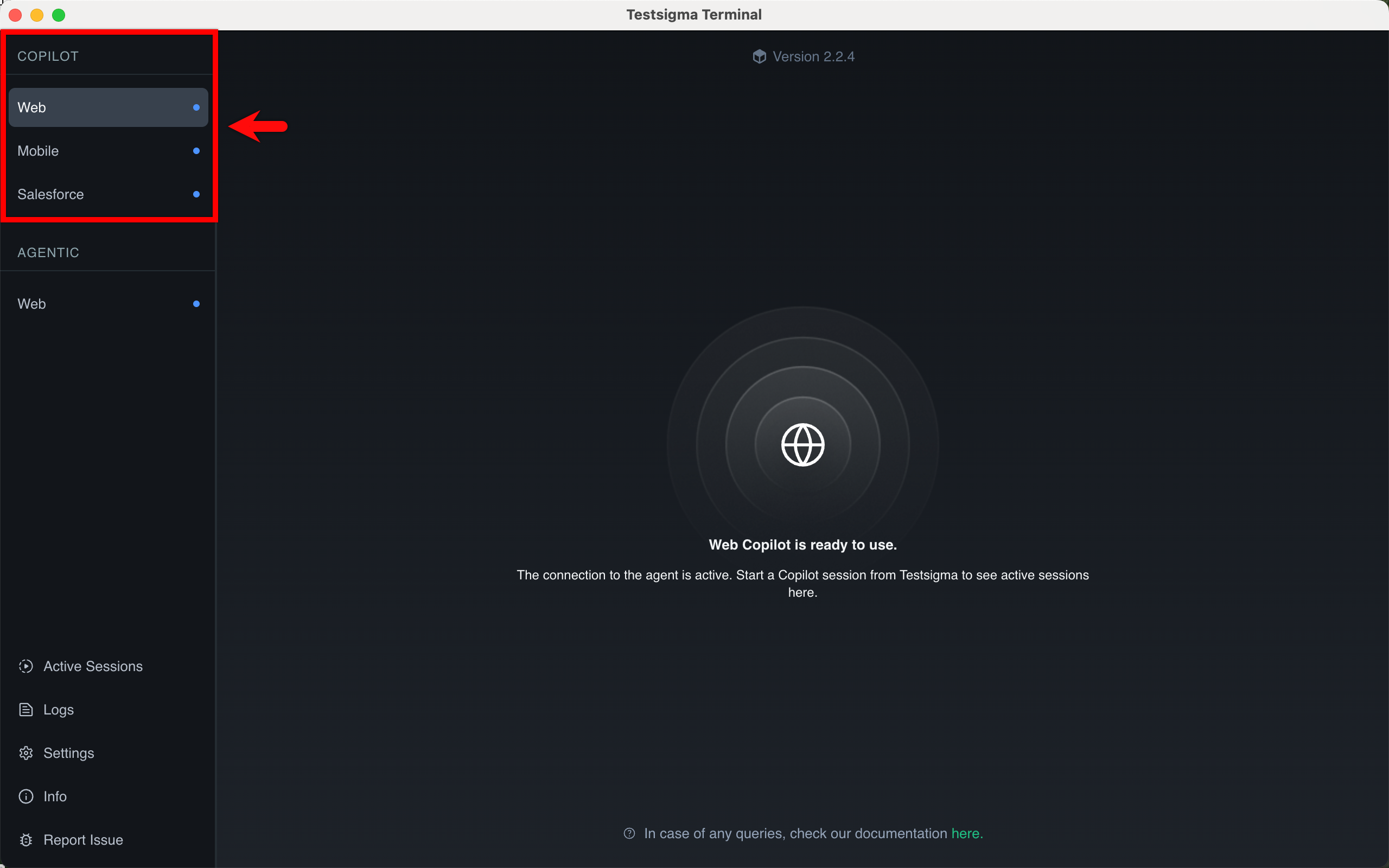
Copilot is the execution engine for web, Salesforce, and desktop applications. It downloads and configures its dependencies on first setup, and the application’s status indicator turns from blue to green while a session is running.
Agentic powers the AI agents and agentic Copilot, and is available to enterprise accounts. It manages its own dependency downloads and runs independently of Copilot. For accounts without it, the panel shows upgrade availability per application type, and Upgrade to Enterprise enables the agentic features for the application you select.
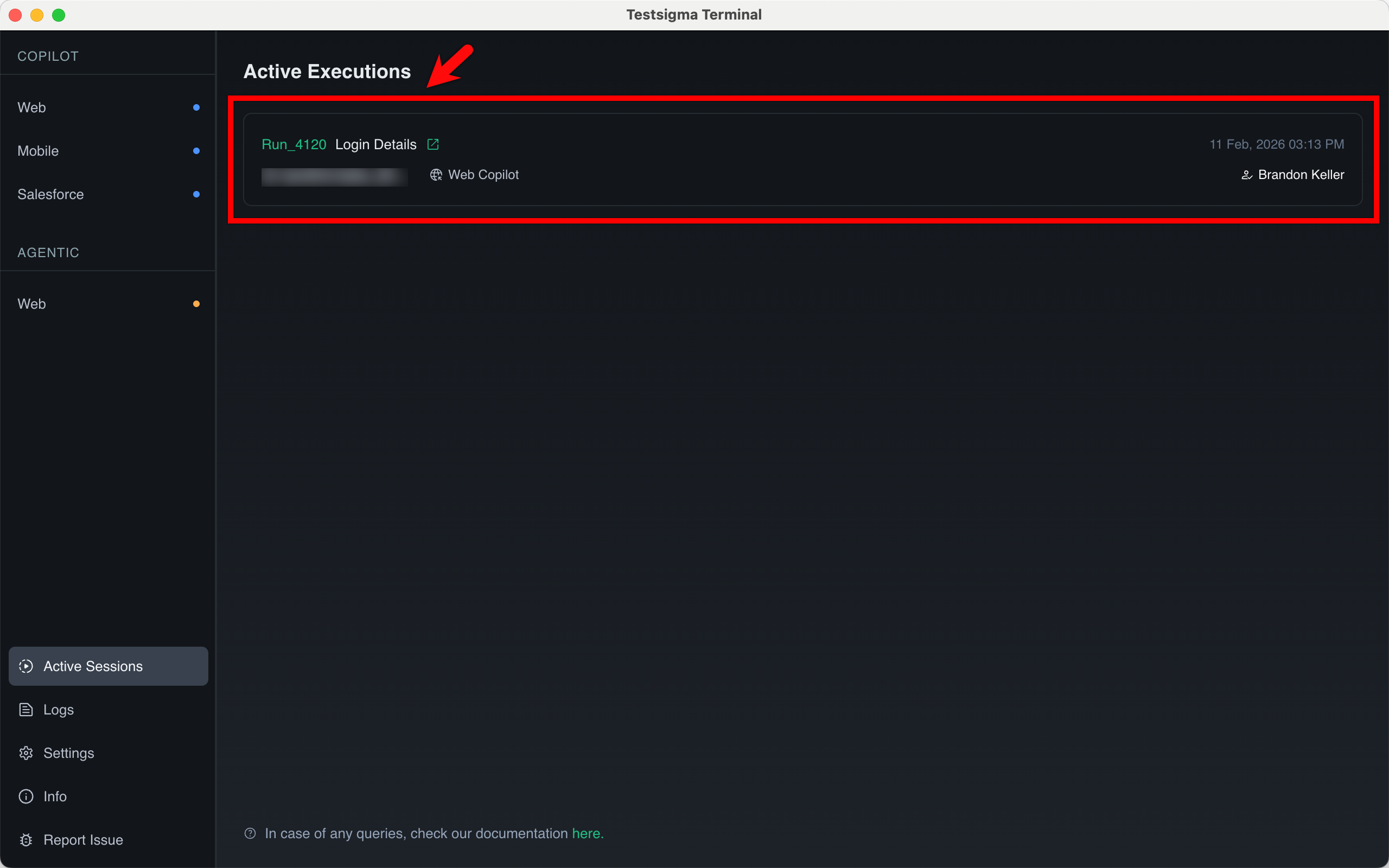
Active Sessions shows local executions as they happen, with the run ID, the test name, the execution type such as Web Copilot, the user who triggered it, and the timestamp. It refreshes when a run completes or stops, shows agent readiness for local mobile executions, and lists local API executions, so there is no need to refresh the dashboard during a local run.
Logs carries 3 tabs, and which one you want depends on where the problem is:
- Terminal Logs: the Terminal application’s own status and setup, covering agent and package installation, system configuration, and the communication between the Terminal and the Copilot agent.
- Agent Logs: what happens inside the execution agent while it runs a test, including communication records and every step taken.
- Execution Logs: real-time activity for the test running now.
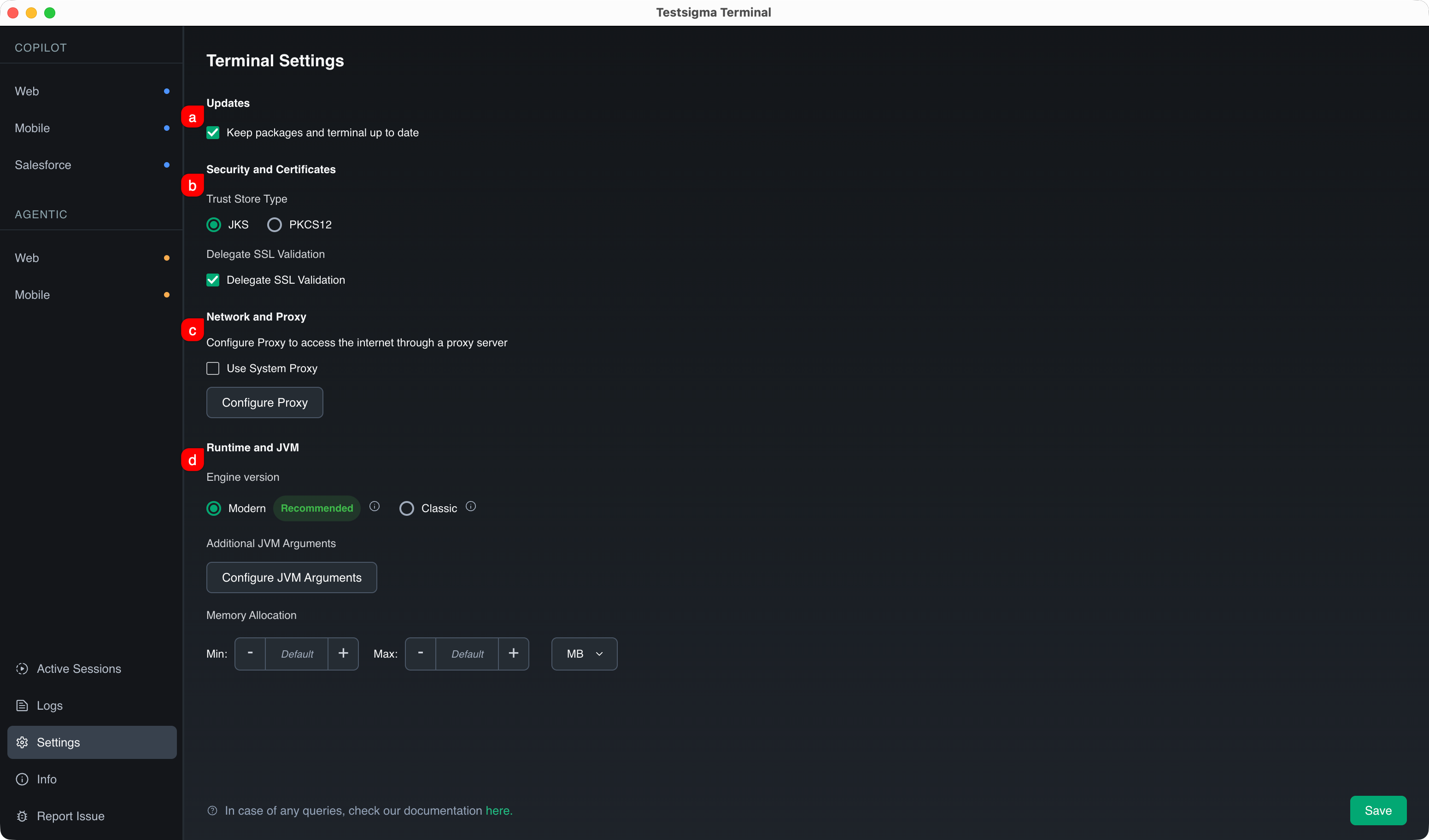
Settings holds 4 groups, and Save applies them:
- Updates: Keep packages and terminal up to date lets the Terminal download dependencies and application updates on its own.
- Security and Certificates: the Trust Store Type, either JKS or PKCS12, and Delegate SSL Validation for how the Terminal validates certificates during execution.
- Network and Proxy: Configure Proxy sets the host, port, user, and password per protocol for HTTP and HTTPS, plus the Non Proxy Hosts that bypass it.
- Runtime and JVM: the Engine version, either Modern, which is recommended, or Classic, along with additional JVM arguments as key-value pairs and Min and Max memory allocation in MB or GB.
Info shows device specifications, the current version and port configuration, the Terminal’s directory path, and links to help and support.
Report Issue sends a problem to support. Click Report a New Issue, enter a title and a description, and click Send Report. The relevant logs attach automatically.
Uninstall the Terminal
Section titled “Uninstall the Terminal”-
Click Stop session to leave Copilot.
-
Uninstall the Testsigma Terminal application.
-
Delete the
Testsigmafolder from Disk > Users >user_folder> Library > Application Support. -
Stop the agent still running in the background, as below.
On macOS and Linux, find the process ID with lsof -i :8383 and end it with kill -SIGKILL <PID>.
On Windows, find it with PowerShell and end it:
Get-Process -Id (Get-NetTCPConnection -LocalPort 8383).OwningProcessStop-Process -Id <PID> -ForceFile locations
Section titled “File locations”Removing every trace means clearing four paths. The agent’s properties file:
| OS | Path |
|---|---|
| Windows | %user_profile%\AppData\Roaming\Testsigma\Agent\config\agent.properties |
| Linux | $HOME/.testsigma/agent/config/ |
| macOS | $HOME/Library/Application Support/Testsigma/Agent/config/ |
The agent’s data folder, which holds the agent logs:
| OS | Path | Quick open (Windows Run dialog) |
|---|---|---|
| Windows | C:\Users\<username>\AppData\Local\Testsigma\agent\data\ | %LOCALAPPDATA%\Testsigma\agent\data |
| macOS | $HOME/Library/Application Support/Testsigma/agent/data/ | Not applicable |
| Linux | $HOME/.local/share/testsigma/agent/data/ | Not applicable |
The Terminal’s logs:
| OS | Path | Quick open (Windows Run dialog) |
|---|---|---|
| Windows | C:\Users\<username>\AppData\Local\Testsigma\terminal\logs\ | %LOCALAPPDATA%\Testsigma\terminal\logs |
| macOS | $HOME/Library/Application Support/Testsigma/terminal/logs/ | Not applicable |
| Linux | $HOME/.local/share/testsigma/terminal/logs/ | Not applicable |
To use a quick open value, press Windows + R, paste the value, and click OK. This opens the folder even when AppData is hidden.
The Terminal’s state:
| OS | Path |
|---|---|
| Windows | %user_profile%\AppData\Roaming\com.testsigma.testsigmaterminal\ |
| Linux | $HOME/.testsigma/com.testsigma.testsigmaterminal/ |
| macOS | $HOME/Library/Application Support/com.testsigma.testsigmaterminal/ |
The Terminal itself installs to .testsigma/TestsigmaTerminal/ inside your user profile on every platform.
Frequently asked questions
Section titled “Frequently asked questions”Every recovery below starts with a button in the Testsigma Terminal window. None of them needs a command line.
Do I need the Terminal to run Copilot on the cloud?
Section titled “Do I need the Terminal to run Copilot on the cloud?”No. The Terminal is needed only for sessions on Local Devices. A session on the Testsigma Cloud Lab runs on a Testsigma-hosted machine. Use Local Devices when your application under test is not reachable from the cloud.
What does a Copilot session consume?
Section titled “What does a Copilot session consume?”A session launched from the action panel consumes a Copilot parallel. One launched through Agentic Learning consumes an agentic session. A session on the Testsigma Cloud Lab also occupies a cloud parallel for its duration.
What happens if a cloud Copilot session is left idle?
Section titled “What happens if a cloud Copilot session is left idle?”A countdown dialog warns that the session is about to expire. With no response, the session ends and the cloud machine is released.
Why can’t the Terminal download or extract its files?
Section titled “Why can’t the Terminal download or extract its files?”A download fails on network connectivity, insufficient disk space, or a firewall. An extraction fails on insufficient disk space or other software blocking it. Click Retry Download for a failed download, or Retry for a failed extraction.
If it fails again, click Troubleshoot Download, then Download ZIP to fetch the installer ZIP to your device. Click Continue, select Select downloaded .zip file, choose the file, and click Continue to resume.
Why won’t the Terminal launch on Linux?
Section titled “Why won’t the Terminal launch on Linux?”The AppImage needs its dependencies present on the system, and a missing one stops the installer from launching. Install the dependencies named on the error screen and try again.
Why can’t I log in to the Terminal?
Section titled “Why can’t I log in to the Terminal?”Network settings or security restrictions block the redirect. Click Retry Login, then Open the desktop app, and wait for the download and installation to finish. If it still fails, click Contact Support.
Why do I see an authentication error during installation?
Section titled “Why do I see an authentication error during installation?”Either an account was switched partway through the installation, or processes and files from a previous installation are still present. Clear them with the same cleanup as the port conflict above.
Why won’t the Terminal start on its ports?
Section titled “Why won’t the Terminal start on its ports?”One of 8383, 8484, or 18329 is already held by another process. Click Retry to check availability again, then Edit Configuration, set free ports, and click Update Configuration & Retry.
Why can’t the Terminal download or update its packages?
Section titled “Why can’t the Terminal download or update its packages?”An unstable connection, a firewall, or low disk space. Click Download Packages or Update Package in the Terminal window, and Retry Download or Retry Update if the first attempt fails. The process is the same for every application type.
Why wasn’t my device registered automatically?
Section titled “Why wasn’t my device registered automatically?”A conflicting server stopped the automatic registration the Terminal performs at setup. Click Retry, and click Register Device Manually if that does not work.
Why can’t the session reconnect to the agent?
Section titled “Why can’t the session reconnect to the agent?”The connection between your system and the agent failed or was interrupted. Click Reestablish Connection, and click it again if the first attempt fails.
Why won’t the agent start?
Section titled “Why won’t the agent start?”A missing file, a corrupted file, or a conflicting application. Click Retry in the Terminal window.
Why doesn’t Copilot update the test steps?
Section titled “Why doesn’t Copilot update the test steps?”The agent is incompatible with the Chrome version in use, which was reported against Chrome 139. Delete the whole .testsigma folder and restart the Terminal, which downloads a new agent.
Was this page helpful?
Thanks for the feedback.