

Zephyr
Zephyr Cloud integration links Zephyr test cases and test plans with their Testsigma counterparts and exports run results back. Link artifacts by ID once connected.
Prerequisites
- A valid Personal Access Token from Zephyr Cloud.
- Your Jira Account URL, Username, and API key.
Connect Zephyr Cloud
Section titled “Connect Zephyr Cloud”-
Open integrations: from the left navigation bar, go to Settings > Integrations.
-
Enable Zephyr Cloud: turn on the toggle for Zephyr Cloud.
-
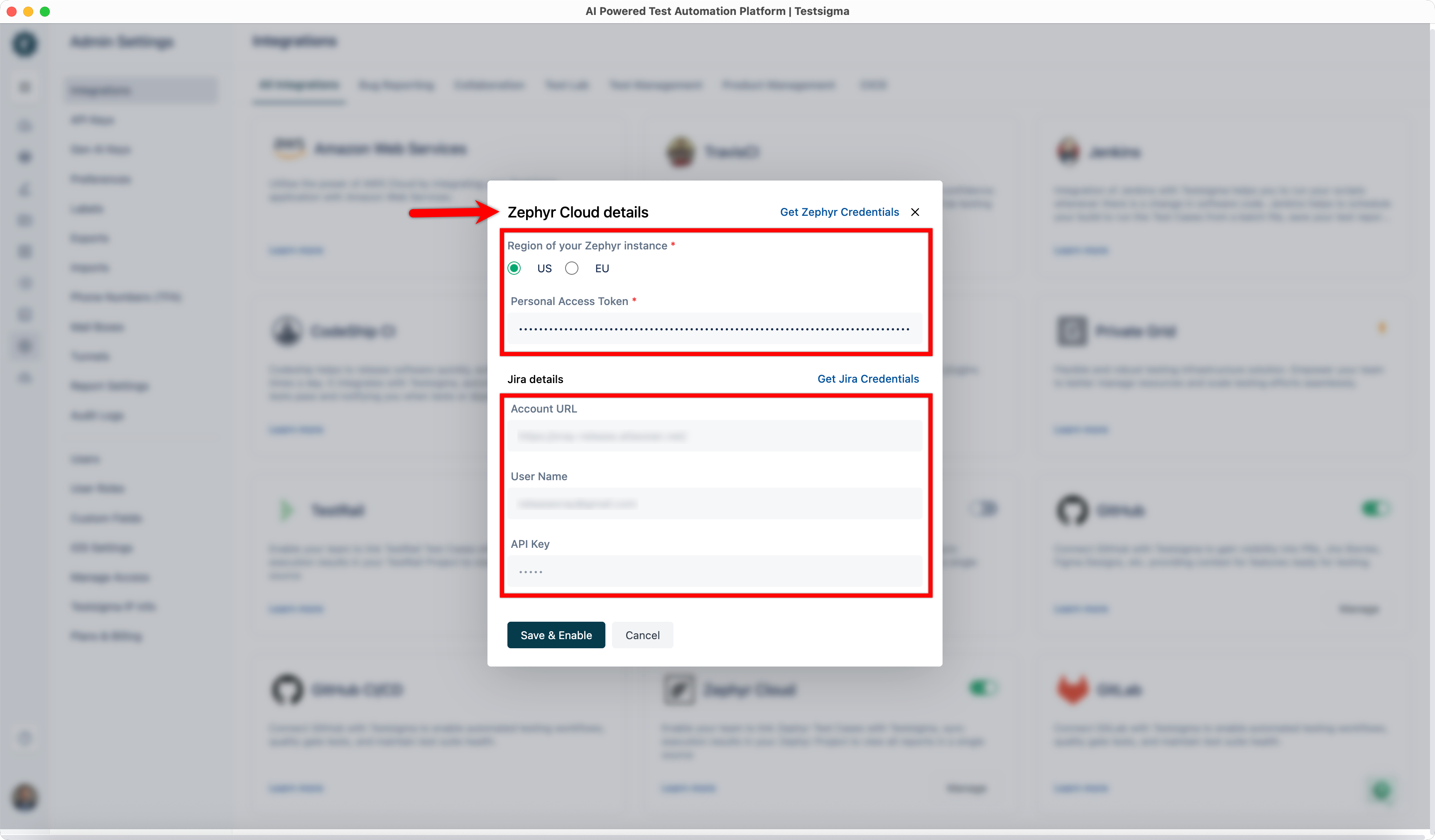
Enter credentials: in the Zephyr Cloud Details dialog box, select the Region of your Zephyr instance, then enter your Personal Access Token and Jira Details.
-
Save: click Save & Enable.
Link a test case
Section titled “Link a test case”-
Copy the ID: get the ID of an existing test case from Zephyr Cloud.
-
Open the test case: in Testsigma, go to Create Tests > Test Cases and open the test case you want to link, then click Manage Test Case.
-
Link it: enter the Zephyr test case ID and click the Link button.
Link a test plan
Section titled “Link a test plan”-
Copy the ID: get the ID of an existing test plan from Zephyr Cloud.
-
Open the test plan: in Testsigma, go to Test Plans and open the test plan you want to link.
-
Link it: enter the Zephyr Project ID and click the Link button.
Check results in Zephyr
Section titled “Check results in Zephyr”Execute the linked test plan in Testsigma and wait for it to complete. Then click Zephyr Execution. You are redirected to Zephyr Cloud, where you can view the execution details.
Was this page helpful?
Thanks for the feedback.