

Custom fields
A custom field adds information Testsigma does not hold by default, and it becomes a filter on the test case library. A team tracking which sprint a test case belongs to, or which module it covers, defines that as a custom field rather than encoding it in the name.
Create a custom field
Section titled “Create a custom field”-
Go to Settings > Admin Settings > Custom Fields.
-
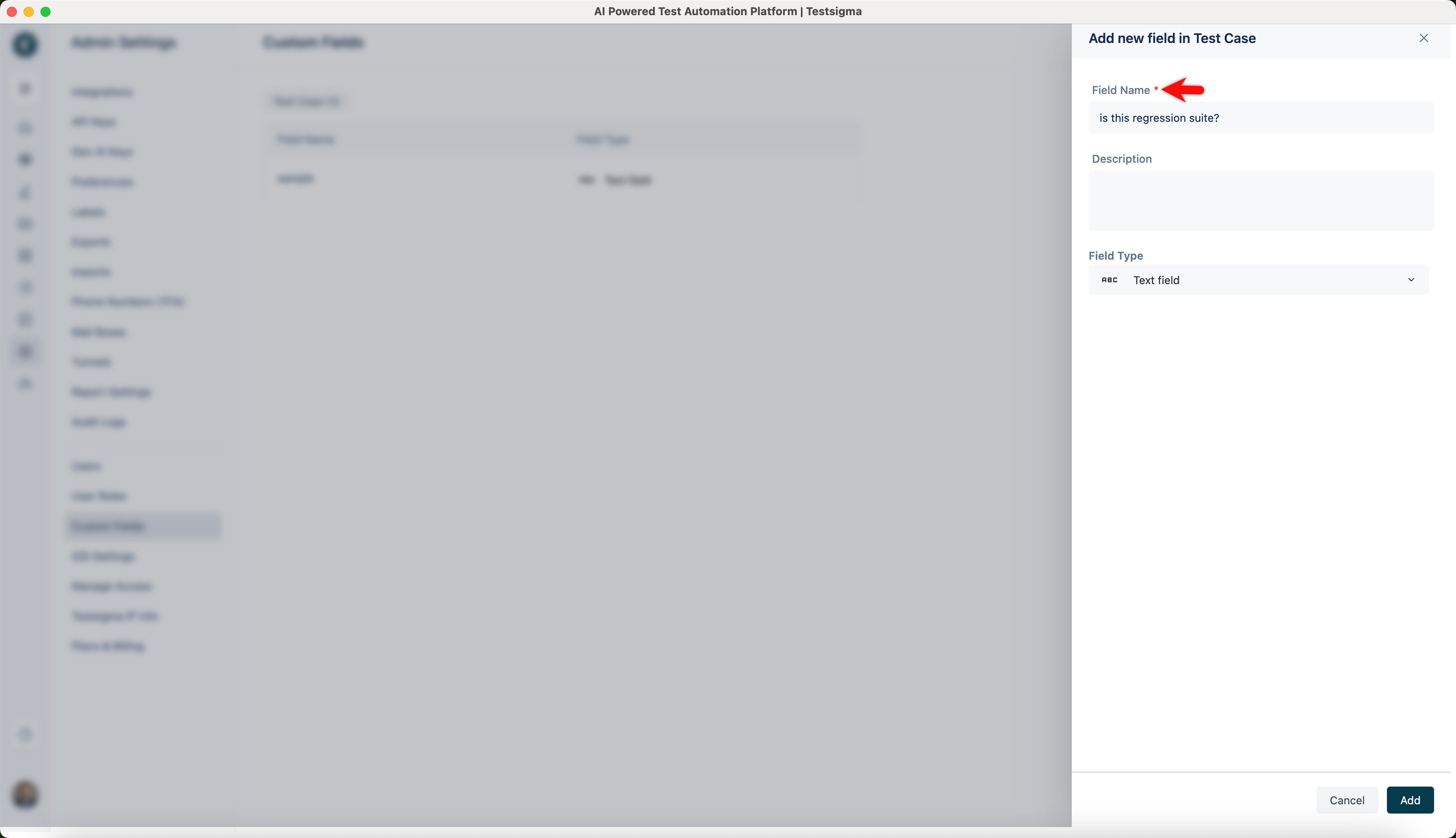
Click Add new field. The Add new field overlay opens under Test Case.
-
Enter a Field Name and a Description.
-
Choose the Field Type from the dropdown.
-
Configure the type’s options and click Add.
The description is what a test case author reads when filling the field in, so it is worth writing.
Fill it in on a test case
Section titled “Fill it in on a test case”-
Go to Create Tests > Test Cases and open the test case.
-
Click Manage Test Case in the utility panel and scroll to Custom Fields.
-
Enter the values and click Close.
Filter by it
Section titled “Filter by it”-
Go to Create Tests > Test Cases and click List View.
-
Click Show Filters.
-
Expand Add Filter and select the custom field.
Custom fields sit alongside the built-in filters, so a filter can combine a custom field with status, priority, and labels. Saving that combination as a filter makes it reusable, and a public saved filter shares it with the team. See Test cases.
Was this page helpful?
Thanks for the feedback.