

Backlog
Backlog integration lets you file a bug in a Backlog project from a run result. The ticket carries the test’s evidence: annotations, step screenshots, and the execution video. Setup needs two values from Backlog.
Prerequisites
- Your organization’s Backlog Account URL and a Backlog API Key.
Get the API key
Section titled “Get the API key”Your Backlog URL is the address shown in the browser’s address bar after you log in.
-
Open Personal Settings: click the profile icon drop-down in the top-right corner of Backlog and select Personal Settings.
-
Open API settings: in the personal settings menu, click API.
-
Generate the key: under API Settings, enter a unique name in the Memo field and click Submit. Backlog generates the key from the Memo text, so any text works.
-
Copy the key: copy the generated API key. It authenticates Testsigma with Backlog.
Connect Backlog
Section titled “Connect Backlog”-
Open integrations: go to Settings > Integrations.
-
Enable Backlog: turn on the toggle on the Backlog widget.
-
Enter the details: in the Backlog details dialog, enter the Account URL and API Key, then click Save & Enable.
Report a bug
Section titled “Report a bug”-
Open the result: go to Run Results and open the Test Case Result where you want to add a bug.
-
Start the report: click Report Bug.
-
Pick Backlog: in the Report overlay, click the Backlog icon. Only bug reporting tools you have enabled appear here.
-
File it: review the details and click Report Bug.
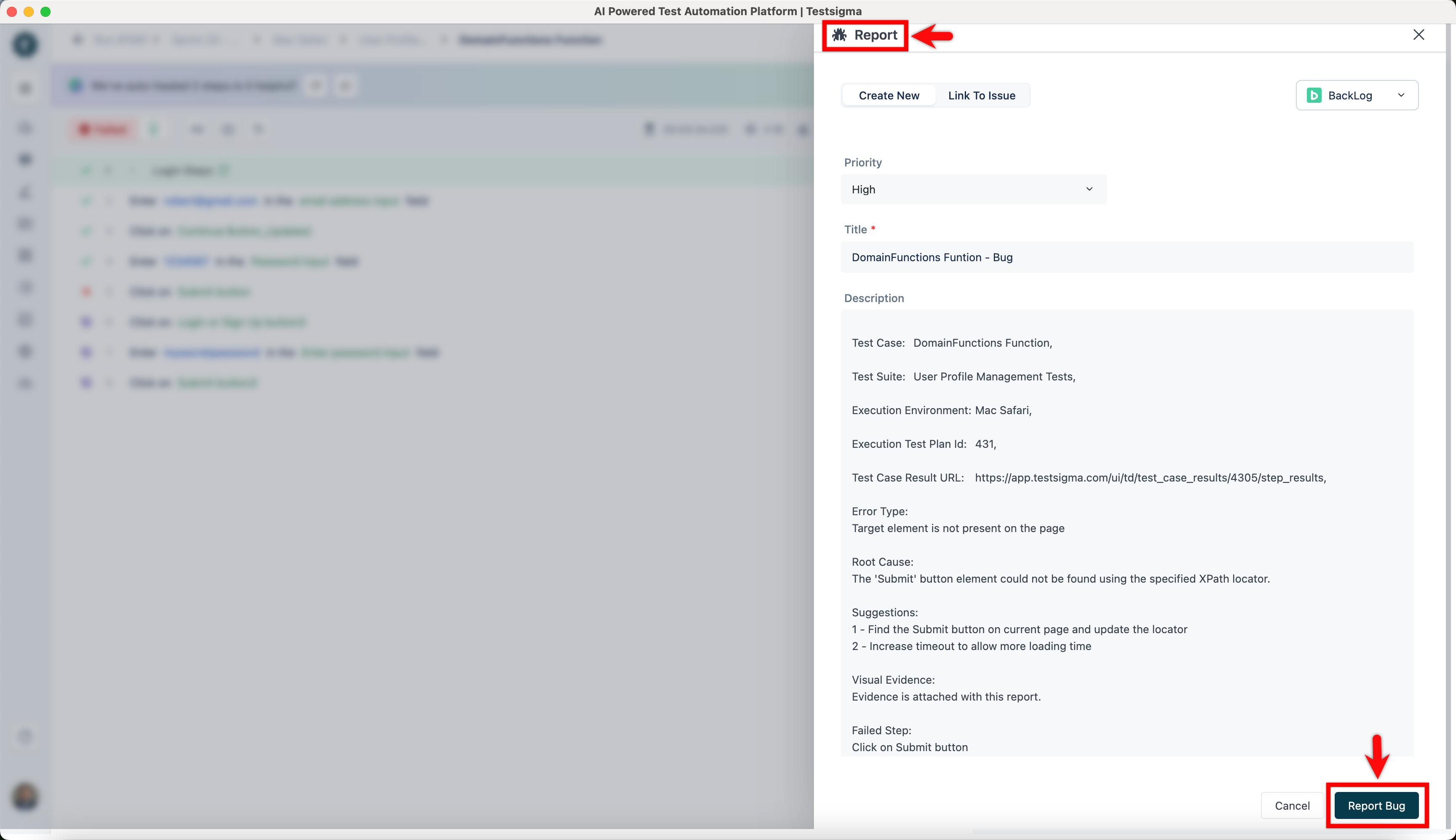
When the bug is created, Testsigma automatically adds test result context to the Backlog issue, including the test execution video and step screenshots.
Was this page helpful?
Thanks for the feedback.