

Test step settings
Step settings decide how one step behaves during a run: how long it waits, how often it retries, whether it captures a screenshot, and whether its result counts toward the test case result.
Click the ellipsis icon (⋮) on a step and select Step Settings. In the recorder, hover over a recorded step first, then click the ellipsis icon (⋮) and select Step Settings to open Step Details.
| Setting | What it does |
|---|---|
| Max. wait time | Fails the step when it takes longer than the limit. The maximum is 120 seconds |
| Retries on step failure | Re-attempts the step when it fails, up to 10 times |
| Screenshot capture | Always, Only on step failure, No screenshot required, or Use step level settings, which keeps what the step already has. The last option appears during execution only |
| Pre-Requisite | A step in the same test case that must pass before this one runs |
| Stop Test Case execution on Test Step | Ends the run when this step fails. Selected by default |
| Ignore this step result in Test Case Result | Leaves this step’s outcome out of the test case result |
| Disable Step | Skips the step during execution. Cleared by default |
| Enable Visual Testing for the Step | Captures the UI on this step and compares it against a baseline. Off by default. See Visual testing |
| Enable Accessibility Testing for the step | Validates the step against accessibility standards. Needs Web Accessibility Testing - Step Level turned on under Settings > Preferences > Web Accessibility Testing |
| Highlight element in screenshot | Marks the acted-on element in each screenshot |
Global step timeout
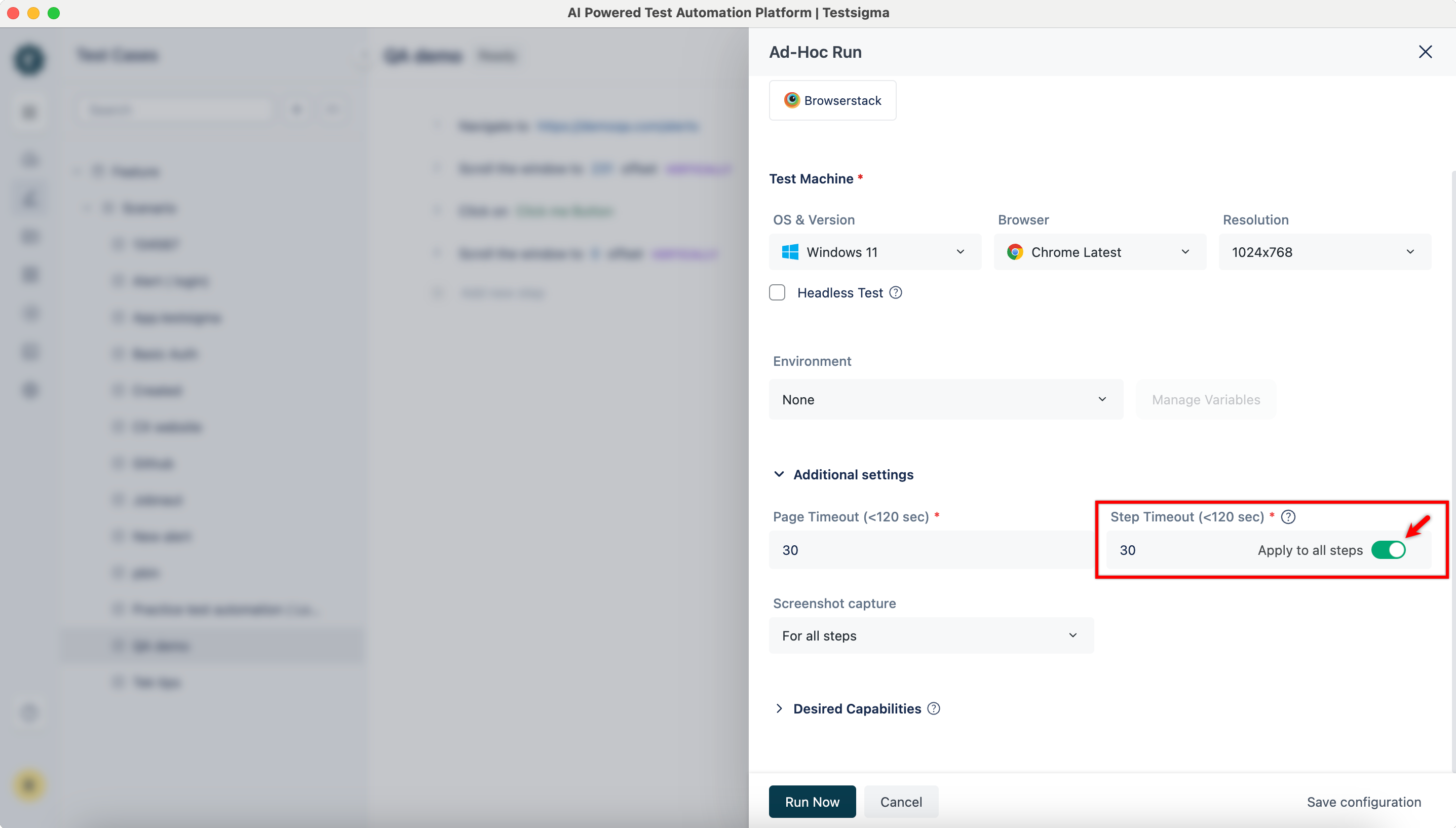
Section titled “Global step timeout”Global Step Timeout, in the Additional Settings section of the Ad-hoc Run overlay, sets one wait time for a whole run. Its toggle decides whether a step’s own timeout survives.
| Step timeout | Global timeout | Toggle | What runs |
|---|---|---|---|
| 30 seconds, the default | 30 seconds, the default | Off | 30 seconds everywhere, since global and step match |
| 30 seconds, the default | 60 seconds | Off | 60 seconds, because global overrides the default |
| Some steps customized | Any value | Off | Customized steps keep their own timeout, the rest take the global one |
| Some steps customized | Any value | On | The global timeout overrides every step |
Two more run-level timeouts sit in the same Additional Settings section and apply to the whole run: Page Timeout, how long the test waits for a page to load, and Element Timeout, how long it waits for an element. Screenshot Capture there takes All Steps or Failed Steps, and applies across the run rather than per step.
Step options
Section titled “Step options”Click a step to reach its inline controls, or the ellipsis icon (⋮) for the rest.
- Clear Step: empties the step’s action and data. The eraser icon does the same
- Clone Step: makes an identical copy of the step
- Delete Step: removes the step from the test case permanently
- Step Above and Step Below: add a step on either side of this one
- Disable Step: deactivates the step so it does not run
- Ignore Step Result: excludes this step’s outcome from the test case result
- Enable Visual Testing: captures and compares the UI on this step
- Step Settings: opens the full per-step configuration
In the recorder, click an element on a step to reach Edit, Change, and Create Element. Disable Step, Ignore Step Result, and Enable Visual Testing are applied by selecting the option and then clicking Update Step.
To reorder steps, hover over the drag handle (⋮⋮) before a step, drag the step to its new position, then click Save New Order.
Change several steps at once
Section titled “Change several steps at once”Hover over a step number on the Test Case Details page, and the number becomes a checkbox. Select the steps you want, or click Select All in the menu bar to take every step on the page. The menu bar then offers 4 actions:
- Update Settings: changes settings across all the selected steps at once, which is how visual and accessibility testing are usually turned on. See Visual testing and Accessibility testing
- Create Block: builds a block from the selected steps
- Create Step Group: builds a step group from them
- Delete: removes them
The same 4 actions work on recorded steps in the recorder.
Was this page helpful?
Thanks for the feedback.