

Salesforce NLPs and queries
Salesforce testing has 19 NLPs of its own, available in no other application type. They read the metadata synced from your org, so a step can name an object, a field, or a connection directly instead of navigating the UI to reach it. There are also 2 ways to query Salesforce data from a test.
Before you use any of them, the org needs a metadata connection. See Set up Salesforce testing.
Sign in and navigate
Section titled “Sign in and navigate”| NLP | What it does | Inputs |
|---|---|---|
Login to Salesforce Application application using Salesforce Connection connection | Signs in to the configured instance with a chosen application and user connection | Salesforce Application, Salesforce Connection |
Login to Salesforce using Salesforce Connection | Signs in with a chosen user connection. This is the default NLP for a test case | Salesforce Application |
Switch to Salesforce Application application | Switches to the application you select | Salesforce Application |
Navigate to Salesforce tab | Moves to a tab within the same application | Salesforce Tab |
Work with records
Section titled “Work with records”| NLP | What it does | Inputs |
|---|---|---|
Create record in Salesforce Object Form using Salesforce Connection connection and store the record id in variable test data | Creates a record through the create record API and stores its RECORD_ID in a variable | Salesforce Connection, Salesforce Object Form, variable |
Update record in Salesforce object form where record id is test data using Salesforce connection connection | Updates a record through the update record API | Salesforce Connection, Salesforce Object Form, RECORD_ID |
Open the create Salesforce Object record form | Opens the create record form on the selected tab | Salesforce Object |
Open the edit Salesforce Object form where record id is Record ID | Opens the edit form for a specific record on the selected tab | Record ID, Salesforce Object |
Open the Salesforce Object details page where record id is Record ID | Opens the record’s view page on the selected tab | Record ID, Salesforce Object |
Delete record in Salesforce Object where record id is test data using Salesforce Connection connection | Deletes a record through the delete record API | RECORD_ID, User Connection, Salesforce Object |
Get record details from Salesforce Object Form for RECORD_ID test data using Salesforce Connection connection | Fetches a record’s details for the selected object fields. Variables and verifications can be added straight from the response body | Salesforce Object Form, RECORD_ID, Salesforce Connection |
Store the recordID from details page into variable | Captures the record ID from the details page currently displayed and saves it to a runtime variable during execution, for later steps to use | Record ID, variable |
Work with fields
Section titled “Work with fields”| NLP | What it does | Inputs |
|---|---|---|
Select multiple options using value test data in the element multipicklist | Selects values in a multipicklist | Test Data, Element |
Remove multiple options using value test data in the element multipicklist | Removes values from a multipicklist | Test Data, Element |
Undo field in element | Undoes the update on the selected field | Element |
Enter test data in the element richInput text box | Enters text into a rich input textbox | Test Data, Element |
Select option test data from element picklist | Selects an option from a picklist | Test Data, Element |
Search test data on element lookup | Searches within a lookup field | Test Data, Element |
Clear and enter test data in the element field | Clears whatever is in the field, then enters the test data | Test Data, Element |
Work with listview tables
Section titled “Work with listview tables”Table NLPs act on a Salesforce listview, a virtual table whose cells behave differently from one another: some are editable, some are dropdowns, some hold checkboxes. They act on those cells directly rather than through generic clicks.
Add table NLPs the same way as any other step, from the Test Case Details page.
Query Salesforce data
Section titled “Query Salesforce data”Two features run SOQL against your org, and which you use depends on whether you want to write the query yourself.
SOQL as a test step
Section titled “SOQL as a test step”A SOQL step retrieves live Salesforce data during a run, so a test can verify values in real records and reuse them in later steps.
-
Open the test case, click the step options list, and select SOQL.
-
Select a connection from Salesforce Connection, or parameterize it.
-
Enter the query in the editor and click Run Query.
-
Read the response on the Table, Outline, or JSON tab.
-
On the Outline tab, store values as variables or add verifications from the response.
-
Click Create to add the step to the test case.
A query looks like this:
SELECT Id, Name, Phone, Industry, BillingCity, BillingStateFROM AccountWHERE Industry = 'Technology' AND BillingState = 'CA'ORDER BY NameLIMIT 50Query Builder
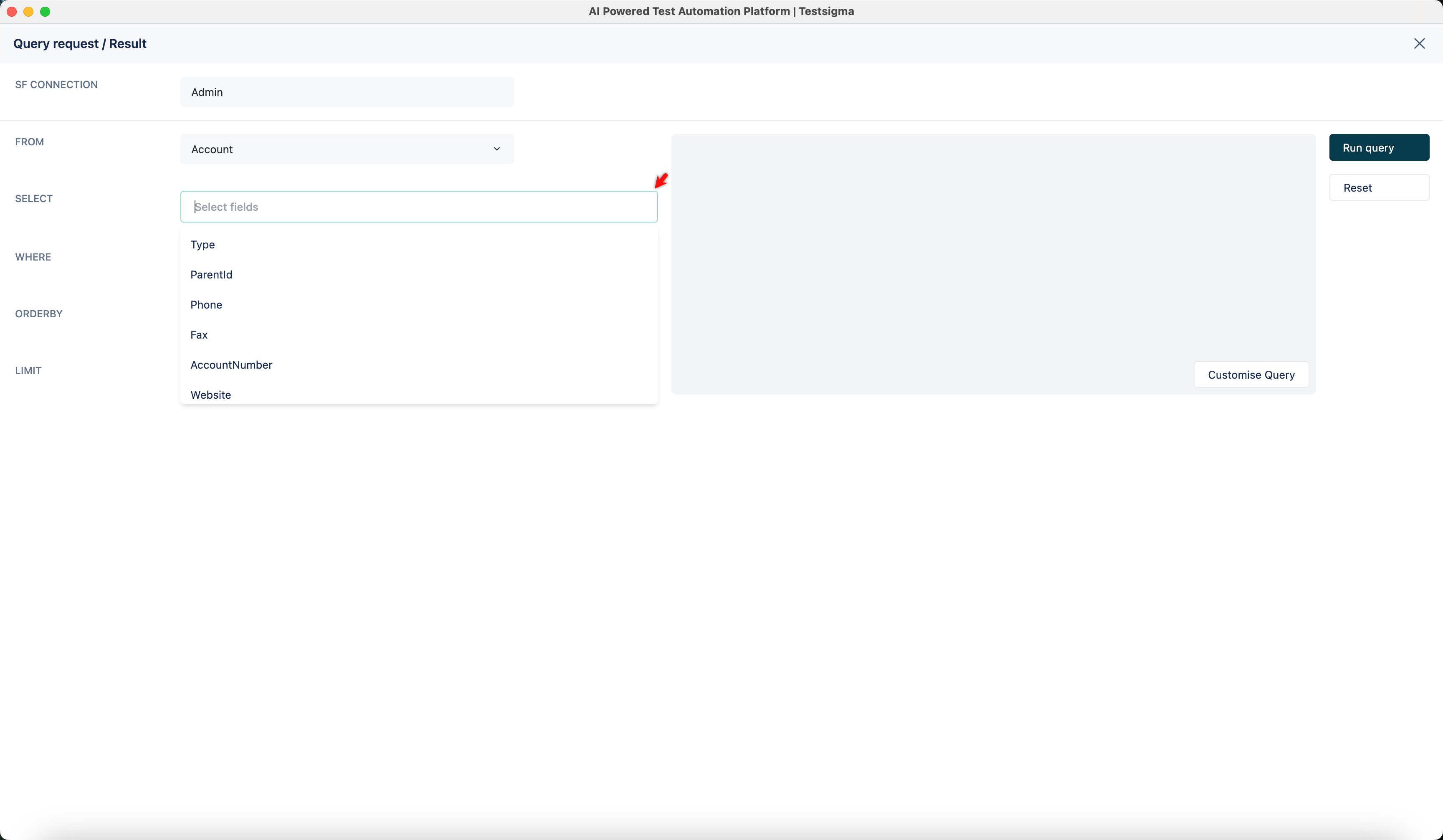
Section titled “Query Builder”Query Builder assembles the same SOQL without writing it, and previews the query as you go.
-
Open Salesforce Query Builder from the utility panel on the test case page.
-
Select the connection from SF Connection.
-
Choose a Salesforce object in FROM, such as
AccountorContact. -
Add fields in SELECT, such as
Type,RecordTypeId, orIndustry. The preview updates as you add them. -
Click + Add Condition to filter with a WHERE clause.
-
Set ORDER BY and LIMIT for the order and the number of records.
Was this page helpful?
Thanks for the feedback.