

Launch a Copilot session
Launch Testsigma Copilot from a test case in Test Cases, or from a generated test case in QI Home. Choose where it runs first: on your machine through Testsigma Terminal, or on Testsigma Lab. See Choose where the session runs.
Launch a session on web
Section titled “Launch a session on web”-
Go to Create Tests > Test Cases and open a test case.
-
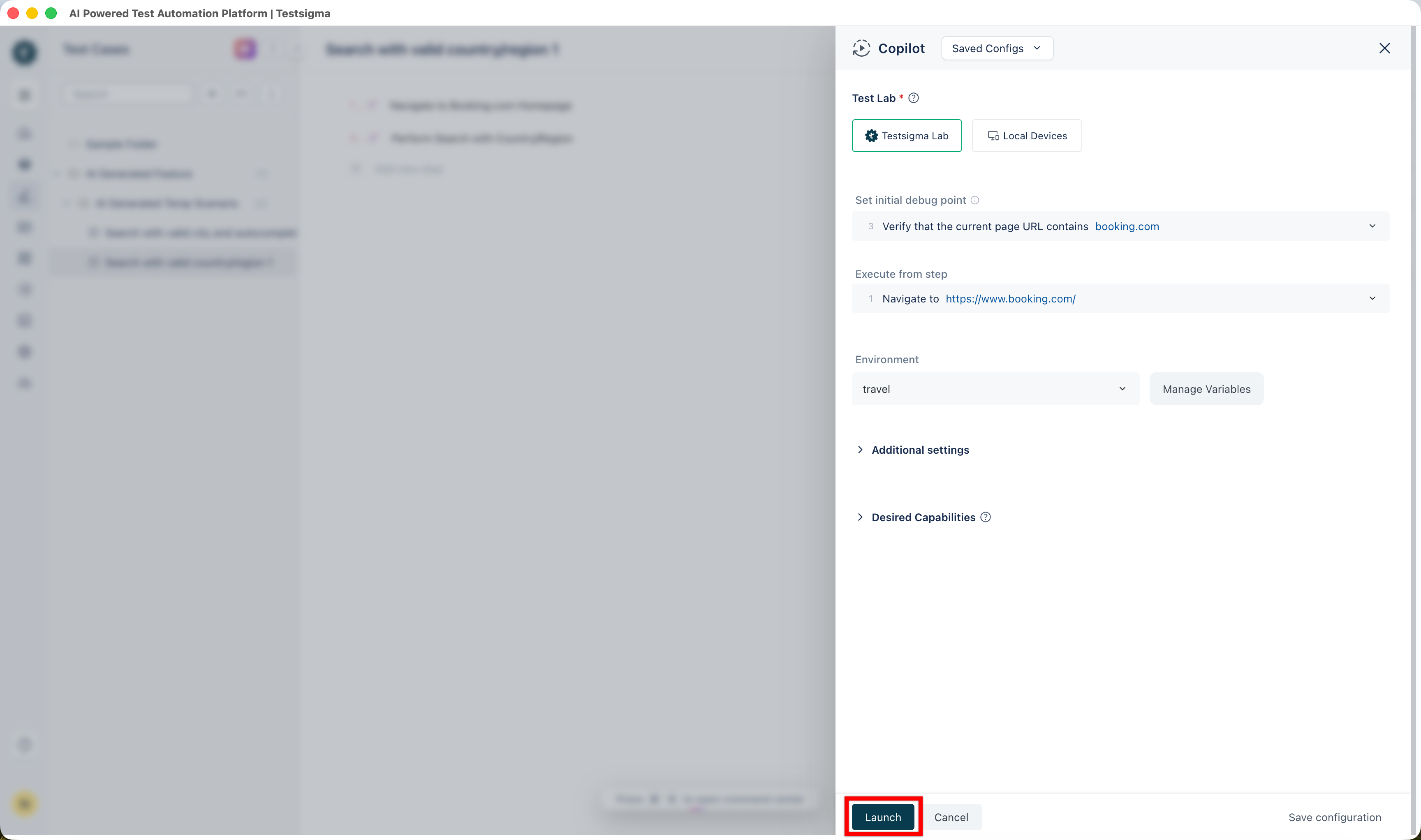
Click Copilot in the action panel.
-
Under Test lab, select Local Devices or Testsigma Lab.
-
(Optional) In the Set Initial Debug Point field, select the step where execution should pause.
-
(Optional) In the Execute from Step field, select the step where execution should begin. All prior steps are marked Skipped. Put the application under test on the screen that matches that step first.
-
(Optional) Turn on Run till failed step to stop at the first failure. With it off, the test case runs from start to end.
-
(Optional) Configure Environment, Additional Settings, and Desired Capabilities.
-
Click Launch and wait for the session to start.
On Local Devices, Copilot opens a browser window on the test case’s URL. On Testsigma Lab, a new tab opens with Spinning up your cloud browser while the cloud VM is provisioned, and the cloud browser appears when it is ready. In both, the steps panel and the application sit side by side, and the chat panel carries the session conversation.
The application is streamed live into the session, so the view keeps pace with the step being executed. Anything you do in the application while the run is paused registers against the current screen.
When a test case uses a test data profile, a session can debug only one profile at a time.
Launch a session on Android or iOS
Section titled “Launch a session on Android or iOS”A mobile session runs on a device connected to your machine or on a cloud device from Testsigma Lab. The panel, controls, and Analyzer behave the same as on web.
-
Open the test case and click Copilot.
-
In the Run in Debug Mode overlay, under Test lab, select Local Devices or Testsigma Lab.
-
Under Test Machine, select the OS & Version and the Device. On Testsigma Lab, the list shows cloud devices.
-
(Optional) Turn on Run till failed step and select the step to pause at.
-
Under App Source, select External link for a publicly accessible URL, Uploaded apps for an app already in Uploads, or Use details to enter the App Package and App Activity.
-
Click Launch.
The session opens with the test steps, the related information, and the streamed device screen.
Launch from QI Home with Run with Copilot
Section titled “Launch from QI Home with Run with Copilot”A test case generated in QI Home carries manual steps. Run with Copilot executes the steps the Generator wrote, so you can check element detection, assertions, and test data against the live application before the test case reaches the library. To have the agent find missing steps instead, use Agentic Learning.
-
In QI Home, generate the test cases and open one from the list. See Generator.
-
Review the steps on the Manual Steps tab. Click Edit to change them manually, or enter a prompt and click Refine manual steps to have the agent adjust them.
-
Click Generate Automated Steps to convert the manual steps into NLP steps.
-
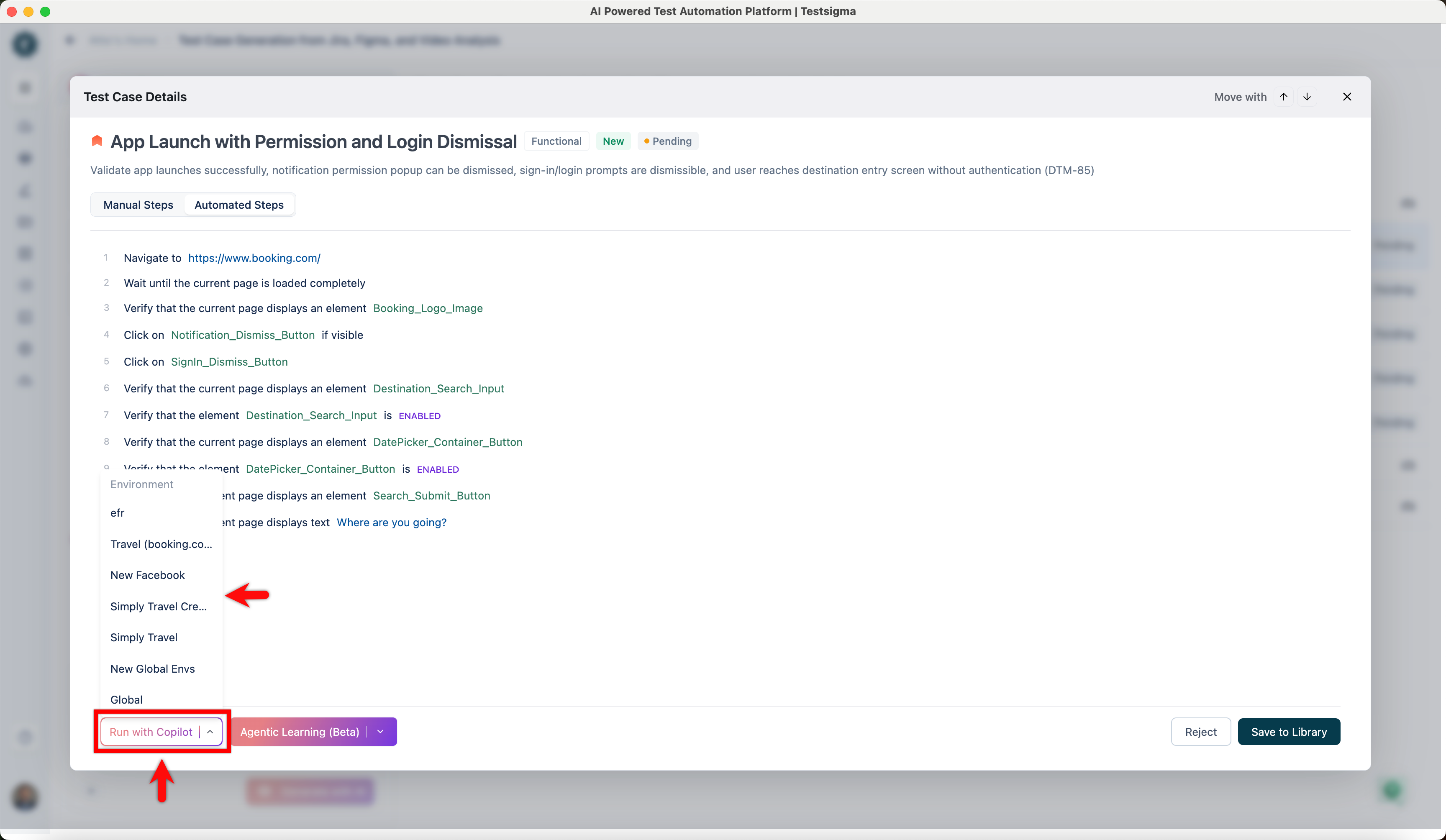
Hover over Run with Copilot and select the environment to run in. Copilot executes the steps.
-
Review the results, then click Save to Library.
-
Select the folder and subfolder in Select Location.
With auto-healing enabled, the run validates element locators against the live application as it executes. Where a locator no longer matches because the UI changed, Testsigma finds the element through an updated locator rather than failing the step. After the run, Auto-Healing Insights shows what was healed and lets you make the change permanent.
Launch in the same window
Section titled “Launch in the same window”Same-window launch applies to Local Devices only. A Testsigma Lab session always opens in a fresh cloud browser.
Copilot opens in a new window or in the same window. A new window uses a new profile and needs no preparation. To use the same window, start Chrome in remote debugging mode first, in a new profile.
On Windows, open the command prompt and run:
start chrome.exe --remote-debugging-port=9222 --user-data-dir="C:\selenum\ChromeProfile"On macOS, open Terminal and run:
/Applications/Google\ Chrome.app/Contents/MacOS/Google\ Chrome --remote-debugging-port=9222 --user-data-dir="~/ChromeProfile"Chrome then exposes the remote DevTools protocol on that port, with the profile set by --user-data-dir, which is what lets ChromeDriver drive it.
End or resume a session
Section titled “End or resume a session”To end a session, click Exit Copilot, then Stop Copilot in the Stop & Exit Copilot dialog. On Testsigma Lab, the cloud machine is released when the session ends.
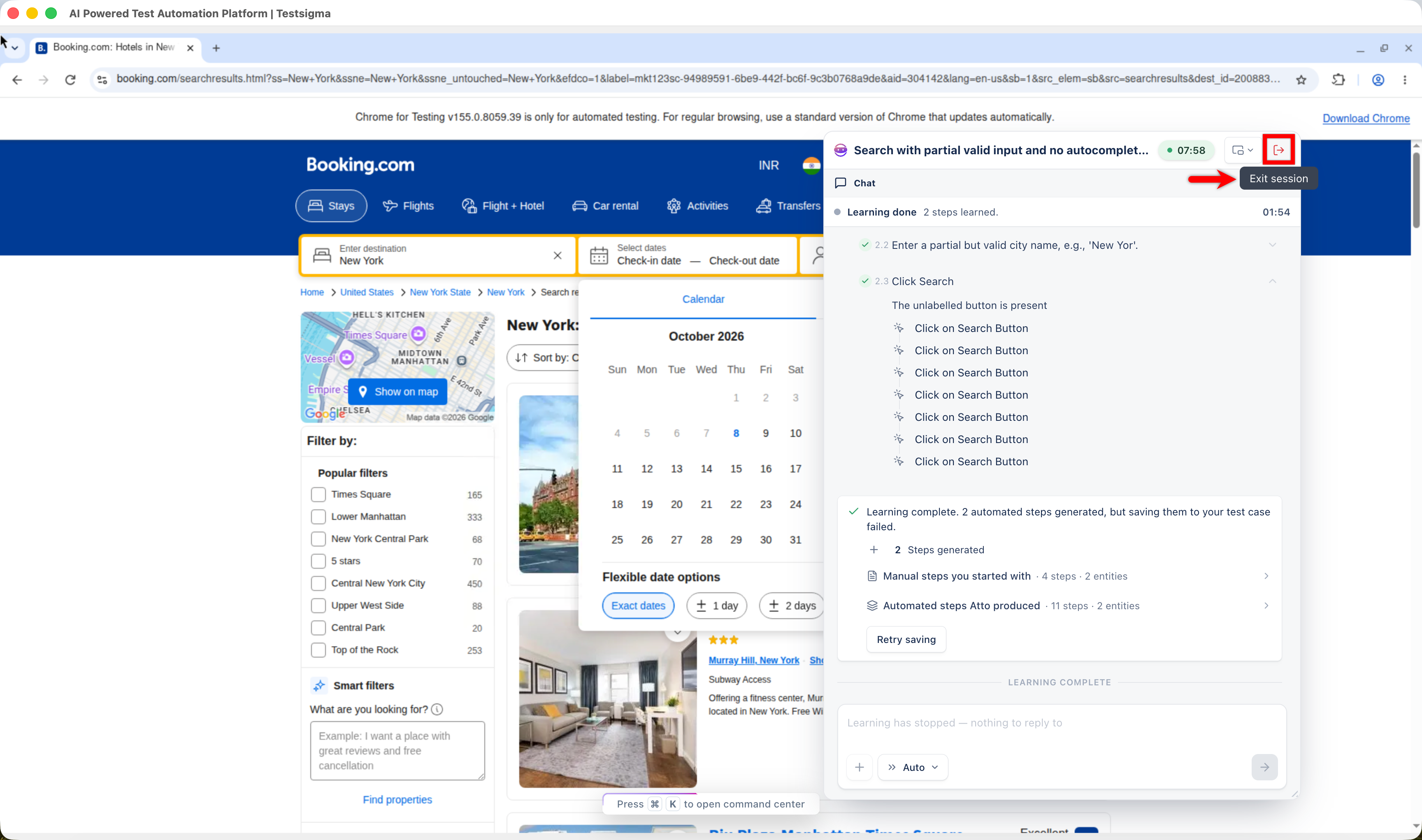
A Testsigma Lab session is tied to its URL. If the tab closes or the browser crashes, open the same URL to return to it. The panel shows Session connected, and the step list, chat history, and run state are as you left them.
Was this page helpful?
Thanks for the feedback.