

Agentic execution
Agentic Learning turns a generated test case into a working one by exploring your application. Where Run with Copilot executes the steps you already have, Agentic Learning finds the steps you are missing. See AI agents for the Generator agent and Run with Copilot.
| Question | Agentic Learning | Run with Copilot |
|---|---|---|
| What is it for? | Discovering and correcting the test flow | Executing and validating the generated steps |
| How does it work? | Explores the application to find missing or incorrect steps | Runs the defined steps to check they work |
| What does it focus on? | The accuracy of the test flow | Reliable step execution |
| When does it run? | During generation and learning | After generation, before you save |
| What do you do? | Little. It runs mostly on its own | Debug and validate interactively |
| What do you end up with? | A refined, complete test flow | A test case ready to automate and execute |
Agentic Learning works like an exploratory tester. It learns how the application behaves and adjusts the test case to match the real user journey, rather than assuming the generated steps were correct. It identifies navigation paths, finds and adds missing steps, corrects steps that deviate from the expected workflow, and learns behavior patterns in the application.
Reach for it when the generated flow is incomplete, when steps are missing or out of order, or when the navigation path through the application is unclear.
Run a learning session
Section titled “Run a learning session”Turn on Generator (Live App) under Settings > Preferences > Agentic AI > Generator before you start.
Start the session
Section titled “Start the session”-
Expand a subfolder in the generated test case list and select a test case.
-
Open the Automated Steps tab in Test Case Details.
-
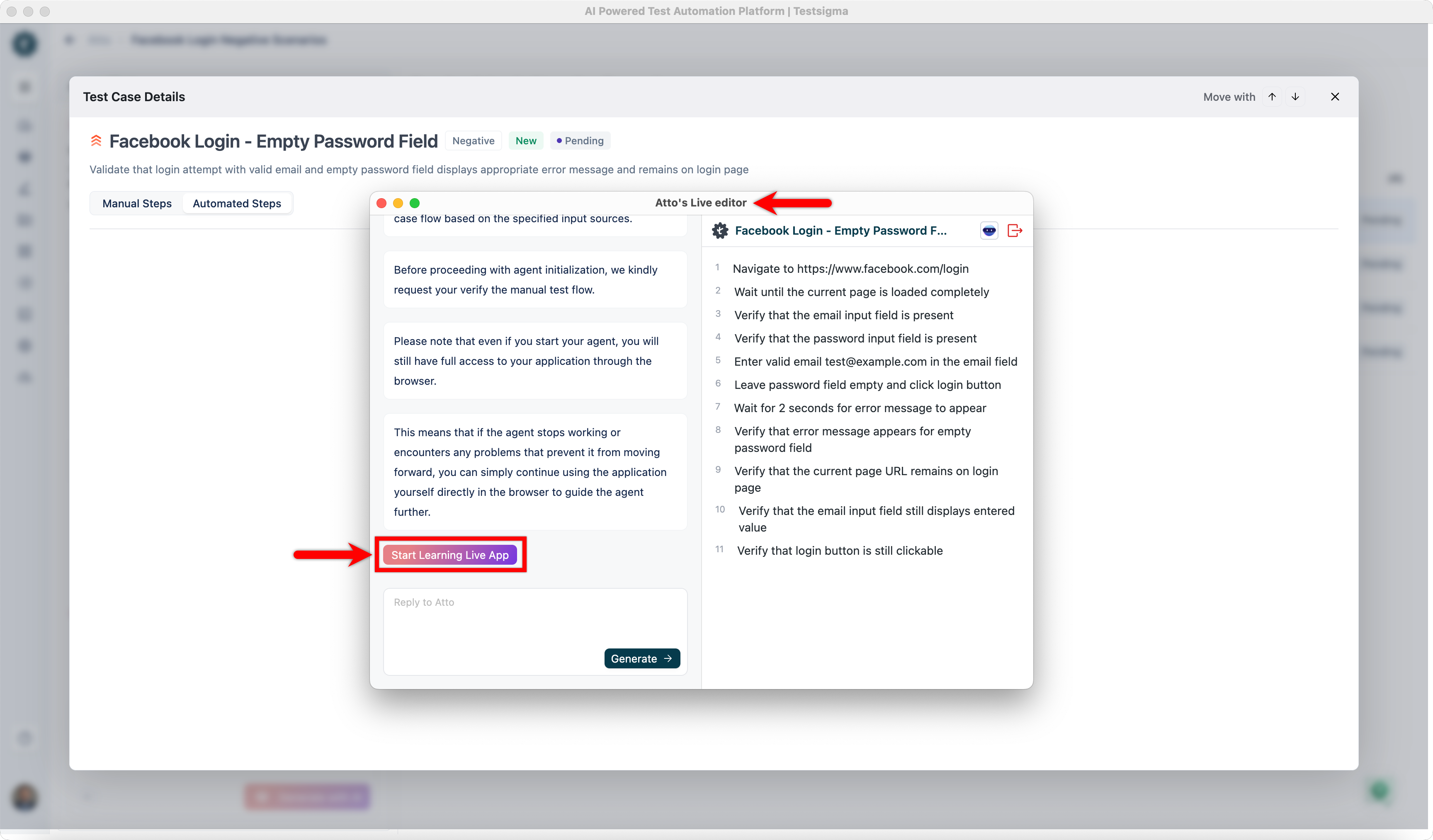
Hover over Agentic Learning (Beta) and select an environment. Atto’s Live Editor opens with the manual steps preloaded.
-
Click Start Learning Live App. A Chrome browser opens, and the Live Editor executes the manual steps to learn the UI elements.
-
Click Start Generating Automated Test Case once the steps have run, and review what was learned.
Control the session
Section titled “Control the session”The Live Editor carries these controls while it learns.
- Reset: clears every in-progress action and stops the browser learning session
- Pause and Play: stop the learning temporarily and resume it
- Stop: ends the session and closes it
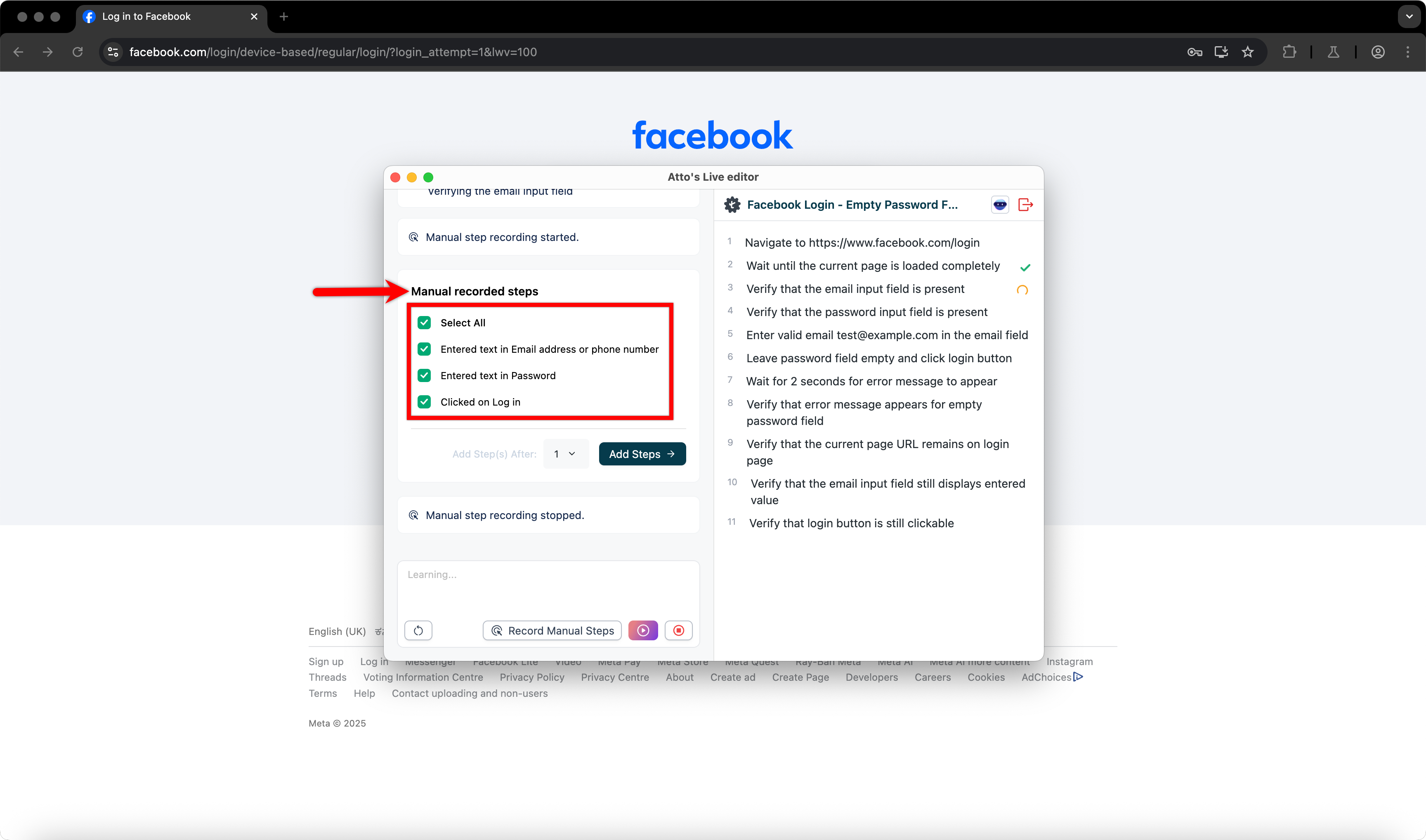
- Record Manual Steps: captures steps by hand and adds them to the test case
To record manual steps, click Record Manual Steps, perform the actions, and click Stop Recording. Select the steps you want under Manual Recorded Steps, choose where they go in Add Step(s) After, and click Add Steps.
Finish the session
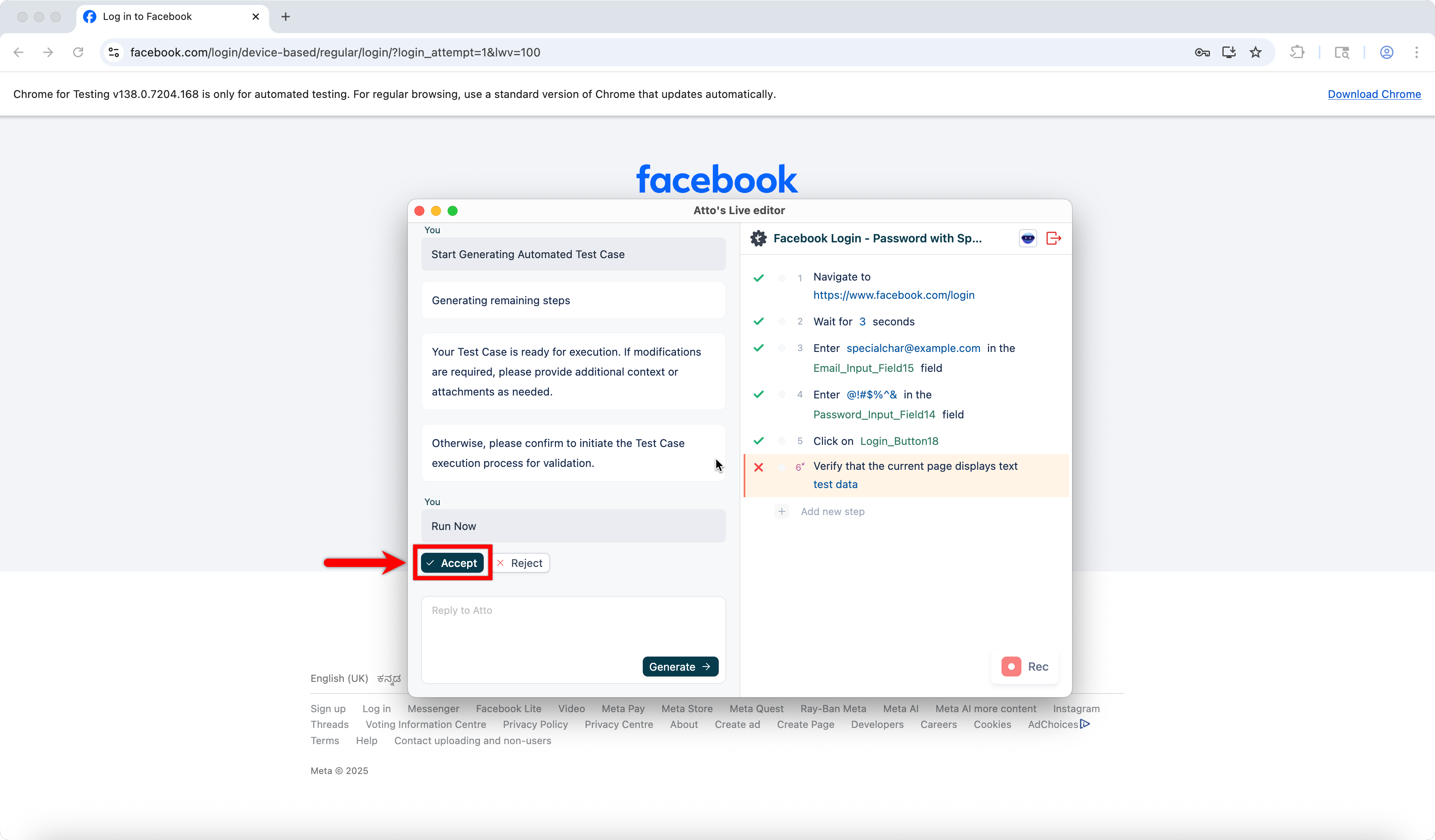
Section titled “Finish the session”Click Run Now in the Live Editor to execute the test case locally, then click Accept to save it to the test case library.
The Live Editor
Section titled “The Live Editor”Agentic Learning runs in Atto’s Live Editor, which also debugs and modifies a test case while it executes. Testsigma Terminal has to be installed and Copilot ready.
-
Go to Create Tests > Test Cases and open or create a test case.
-
Click Copilot in the action panel.
-
Select a step from the Select Step dropdown in the Copilot overlay to set the debug point.
-
Click Launch. Copilot executes every step up to that point.
When execution pauses at a debug point or on a failure, the global debug toolbar becomes active, with Resume, Step Over, Skip Over, and Restart Execution. See Copilot for what each control does.
Was this page helpful?
Thanks for the feedback.