

Deduplication
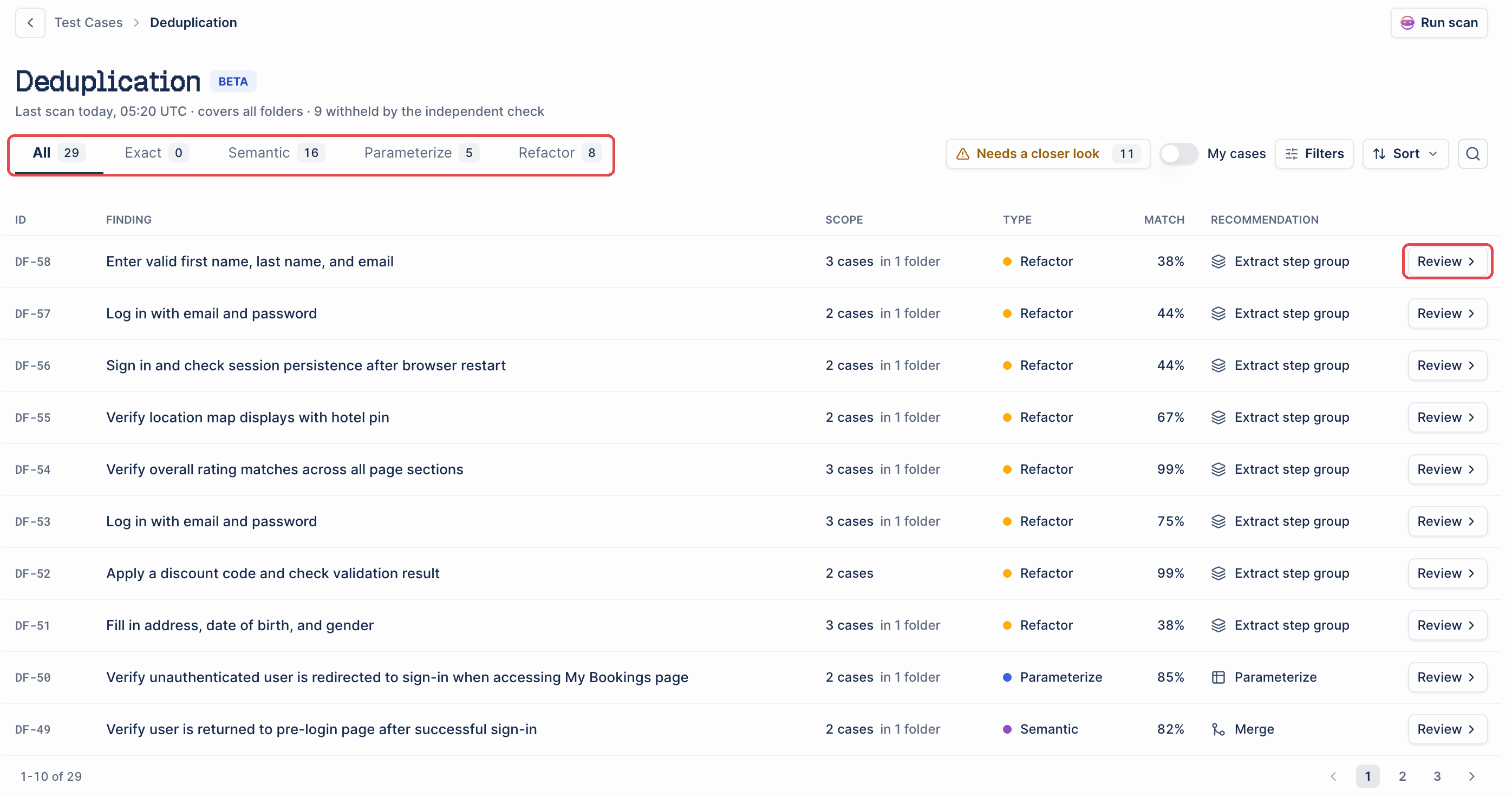
Deduplication (Beta) scans every folder of your test case library for redundant test cases and recommends how to resolve each one. A scan compares the title, description, preconditions, steps, and expected results of every test case. Each result is a deduplication finding, with an ID such as DF-12, a match percentage, and a recommendation.
| Finding type | What it finds | Recommendation |
|---|---|---|
| Exact | Test cases with identical title, description, preconditions, steps, and expected results | Merge |
| Semantic | Test cases that verify the same behavior in different words | Merge |
| Parameterize | Test cases that differ only in test data | Parameterize |
| Refactor | A step sequence that several test cases share, such as a login flow | Extract step group |
Parameterizing keeps one test case and makes it data-driven: the values that differ become placeholders, a new dataset holds one row of values for each test case in the finding, and the other test cases are archived. It needs datasets to be enabled for your account. See Datasets.
An independent check verifies each finding before Arcus shows it. Findings the check can’t verify are withheld, and the Deduplication page shows how many. After a scan, test cases in a finding carry a chip in the test case list, such as Duplicate.
Run a scan
Section titled “Run a scan”-
Open Test Cases in the left navigation.
-
Click Deduplication in the toolbar. Before your first scan, you can also click Run first scan on the Find duplicate test cases banner.
The scan starts at once. The banner reads Scanning for duplicates with the progress and “You can keep working. Results appear here when the scan finishes.” The Deduplication button shows the progress too.

When the scan finishes, the banner shows the number of findings, how many test cases resolving them would retire, and the time of the last scan. If the scan finds nothing, the banner closes. Once a scan has findings, Review findings on the banner opens the Deduplication page.
Review findings
Section titled “Review findings”-
On the Test Cases page, click Review findings on the banner. The Deduplication page opens.
-
(Optional) Open a tab to show one finding type: Exact, Semantic, Parameterize, or Refactor. Each tab shows how many findings it holds.
-
(Optional) Turn on My cases to show only findings that include test cases assigned to you.
-
Click Review on a finding. The finding opens with a summary of what its test cases have in common and how they differ, followed by the test cases with their folders, owners, and test runs.
Each row in the findings list shows the finding ID, the finding, its scope (such as 3 cases in 1 folder), the finding type, the match percentage, and the recommendation. The time of the last scan shows below the page title. Click Needs a closer look to show only the findings Arcus flagged for extra review.
To dismiss a finding that isn’t a real duplicate, open it and click Discard finding.
Merge duplicates
Section titled “Merge duplicates”Resolve an Exact or Semantic finding by keeping one test case and archiving the rest.
-
Open the finding.
-
Under TEST CASE TO KEEP, select the test case to keep. Arcus marks one as Suggested.
-
(Optional) Click View differences to compare each other test case with the one you keep, field by field.
-
Check MERGE OUTCOME. It shows which test case stays active, how many are archived, and whether an active test run includes them.
-
Click Merge duplicates. A confirmation dialog shows which test case is kept and which are archived.
-
Click Merge test cases.

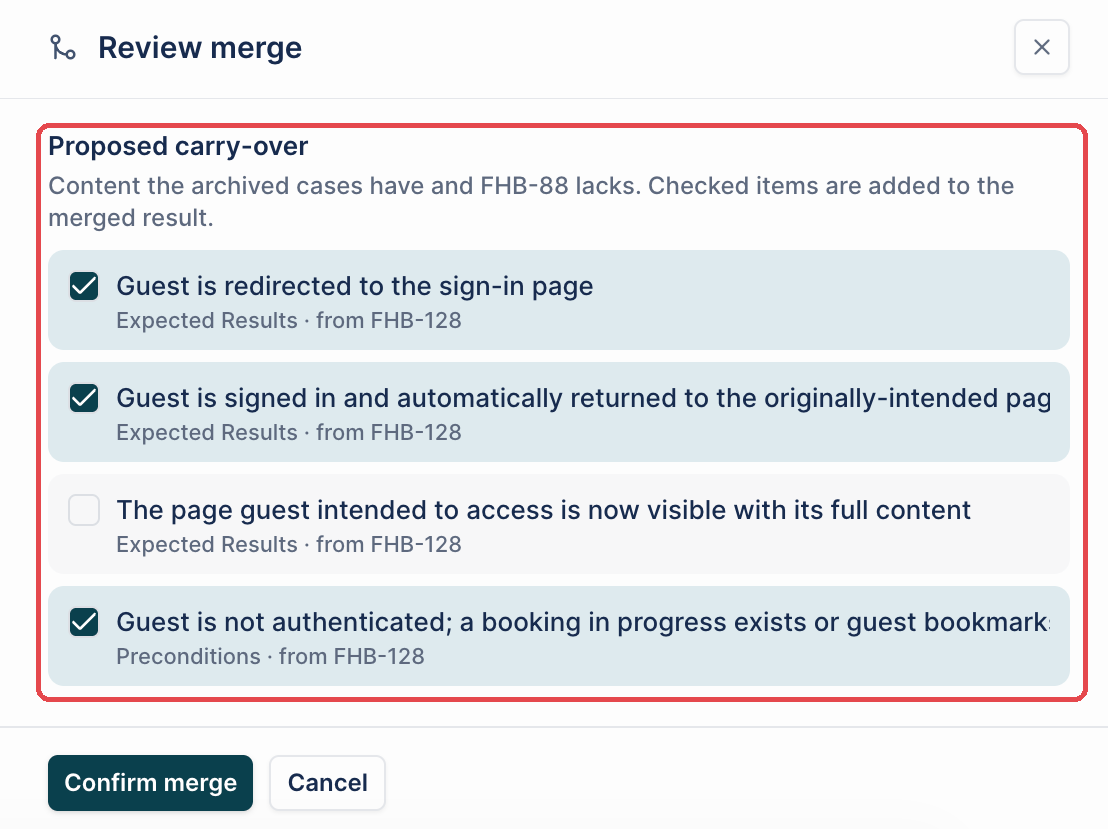
To bring content from the archived test cases into the one you keep, click Improve instead of Merge duplicates. The button names the test case you keep, as Improve followed by its ID. The Review merge panel shows the merged test case. Under Proposed carry-over, select the content to add, then click Confirm merge.
Extract a step group
Section titled “Extract a step group”Resolve a Refactor finding by turning the shared steps into one step group. Nothing is archived.
-
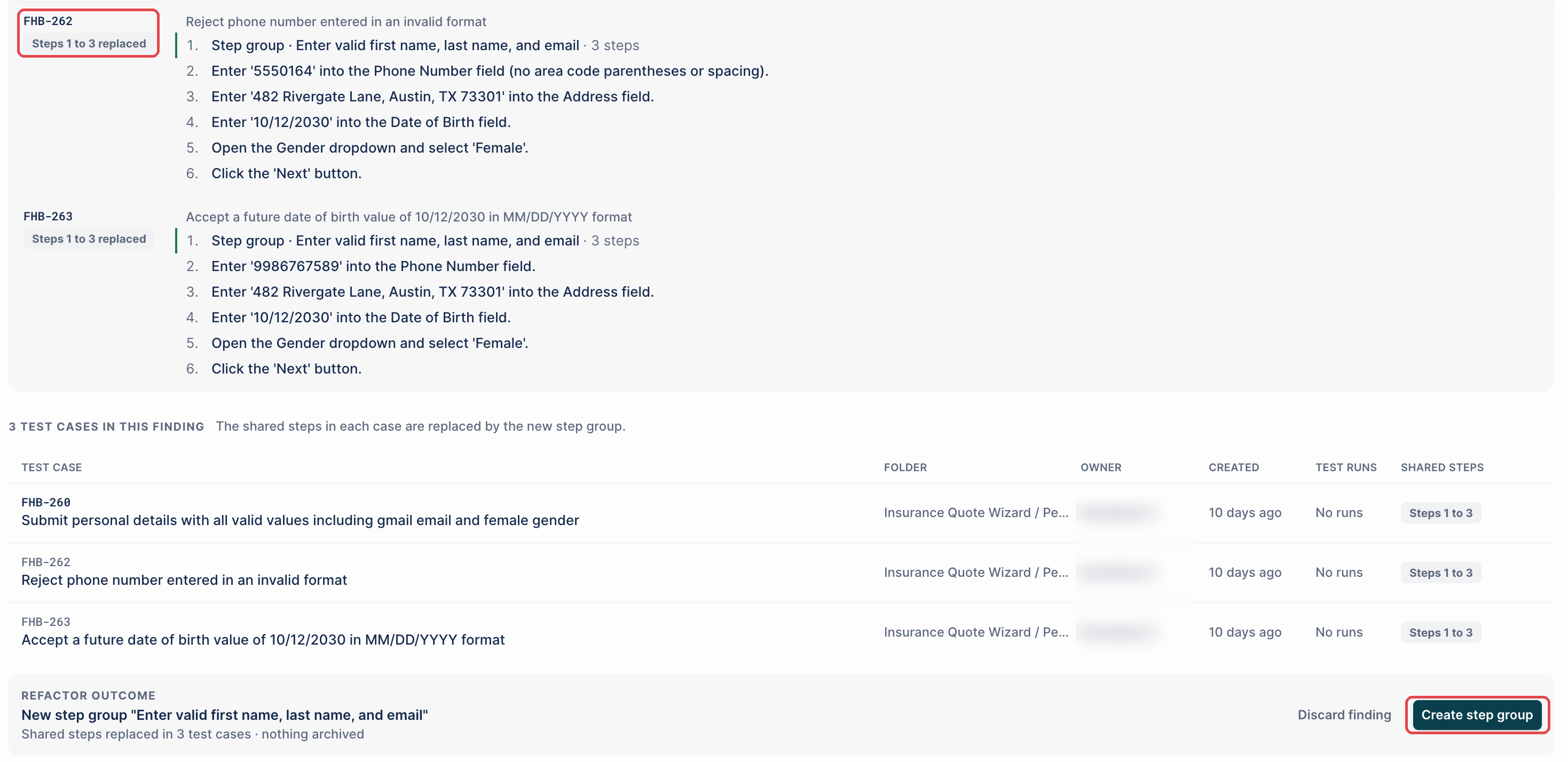
Open the finding. It shows the proposed step group and, for each test case, which steps it replaces.
-
Check REFACTOR OUTCOME. It shows the name of the new step group and how many test cases it changes.
-
Click Create step group. Arcus creates the step group and replaces the shared steps in every test case in the finding.
The new step group appears under Step Groups. Edit it there to update the steps in every test case that uses it. See Step Groups.
Was this page helpful?
Thanks for the feedback.