

Devices and emulators
Connect a phone, an emulator, or a simulator to your computer so Copilot and test runs can use it instead of a cloud device. Arcus reaches the device through the Arcus Agent, so the agent must be running and signed in on the computer the device is connected to. If you don’t need your own device, select Cloud instead and use a real device from Testsigma Lab.
Prerequisites
Section titled “Prerequisites”- The Arcus Agent is running on the computer. My Local Device shows Connected · Idle.
- For an Android phone: USB debugging is on. On the phone, turn on Developer options, then USB debugging.
- For a real iPhone: a provisioning profile exists in Settings > iOS Settings. See iOS signing.
- For an iOS simulator on a Mac: Xcode is installed and has been opened once. Until it is, the Summary tab of My Local Device shows “iOS simulators need Xcode”.
Connect a device
Section titled “Connect a device”-
Connect the phone to the computer with a data cable, or start the emulator or simulator.
-
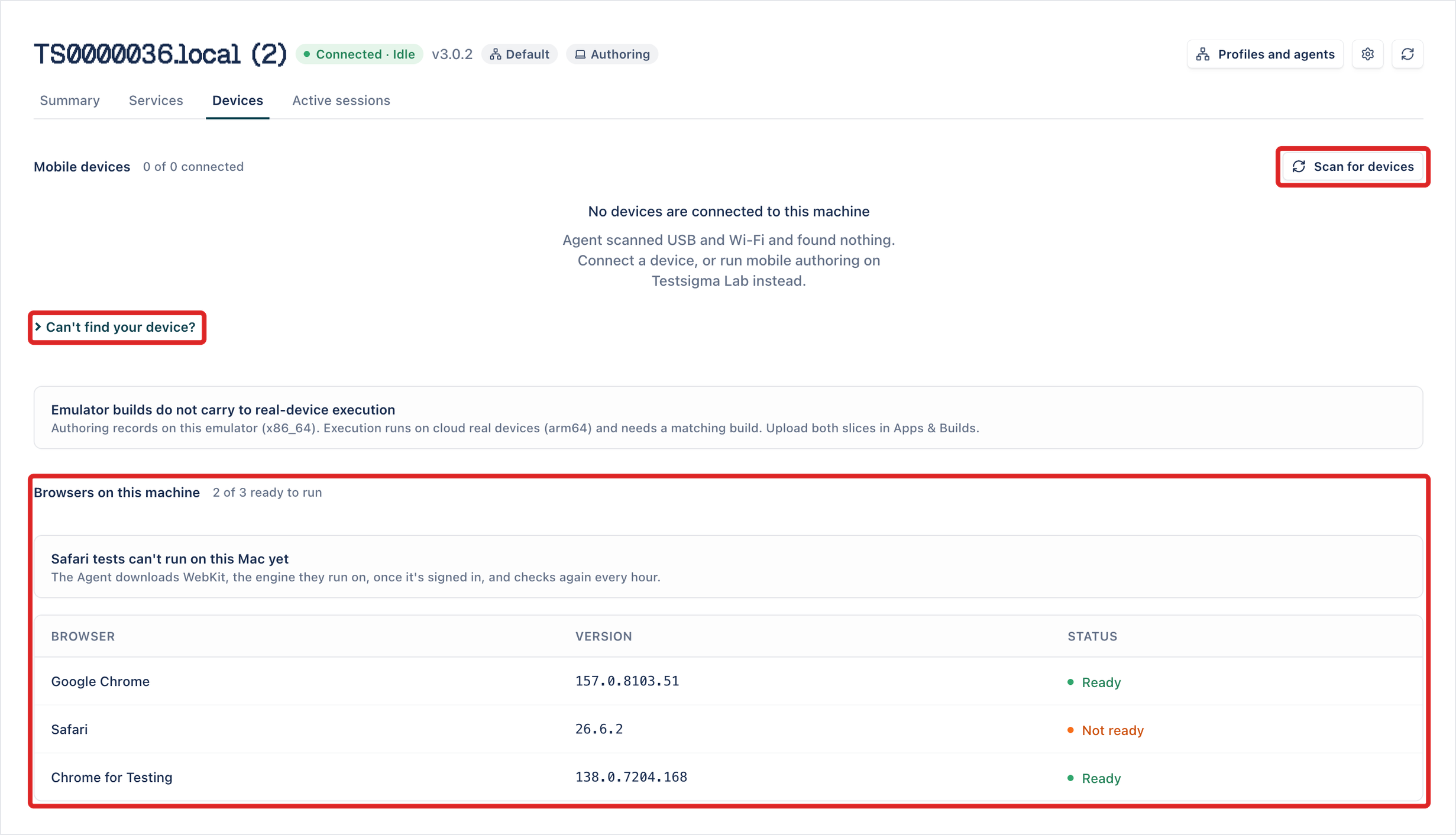
Open My Local Device in the left navigation and open the Devices tab.
-
Click Scan for devices. The agent looks for devices over USB and Wi-Fi and lists them under Mobile devices.
Each device row shows:
- Device: the device name, with its OS and version, API level, ABI, connection (USB or Wi-Fi), and ID below it.
- Kind: Real or Emulator.
- Note: what the agent reports about the device, such as “Still being set up”.
- Status: such as Connected, In use, Needs attention, or Not detected.
If the scan finds nothing, the tab reads “No devices are connected to this machine”. Browsers on this machine, below, lists the browsers the agent can run web tests in, and whether each is Ready.
If the device doesn’t show up
Section titled “If the device doesn’t show up”Expand Can’t find your device? on the Devices tab. It lists the usual causes:
- The cable carries power only: some cables, and some phones’ USB setting, give power and no data. Use a data cable, or set the phone’s USB preference to File transfer.
- USB debugging is off: on the Android phone, turn on Developer options, then USB debugging.
- A USB driver is missing on Windows: Windows needs the phone maker’s USB driver before it can see the phone, such as Google’s for a Pixel or Samsung’s for a Galaxy.
After you fix the cause, click Scan for devices again.
Use the device in a Copilot session
Section titled “Use the device in a Copilot session”- On the test case, open the Copilot configuration panel. See Create mobile test cases.
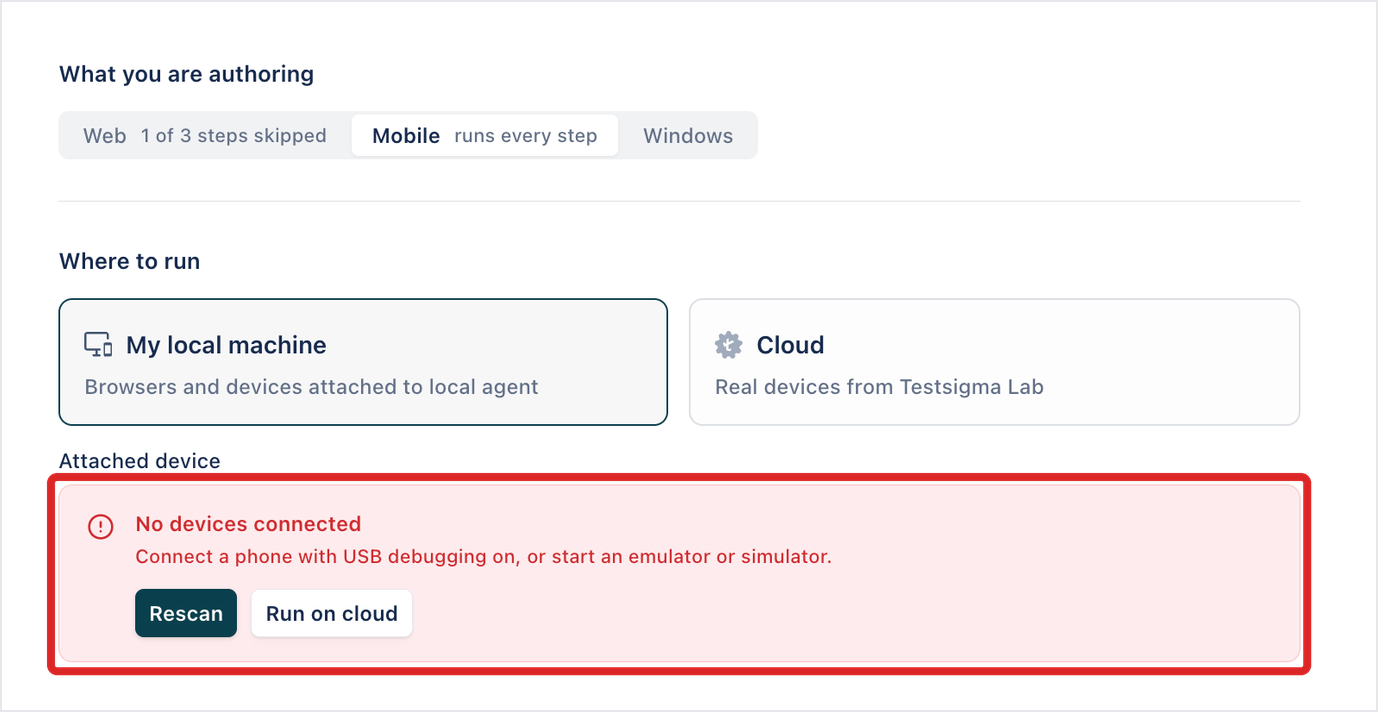
- In What you are authoring, select Mobile.
- In Where to run, select My local machine.
- In Attached device, select the device.
If no device is connected, Attached device reads “No devices connected” and Start Copilot stays unavailable. Connect one and click Rescan, or click Run on cloud to switch the session to a cloud device.
Use the device in a run configuration
Section titled “Use the device in a run configuration”- Open Test Runs, click Run configurations, and click New Run Config. See Run configurations.
- In What you are authoring, select Mobile.
- In Where to run, select Local Agent.
- Under Test machine, in Which machine, select A specific device.
- In Machine, select the computer the device is connected to. Each machine shows its status, such as Ready, Busy, or Offline, and its operating system.
- In Device, select the device. If none is connected, the field reads “No device connected”.
- Under App Under Test, select the App.
- Click Save.
To let Arcus pick the device at run time instead, select Any matching device in Which machine, then select the Platform (Android or iOS) and the lowest OS version in At least. Below the fields, Arcus shows how many machines match and how many are free now; click See them to list them. Arcus picks the least busy machine on an execution profile with a matching device. If none matches, the panel reads “No machine offers … yet”, and runs stop with a reason until one connects.
A run uses the device only while the computer is on, the agent is running, and the device is connected. To run test plans on the computer, its agent must be on a profile used for execution. See Change the machine’s profile.
Was this page helpful?
Thanks for the feedback.