

Create Salesforce test cases
Create a test case for a Salesforce org, write its steps with Salesforce steps, and check them in a Copilot session against the connected org. Salesforce test cases run in a browser, so you author and run them with Web, and pick the org in Salesforce connection.
Create the test case
Section titled “Create the test case”- Open Test Cases in the left navigation and open the folder the test case belongs in.
- Click Create, or press
C. The dialog opens with Documentation selected as the template type and the folder you opened in the folder chip. - Enter a title and, optionally, a description.
- If the folder chip reads Select a Folder, click it, select a folder, and click Select Folder. Without a folder, Arcus shows “Folder is Required” and doesn’t create the test case.
- Click Create. The test case opens on the Details tab.
For the template types and the other properties in the dialog, see Manage test cases. Only test cases with the status Ready can be added to test runs and run templates.
Write the steps
Section titled “Write the steps”-
Open the Automated steps tab and click Write the script manually. The step editor opens.
-
In the first step row, type
salesforceand select salesforce/log in and open app. Arcus inserts the step group Log in to Salesforce and open the standard__LightningSales app, which signs in through the connection and opens the Sales app.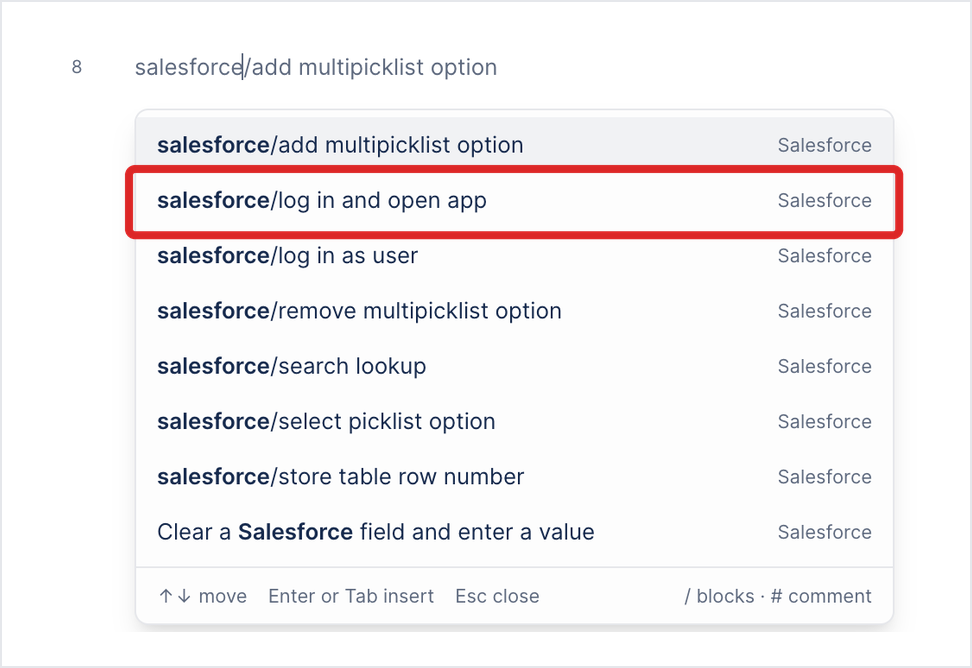
-
Add the steps for the test, such as Navigate to a Salesforce tab, Click Save in Salesforce, and Verify page. To find a Salesforce step, type what you want to do, such as
salesforceorfield.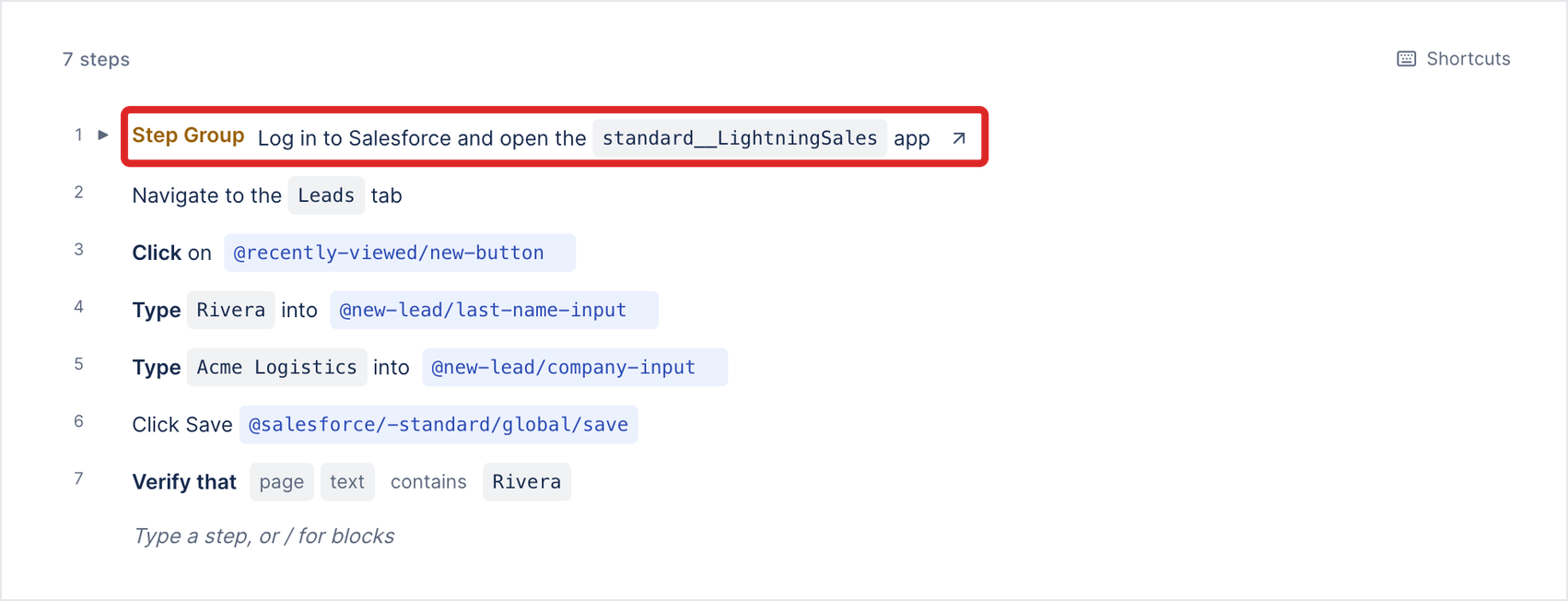
For every Salesforce step and step group, and a complete example, see Salesforce test steps.
Check the steps with Copilot
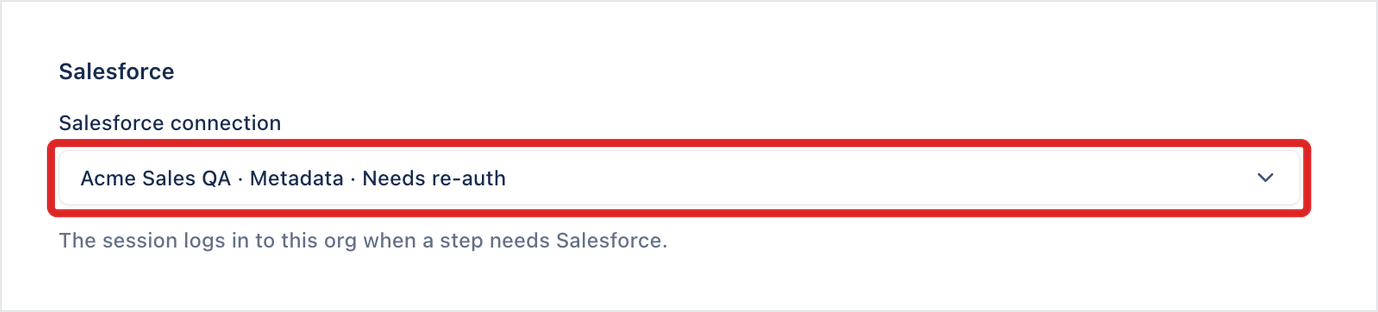
Section titled “Check the steps with Copilot”If the connection shows Needs re-auth, Salesforce no longer accepts its login, and the session fails before the first step runs. Re-authorize it first: in Project Settings > Salesforce, click the ellipsis icon (⋯) on the connection and click Re-authorise.
-
On the test case, click Debug with Copilot. The Copilot configuration panel opens.
-
In What you are authoring, select Web.
-
In Where to run, select My local machine or Cloud.
-
Under Test machine, choose the browser.
-
Under Salesforce, select the org in Salesforce connection. Each connection shows its name, its type, and its health, such as Needs re-auth. The panel reads “The session logs in to this org when a step needs Salesforce.”
-
Click Start Copilot.
Click New on a Salesforce object, Open the create record form of a Salesforce object, and Enter a value in a Salesforce field are inserted with Account as a placeholder. Change the object and field in the step after you insert it, or click the step’s target in the session, click Pick from page, and click the field or button in the browser. See Salesforce test steps.
If a step fails, fix it, then click the ellipsis icon (⋯) on the step and click Run from here. Your changes save to the test case.
Run the test case
Section titled “Run the test case”Add the test case to a test run or a run template with a run configuration for Web. In the run configuration, select the org in Salesforce connection under Salesforce. Runs sign in to this org when they start, even if no step uses Salesforce, and fail before the first step if the connection can’t sign in. See Web configurations.
If the run configuration names no connection, runs with Salesforce steps sign in with the project’s default connection.
Was this page helpful?
Thanks for the feedback.