

Agent profiles
An agent profile sets what a machine running the Arcus Agent is used for, who can run tests on it, and how it reaches Arcus. Every machine uses one profile. Create a profile for each kind of machine you have, such as people’s laptops that only author tests, or shared machines and CI runners that run test plans.
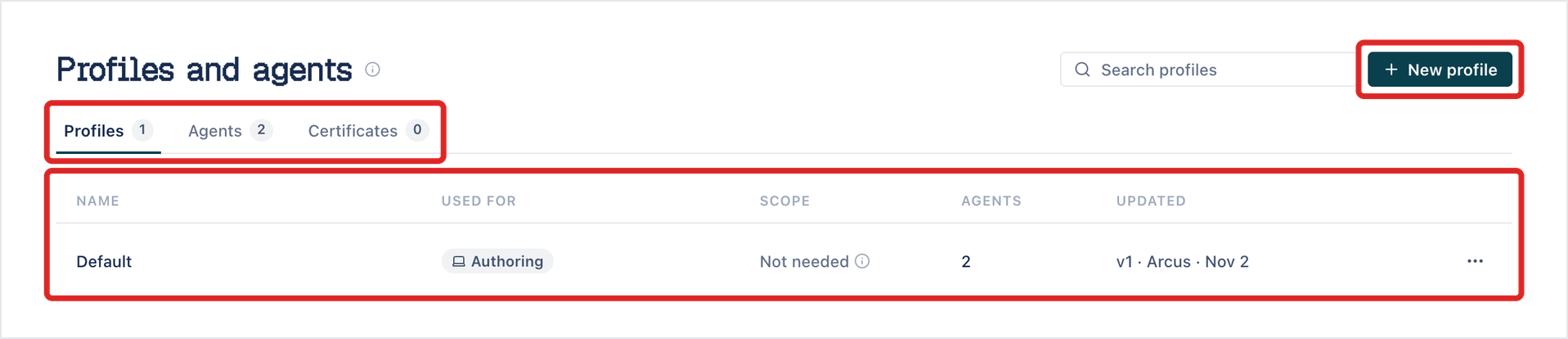
Manage profiles in Settings > Profiles and agents. The page has the tabs Profiles, Agents, and Certificates.
Creating, editing, and deleting profiles needs permission to manage agent profiles, which the Admin role has. Other roles can be given permission to view them.
The Default profile
Section titled “The Default profile”Every account has a Default profile, used for Authoring. A machine that signs in without a profile file uses it. Machines on Default run Copilot sessions but not test plans.
The Profiles tab lists each profile with its NAME, USED FOR, SCOPE, the number of AGENTS on it, and when it was UPDATED.
Create a profile
Section titled “Create a profile”-
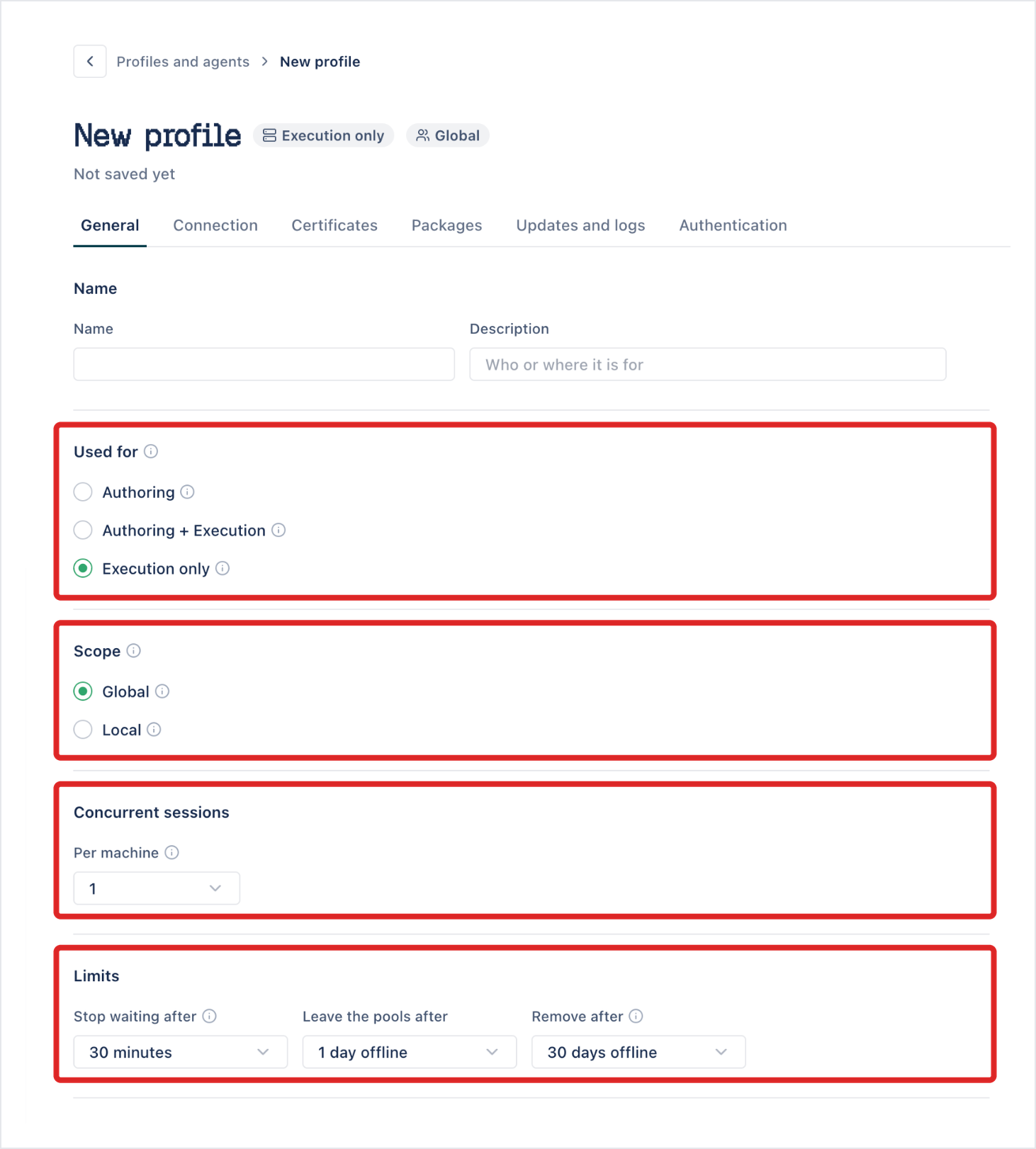
Go to Settings > Profiles and agents and click New profile. The profile opens on the General tab, marked “Not saved yet”.
-
Enter a Name and, optionally, a Description, such as who or where the profile is for.
-
Under Used for, select what machines on this profile do. See Used for and Scope.
-
If the profile runs tests, select its Scope and the number of Concurrent sessions Per machine. The default is 1.
-
(Optional) Fill in the other tabs: Connection, Certificates, Packages, Updates and logs, and Authentication.
-
Click Create profile. Arcus shows “Name created” and opens the saved profile, where you can download the installer or get the setup script.
The other tabs set:
- Connection: where machines sign in, Arcus cloud or Self-hosted with its Arcus URL, and a Proxy.
- Certificates: the certificates from the certificate store that machines on the profile trust.
- Packages: what the machines download: Web, Android, iOS, Desktop, Accessibility, and Agentic AI.
- Updates and logs: whether to Update automatically, When updates install, and whether to Allow log uploads.
- Authentication: the Setup link inside every downloaded profile file, and when the Machine sign-in expires.
Used for and Scope
Section titled “Used for and Scope”Used for sets what the machine does:
- Authoring: Copilot and recording only. The machine never runs test plans.
- Authoring + Execution: a person’s own machine that also runs test plans.
- Execution only: lab PCs and build servers that only run test plans, such as a CI runner.
Scope sets who can run on a machine used for execution:
- Global: shared with everyone in the account. Machines join the pool for any run configuration they match.
- Local: only the person who set up the machine. The machine is never in a pool. Runs reach it only from a run configuration that names it.
Limits
Section titled “Limits”- Stop waiting after: how long a run waits for one of the profile’s machines to be free: 10, 30, 60, or 120 minutes. The default is 30 minutes. Execution profiles only.
- Leave the pools after: how long a machine can be offline before it leaves the pools: 1 hour, 1 day, or 1 week. The default is 1 day offline. Execution profiles only.
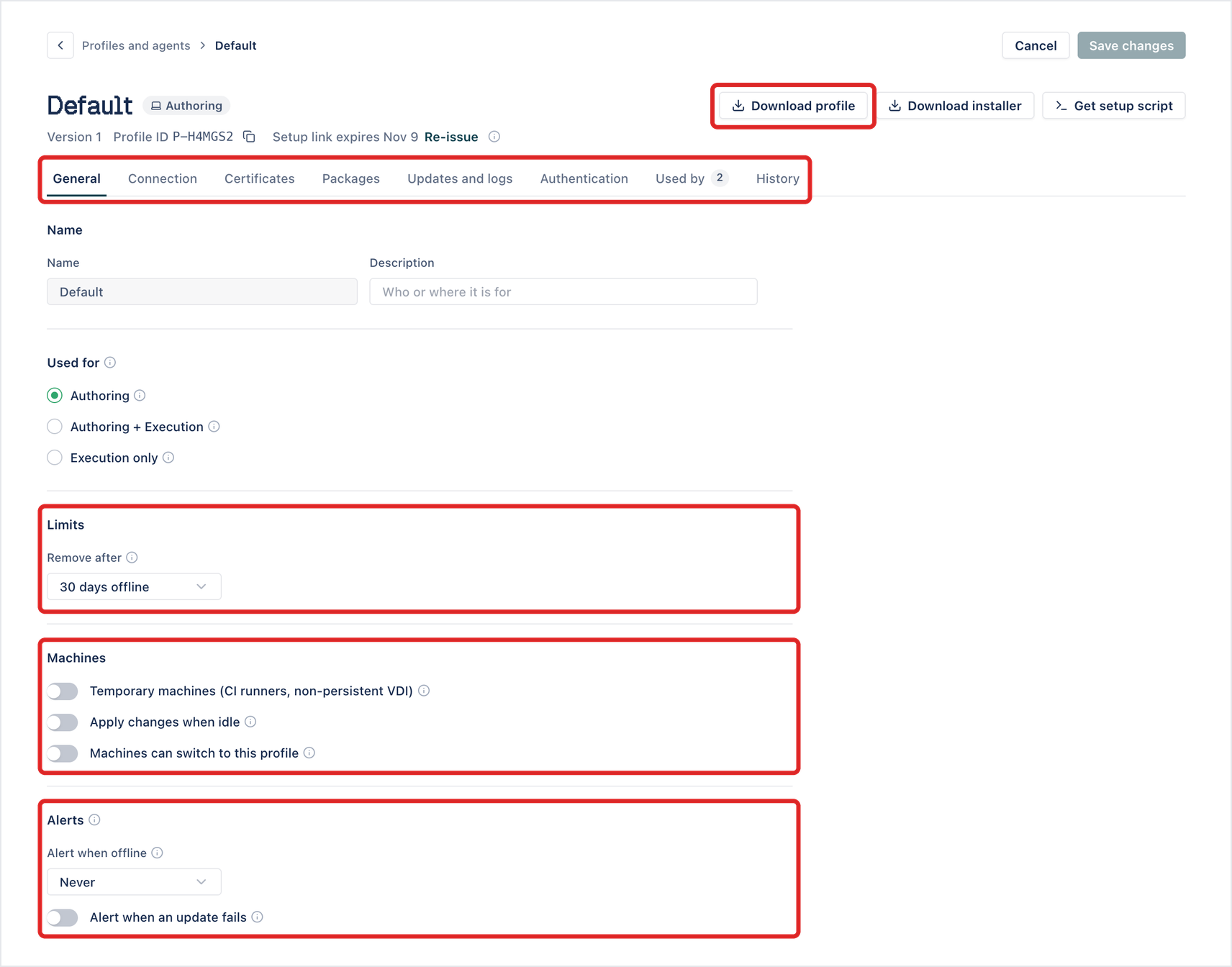
- Remove after: how long a machine can be offline before Arcus removes it from the account: 14, 30, or 90 days, or never. The default is 30 days offline.
Machines
Section titled “Machines”- Temporary machines (CI runners, non-persistent VDI): for machines that are created and thrown away. Each machine leaves the account when its agent shuts down cleanly, and a machine that’s been offline for an hour is removed, whatever Remove after says. Off by default.
- Apply changes when idle: when the profile changes, each machine restarts onto the new version once its runs finish, instead of waiting for someone to restart it. Off by default.
- Machines can switch to this profile: lets a person at any machine in the account move it to this profile from the Profile tab of the Arcus Agent menu bar app. When it’s off, the menu bar app doesn’t list the profile. Off by default.
Alerts
Section titled “Alerts”- Alert when offline: alerts once a machine has been offline for 15, 60, or 240 minutes, once for each outage. The default is Never.
- Alert when an update fails: alerts when an agent update fails on a machine. Off by default.
- Agent log level configuration in CLI and local files: ERROR, WARN, INFO, DEBUG, TRACE, or ALL. The default is INFO.
Alerts go to the machine’s owner and to the account’s chat channels.
See the machines on each profile
Section titled “See the machines on each profile”The Agents tab lists every machine with the Arcus Agent on the account, with its AGENT, OS, PROFILE, VERSION, STATUS, and LAST CONTACT. Filter it with All, Needs attention, Execution, Authoring only, and Offline, or by profile.
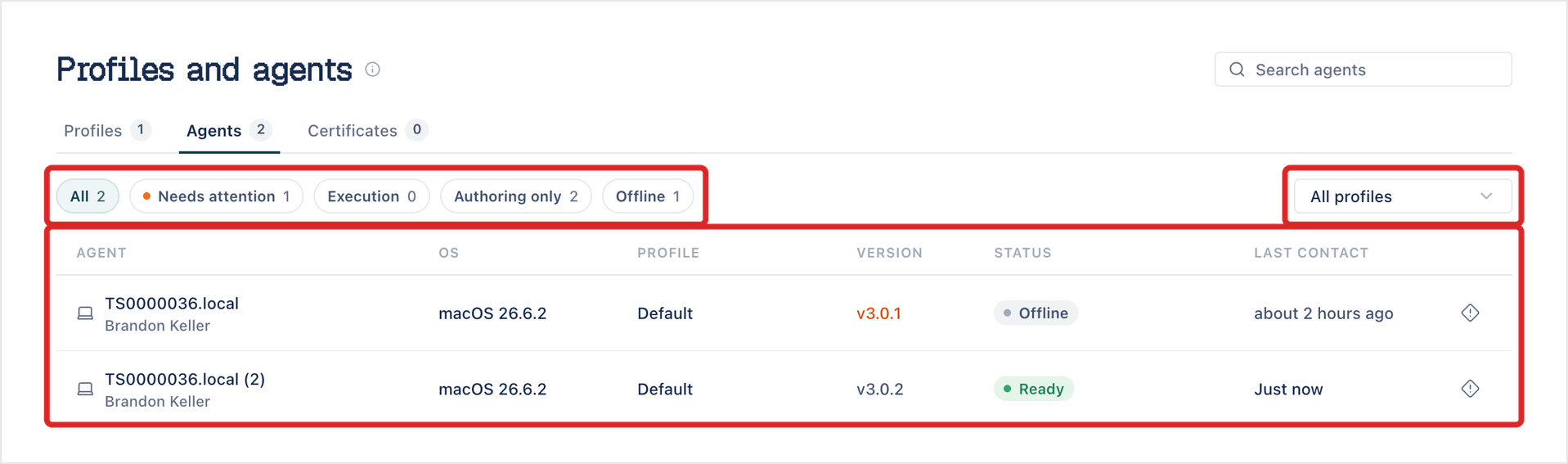
Arcus recognizes a machine by the sign-in its agent saved. If a reinstall or update loses that sign-in, the machine signs in as a new agent, such as MACHINE.local (2), and the old one stays listed as offline. Delete the old one from Agents on this account on My Local Device.
Move a machine to a profile
Section titled “Move a machine to a profile”- Profile file: open the profile and click Download profile to get an
.arcusprofilefile, then import it on the machine. Choose it in the installer, or click Import a profile file… in the menu bar app. Importing a profile also signs the machine in. Only people who can manage agent profiles can download it. - From the machine: in the menu bar app, open the Profile tab and click Switch on a profile under Other profiles. Only profiles with Machines can switch to this profile turned on are listed.
A changed profile applies when the agent restarts. The menu bar app shows Profile updated: restart to apply. See Install the Arcus Agent.
Certificates
Section titled “Certificates”Upload a certificate once on the Certificates tab, then pick it in any profile that needs it, for example to reach Arcus through a proxy that inspects traffic. The tab lists each certificate’s NAME, SUBJECT, EXPIRES date, and the profiles that use it under USED BY.
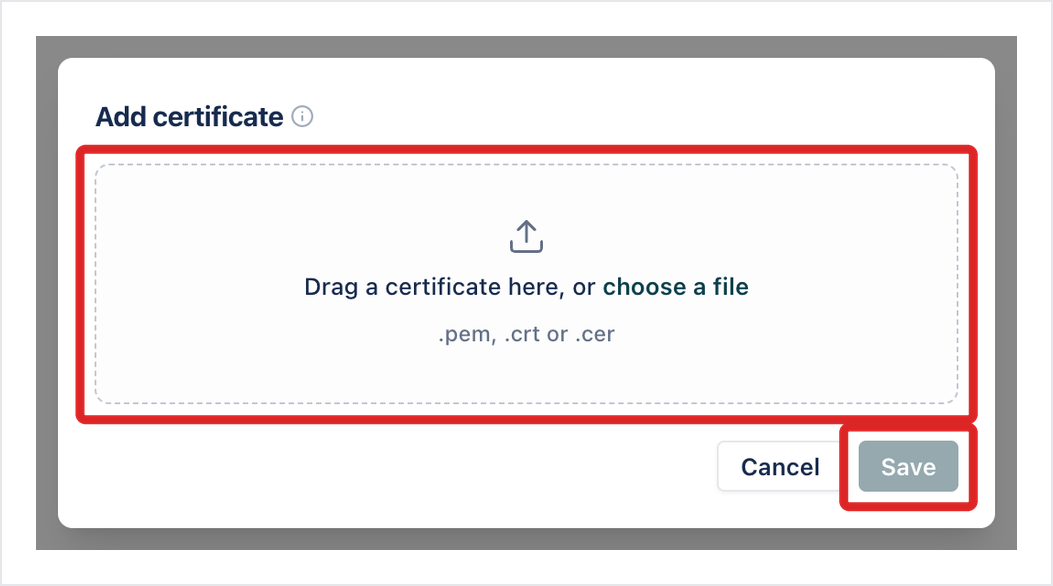
To add one, click Add certificate, drag a .pem, .crt, or .cer file into the dialog or choose it, edit its Name if you need to, and click Save. Arcus rejects a certificate that’s already in the store.
Was this page helpful?
Thanks for the feedback.