

Run configurations
A run configuration saves where and how a test executes: web or mobile, on a local agent or in the cloud, and the operating system, browser, or device. Test runs, run templates, and test plans all share the same configurations.
How runs and plans use configurations
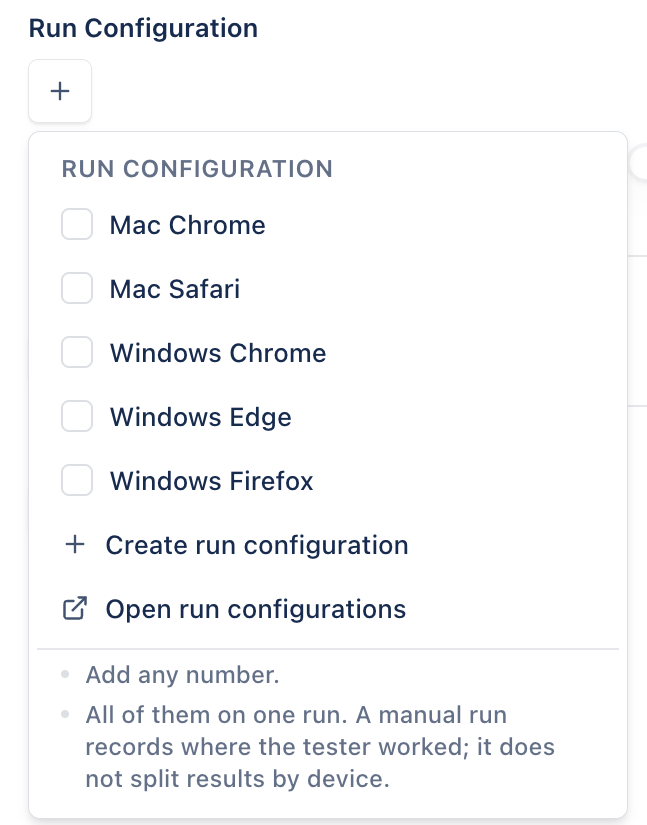
Section titled “How runs and plans use configurations”- Test runs: a run can carry any number of configurations, and you can change them at any time while the run is open. A manual run records where the tester worked and keeps one set of results. To get a separate run for each configuration, use One run per configuration when you create the run. See Create a test run.
- Test plans: a run’s own configurations are its default. Linking the run to a plan can override them.
- Run templates and cycles: a template’s configurations decide how many runs a cycle produces. See Run templates.
Find a run configuration
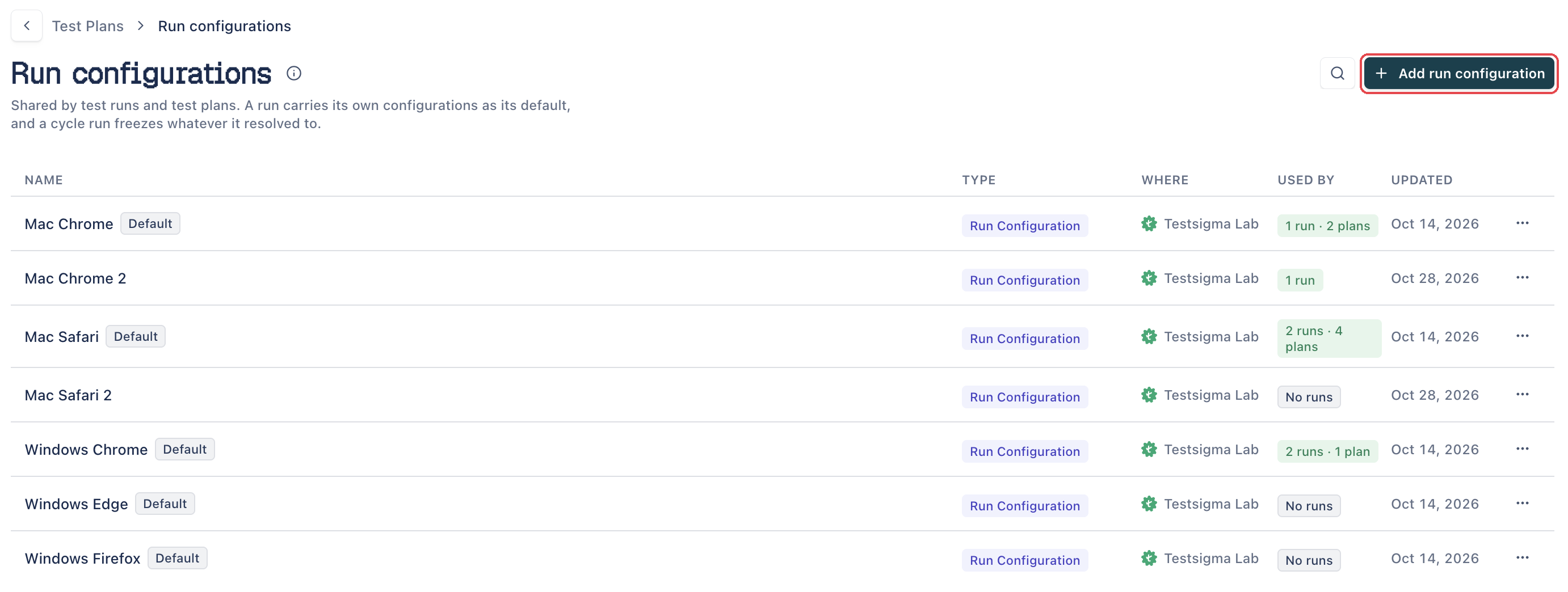
Section titled “Find a run configuration”On the Test Runs page, click Run Configs; on the Plans page, click Run configurations. Each row shows the configuration’s name, its type, where it runs, how many runs and plans use it under USED BY, and when it was last updated. To find a configuration, click the search icon and enter its name.
Arcus includes 5 default configurations, marked Default: Mac Chrome, Mac Safari, Windows Chrome, Windows Edge, and Windows Firefox. You can’t edit or delete a default. To change one, duplicate it and edit the copy.
A warning icon next to a name means its browser or device is no longer offered. To fix it, edit the configuration and pick another one.
Add a run configuration
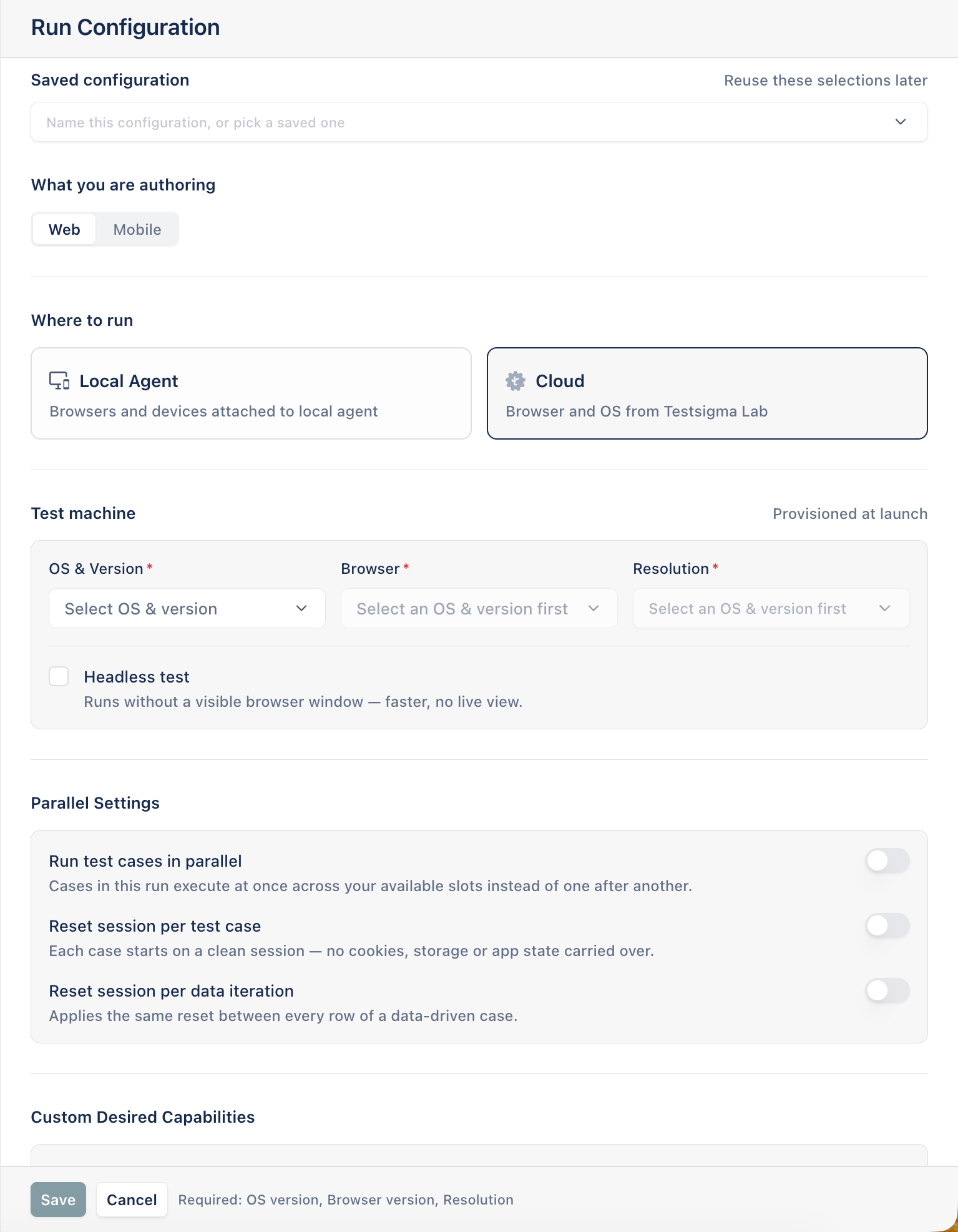
Section titled “Add a run configuration”- On the Run Configs page, click New Run Config. In a project with no run configurations, click Add run configuration. The Run Configuration panel opens.
- In Saved configuration, enter a name. Names must be unique. To start from an existing configuration’s settings, pick it from the list, then give the new one its own name.
- In What you are authoring, select Web, Mobile, or Windows.
- In Where to run, select Local Agent or Cloud. Windows offers Local Agent only.
- Fill in the fields for your choice. See Web configurations, Mobile configurations, and Windows configurations.
- (Optional) Set the parallel settings and custom desired capabilities.
- Click Save. The footer lists any required field that’s still empty.
Arcus shows “Run configuration created”, and the configuration appears in the list.
Web configurations
Section titled “Web configurations”| Field | Cloud | Local Agent |
|---|---|---|
| Which machine | Not shown | Required. Any matching machine or A specific machine. See Pick a machine |
| Machine | Not shown | Required for A specific machine. The machines that run tests, each marked with a status such as Ready, Busy, or Offline. You can save an offline machine. Runs wait for it, then end as Timed out waiting if it doesn’t connect |
| OS & Version | Required | Not shown |
| Browser | Required. Each browser lists its versions, including Latest | Required. For a specific machine, the browsers installed on it |
| Version | Not shown | For a specific machine, Latest. The run uses the version the machine has when it runs |
| Resolution | Required | Not shown |
| Headless test | Optional. Runs without a visible browser window, which is faster but has no live view | Optional |
Mobile configurations
Section titled “Mobile configurations”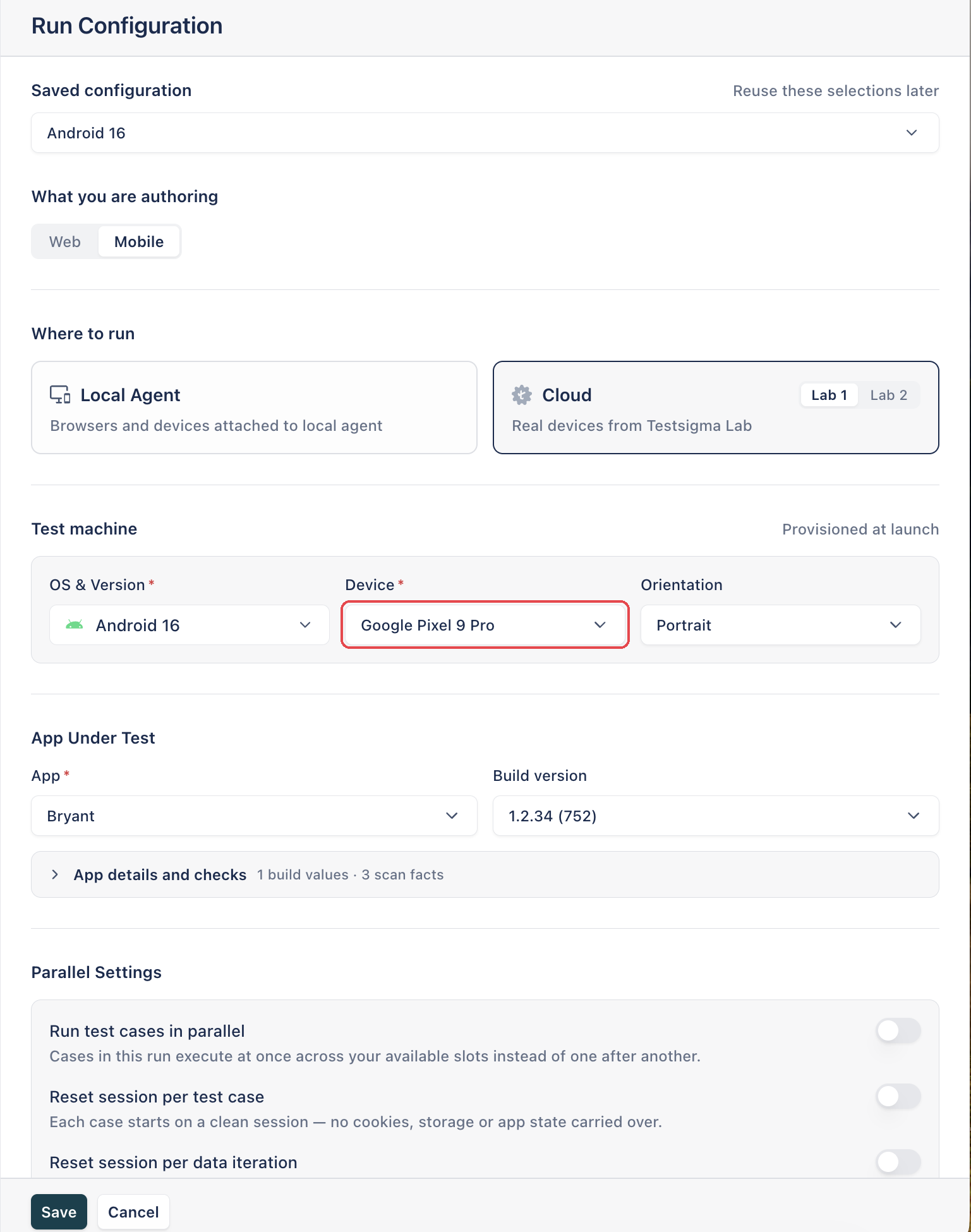
| Field | Cloud | Local Agent |
|---|---|---|
| Which machine | Not shown | Required. Any matching device or A specific device. See Pick a machine |
| Machine | Not shown | Required for A specific device |
| OS & Version | Required. iOS or Android | Not shown |
| Device | Required. A real device in the cloud | Required for A specific device. A device connected to the machine. If none is connected, the list says No device connected |
| Orientation | Optional. Portrait or Landscape | Not shown |
| App Under Test | Required. Pick the App, then its Build version. Available once OS & Version is set | Required |
On Cloud, the mobile form has two more optional sections:
- Backup Devices: other devices for the same OS to fall back to, in order, if the primary device is busy when the run starts. The run uses a backup instead of failing. Use the arrows to reorder them.
- Fixed Capabilities: turn these on for the run’s mobile sessions:
- Camera image injection: lets the test feed an image to the app’s camera.
- Network logs: records the traffic between the app and its server during the run.
- Device logs: records the device’s own logs during the run.
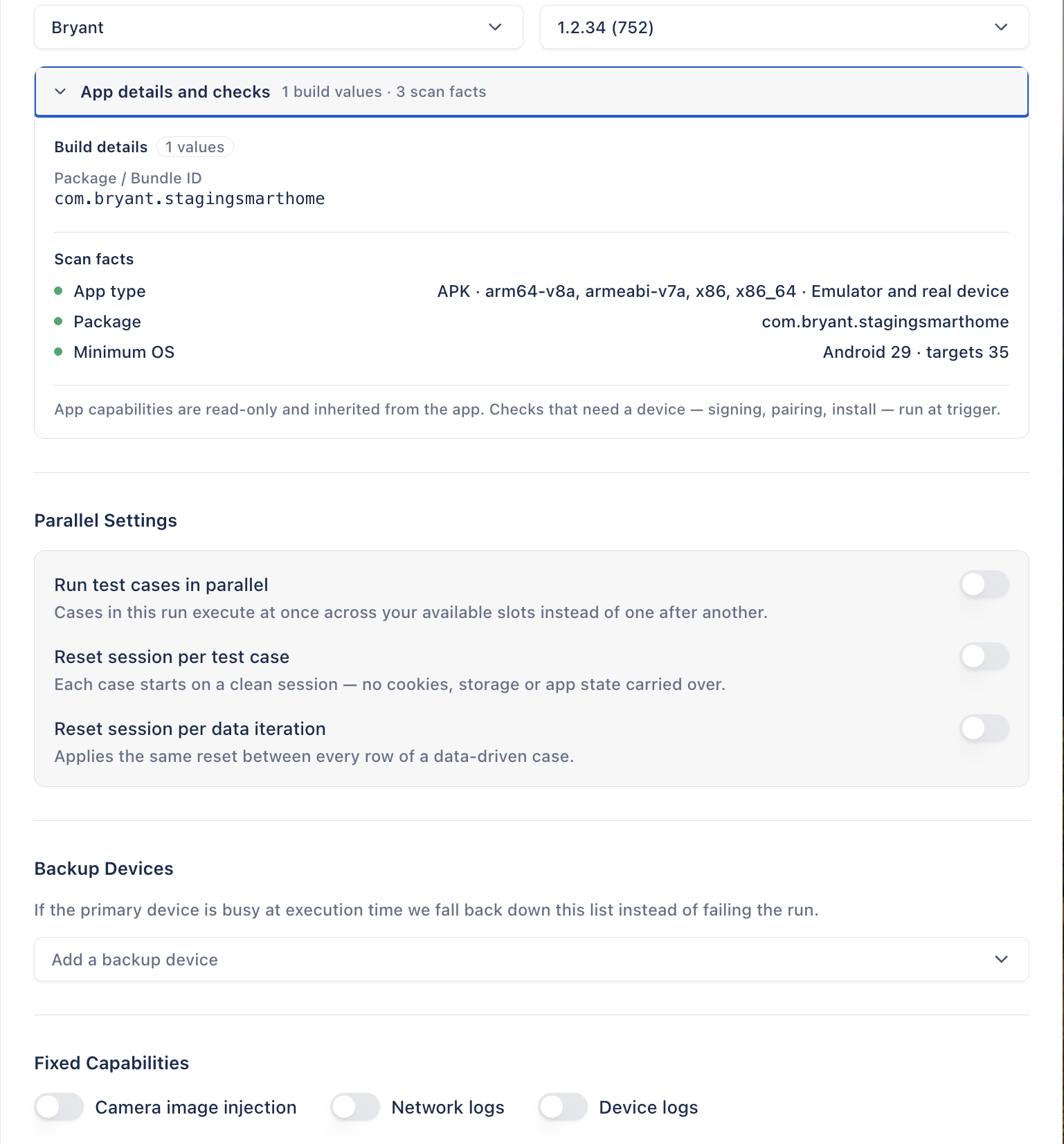
App Under Test lists the apps in your project’s Apps module. Pick the app, then the Build version to test. Expand App details and checks to see the build’s package or bundle ID and what Arcus found when it scanned the binary. The app’s own capabilities show here as read-only. Checks that need a device, such as signing and install, run when the run starts. To add an app or upload a build, see Apps.
Windows configurations
Section titled “Windows configurations”Windows desktop test cases run on Local Agent only. Under Test machine, in Machine, select a Windows computer whose Arcus Agent is running, signed in, and on a profile used for execution. See Create desktop test cases.
Pick a machine
Section titled “Pick a machine”On Local Agent, the Test machine section sets which of your machines runs the tests.
A machine runs test plans only when its profile is used for execution. A test plan started from CI/CD runs on a machine with a Local profile only when the machine belongs to the person who created the API key. See Agent profiles.
For Web and Mobile on Local Agent, Test machine has two tabs: A specific machine, the default, and Any matching machine (A specific device and Any matching device for mobile).
- A specific machine: in Machine, pick one of your machines. Each is listed with its state and OS. Then pick the Browser from those installed on it, and its Version. Until a machine is picked, Browser reads “Pick a machine first”. If no machine has registered an agent, the list says so; click Set up an agent to install one. See Install the Arcus Agent.
- Any matching machine: pick what the run needs instead of a machine: for web, a Browser, an optional OS, and At least version; for mobile, a Platform and its minimum OS version. Each run goes to the least busy machine on a Global profile used for execution that matches. Arcus shows how many connected machines match. Click See them to list them. When none matches, the panel reads, for example, “No connected machine offers Chrome on macOS.” You can still save the configuration; runs wait for a matching machine.
Windows always runs on a specific machine.
The Run Configs list shows each configuration’s choice under RUNS ON, such as “A specific machine: {name}”. When the machine a configuration used has been removed, the list reads “A specific machine (removed)”. Editing that configuration shows “The machine this configuration used was removed. Pick another to save it.”, and Update stays unavailable until you pick one.
Salesforce
Section titled “Salesforce”Salesforce connection sets the Salesforce org the run signs in to “when a step needs Salesforce”. None uses no org. See Salesforce connections.
Tunnel
Section titled “Tunnel”Send runs through sends a cloud run through an Arcus tunnel, so it can reach an app on localhost, a private network, or behind a firewall. None uses no tunnel. The run is refused if the tunnel isn’t running when it starts. A tunnel has no effect on a Local Agent run.
Parallel settings
Section titled “Parallel settings”- Run test cases in parallel: cases in the run execute at once across your available slots, instead of one after another.
- Reset session per test case: each case starts on a clean session, with no cookies, storage, or app state carried over.
- Reset session per data iteration: the same reset between every row of a data-driven case.
Your available slots are the Parallels in Settings > Usage and Credits > Session Limits. Cloud and Local each have their own number of parallels, and runs, Copilot sessions, and agentic learning and execution all use them. When every slot is busy, sessions wait in the Queue, which Cloud and Local share.
Custom desired capabilities
Section titled “Custom desired capabilities”A desired capability is a setting passed to the browser or device when a session starts, such as accepting invalid certificates or granting app permissions at install. Each capability has a KEY, a DATA TYPE (String, Integer, Boolean, or Array), and a VALUE.
Under Custom Desired Capabilities, click Add capability and fill in the three fields. To remove a capability, click the trash icon next to it.
For example, to let a browser open pages with an invalid or expired certificate:
| KEY | DATA TYPE | VALUE |
|---|---|---|
acceptInsecureCerts | Boolean | true |
For more keys, by browser and platform, see Desired capabilities.
An app can have capabilities of its own, on its page under Capabilities, which apply to every run of that app. Arcus merges the run configuration’s capabilities over the app’s.
Edit or duplicate a run configuration
Section titled “Edit or duplicate a run configuration”To edit a configuration you added, click the ellipsis icon (⋯) next to it and click Edit. Change the settings and click Update. Arcus shows “Run configuration updated”.
To copy a configuration, click the ellipsis icon (⋯) next to it and click Duplicate. The copy is named after the original followed by “(1)”. Arcus shows “Run configuration duplicated”.
Delete a run configuration
Section titled “Delete a run configuration”- Click the ellipsis icon (⋯) next to the configuration and click Delete.
- In the Delete run configuration dialog, click Delete.
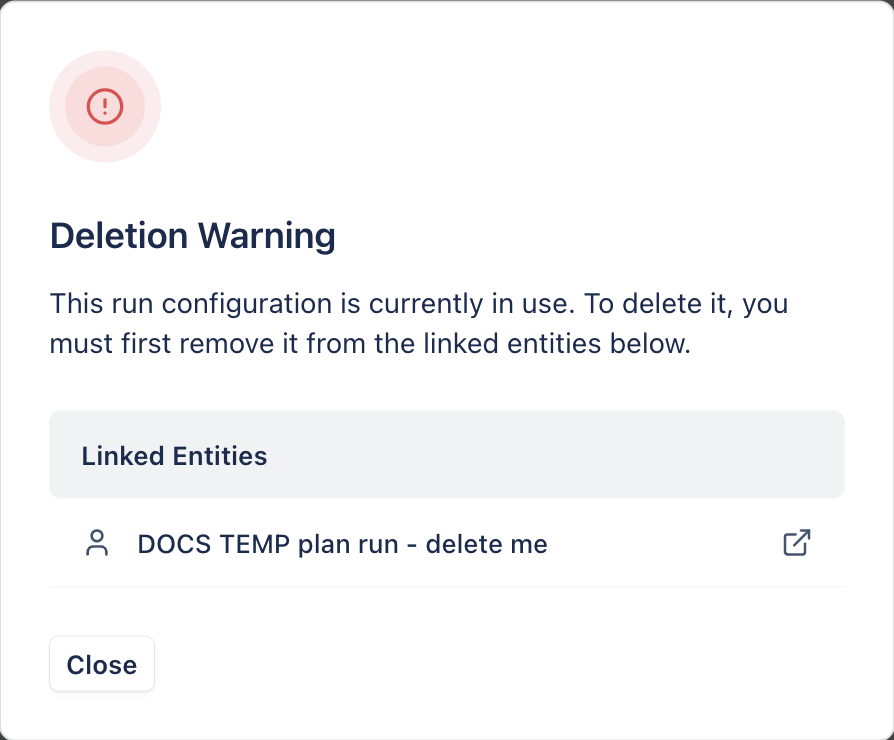
You can’t delete a configuration while it’s in use. Arcus shows a Deletion Warning that lists what’s using it under Linked Entities. Remove the configuration from each of them first, then delete it.
Run templates
Section titled “Run templates”A run template is a reusable test run that a recurring plan clones into fresh runs each cycle. Its run configurations decide what the cycle produces:
- An automated template produces one run for each of its configurations when the cycle starts, with the configuration’s name added to the run’s title.
- A manual template produces a single run that carries all of its configurations.
- A cycle run keeps the configurations it was cloned with. A change to the template applies from the next cycle.
An automated template needs at least one configuration before a cycle can start. Without one, the plan page shows a “Cycle not started” banner that names the template. Click Add configuration next to the template under RUN TEMPLATES and tick a configuration.
To create, link, and archive templates, see Work with run templates.
Was this page helpful?
Thanks for the feedback.