

Environments
An environment is a set of variable values for one place you test, such as Staging or Production. Steps refer to a variable by name, written as {env.<variable>}, and Copilot reads its value from the environment you choose when the steps run. The same test case can then run against Staging or Production without changing its steps.
Every environment starts with the project’s default variables. You override only the values that differ.
Environments are on the Environments tab of Test Assets.
| Default variables | An environment | |
|---|---|---|
| Holds | One value for every variable | The same variables, with some values overridden |
| Applies to | Every environment, unless it overrides the value | Runs that use this environment |
| Adding a variable | Adds it to every environment | Adds it to every environment, with this environment’s own value |
Set the default variables
Section titled “Set the default variables”-
In the left navigation, open Test Assets, then open the Environments tab.
-
Click Default variables.
-
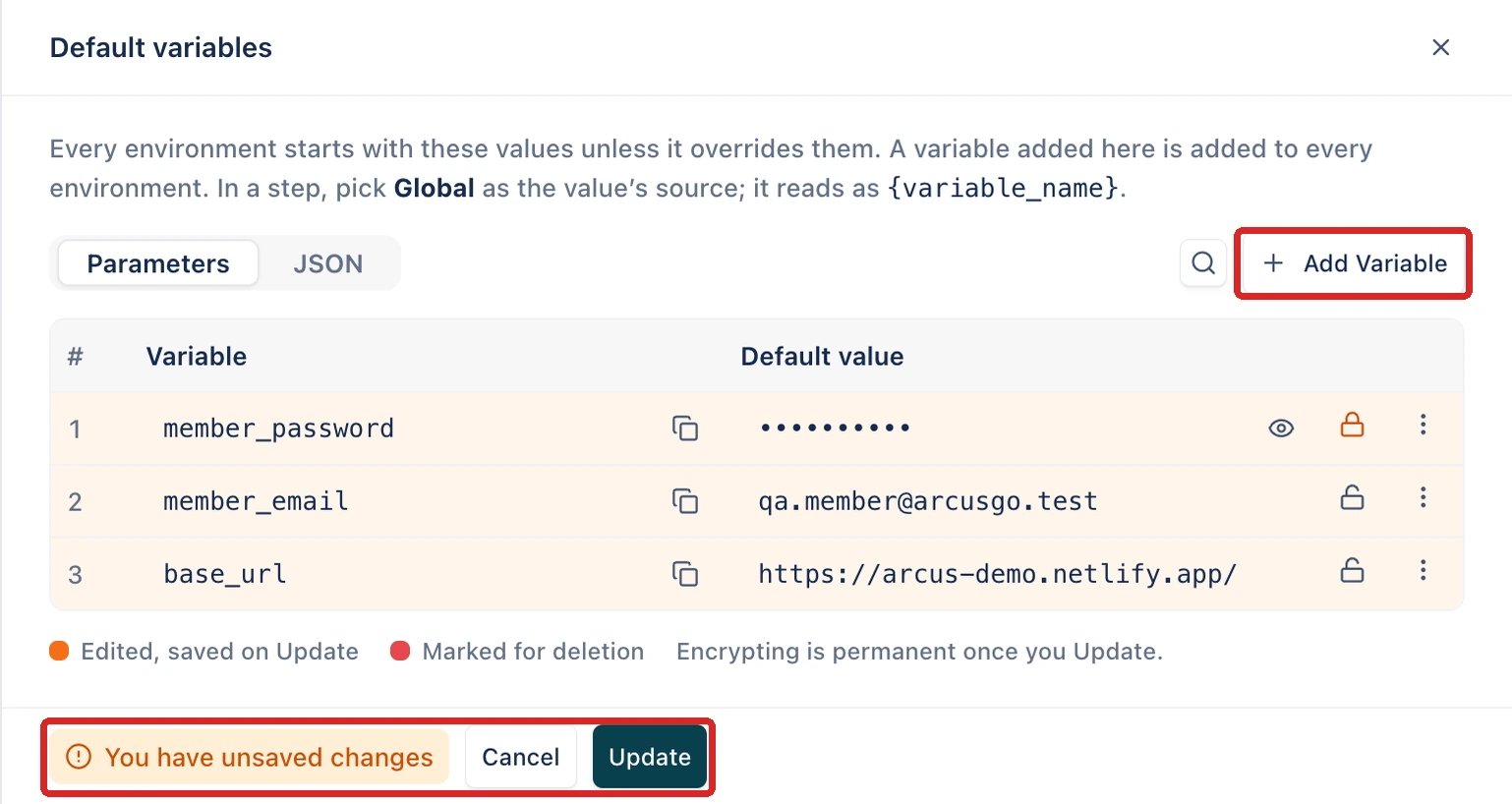
Click Add Variable.
-
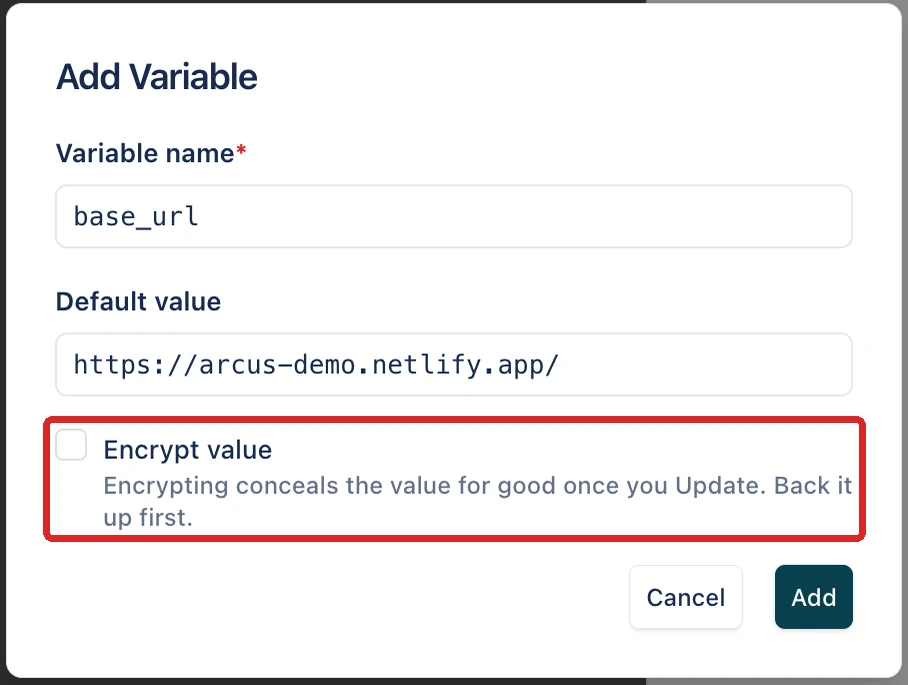
Enter a Variable name and a Default value.
-
To hide the value, select Encrypt value.
-
Click Add.
-
Click Update to save.
A variable name starts with a letter or _ and can contain letters, digits, _, and -.
Changes stay pending until you click Update. The footer reads “You have unsaved changes”, and edited rows are marked “Edited, saved on Update”. To undo every pending change, click Cancel.
To copy or remove a variable, click the ellipsis icon (⋯) on its row, then click Clone row or Mark for deletion. Marked rows are removed when you click Update.
The JSON tab shows the variables as JSON, with encrypted values masked. Click Copy or Download to export them.
Create an environment
Section titled “Create an environment”-
On the Environments tab, click Create Environment.
-
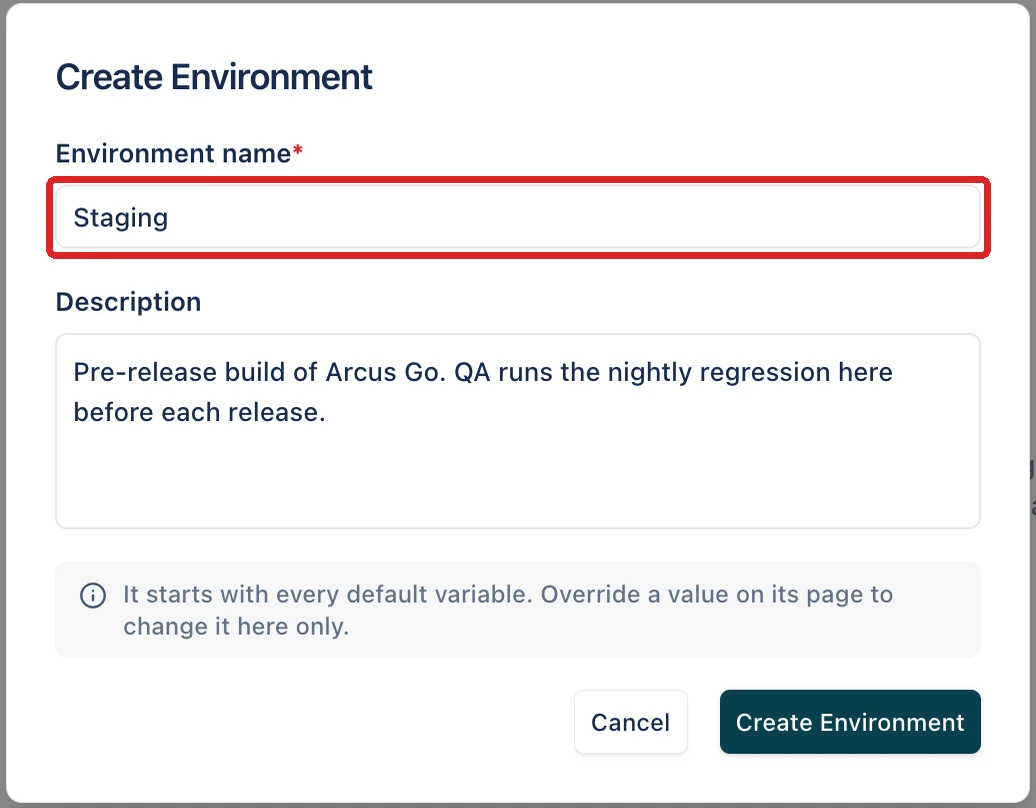
Enter an Environment name.
-
(Optional) Describe where the environment points and who tests against it.
-
Click Create Environment.
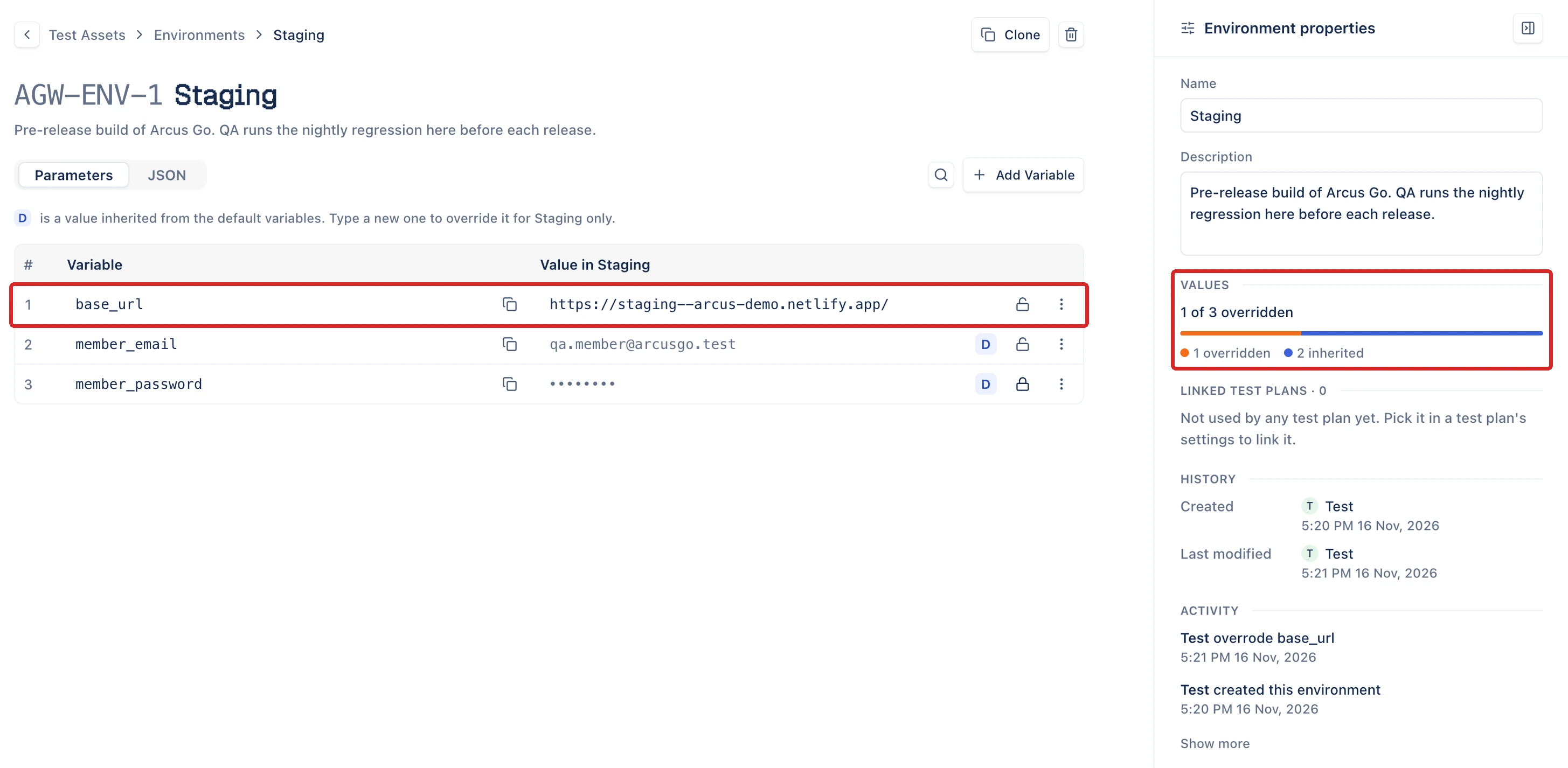
The environment opens with every default variable. Its ID appears in its title. Inherited values are marked D.
Override a value
Section titled “Override a value”- Click the value in the Value in column for the environment.
- Type the value this environment uses.
- Click Update at the top of the page.
The D mark disappears, and Environment properties shows how many of the values are overridden and how many are inherited. The ACTIVITY list records each override, with who made it.
To go back to the default, click the ellipsis icon (⋯) on the row, click Reset value to default, then click Update.
Add a variable from an environment
Section titled “Add a variable from an environment”Click Add Variable on the environment’s page. Enter the value this environment uses and a Default for other environments. Every environment gets the variable: the others start with the default value, and this one keeps its own.
Use an environment variable in a step
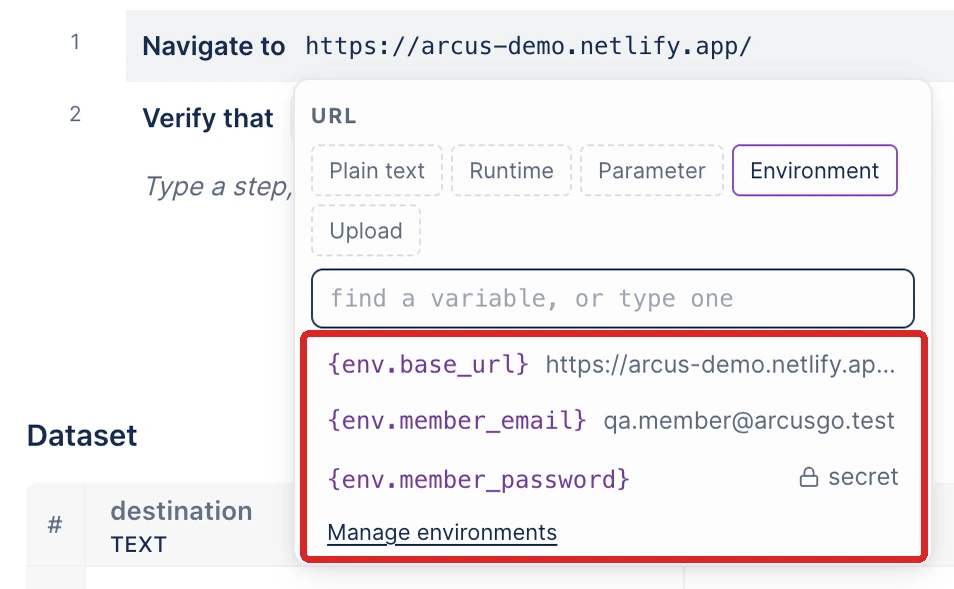
Section titled “Use an environment variable in a step”- In the automated steps, click the value you want to replace.
- Open the Environment tab.
- Select a variable. Encrypted variables are marked secret.
The step now reads the variable as {env.<variable>}. To add or change variables from here, click Manage environments.
If a variable’s name has a hyphen, write it in quotes and square brackets, for example {env["api-key"]}. With a dot, as in {env.api-key}, Arcus finds no value when the test runs.
Run against an environment
Section titled “Run against an environment”When you start a Copilot session, choose the environment under Environment > Variables from in the Copilot configuration panel. The session reads its variables from that environment.
A recurring plan with an automated run template picks its environment under Automation Settings > Environment in the plan’s properties. Its runs read their variables from that environment. Leave it on the project’s default environment to follow the default. See Use automated templates.
Manage environments
Section titled “Manage environments”The Environments tab lists each environment with its number of overrides under VARIABLES, the test plans that use it under USED IN, who created it, and when it was last changed. Sort by name, created date, or last modified.

Click the ellipsis icon (⋯) on a row for Edit, Clone, or Delete. To delete several, select their checkboxes and click Delete in the bar at the bottom.
- Clone copies every value from the environment, including its overrides. The name is filled in with the original name and “copy”, so replace it before you click Clone Environment.
- Delete removes the environment and its overridden values. The default variables stay.
Arcus doesn’t let you delete an environment that a test plan uses, or rename or delete a variable that a test case, step group, or API request uses.
Each environment’s page also shows LINKED TEST PLANS, its history, and an activity log of every change, with who made it.
Make a variable apply to one environment only
Section titled “Make a variable apply to one environment only”Every variable exists in every environment. To make a value apply to one environment only, override it there and leave the default for the others.
A step navigates to the wrong site
Section titled “A step navigates to the wrong site”The session used an environment that overrides the variable. Check Variables from in the Copilot configuration panel, and the variable’s value on that environment’s page.
Choose between an environment and a dataset
Section titled “Choose between an environment and a dataset”Use an environment for values that change with where you test, such as URLs and accounts. Use a dataset for test data you want to repeat steps over.
Was this page helpful?
Thanks for the feedback.