

Keyboard shortcuts
Every keyboard shortcut in Arcus, by where it works. The keys are shown for macOS. On Windows and Linux, use Ctrl for ⌘ and Alt for ⌥.
Lists and dialogs
Section titled “Lists and dialogs”| Action | Shortcut | Where |
|---|---|---|
| Create a test case or a dataset | C | Test Cases, Test Assets > Datasets |
| Search the list | ⌘+F | Test case, step group, test run, plan, run configuration, dataset, environment, app, element, and report lists |
| Open Filter by | ⌘+Shift+F | Test Cases, Test Runs, Plans |
| Select every test case | ⌘+A | Test Cases |
| Clear the selection | Esc | Test Cases |
| Open Command for the selected test cases | ⌘+K | Test Cases, with at least one test case selected |
| Go to the next or previous test case | K or J | Test Cases. An open quick view follows. |
| Extend the selection to the next or previous test case | Shift+K or Shift+J | Test Cases |
| Select the current test case | X | Test Cases |
| Move between folders | ↑ or ↓ | Add Folder Location for Test Case |
| Confirm Select Folder | ⌥+Enter | Add Folder Location for Test Case |
| Create the test case | Enter | The create test case dialog |
| Save the test case | ⌘+Shift+Enter | An open test case |
| Add a manual step | ⌘+Enter | Steps template, and step groups |
| Create the test run | ⌘+Enter | New test run, once a test case is selected |
| Save the test run | ⌘+Enter | Edit Test Run |
| Create or save the plan | ⌘+Enter | New plan, Edit Plan |
| Create the step group | ⌘+Shift+Enter | Create Step Group |
| Save the step group, or start editing it | ⌘+Shift+Enter | An open step group |
| Add the defect | Enter, or ⌘+Enter for Asana | Add a Defect, for Asana, Azure DevOps, ClickUp, Linear, and OpenProject |
In command lists, such as Bulk Update Test Cases and Change Status, move with ↑ and ↓ and press Enter to select.
Step editor
Section titled “Step editor”These work in the Automated steps editor on a test case and in a Copilot session. To see them in the product, click Shortcuts above the steps on a test case, or the keyboard icon in a Copilot session.
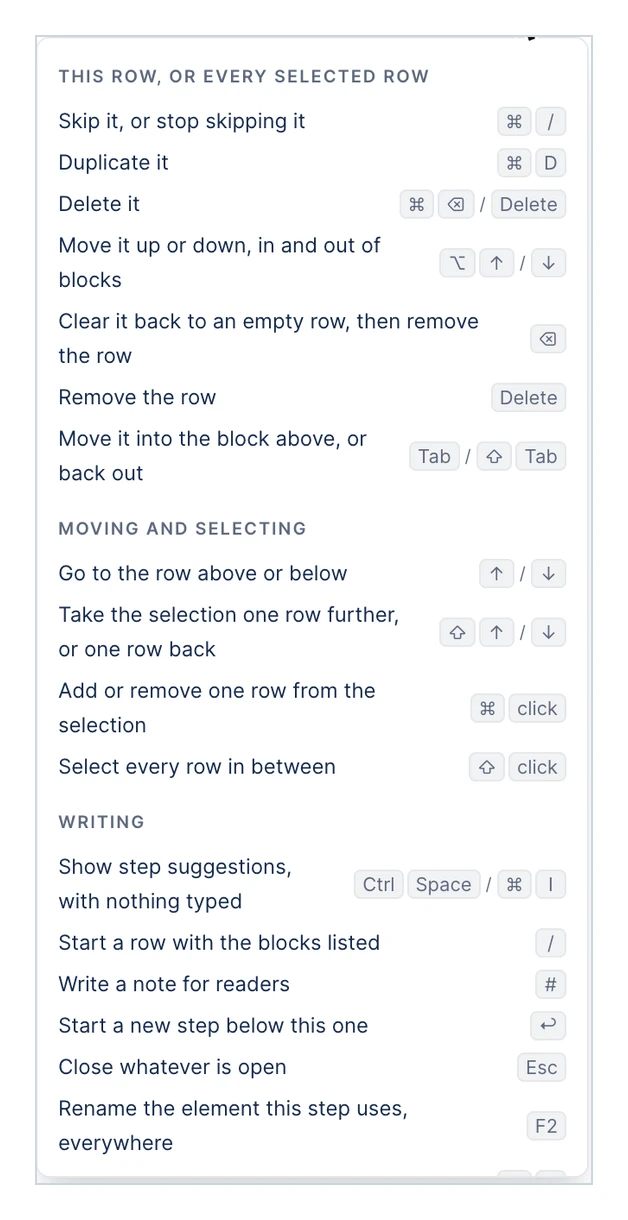
This row, or every selected row
Section titled “This row, or every selected row”| Action | Shortcut |
|---|---|
| Skip the row, or stop skipping it | ⌘+/ |
| Duplicate the row | ⌘+D |
| Delete the row | ⌘+⌫ or Delete |
| Move the row up or down, in and out of blocks | ⌥+↑ or ⌥+↓ |
| Clear the row, then remove it | ⌫ |
| Remove the row | Delete |
| Move the row into the block above, or back out | Tab or Shift+Tab |
Moving and selecting
Section titled “Moving and selecting”| Action | Shortcut |
|---|---|
| Go to the row above or below | ↑ or ↓ |
| Extend the selection by one row, or shrink it | Shift+↑ or Shift+↓ |
| Add one row to the selection, or remove it | ⌘+click |
| Select every row in between | Shift+click |
Writing
Section titled “Writing”| Action | Shortcut |
|---|---|
| Show step suggestions with nothing typed | Ctrl+Space or ⌘+I |
| Start a row with the list of blocks | / |
| Write a note for readers | # |
| Start a new step below | Enter |
| Close whatever is open | Esc |
| Rename the element this step uses, everywhere | F2 |
| Undo the last change | ⌘+Z |
| Redo it | Shift+⌘+Z. On Windows and Linux, also Ctrl+Y. |
In the step suggestions list, move with ↑ and ↓, and press Enter or Tab to insert.
Run results
Section titled “Run results”On a test case’s execution result page:
| Action | Shortcut |
|---|---|
| Copy a link to this run | ⌘+L |
| Start Debug with Copilot | D |
Was this page helpful?
Thanks for the feedback.