

Copilot configuration
The Copilot configuration panel opens before every Copilot session. It sets the machine the session runs on and how Copilot behaves. Arcus remembers your last choices for the next session.
Some sections appear only when they apply. Variables from appears when the project has an environment, Salesforce connection when it has a Salesforce connection, and App under test for mobile apps.
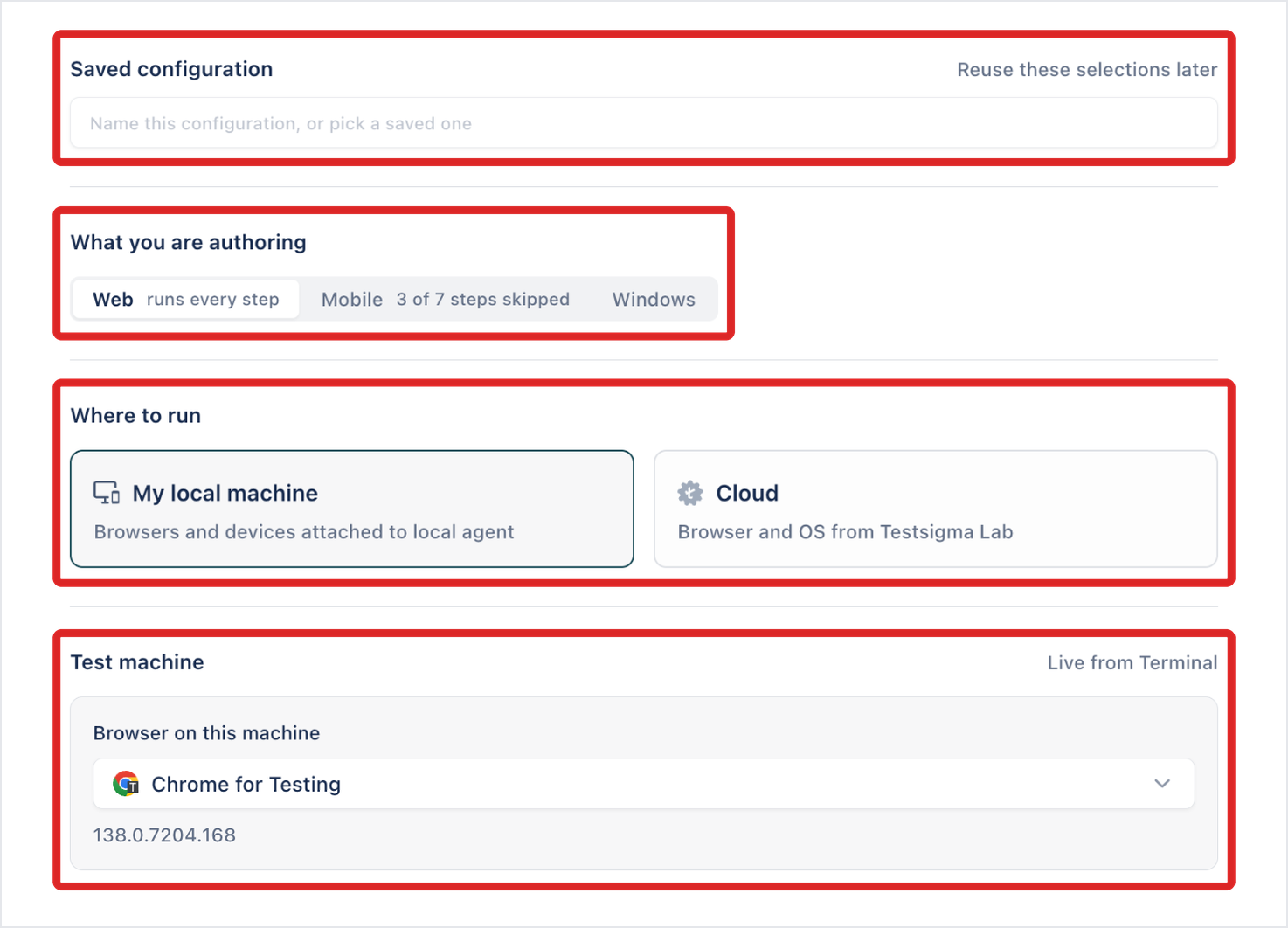
Saved configuration
Section titled “Saved configuration”Name the current settings to reuse them, or pick a saved configuration. Saved configurations belong to the project, and also appear in Run configurations. To save and start in one step, name the configuration, click the arrow next to Start Copilot, then click Save & Start Copilot.
What you are authoring
Section titled “What you are authoring”| Option | Use it for |
|---|---|
| Web | A web app in a browser |
| Mobile | An Android or iOS app on a device or emulator |
| Windows | A Windows desktop app, on your own machine only |
Once the test case has automated steps, each option shows how they’ll run there, such as runs every step or 2 of 4 steps skipped.
Where to run
Section titled “Where to run”| Option | What it uses |
|---|---|
| My local machine | Browsers and devices attached to the Arcus Agent on your computer. For Windows, the applications on this machine’s agent. |
| Cloud | A browser and operating system on Testsigma Lab, or a real device for mobile. Not available for Windows. |
When a newer Arcus Agent is available, My local machine shows Agent update available with Update Arcus Agent. A session that needs the newer agent doesn’t start until you update. It shows “This test needs a newer Arcus Agent” with Update Arcus Agent and Try again. See Install the Arcus Agent.
Agent update available says sessions still work on your version, but a test can still need the newer agent. This happens when the test was prepared for a newer runner than the one in your agent. Update the agent when you see “This test needs a newer Arcus Agent”.
When the agent on your computer is signed in to a different Arcus account, My local machine shows Arcus Agent is on another account: “This machine is connected to {email}. Reset it and connect yours.” Click Re-check after you reset and sign in the agent, or Run on cloud to switch Where to run to Cloud, with a Linux browser prefilled. See If the agent is signed in to another account.
When the test case already has automated steps, the authoring chips say how many of them the chosen platform runs, such as “Web · runs every step” or “Mobile · 1 of 3 steps skipped”.
Test machine
Section titled “Test machine”The fields depend on what you’re authoring and where it runs.
| Authoring | Where | Fields |
|---|---|---|
| Web | My local machine | Browser on this machine: Chrome for Testing, Chrome, or Edge. A browser that isn’t installed shows Not installed. |
| Web | Cloud | OS & Version, Browser, and Resolution |
| Mobile | My local machine | Attached device: the emulator or simulator that’s running. Start one before you open the panel. |
| Mobile | Cloud | OS & Version, Device, and Orientation |
| Windows | My local machine | None |
App under test
Section titled “App under test”For mobile, choose the app and build to test. Apps come from Test assets > Apps. If the project has none, click Open Apps to add one. See Apps and builds.
Variables from
Section titled “Variables from”Choose the environment that fills {env.…} values when the session runs. Without one, those values aren’t filled, and steps that use them can fail. See Environments.
Salesforce connection
Section titled “Salesforce connection”Choose the Salesforce org the session signs in to. See Connect and sync an org.
Debugging
Section titled “Debugging”| Setting | What it does |
|---|---|
| Pause at | Stops the session at the step you choose, so you can inspect it. None runs every step. |
| Start from | Starts the run at the step you choose. Earlier steps run without stopping. Beginning of test starts at step 1. |
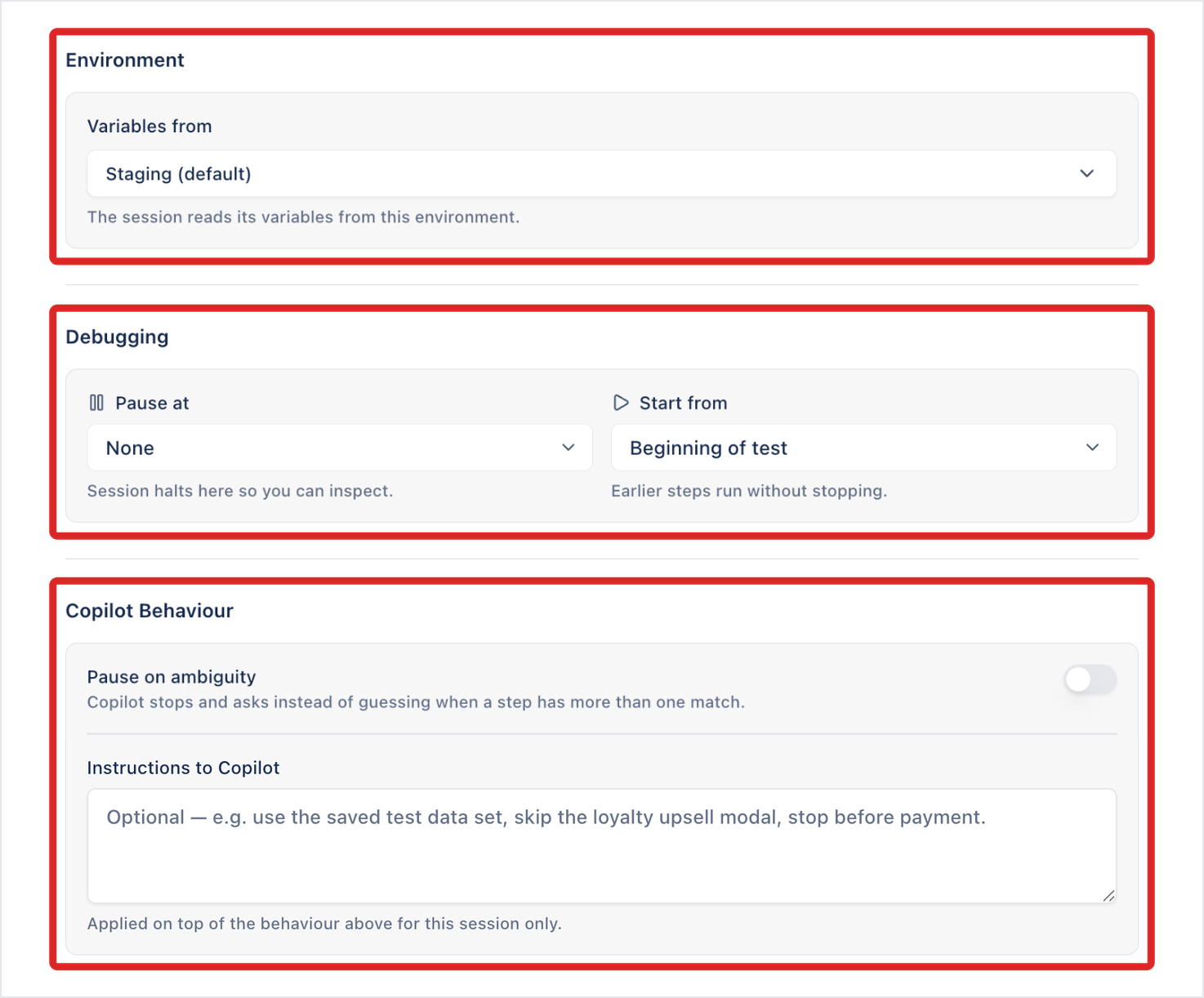
Both lists show each automated step in a short form: its number, the action, and the element.
Copilot Behaviour
Section titled “Copilot Behaviour”Self-healing isn’t a session setting. Each element’s Auto-heal this element setting decides whether a step heals. See Auto-heal.
Pause on ambiguity
Section titled “Pause on ambiguity”When on, Copilot stops and asks you instead of guessing when a step matches more than one element. Off by default.
Instructions to Copilot
Section titled “Instructions to Copilot”Tell Copilot what to do or avoid in this session, such as using a saved dataset, skipping a pop-up, or stopping before payment. The instructions apply on top of the settings above, for this session only.
Additional settings
Section titled “Additional settings”| Setting | Default | Options |
|---|---|---|
| Page timeout | 30 sec | |
| Step timeout | 10 sec | |
| Screenshot capture | On | On, On failure, Off |
| Screenshot mode | Viewport | Full page, Viewport |
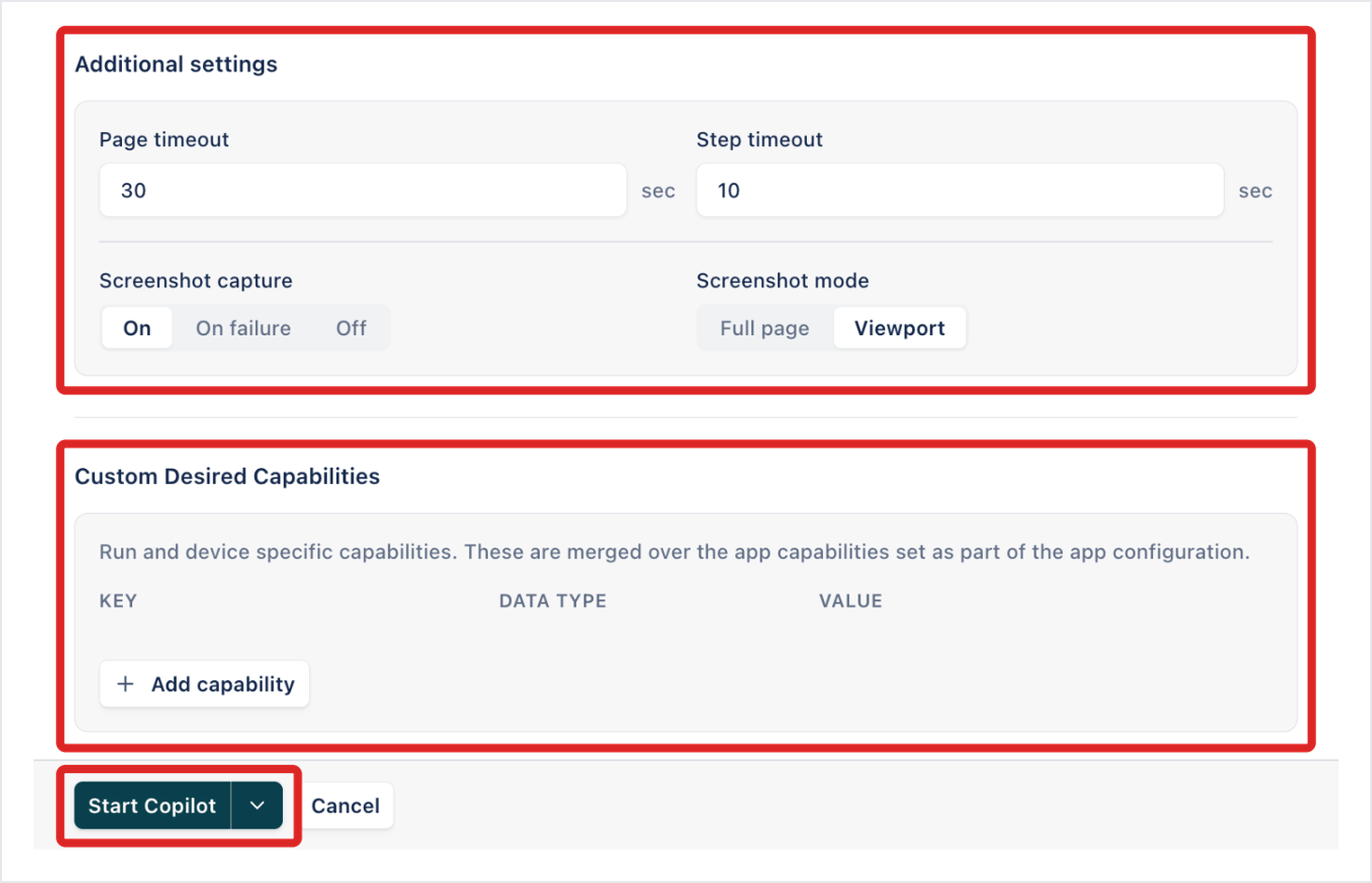
Custom desired capabilities
Section titled “Custom desired capabilities”Under Custom Desired Capabilities, click Add capability and enter a KEY, DATA TYPE, and VALUE. Arcus merges them over the capabilities set on the app and uses them for this session only. For common keys, see Desired capabilities.
Copilot Visual learning
Section titled “Copilot Visual learning”This is a project setting, in Project Settings > Overview, not part of the panel. When it’s on, Copilot keeps a screenshot of the app with each step, so it understands your screens the way you see them. Password fields are always masked. Turn it off for sensitive projects. It’s on by default.
Was this page helpful?
Thanks for the feedback.