

GraphQL calls
A GraphQL call is a step that sends a GraphQL query or mutation and checks the response. It works like a REST API call: you build the request in the editor, try it with Send, then add what to verify and store. The editor also reads the endpoint’s schema, so you can pick an operation and its fields instead of writing the query manually.
For REST APIs, see API tests.
Add a GraphQL call
Section titled “Add a GraphQL call”-
Open the test case and select Automated steps.
-
In an empty step row, type
/and select GraphQL. The request editor opens beside the steps, with the Query tab selected.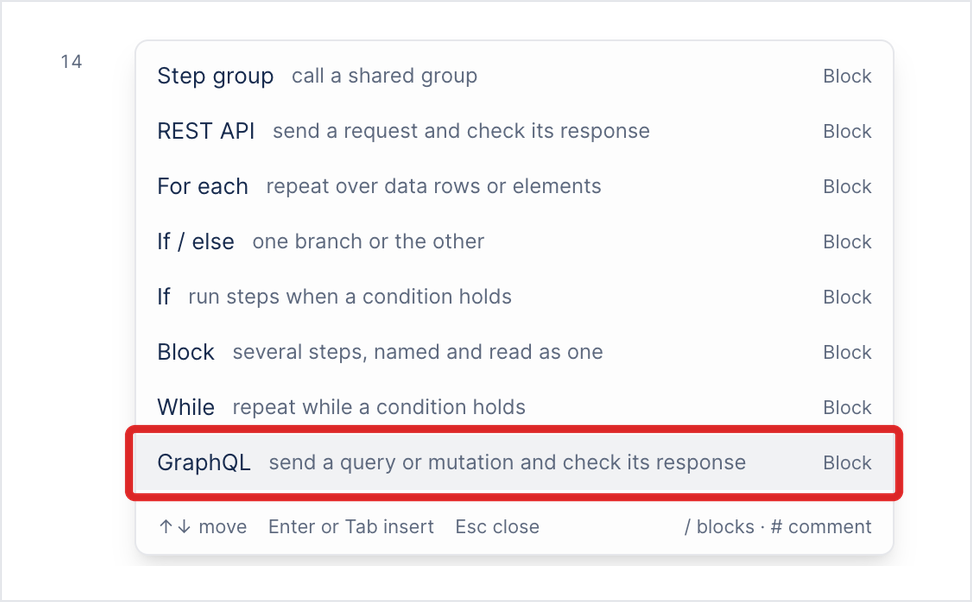
-
Click New API call at the top of the editor and enter a name for the call.
-
Enter the endpoint URL. A GraphQL call is always sent as POST, so the method list can’t be changed.
-
In the Schema panel, click Fetch schema. The panel lists the API’s QUERIES, each with its arguments and return type. To see mutations instead, click Mutation.
-
Select an operation. Arcus writes the query in the Query editor with the operation’s fields ticked, and names it in Operation to run. Tick or untick fields in the panel to change what the query asks for, or edit the query directly.
-
If the query has variables, click Variables in the header and give each one a value. See Give the query’s variables a value.
-
(Optional) Add headers and authorization, as for a REST call. See Authorization types.
-
Click Send. The Response pane shows the status, the time, the size, and the body.
-
Check the Verify and Store tabs, then click Create.
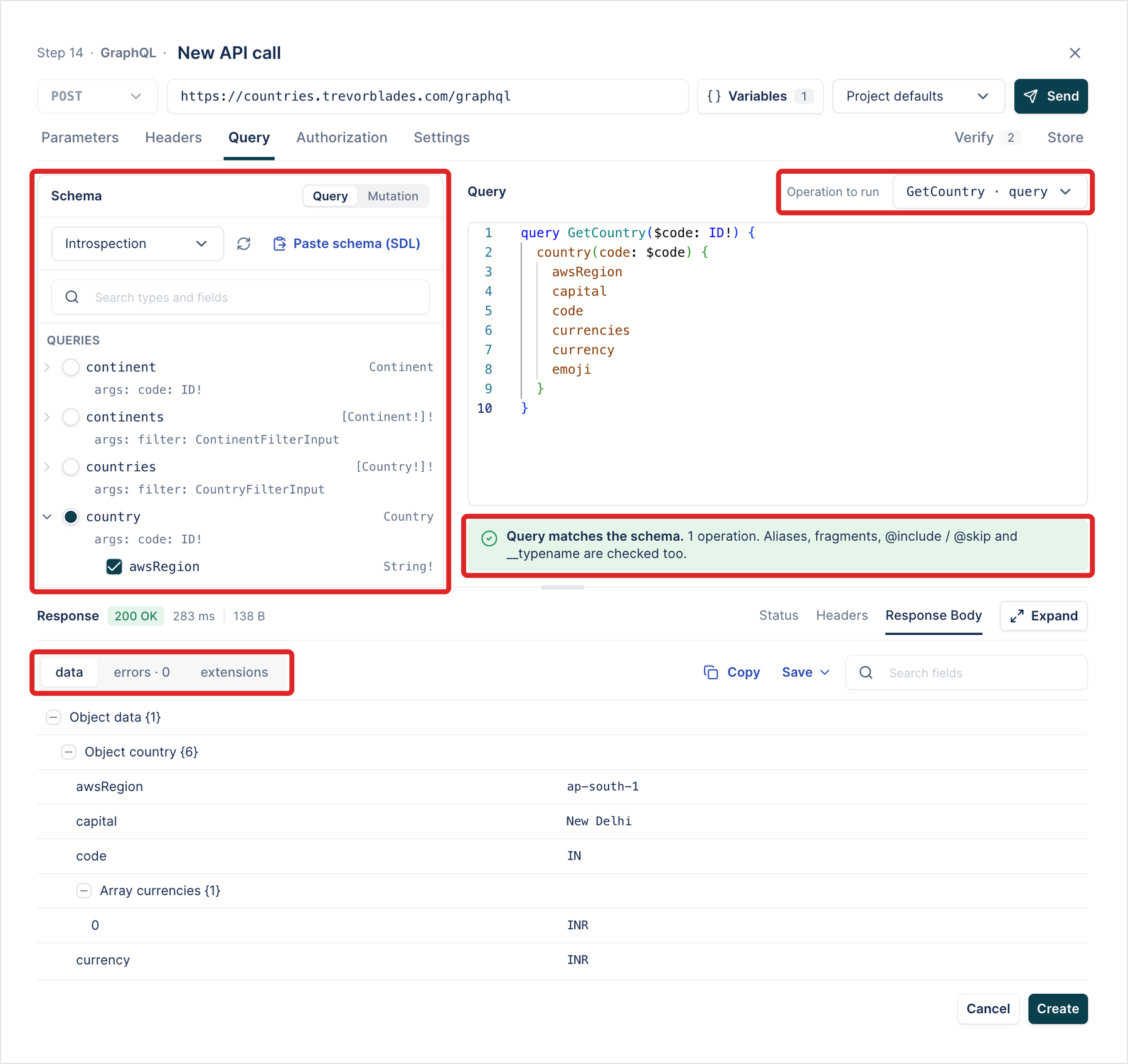
Below the query, Arcus checks it against the schema. “Query matches the schema” means every field, argument, alias, and fragment exists. Fix anything it reports before you send.
If the endpoint doesn’t allow introspection, click Paste schema (SDL) and paste the schema instead. To fetch the schema again after the API changes, click the refresh icon beside the schema source.
Give the query’s variables a value
Section titled “Give the query’s variables a value”Variables in the header lists the query’s variables, such as $code. GraphQL sends them in the request’s variables object, alongside query and operationName.
- Click Variables.
- On the Variables tab, enter each variable’s VALUE. TYPE defaults to Auto, which reads the type from the value. To enter the variables as JSON instead, click JSON.
- Close the panel.
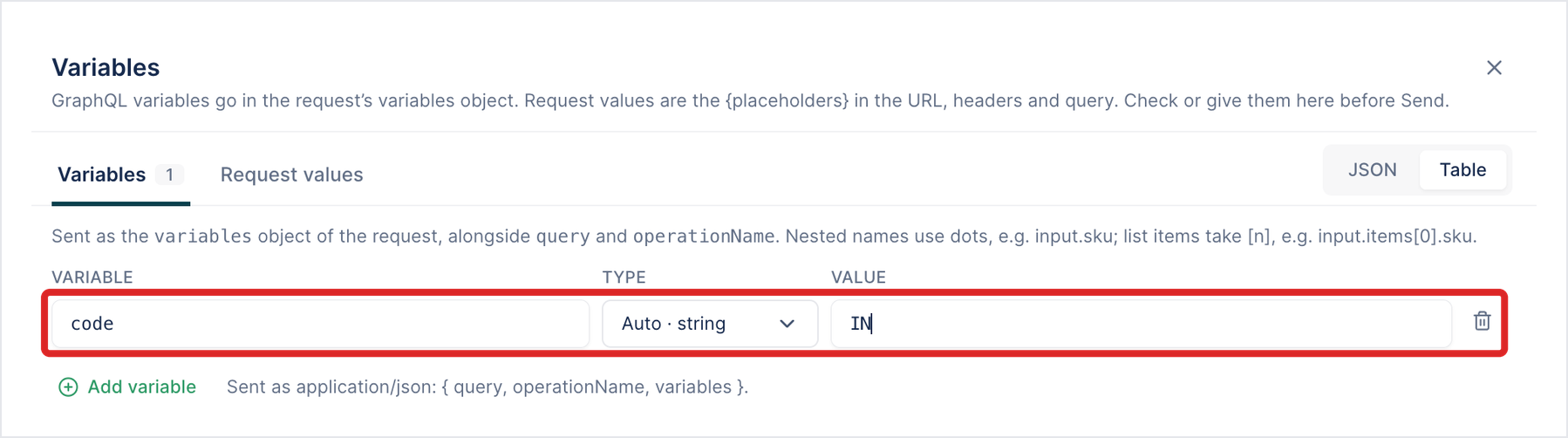
A value can be a stored value or an environment value, such as {user_id} or {env.country_code}. Use {env.base_url} for the endpoint and {env.api_token} for a token, as in REST calls. See Use a stored value in a later call. The Request values tab lists the {placeholders} the URL and headers use.
Verify the response
Section titled “Verify the response”A new GraphQL call starts with two checks on the Verify tab:
- Status code Equals
200. - errors Is empty, so a query that fails inside a
200response still fails the step.

To check a field, open Response (JSON Path), pick the part of the body it’s in, data, errors, or extensions, and click Add Verification. The path starts inside that part. For example, $.country.capital under data. The comparisons are the same as for REST calls. See Verification types.
The response pane splits the body the same way. errors shows how many errors came back, such as errors · 0.
Storing works as it does for REST calls. See Store a value.
If the schema doesn’t load
Section titled “If the schema doesn’t load”Arcus fetches the schema by sending an introspection query with the call’s URL, headers, and authorization. It keeps a fetched schema for 10 minutes. When the fetch fails, the Schema panel says why:
| Reason | What to do |
|---|---|
| The address is private or local | Like Send, introspection doesn’t reach private or local addresses, such as localhost. Use an address Arcus can reach from the internet, or paste the schema. |
| The host name didn’t resolve | Check the URL. |
| The request timed out | The endpoint took longer than 15 seconds. Try again. |
| Introspection is turned off on the server | Click Paste schema (SDL), or ask the API’s owner to allow introspection for your environment. You can still send queries. |
| The endpoint didn’t answer as GraphQL | Check that the URL is the GraphQL endpoint, not a page or REST endpoint. |
| The schema is too large | The endpoint’s answer is larger than 10 MB. Paste the schema instead. |
Run a GraphQL test
Section titled “Run a GraphQL test”Run it like any API test, in a Copilot session or a test run. See Run an API test.
Send and fetching the schema can’t reach private network addresses, but a run can. To test an API on your own network, run the test on the Arcus Agent.
Was this page helpful?
Thanks for the feedback.