

Run results
Open a test case’s result from a test run, see what each step did, and find out why a step failed. A failed step shows the engine’s error and an Analyzer verdict with the root cause and what to fix.
Open a test case result
Section titled “Open a test case result”-
Open the test run. For a run in a recurring plan, open the plan, click the cycle, then click the run.
-
Click the test case. The result opens with the steps on the left and a step’s details on the right. When a step failed, its details are open.
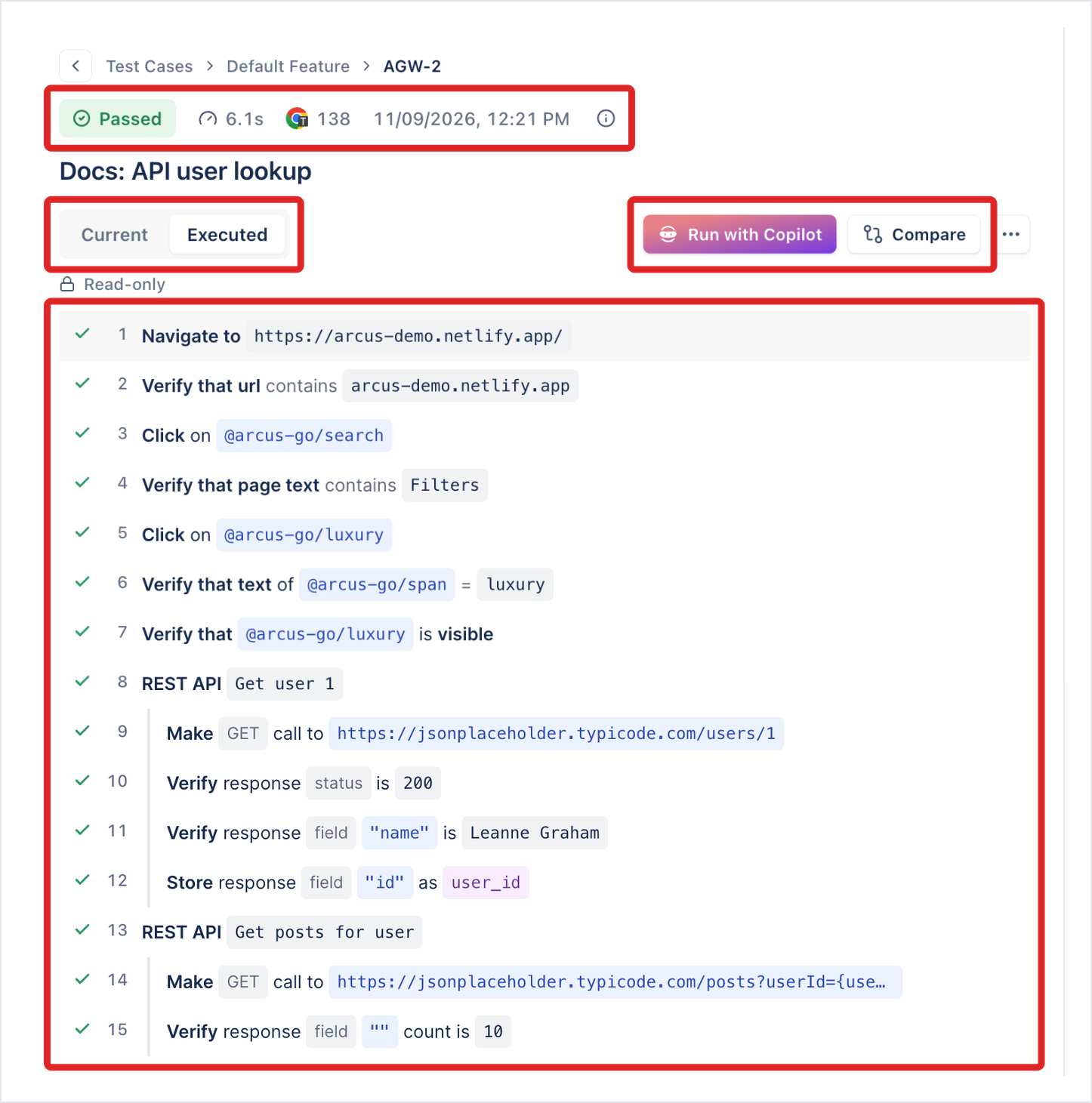
You can also open a result from the test case’s Run history tab.
The header shows the result, such as Failed, the browser, and when it ran. Executed shows the steps as this run ran them, with a result on each. It’s read-only. Current shows the test case’s steps as they are now, in the same editor as the test case, so you can fix a step without leaving the result.
Read a step
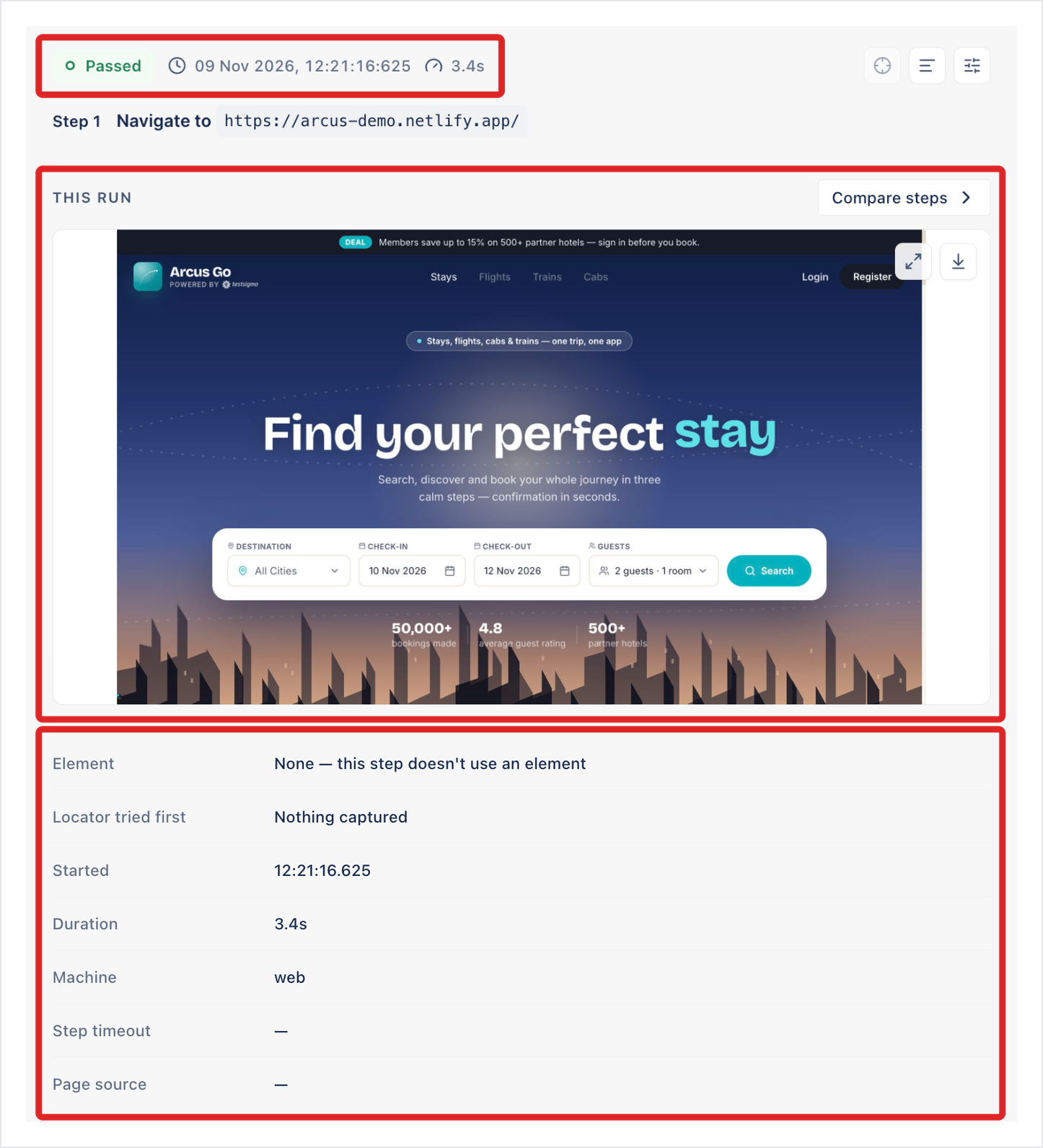
Section titled “Read a step”Click a step to see its details on the right:
- The step’s result, when it ran, and how long it took.
- THIS RUN: the screenshot taken at the step. Compare steps puts it beside the same step in another run of the test case. It’s off when the test case has no other run.
- The step’s details, such as the element, the locator tried first, the machine, and the step timeout.
A step that auto-healed shows a heal card. See Review a healed step.
Read a failed step
Section titled “Read a failed step”A failed step is marked on the left. Its details start with two blocks.
ERROR shows the error code, such as NO_SUCH_ELEMENT or ASSERT_ERROR, and the message the engine reported.
ANALYZER VERDICT explains the failure: a chip that classifies it, a title, a summary, the REASON, what to change, and the evidence. While it loads, it shows “Reading the evidence for this step. This usually takes under a minute.” See Analyzer.
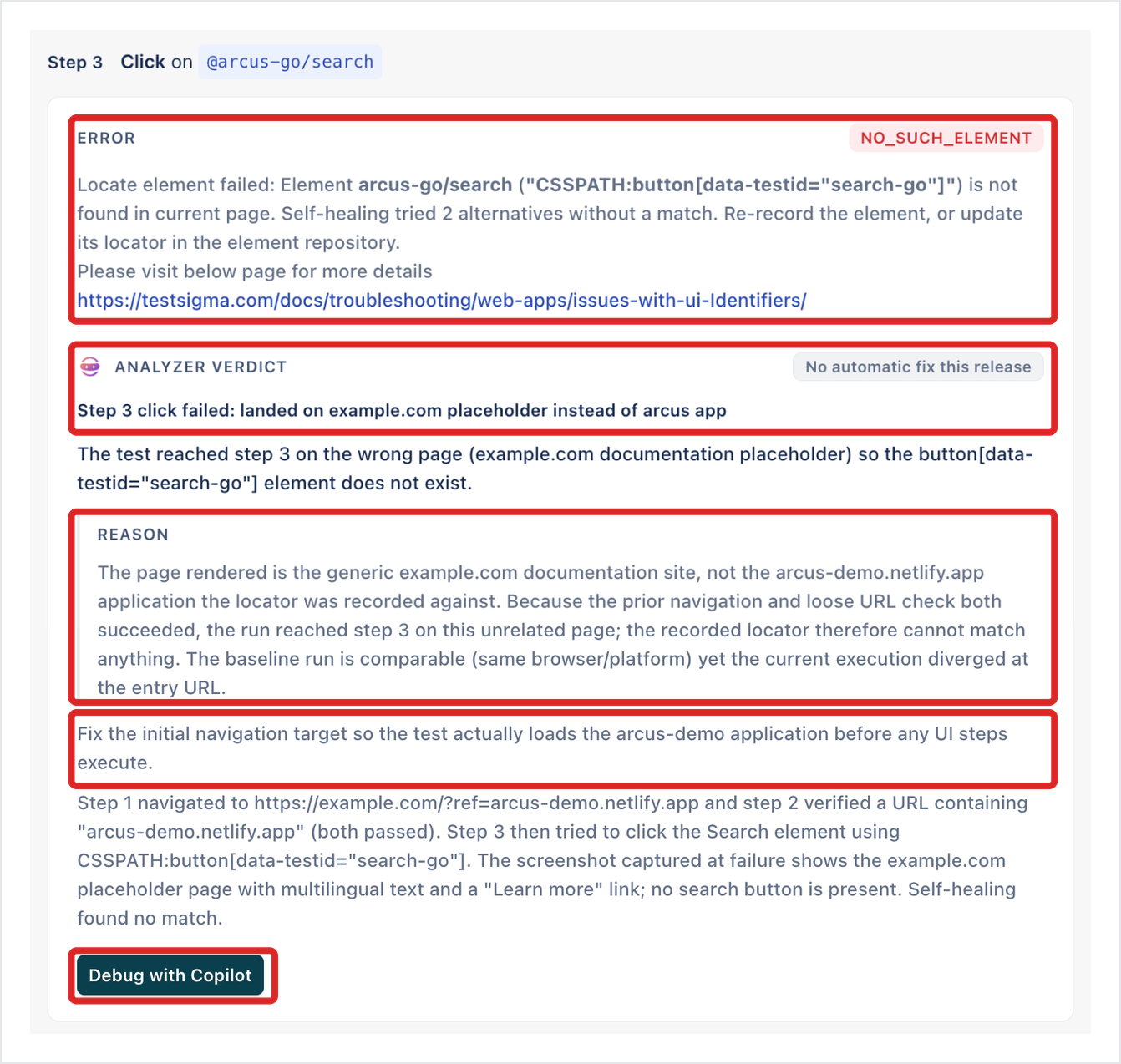
Verdicts cover failed steps and failed API calls. A failed step group, condition, or loop has no verdict of its own. Open the step inside it that failed.
When the Analyzer can write the fix, the verdict ends with a PROPOSED FIX with its Confidence, the step as it ran, and the step as proposed. Click Apply to change the step in the test case, or Dismiss. Arcus never applies a fix on its own. See Proposed fix.
Below the screenshot, Arcus lists the step’s Element, Locator tried first, Started, Duration, Machine, Step timeout, Error code, Root cause, and Page source file.
Report a defect from a run
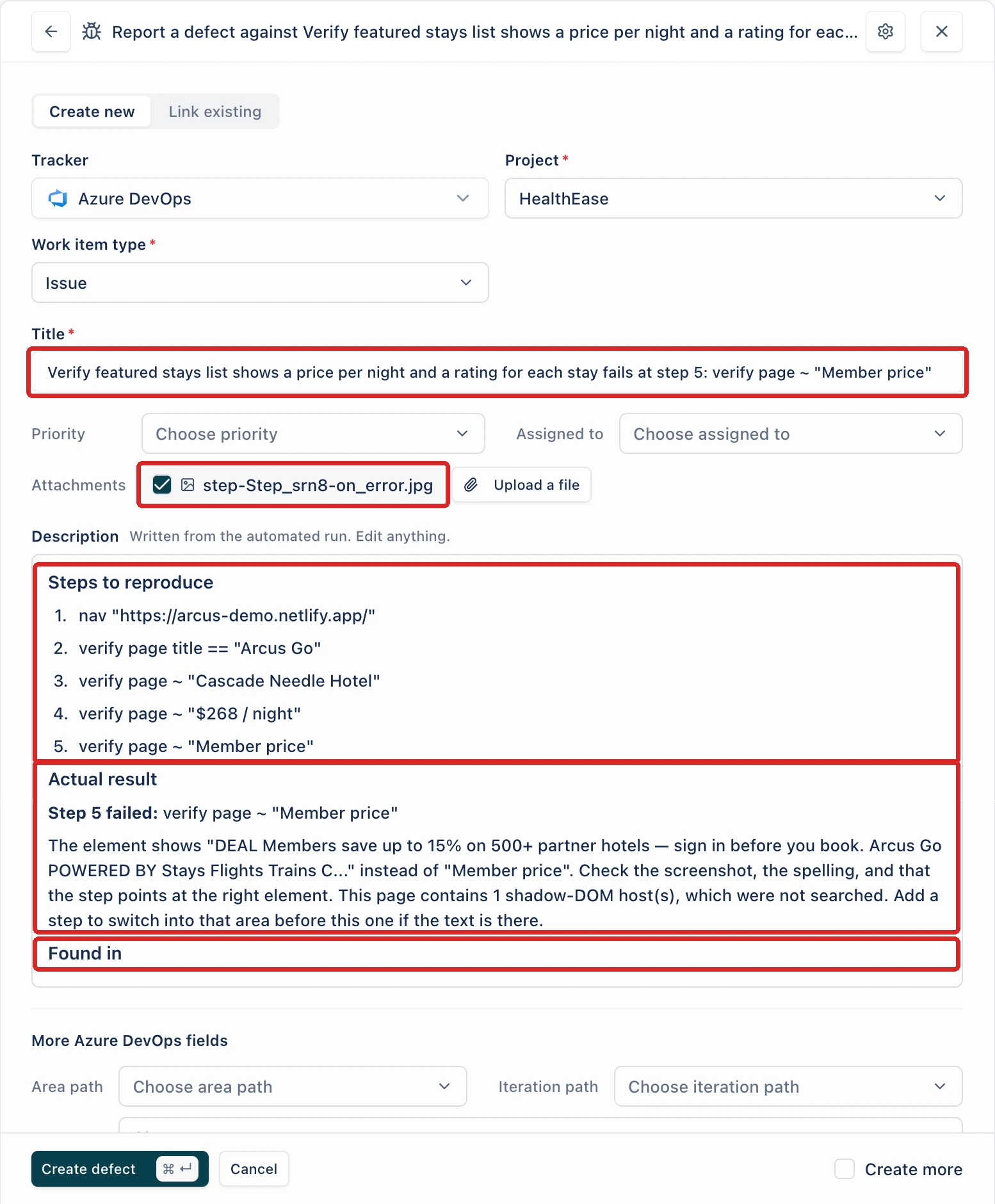
Section titled “Report a defect from a run”Raise a failed test case as a defect in your issue tracker without writing it up yourself. Arcus names the failed step in the title, lists the steps up to the failure and the engine’s error in the description, and attaches the screenshot of the failed step. The tracker must be connected under Settings > Integrations. See Defects.
-
Open the sheet from any of these places:
- In the run, click the defect icon on the test case’s row. Its tooltip reads Report a defect.
- On the test case result, click the ellipsis icon (⋯) in the header and click Raise it as a defect, under SHARE.
- In a failed step’s details, click Raise it as a defect. It shows when the Analyzer finds an application defect or a changed or missing element.

-
In Tracker, select the tracker, and select where the issue goes. The sheet starts on the tracker and destination you used last.
-
Check what Arcus wrote from the run. The description is marked “Written from the automated run. Edit anything.”:
- Title: the test case’s title, followed by “fails at step”, the step number, and the failed step in Arcus step syntax.
- Steps to reproduce: the automated steps up to the failed one, in Arcus step syntax, where
~means contains. - Actual result: the step that failed and the error the engine reported.
- Found in: the test run and the test case.
For a test case that passed, the title is the test case’s title, and the description lists the steps that ran under Steps executed, with no Actual result.
-
Under Attachments, leave the failed step’s screenshot ticked to send it with the issue, or clear it to leave it out. Click Upload a file to add more.
-
(Optional) Set the Priority and the Assignee, and fill in More {tracker} fields.
-
Click Create defect, or press
⌘+↵.
To link an issue that already exists instead, click Link existing at the top of the sheet. See Link an existing defect.
Debug or replay from a result
Section titled “Debug or replay from a result”- Debug with Copilot, at the end of the verdict, opens a Copilot session on the run so you can see the failing step and fix it. See Debug and run with Copilot.
- Run with Copilot, in the header, replays every step live.
- Compare, in the header, puts this run and another run of the same test case side by side, step by step. It’s off when the test case has no other run.
Was this page helpful?
Thanks for the feedback.