
All integrations
Arcus connects to 17 tools from Settings > Integrations. Trackers bring sprints and stories into QI Home, Confluence and Figma become context sources, Slack and Microsoft Teams receive notifications, developer tools send pull requests and coding sessions to Context Management, and the Testsigma integration links Arcus test cases to automated tests.
Integrations by category
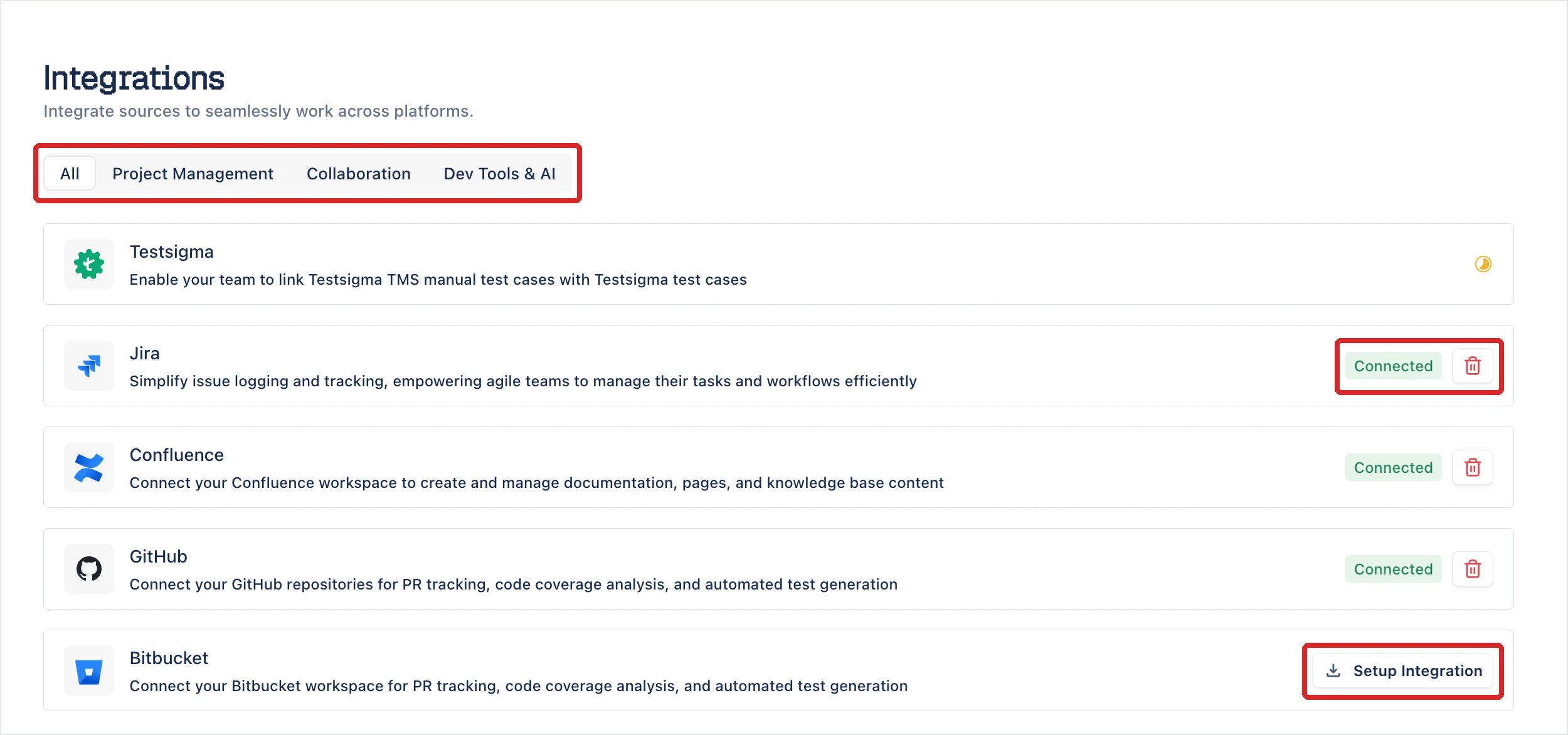
Section titled “Integrations by category”The All tab lists every card. The other 3 tabs filter by the category shown in the Tab column.
| Integration | Tab | What the connection does |
|---|---|---|
| Jira | Project Management | Reads sprints and stories, and logs defects from runs |
| Linear | Project Management | Reads issues, and posts run results, release health, and the quality report to Linear |
| ClickUp | Project Management | Reads tasks and sprints |
| Azure DevOps | Project Management | Reads work items and sprints |
| OpenProject | Project Management | Syncs work packages and sprints, and raises bugs from failed tests |
| Confluence | Collaboration | Attaches pages as context for generation |
| Slack | Collaboration | Sends notifications about assignments, reviews, and status changes |
| Microsoft Teams | Collaboration | Sends the same notifications to Teams channels |
| Testsigma | Dev Tools & AI | Links manual test cases in Arcus to automated test cases in Testsigma |
| GitHub | Dev Tools & AI | Tracks pull requests as developer context |
| Bitbucket | Dev Tools & AI | Tracks pull requests as developer context |
| GitLab | Dev Tools & AI | Tracks merge requests as developer context |
| Claude | Dev Tools & AI | Connects the Claude Code plugin, which brings in Claude Code sessions as developer context |
| Copilot | Dev Tools & AI | Brings in GitHub Copilot coding sessions as developer context |
| Cursor | Dev Tools & AI | Brings in Cursor coding sessions as developer context |
| Codex | Dev Tools & AI | Brings in OpenAI Codex coding sessions as developer context |
| Figma | Dev Tools & AI | Attaches designs as context for generation |
Connect or disconnect an integration
Section titled “Connect or disconnect an integration”Each card shows its state on the right:
- Setup Integration: not connected. Click it, then follow that integration’s page for the sign-in or token steps. On Claude, Copilot, Cursor, and Codex the button carries an external-link icon and opens the plugin’s GitHub page in a new tab. The card shows Connected once the plugin is signed in to Arcus.
- Connected: active. To disconnect, click the delete icon next to the chip. The Claude, Copilot, Cursor, and Codex cards show Connected with no delete icon.
- Testsigma: a toggle. Turn it on, then choose the Testsigma account to connect. If the Arcus account was created from Testsigma, the card shows a pending icon instead until the person who signed up activates their Arcus account.
When you click the delete icon, a Disconnect your … dialog opens. Select Please confirm your deletion, then click Delete Integration. Arcus removes the connection and unlinks the projects linked to that tool. OpenProject is the exception: it opens its own dialog and keeps the project links, paused, so they resume when you reconnect.
Trackers are also linked per project. After the account-level connection, open the project switcher, click Project Settings, and link the tracker’s project. See Projects and project settings.
Was this page helpful?
Thanks for the feedback.