

Usage and limits
Your plan sets how many AI credits, minutes, parallel sessions, queue slots, and seats your account can use in a billing period. Track them under Settings > Usage and Credits, on a page titled Credits and Usage.
What a plan limits
Section titled “What a plan limits”- AI credits: spent by AI features such as test case generation, Agentic Learning, crawls, the Healer, and the Analyzer. Credits refresh when the plan period starts again.
- Minutes: execution time, counted separately for Cloud machines and for your own machines running the Arcus Agent (Local). Minutes refresh with the plan.
- Parallels: how many sessions can run at the same time. Copilot sessions, test runs, Agentic Learning, and Agentic Execution use a cloud parallel. Test runs use a local parallel.
- Queue: how many sessions can wait for a free parallel. Cloud and Local share one queue.
- Seats: how many users the account can have. See Users and roles.
To see each plan’s limits side by side, go to Settings > Bills and Payments and click Compare plans.
Track your credits
Section titled “Track your credits”The Credits tab shows how much of this period’s allowance is used, for example “1,056.55 of 100,000 credits used”, with the plan allowance and any purchased credits beneath it. Plan refreshes, on the right of the tab bar, gives the date the balance resets.
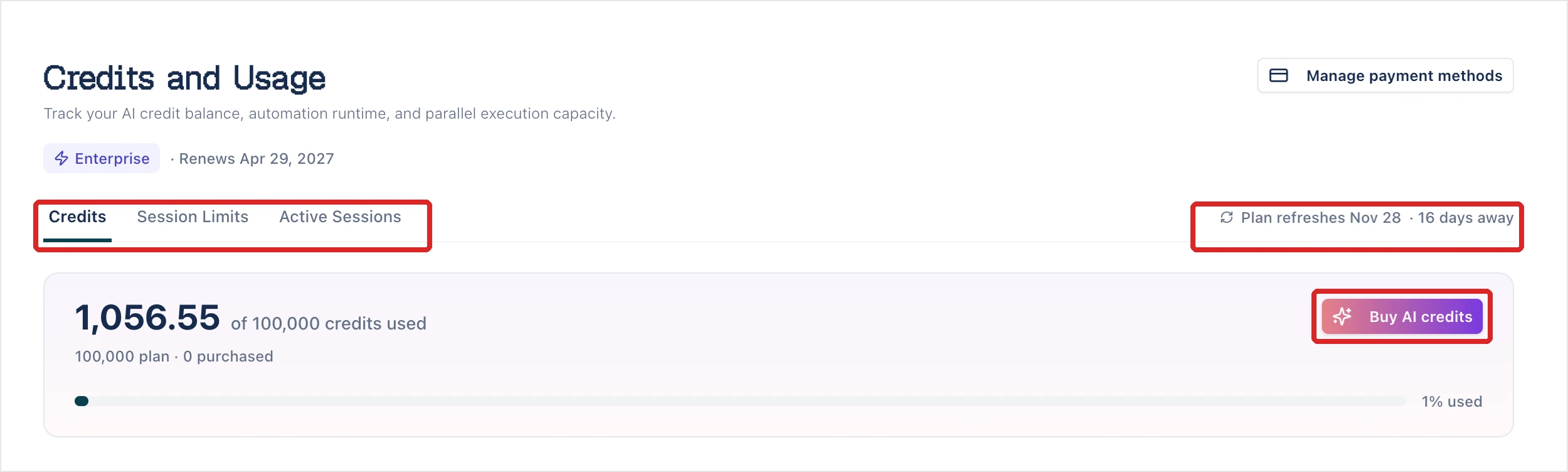
Two sections sit below the balance:
- Historical activity: total credits spent, active days, average per active day, and current streak over the last 12 months, with a weekly spend chart.
- Usage by agent: credits and sessions for the current billing period. Click By user or By feature to split the same spend another way, and change Period to This month, Last month, Last 7 days, or Custom date range. Under By feature, click a feature to see its spend by project.
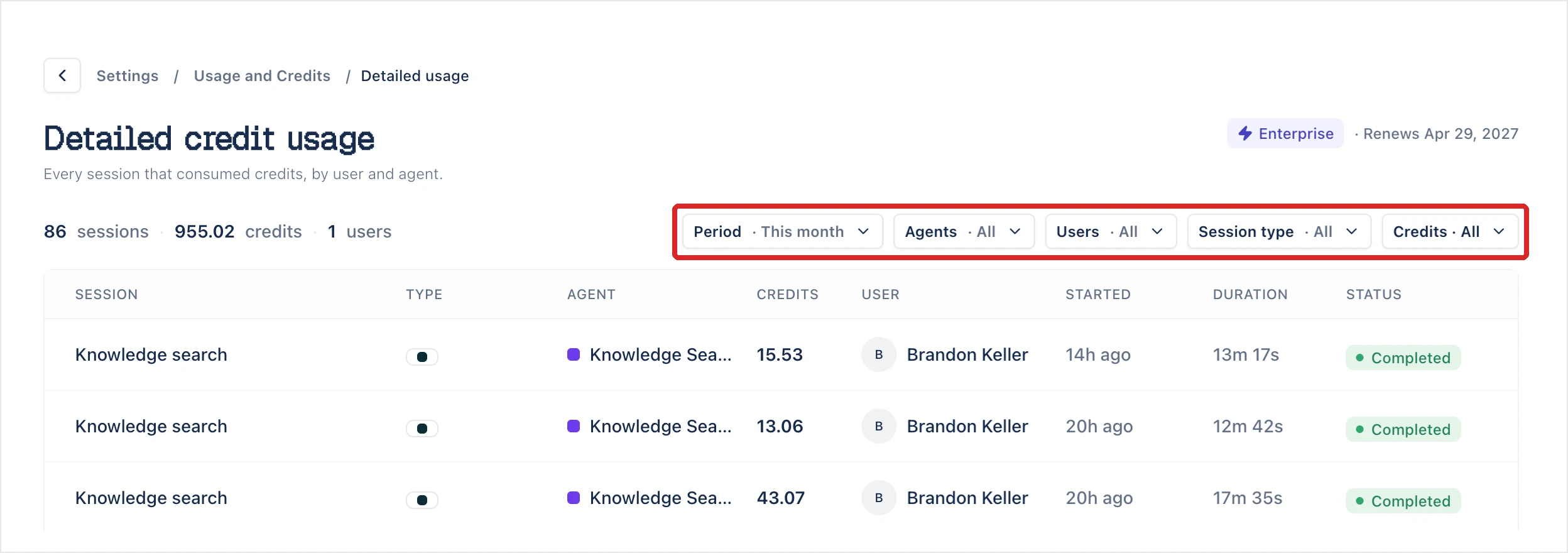
To see every session that used credits, click View detailed usage. The Detailed credit usage page lists each session’s type, agent, credits, user, start time, duration, and status. Filter it by Period, Agents, Users, Session type, or Credits: Light (<10), Medium (10–50), Heavy (>50), or a custom range.
Track your session limits
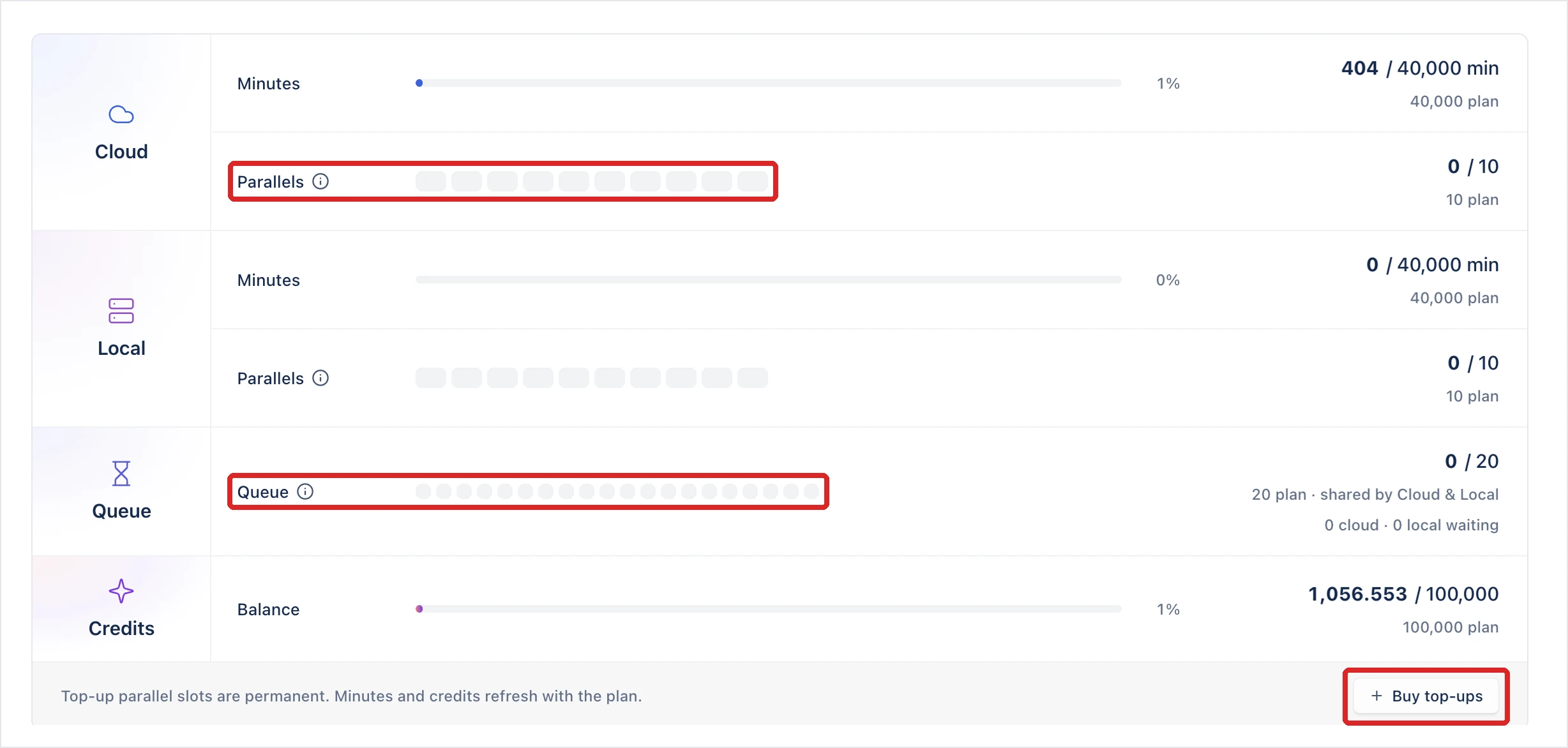
Section titled “Track your session limits”The Session Limits tab shows this period’s minutes and the parallels in use for Cloud and Local, the shared Queue, and the credit Balance.
Active sessions
Section titled “Active sessions”The Active Sessions tab lists the sessions running now, with an All types filter. When nothing is running, it reads “No sessions running right now.”
Buy more
Section titled “Buy more”Free and Trial plans can’t buy add-ons. On a paid plan, only an organization owner can buy them:
- Buy AI credits, on the Credits tab, opens the AI Credits page. Choose a monthly pack, then click Proceed to payment. The pack refreshes each month, and unused credits expire at month end.
- Buy top-ups, on the Session Limits tab, opens Top-ups. It sells AI Credits, Cloud parallels, and Additional Users. Click Buy on a card to open its checkout. Top-ups are billed with your plan and renew until you remove them.
Was this page helpful?
Thanks for the feedback.