

Session limits and queues
A parallel is one session your plan can run at a time. Cloud and Local each have their own parallels and their own minutes, and both share one queue. When every parallel on a side is busy, a test run waits in the queue and starts on its own as soon as a slot frees, so you don’t need to start it again.
What uses a parallel
Section titled “What uses a parallel”| Cloud | Local | |
|---|---|---|
| Runs on | Browsers and real devices from Testsigma Lab | Your own machines, through the Arcus Agent |
| Uses a parallel | Copilot sessions, test runs, Learn with Copilot, and runs that Copilot drives on its own | Test runs |
| Uses minutes | Every minute a session runs | Every minute a test run runs |
A Copilot session uses a cloud parallel from the moment it starts until you end it. Close the session with End session when you’re done, so the parallel goes back to the pool.
The queue
Section titled “The queue”The queue holds test runs that are waiting for a parallel: “Test Runs wait here when every parallel on their side is busy, then start automatically as a slot frees. Shared by Cloud and Local.” The queue has its own limit, and runs from both sides count toward it.
When every parallel and every queue place is in use, Arcus doesn’t start the test run. It shows “No available parallels. All parallels and queue slots are in use.” with links to Session Limits and Buy top-ups. A run already in the queue keeps its place.
A test run on Local Agent also waits for one of its machines to be free. How long it waits before it gives up is set by Stop waiting after in the machine’s profile. See Agent profiles.
Watch parallels, minutes, and the queue
Section titled “Watch parallels, minutes, and the queue”- Go to Settings > Usage and Credits.
- Open the Session Limits tab.
The tab shows, for Cloud and Local, the minutes used this period against the plan and the parallels in use, one block per parallel. Queue shows how many runs are waiting, split into cloud and local. Credits shows the AI credit balance. The plan’s refresh date is at the top right.
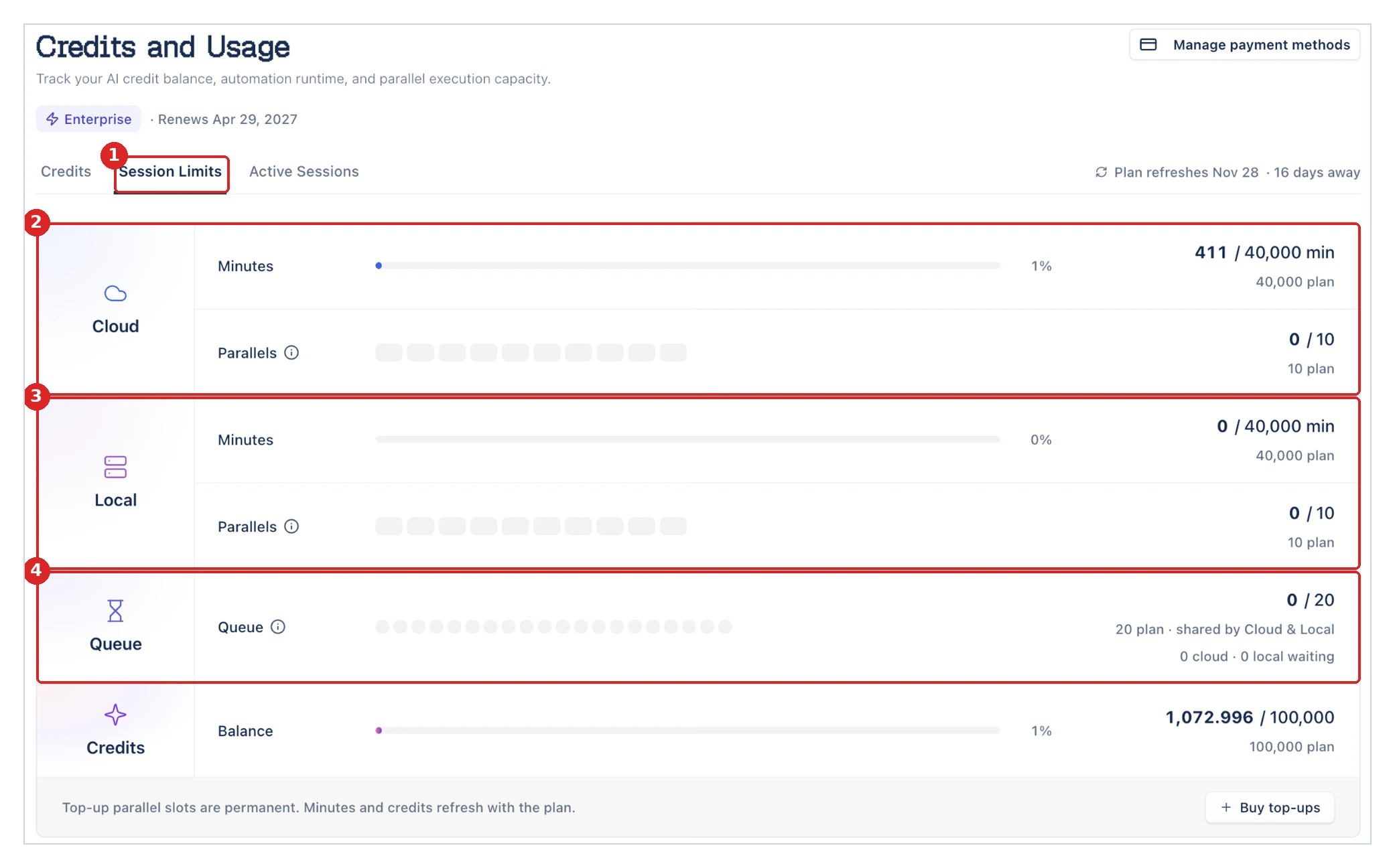
While a session runs, its parallel shows as used, for example 1 / 10 under Cloud Parallels.

Minutes and credits refresh with the plan. Parallels you buy as top-ups stay. To buy more, see Buy more.
See what’s running now
Section titled “See what’s running now”Open the Active Sessions tab, next to Session Limits. Each running session shows its name, the project, where it runs, its type (such as Copilot), when it started, how long it has run, and who started it. Filter by type with the chips above the list, such as All types and Copilot. When nothing is running, the tab reads “No sessions running right now.”
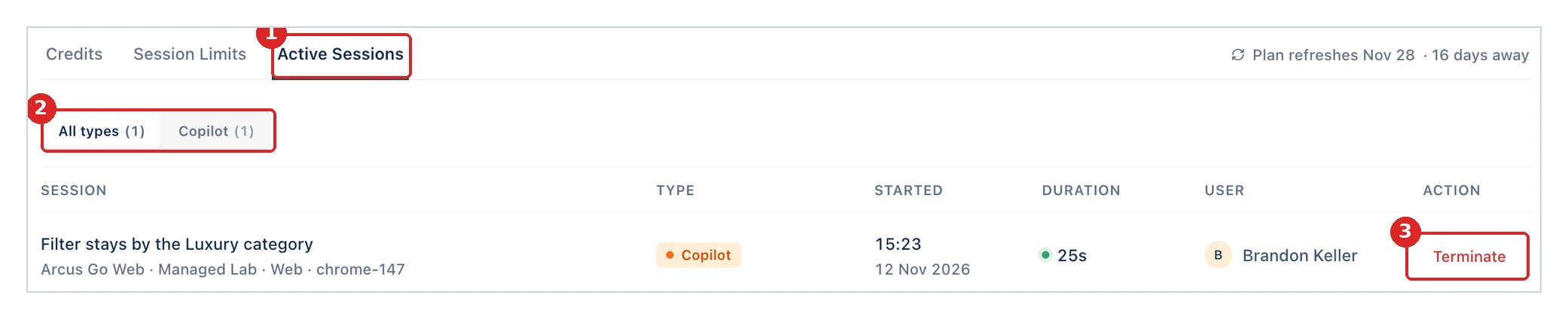
Terminate ends a session from this list. Arcus asks you to confirm: the session stops, its slot frees once it shuts down, and this can’t be undone. Click Terminate again to confirm. The row reads “Stopping…” until the session ends. If you can’t create or edit test cases, Terminate is turned off.
To see what is running on one machine, open My Local Device on that machine and open the Active sessions tab. See Check the agent on My Local Device.
Was this page helpful?
Thanks for the feedback.