

SOQL and Salesforce API steps
Check Salesforce data directly in a test: query records with SOQL, or create, get, update, and delete a record through the Salesforce API. Use the Salesforce API block to set up data before a UI test, and a SOQL query to confirm that what the test did in the UI reached the org.
Both blocks sign in through the project’s Salesforce connection, so a test needs no username, password, or token. Connect an org and sync it first: the editor offers the two blocks only once one of the project’s orgs has synced. See Salesforce connections.
Query records with SOQL
Section titled “Query records with SOQL”-
Open the test case and select Automated steps.
-
In an empty step row, type
/and select SOQL query. Arcus adds the step and opens its editor beside the steps. The step is saved as soon as you insert it. -
Click Name this query at the top of the editor and enter a name for the query.
-
In Salesforce Connection, check the org the query runs in. Each connection shows its health, such as needs re-authorizing. See Use another org.
-
Build the query on the Visual tab:
- FROM: the object, such as Lead. The list shows the org’s synced objects.
- SELECT: the fields to return. Id is selected to start.
- WHERE: click + Add Condition and pick a field, an operator, and a value. + Add Group groups conditions.
- ORDER BY: click + Add sort field to sort.
- LIMIT: how many records to return. The default is
250.
To write the query yourself, open the Query tab. The two tabs stay in step, for example:
SELECT Id, LastName, Company FROM Lead LIMIT 250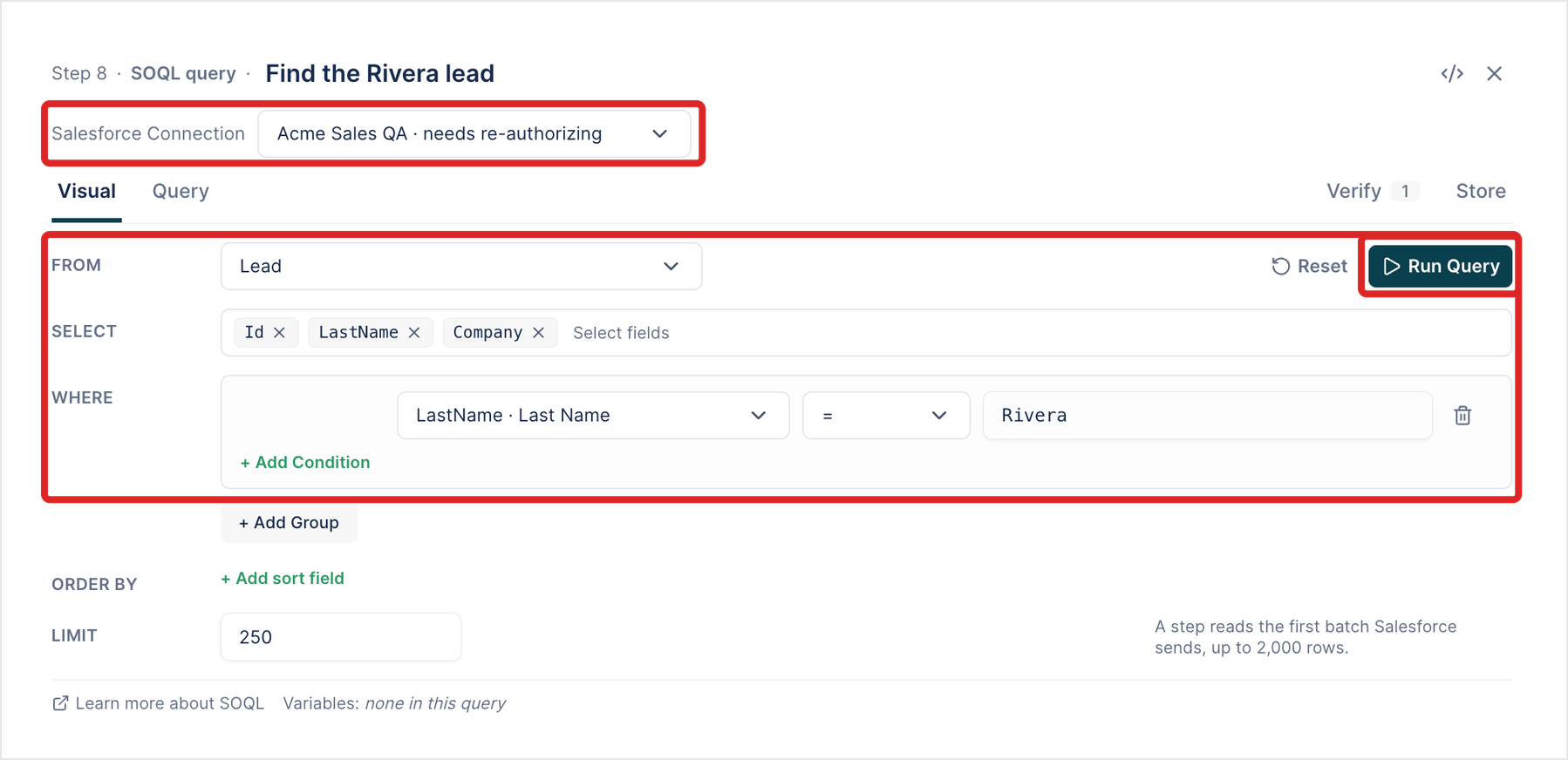
-
(Optional) Click Run Query to try the query in the org. The result shows below, as Table, Outline, or JSON.
-
Add what to verify on the Verify tab and what to keep on the Store tab.
Verify and store
Section titled “Verify and store”The Verify tab starts with one check: Status equals 200. Click Add Verification to add another:
- Record count: how many records match, for example at least
1. - Any row where…: at least one returned record meets a condition.
- All rows where…: every returned record meets it.
- JSON path: a value in the response, by its path.

Click Run checks to try the checks against the last result. On the Store tab, click Store Variable to keep a value, such as the first record’s Id, for a later step to use.
In the test, the step reads “Run SOQL in the run’s Salesforce org”, followed by the query and its checks, such as “Verify row count is at least 1”.
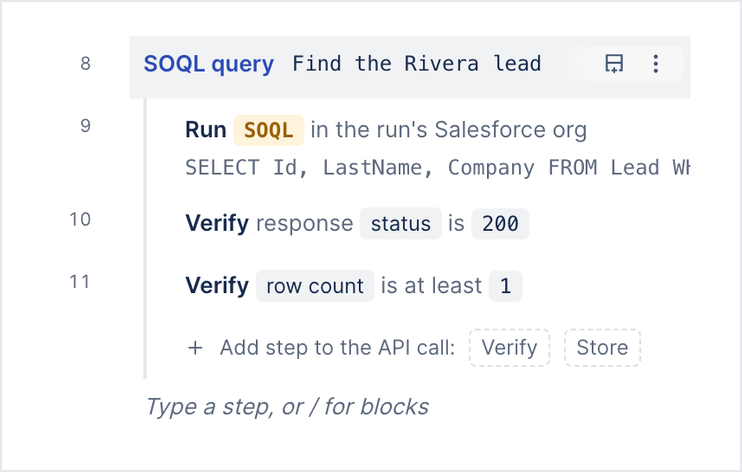
The row count is Salesforce’s total for the query, so it’s exact even when more than 2,000 records match.
To remove a SOQL query step, click the ellipsis icon (⋮) on it and click Delete.
If the query can’t run
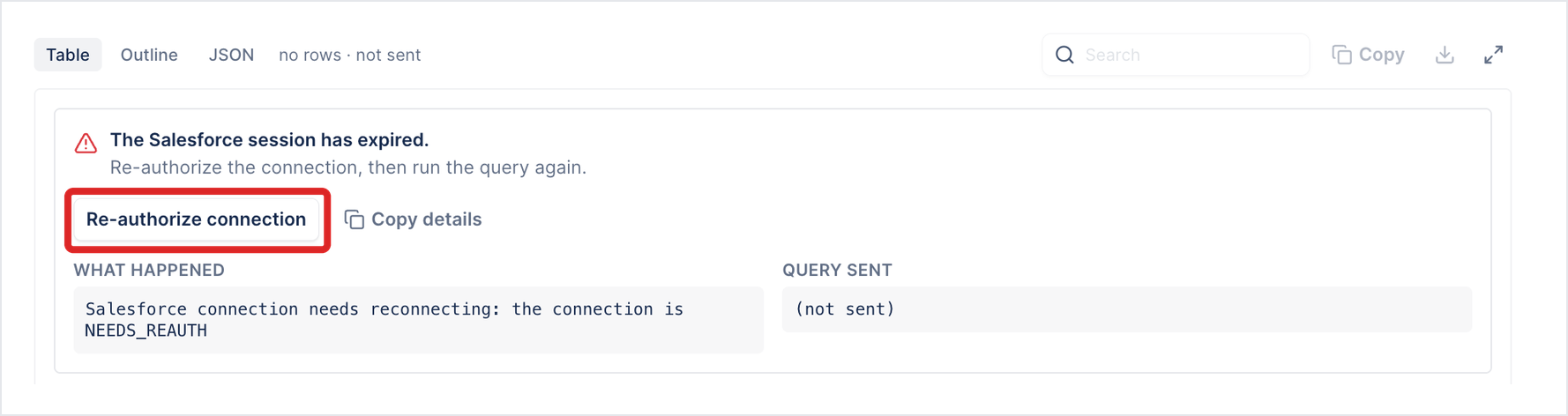
Section titled “If the query can’t run”When the connection needs re-authorization, Run Query shows “The Salesforce session has expired.” with what happened and the query it didn’t send. Click Re-authorize connection, sign in to Salesforce, and run the query again. Runs that use the connection fail the same way until it’s re-authorized.
Create, get, update, or delete a record
Section titled “Create, get, update, or delete a record”- In an empty step row, type
/and select Salesforce API. - Choose the operation: create, get, update, or delete a record.
- Pick the object, such as Lead. The list shows the org’s objects that allow the operation, and narrows as you type.
- For get, update, or delete, enter the record ID, such as a value an earlier step stored.
- For create or update, enter the field values. The editor lists the object’s fields and record types from the org’s last sync. If the org hasn’t synced the object, enter fields by their API names; you can’t pick a record type.
The step reads as one line, for example Salesforce API Create Lead record · LastName, Company → {lead_id}.
Enter object names and record IDs as plain API names and IDs, such as Lead and 00Q5g00000AbCdE. Arcus doesn’t encode them, so a /, ?, or # changes the request.
To set a record type, use the variable Arcus fills in for the run, {env.sf_record_type_<Object>_<DeveloperName>}, for example {env.sf_record_type_Account_Partner}. Record type IDs differ between sandbox and production, so Arcus looks them up for each run.
Use another org
Section titled “Use another org”A SOQL query or Salesforce API step can run in a different connected org than the run’s own, for example to check that a record synced to a second org. The step names the org, which must be one of the project’s Salesforce connections, and the run signs in to it as well as to its own org. A step in another org ends with on and the org’s name.
To use another org, pick it in the step’s editor. The list shows the project’s Salesforce connections that aren’t disabled, and marks an org that hasn’t synced as not synced.
Limitations
Section titled “Limitations”- A SOQL query reads only the first batch, up to 2,000 records.
- Record type variables come from the run’s own org. A step that runs in another org reads the run’s org’s record type IDs.
- A step that runs in another org signs in once, when the run starts. Arcus refreshes the run’s own connection during a long run, but not the other org’s.
- Trying a request in the editor has no record type variables, so a request that uses one can work in a run and fail in the editor.
- When the connection needs re-authorization, a run with Salesforce steps fails before any step runs. Re-authorize the connection and run again.
Was this page helpful?
Thanks for the feedback.