

Salesforce connections
A Salesforce connection links an Arcus project to one Salesforce org. Arcus reads the org’s metadata, its objects, fields, picklist values, record types, list views, apps, and tabs, so you build Salesforce tests from the org itself instead of recording them.
With a connection, you get:
- Steps from real metadata: pick tabs, objects, fields, and picklist values from the org in the step editor.
- Locators without recording: Salesforce elements come with locators built from the org’s own metadata.
- Change reports: every sync reports what changed in the org and which test cases the change affects.
- Sign-in without credentials: a test’s first step signs in through the connection, so no password is stored in the test.
Without a connection, tests can still use recorded web elements and sign in through the browser, but you lose the picklist and required-field checks and change detection.
Before you connect
Section titled “Before you connect”An org admin creates a connected app in Salesforce once. Arcus signs in through it with Salesforce login (OAuth).
In Salesforce Setup, the admin:
- Opens App Manager and creates a connected app.
- Turns on OAuth settings and adds the callback URL
https://salesforce-callback.testsigma.com/authorize/. - Selects the api, refresh_token, and web scopes.
- Keeps Require Proof Key for Code Exchange (PKCE) on.
You need the connected app’s consumer key (Salesforce also calls it the client ID) and consumer secret (the client secret).
Enter the same callback URL in Arcus when you connect the org.
Connect an org
Section titled “Connect an org”-
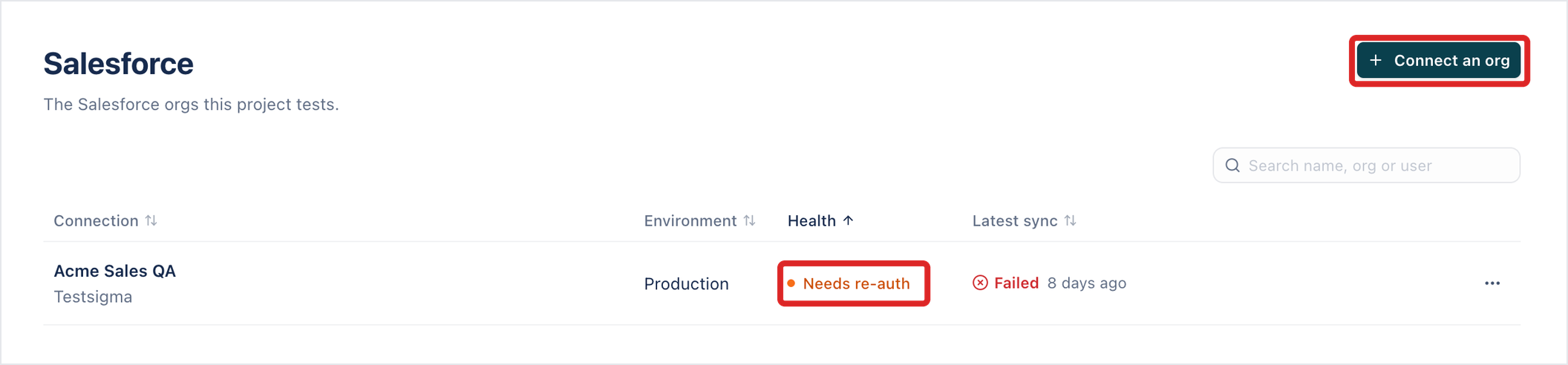
Open Project Settings and select Salesforce. If the project has no connection yet, click Connect Salesforce. Otherwise, click Connect an org.
-
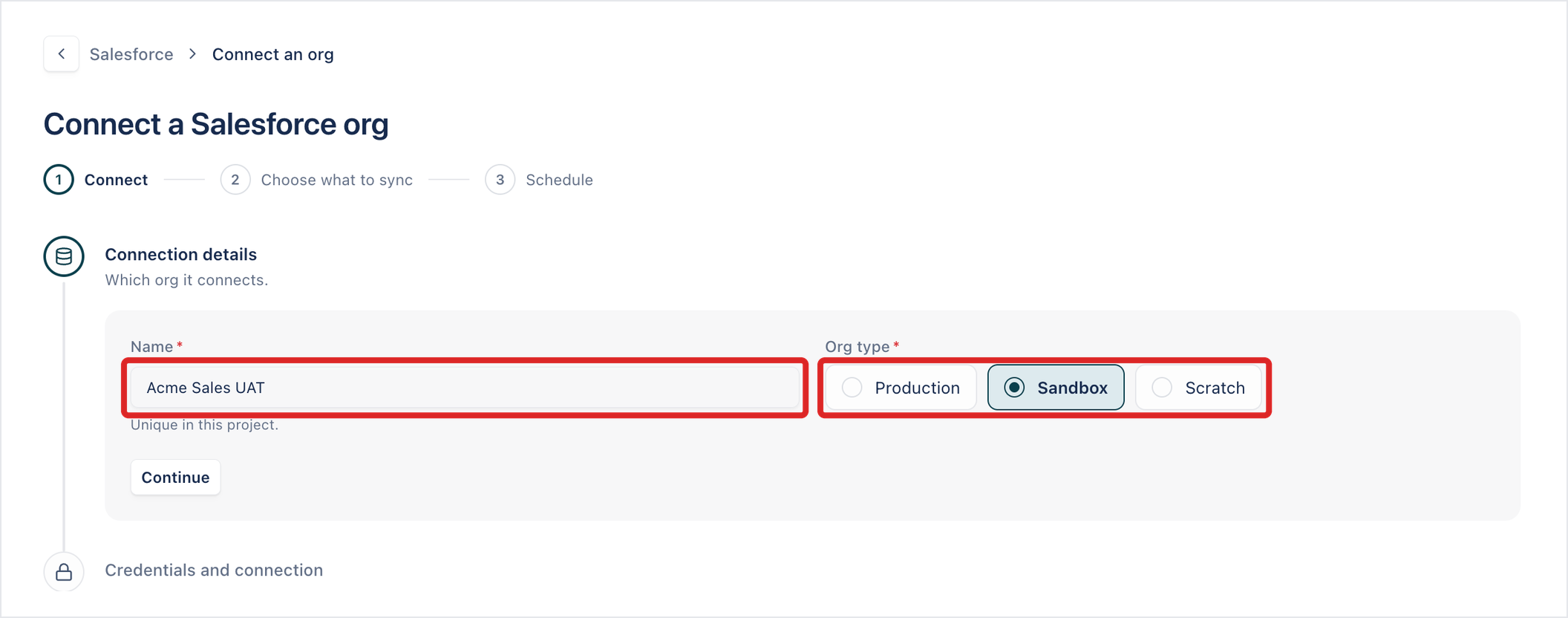
In Connection details, enter a Name that’s unique in the project.
-
Select the Org type: Production, Sandbox, or Scratch. Click Continue.
-
In Credentials and connection, enter the Consumer key, Consumer secret, and Callback URL from the connected app. The callback URL must start with
https://and match one in the connected app. To see the connected app steps for your Salesforce admin, expand Set up the connected app for Salesforce login (OAuth).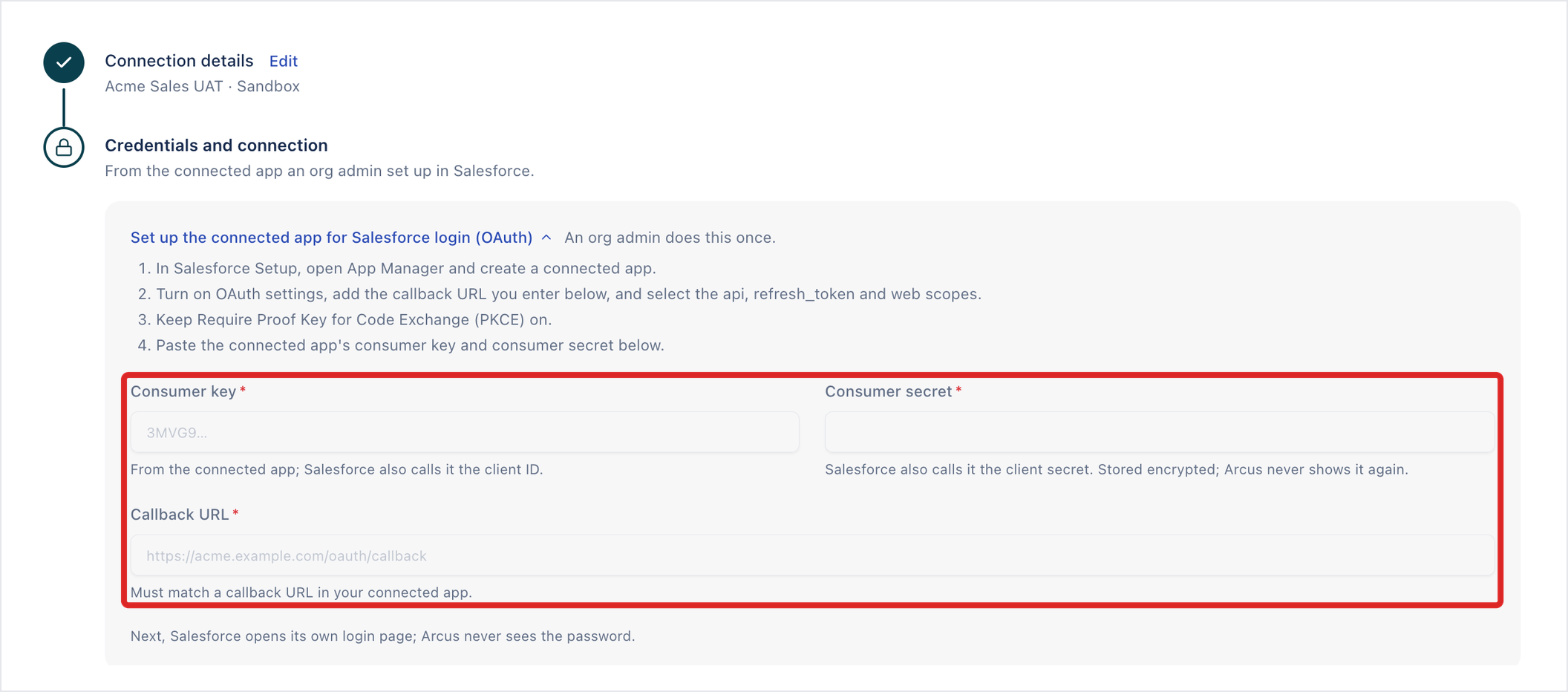
-
Click Log in with Salesforce, and sign in on Salesforce’s own page.
Arcus never sees your Salesforce password, and it stores the consumer secret encrypted. It shows Connected to your org, with its Org ID, the Org type Salesforce reports, and the Instance URL. Click Next: choose what to sync.
Choose what to sync
Section titled “Choose what to sync”Sync only what your tests need. Fewer objects make every sync faster and lighter on the org’s daily API allowance.
- Under Start from, choose:
- All objects: every object in the org.
- Apps: the objects on the tabs of the apps your team tests. Select one or more apps, for example Sales (Lightning). Each sync re-reads the tabs, so new ones are picked up.
- Page layouts: the objects that have a page layout, the ones a person can open in Salesforce. All are ticked to start. Untick objects to sync only the ones you keep. While all stay ticked, objects that gain a page layout later sync too.
- (Optional) If you chose All objects, under Refine > Leave out, exclude Standard or Custom objects, system objects such as Change event, Share, and History, or installed packages.
- Check What will sync: how many objects will sync, and about how many API calls each sync uses.
- Click Next: schedule. To sync everything instead, click Skip: sync all objects.
Objects your Salesforce elements already use always sync, whatever you choose.
Set the schedule
Section titled “Set the schedule”- Keep Sync on a schedule on to pick up new fields, picklist values, and record types, and report which test cases they affect.
- Under How often, select Hourly, Daily, or Weekly, and check the Time zone.
- Click Save and sync.
Each scheduled sync starts at a spread time in the period rather than on the hour. You can change the schedule later on the connection’s page.
The first sync starts straight away. You can close the page while it runs. When it finishes, the org’s fields are available in the step editor. See Salesforce test steps.
Manage a connection
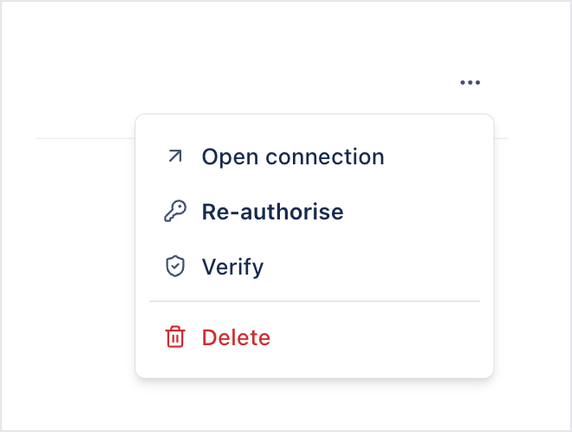
Section titled “Manage a connection”Project Settings > Salesforce lists the project’s connections with their Environment, Health, such as Active, and Latest sync. Click the ellipsis icon (⋯) on a row for Open connection, Re-authorise, Verify, or Delete. When the connection is Active, the menu also has Sync now.
A connection’s page has four tabs.
Overview
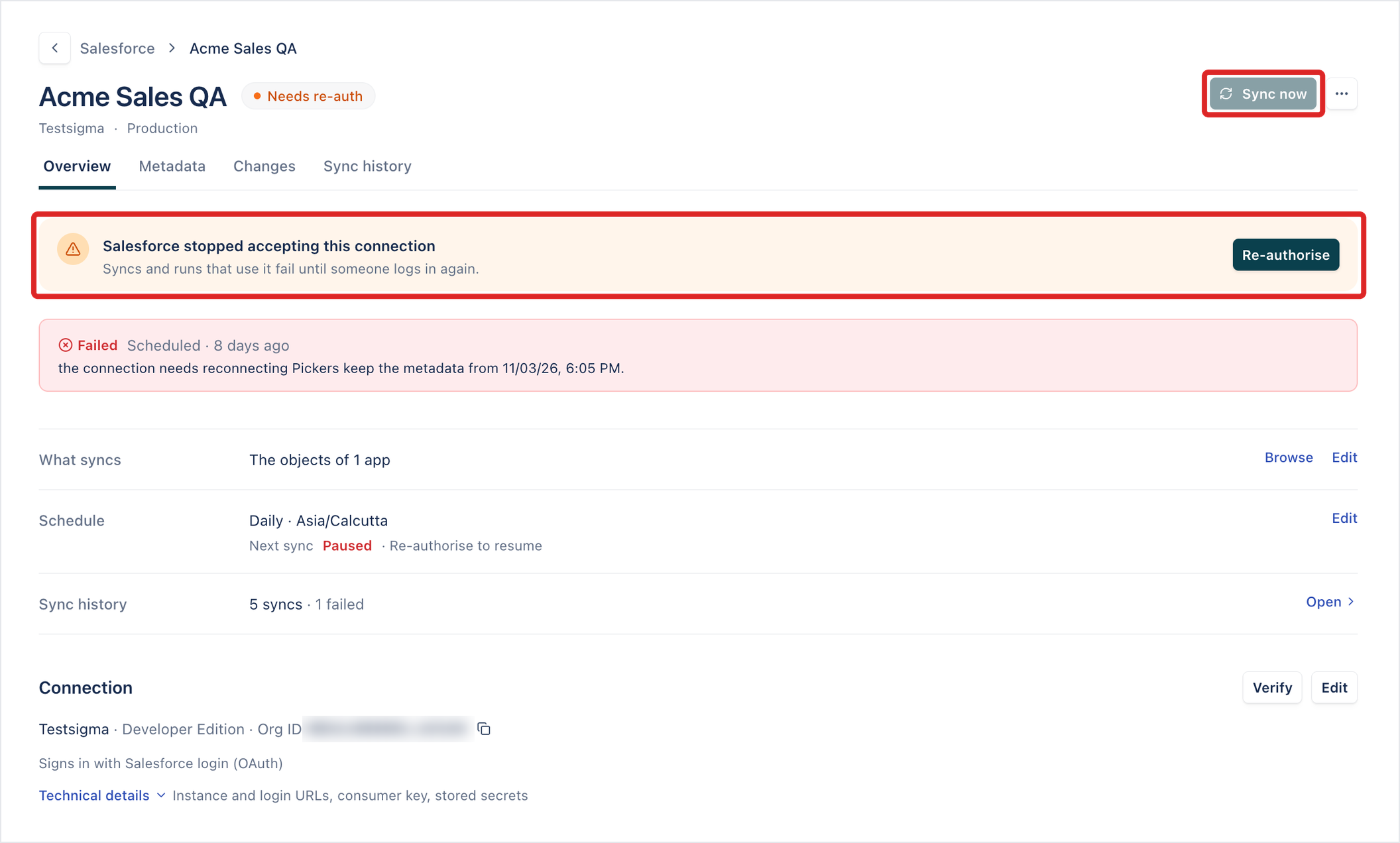
Section titled “Overview”- What syncs: the scope, for example “The objects of 1 app”. Click Browse to see the objects, or Edit to change the scope.
- Schedule: how often it syncs and when the next sync runs. Click Edit to change it.
- Sync history: how many syncs have run and whether they succeeded.
- Connection: the org, its edition, the Org ID, and how Arcus signs in. Click Verify to check the connection, or Edit to change it. Technical details shows the instance and login URLs, the consumer key, and which secrets are stored.
To sync now instead of waiting for the schedule, click Sync now in the header. The result shows how many objects were read, how many API calls the sync used, and how many changes it found.
When Salesforce stops accepting the connection, the page reads “Salesforce stopped accepting this connection”, Sync now is unavailable, and the schedule shows Paused. Syncs and runs that use the connection fail until someone signs in again. Click Re-authorise and sign in to Salesforce. The step editor’s pickers keep the metadata from the last sync that succeeded.
Metadata
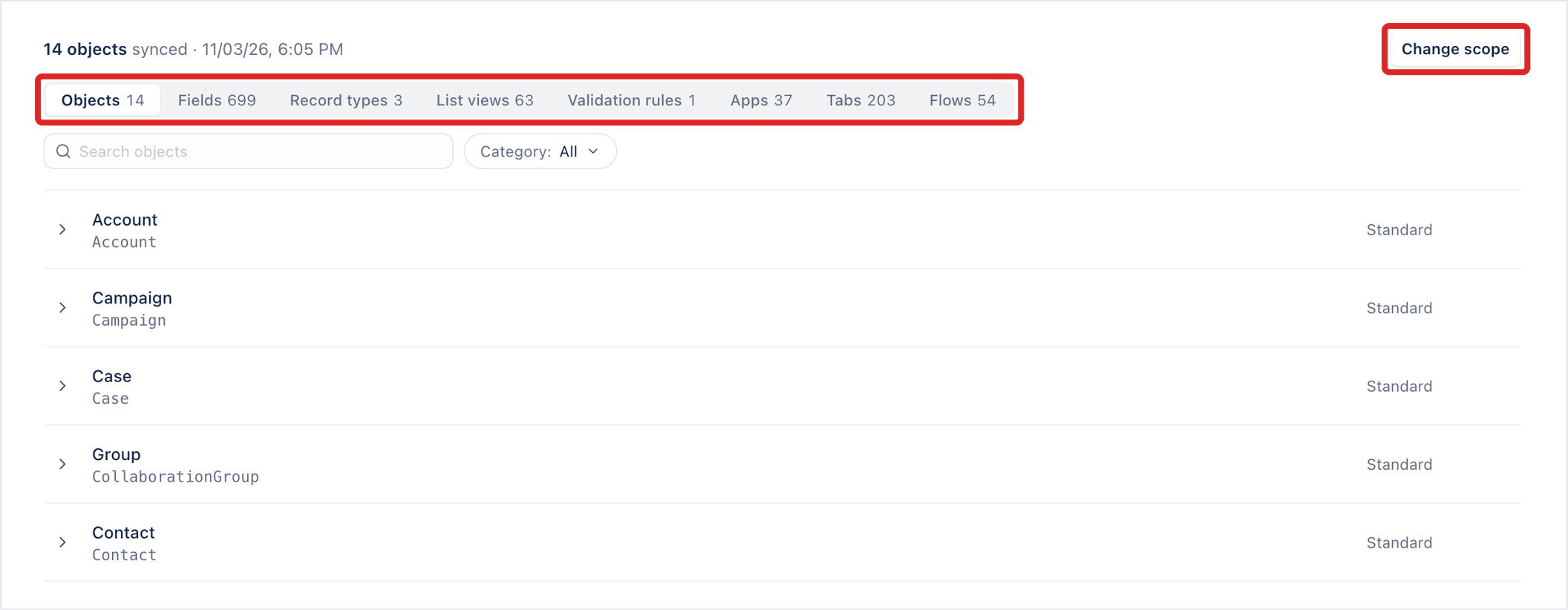
Section titled “Metadata”The Metadata tab lists what was synced: Objects, Fields, Record types, List views, Validation rules, Apps, Tabs, and Flows, each with a count. Search, or filter by Category. Click an object to see its key prefix, what it supports, its fields with their type and whether each is required, and its list views.
To sync more or fewer objects, click Change scope.
Changes
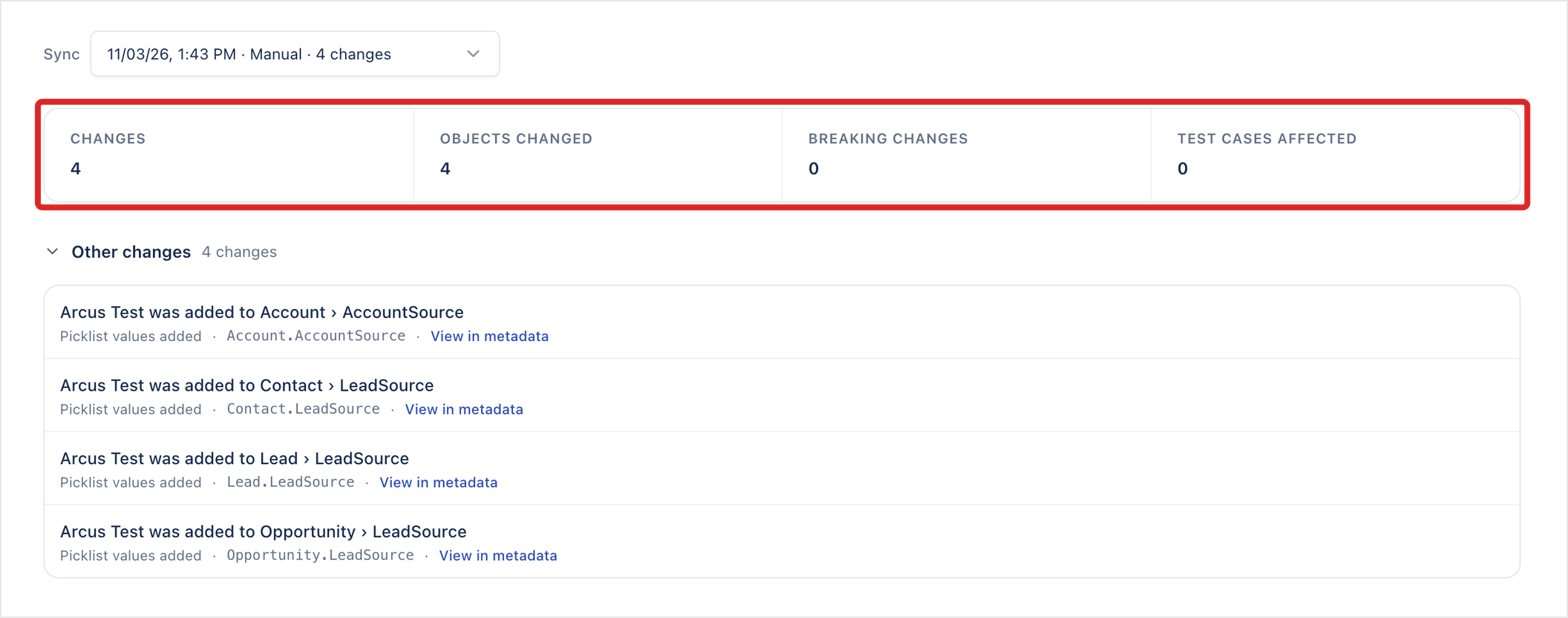
Section titled “Changes”The Changes tab shows what each sync found. Select a sync to see:
- CHANGES and OBJECTS CHANGED: how many changes the sync found, and on how many objects.
- BREAKING CHANGES and TEST CASES AFFECTED: changes that can break existing tests, and the tests they affect.
Each change says what changed and on which object and field, with the API name and View in metadata.
A removed object, field, record type, list view, or picklist value is a breaking change. Below the counts:
- Test cases affected lists the test cases that use what changed, with links. They break on their next run.
- Breaking changes lists the breaking changes, such as a picklist value that was removed.
- Other changes folds away the changes that break nothing. Click it to expand.
Sync history
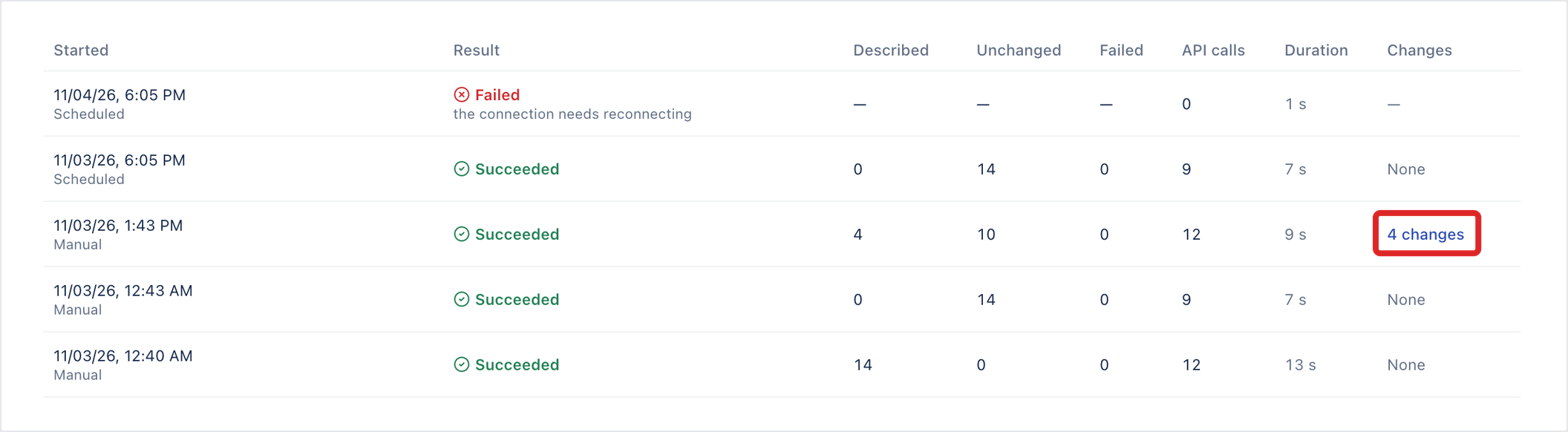
Section titled “Sync history”The Sync history tab lists every sync with when it started and how (for example Manual), its result, how many objects it described, left unchanged, or failed on, its API calls, how long it took, and its changes. Click a sync’s changes, such as 4 changes, to open them on the Changes tab.
Limitations
Section titled “Limitations”- The connection described on this page is a metadata connection. Runs sign in to the org through the connection picked under Salesforce connection in the run configuration, as that connection’s user. See Run configurations. The setup FAQ in Arcus also mentions a runtime connection, an identity kept only for runs, but this build has no option to add one.
- Each connection is to one org. To test several orgs, add a connection for each.
What Arcus stores about your Salesforce sign-in
Section titled “What Arcus stores about your Salesforce sign-in”Arcus never sees your password: you sign in on Salesforce’s own page. Arcus stores the connected app’s consumer secret, encrypted, and a refresh token, and shows neither again.
The org type changed after connecting
Section titled “The org type changed after connecting”Arcus shows the edition Salesforce reports, for example Developer Edition, alongside the type you chose.
New fields are missing from the step editor
Section titled “New fields are missing from the step editor”Click Sync now on the connection. New fields and picklist values appear in the step editor’s pickers after the sync.
Was this page helpful?
Thanks for the feedback.