

Salesforce test steps
Salesforce test steps are steps built for Salesforce orgs. They sign in through the project’s Salesforce connection, open apps and tabs, and pick objects, fields, and picklist values from the org’s synced metadata. You use them alongside the usual steps in a test case’s Automated steps.
Before you start, connect the org. See Salesforce connections.
Find the Salesforce steps
Section titled “Find the Salesforce steps”In an empty step row, type what you want to do, such as salesforce, record, or field. Salesforce steps are marked Salesforce in the list.
Typing / lists the blocks. Once one of the project’s orgs has synced, they include SOQL query and Salesforce API.
There are two kinds:
- Salesforce steps: single steps, such as Navigate to a Salesforce tab or Click Save in Salesforce.
- Salesforce step groups: steps named
salesforce/..., such assalesforce/select picklist option. Each is a locked step group that connecting the org adds to Step Groups, marked “From the Salesforce bundle”. It takes values you fill in, called arguments.
To check data in the org directly, with a SOQL query or a Salesforce API call, see SOQL and Salesforce API steps.
Sign in
Section titled “Sign in”Make the first step salesforce/log in and open app. It reads “Log in to Salesforce and open the standard__LightningSales app”.
- In the first step row, type
salesforce/log in and open appand pressEnter. - (Optional) To open a different app, change the
{app}argument to the app’s API name, for examplestandard__LightningSalesfor the Sales app.
The step group signs in through the project’s Salesforce connection and opens the app. Your tests don’t need a username or password.
To run a test as a particular user, add salesforce/log in as user after signing in, with the user’s name as {user}. It uses Salesforce’s Login as, so the connection’s user needs permission to log in as other users.
Pick tabs, objects, fields, and values
Section titled “Pick tabs, objects, fields, and values”Salesforce steps take their choices from the org’s synced metadata:
-
Navigate to a Salesforce tab: click the tab name in the step, such as Accounts, and pick a tab from find a tab…. The list shows each tab’s label and API name, such as Opportunities · Opportunity.
-
salesforce/select picklist option: click each argument in turn.{object}: pick an object, such as Lead.{field}: pick one of that object’s picklist fields, such as Lead Source · LeadSource.{option}: pick one of that field’s values, such as Web.
The step then reads, for example, “Select Web in the Lead LeadSource picklist”. Until all three are set, it shows “Won’t run: … needs object” or ”… needs field”.
The pickers show the metadata from the last sync. After a change in Salesforce, such as a new picklist value, click Sync now on the connection to see it in the step editor.
Salesforce steps
Section titled “Salesforce steps”| Area | Steps |
|---|---|
| Sign in and navigate | Log in to Salesforce, Open the Salesforce App Launcher, Switch to a Salesforce app, Navigate to a Salesforce tab |
| Records | Click New on a Salesforce object, Open the create record form of a Salesforce object, Open the details page of a Salesforce record, Open the edit form of a Salesforce record, Click Edit on a Salesforce record, Click Delete on a Salesforce record |
| Form buttons | Click Save in Salesforce, Click Save & New in Salesforce, Click Cancel in Salesforce |
| Fields | Enter a value in a Salesforce field, Enter a value in the focused Salesforce field, Clear a Salesforce field and enter a value, Clear the value in a Salesforce field, Undo a change in a Salesforce field |
| Data | Store the id of a Salesforce record, Store the number of a table row |
Click Save in Salesforce works on any object’s form.
Salesforce step groups
Section titled “Salesforce step groups”| Step group | Arguments | Reads as |
|---|---|---|
salesforce/log in and open app | {app} | Log in to Salesforce and open the {app} app |
salesforce/log in as user | {user} | Log in to Salesforce as {user} |
salesforce/select picklist option | {object}, {field}, {option} | Select {option} in the {object} {field} picklist |
salesforce/add multipicklist option | {object}, {field}, {option} | Move {option} to Chosen in the {object} {field} multipicklist |
salesforce/remove multipicklist option | {object}, {field}, {option} | Move {option} back to Available in the {object} {field} multipicklist |
salesforce/search lookup | {object}, {field}, {value} | Search {value} in the {object} {field} lookup and pick it |
salesforce/store table row number | {table}, {column}, {text} | Store the number of the row whose {column} contains {text} |
To see the steps inside a group, click the arrow beside it in the test, or open it from Step Groups. Bundle step groups can’t be edited.
Example: create a lead
Section titled “Example: create a lead”This test creates a lead with only the required fields.
-
salesforce/log in and open app, with{app}set tostandard__LightningSales. -
Navigate to a Salesforce tab, with Leads picked.
-
Click on the list’s New button.
-
Type into the Last Name field.
-
Type into the Company field.
-
Click Save in Salesforce.
-
Verify page text contains the last name you entered.
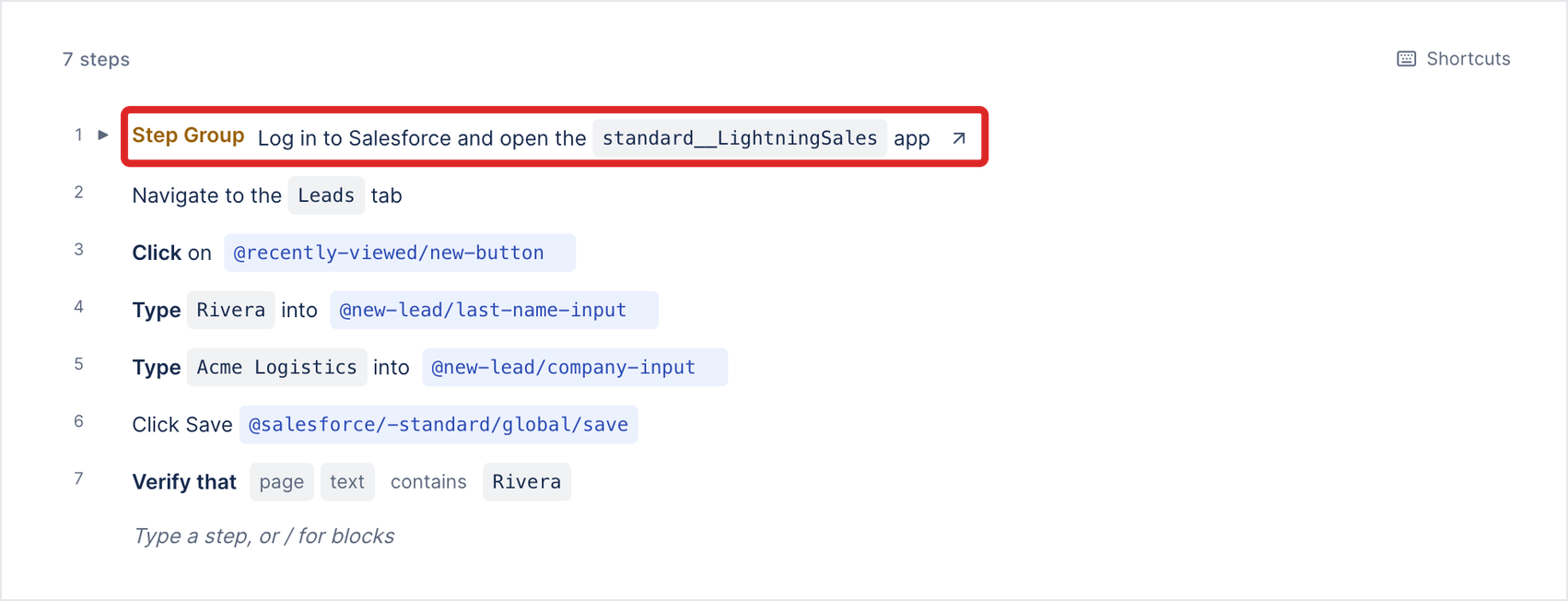
For steps 3 to 5, pick the element in a Copilot session: click the step’s target, then Pick from page, and click the button or field in the live browser. See Limitations for why.
Run a Salesforce test
Section titled “Run a Salesforce test”-
On the test case, click Debug with Copilot.
-
Under Where to run, select My local machine or Cloud.
-
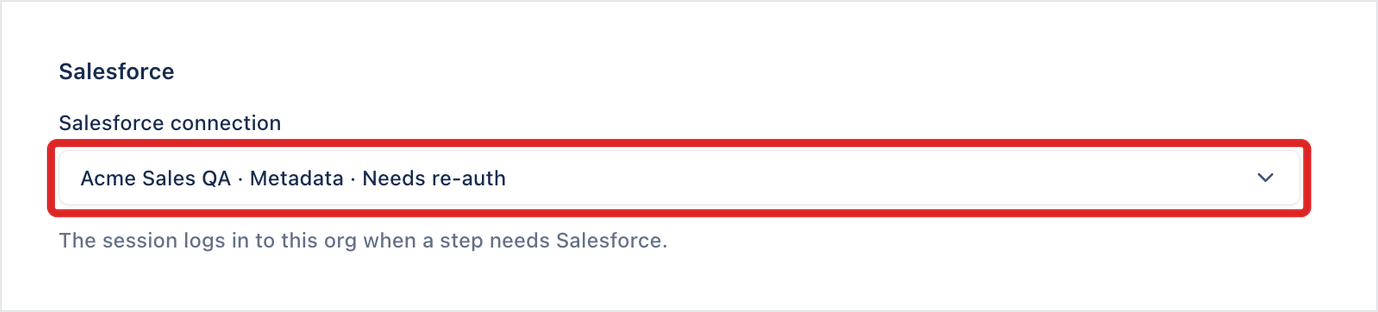
Under Salesforce, check that Salesforce connection is the org to test. The session signs in to this org when a step needs Salesforce.
-
Click Start Copilot.
If a step fails, fix it in the session, then click the ellipsis icon (⋯) on the step and click Run from here. Your changes save to the test case.
To run the test case in a test run or run template, select the org in Salesforce connection in its run configuration. See Create Salesforce test cases.
Limitations
Section titled “Limitations”- Salesforce steps that act on an object or a field, such as Click New on a Salesforce object, Open the create record form of a Salesforce object, and Enter a value in a Salesforce field, are inserted with Account and its Account Name field as placeholders. After you insert one, change the object and field in the step, for example
accountandnamein@salesforce/account/name/field, orAccountin the page address, and in the step’s sentence. Or use Click on and Type into, and pick the element from the page. - Locating a required field by its label can fail, because Salesforce shows the label with a required marker, for example ”* Last Name”. Pick the field from the page, or use contains.
- A test that creates records creates a new one each time it runs. Use unique values, for example from a dataset, or delete the record at the end of the test.
- Salesforce formats dates for the user’s locale, for example DD/MM/YYYY. Enter dates in the format the org shows.
No Salesforce password is stored in the test
Section titled “No Salesforce password is stored in the test”salesforce/log in and open app signs in through the project’s Salesforce connection.
A new picklist value is missing from the step
Section titled “A new picklist value is missing from the step”The pickers use the last sync. Click Sync now on the connection, then pick the value again.
Was this page helpful?
Thanks for the feedback.