

iOS signing
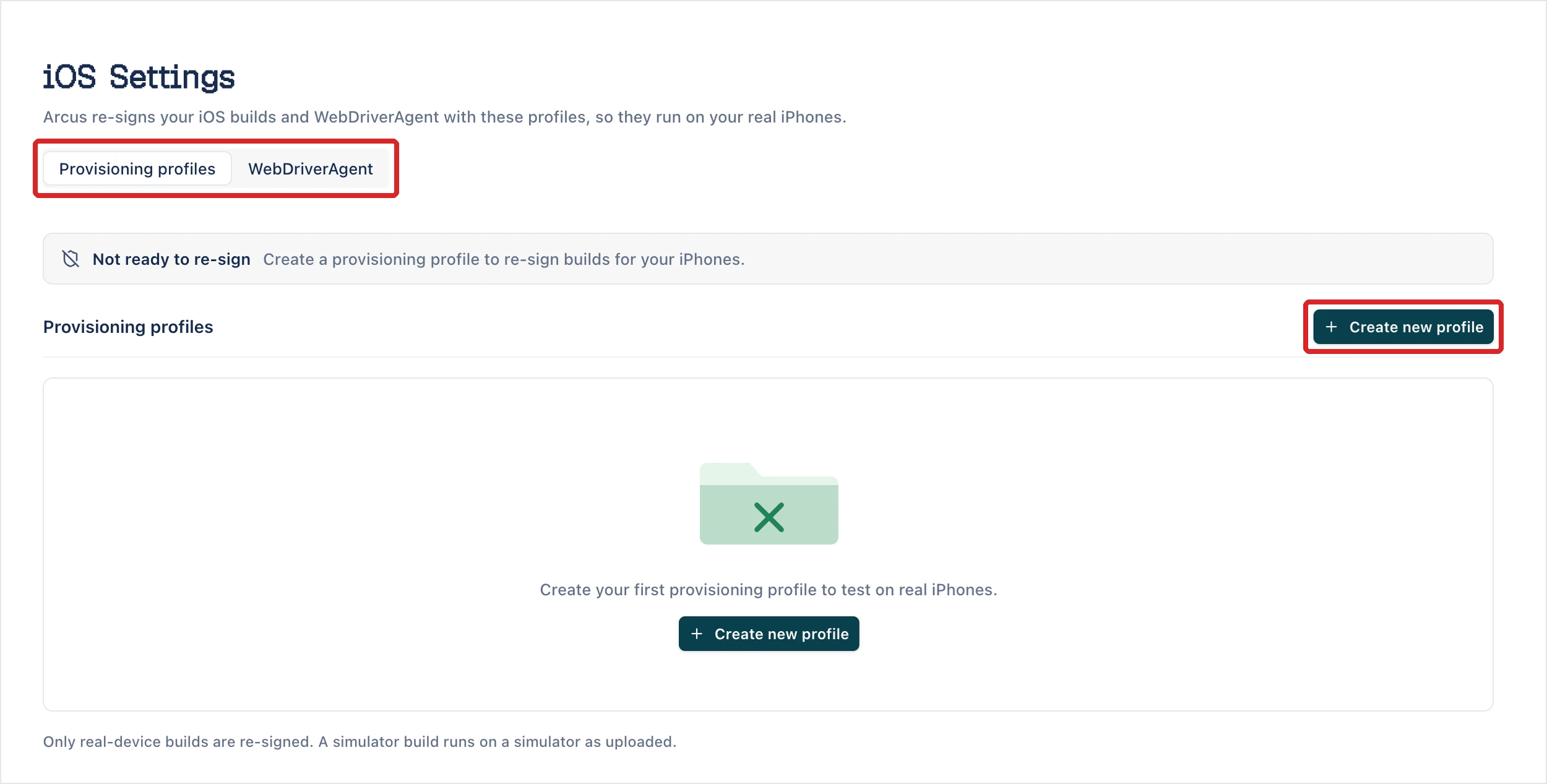
To test on a real iPhone, create a provisioning profile under Settings > iOS Settings. Arcus uses it to re-sign your iOS builds and WebDriverAgent for the iPhones in the profile. Until a profile exists, the page shows Not ready to re-sign. You need an Apple Developer account that can create certificates and profiles.
Create a provisioning profile
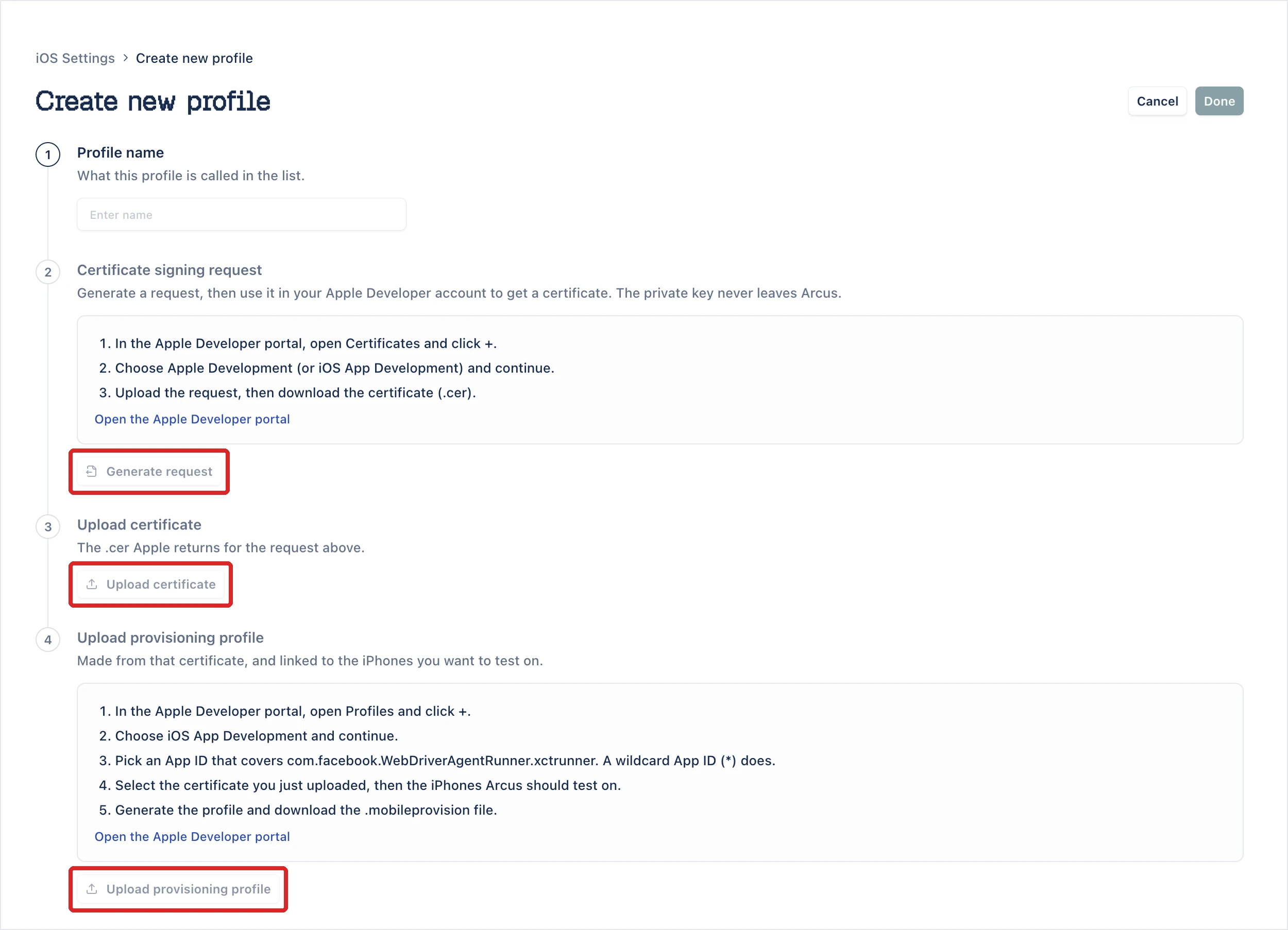
Section titled “Create a provisioning profile”The Create new profile page has 4 numbered sections. Two of them send you to the Apple Developer portal and back, and each has an Open the Apple Developer portal link.
-
In the left navigation, go to Settings > iOS Settings.
-
On the Provisioning profiles tab, click Create new profile. The Create new profile page opens.
-
In Profile name, enter the name to show in the list.
-
Under Certificate signing request, click Generate request. Arcus downloads the request as
<profile name>.certSigningRequest, the file type the Apple Developer portal accepts. The private key never leaves Arcus. To download the request again later, click Download request. -
In the Apple Developer portal, create a certificate from the request:
- Open Certificates and click +.
- Choose Apple Development or iOS App Development, and continue.
- Upload the request, then download the certificate (
.cer).
-
Back in Arcus, under Upload certificate, click Upload certificate and select the
.cerfile. -
In the Apple Developer portal, create the provisioning profile:
- Open Profiles and click +.
- Choose iOS App Development, and continue.
- Pick an App ID that covers
com.facebook.WebDriverAgentRunner.xctrunner. A wildcard App ID (*) does. - Select the certificate you just uploaded, then the iPhones Arcus should test on.
- Generate the profile and download the
.mobileprovisionfile.
-
Back in Arcus, under Upload provisioning profile, click Upload provisioning profile and select the
.mobileprovisionfile. -
Click Done.
The profile appears in the Provisioning profiles list, with its Apple Team ID, Status, Devices, Signed builds, and Expiry date. The status is Awaiting certificate or Awaiting profile while setup is unfinished, then Ready once both files are uploaded. A profile turns Expired on the provisioning profile’s expiry date, or Invalid if Arcus can’t use it. Once a profile is ready, the banner above the list changes to Ready to re-sign.
To finish setting up a profile later, click the ellipsis icon (⋯) on its row and select Continue setup. To delete a profile, select Delete profile from the same menu. This also deletes its key, its certificate, and every app and WebDriverAgent Arcus signed with it.
WebDriverAgent
Section titled “WebDriverAgent”WebDriverAgent drives an iPhone during a run. Arcus signs it with every ready profile, so you never upload it yourself. Until a profile is ready, the WebDriverAgent tab reads No WebDriverAgent signed yet. Signing starts as soon as a profile is ready, and runs again each time you replace its file. For each ready profile, the tab lists the Profile, the Variant, the WDA version signed, the Status (Pending, Signing, Signed, or Failed), and Signed on. To sign a variant again, click the ellipsis icon (⋯) on its row and select Re-sign.
Once a profile is ready, connect the iPhone to the machine running the Arcus Agent and scan for it on My Local Device > Devices. See Connect a mobile device.
Was this page helpful?
Thanks for the feedback.