

Automate a test case
Automate a test case by having Copilot learn its manual steps, by recording the steps in a live browser, or by writing the automated steps yourself. Once the test case has automated steps, its Automation Type changes from Not Automated to Automated.
Choose how to automate
Section titled “Choose how to automate”All three ways start on the Automated steps tab of a test case, and the steps they produce appear in the same editor.
| Aspect | Learn with Copilot | Record the steps | Write the steps yourself |
|---|---|---|---|
| What you do | Copilot performs the manual steps in a live browser and generates automated steps. | You perform the test in a live browser, and Copilot records each action as a step. | You type each step and fill in its values. |
| Needs manual steps | Yes | No | No |
| Needs a Copilot session | Yes | Yes | No |
| Automation Type changes | When the learned steps are added | When the recorded steps are added | When you add the first step |
Create the test case
Section titled “Create the test case”-
Open Test Cases in the left navigation and open the folder the test case belongs in.
-
Click Create, or press
C. The dialog opens with Documentation selected as the template type and your open folder selected. -
Enter a title and, optionally, a description. For the other properties in the dialog, see Test case properties.
-
(Optional) To store the test case in another folder, click the folder chip, select a folder in Add Folder Location for Test Case, and click Select Folder.
-
Click Create. The test case opens on the Details tab.
-
(Optional) If Copilot will learn the steps, enter the manual steps under Steps. Arcus saves the change automatically, and Last Saved in the header updates.
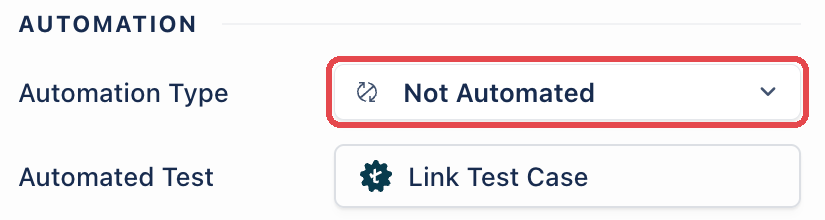
A new test case has Automation Type set to Not Automated, and adding manual steps doesn’t change it.
Open the Automated steps tab
Section titled “Open the Automated steps tab”Open the Automated steps tab. Until the test case has automated steps, the tab reads “This case is not automated yet” and offers two buttons:
- Learn with Copilot or Author with Copilot: opens a Copilot session. The tab shows Learn with Copilot when the test case has manual steps, and Author with Copilot when it has none.
- Write the script manually: opens the automated steps editor. See Write the steps yourself.

Start a Copilot session
Section titled “Start a Copilot session”Learning and recording both happen in a Copilot session, a live browser that Copilot controls.
-
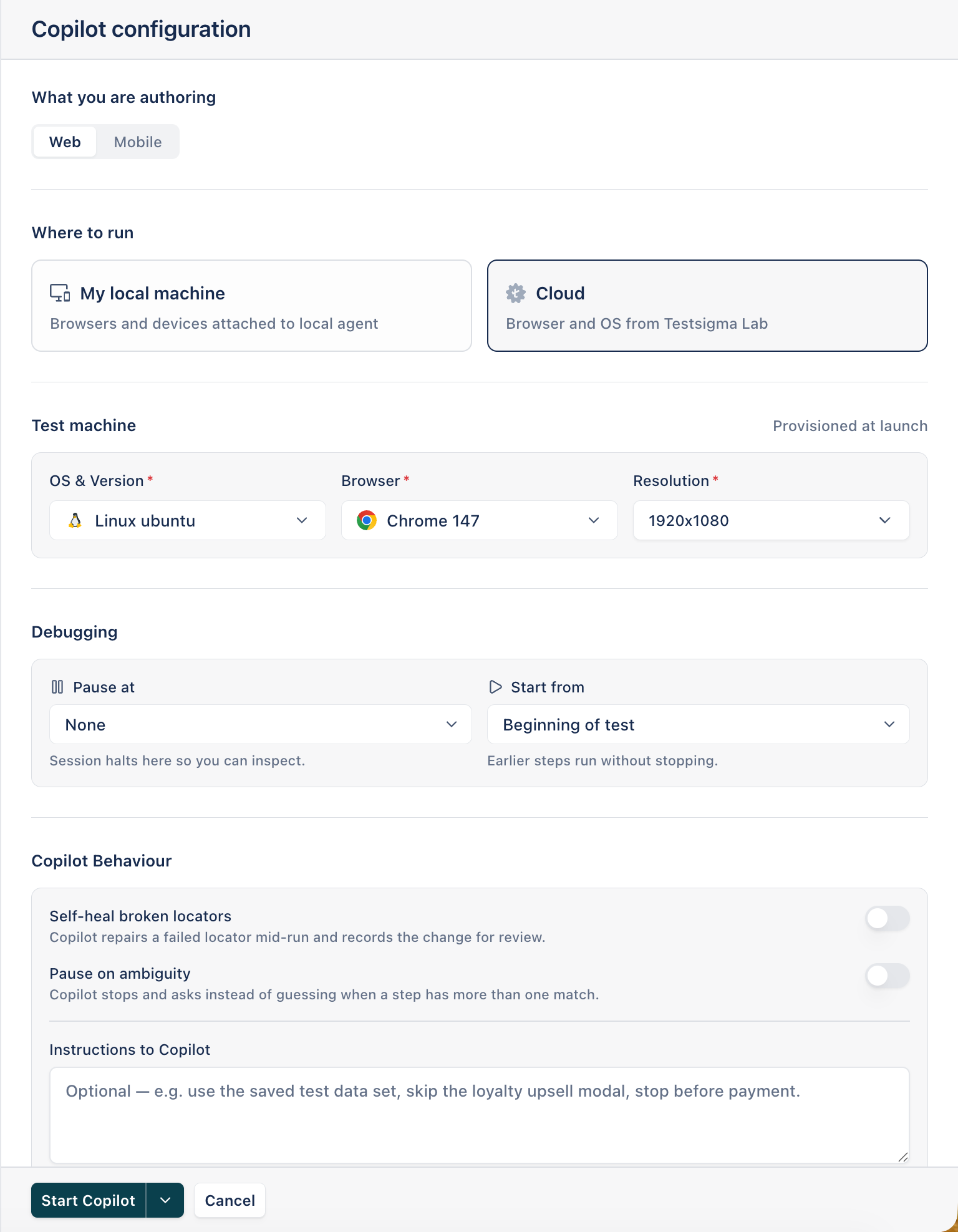
On the Automated steps tab, click Learn with Copilot or Author with Copilot. The Copilot configuration panel opens.
-
(Optional) To reuse earlier selections, pick a saved configuration in Saved configuration.
-
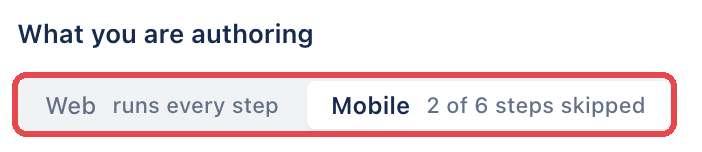
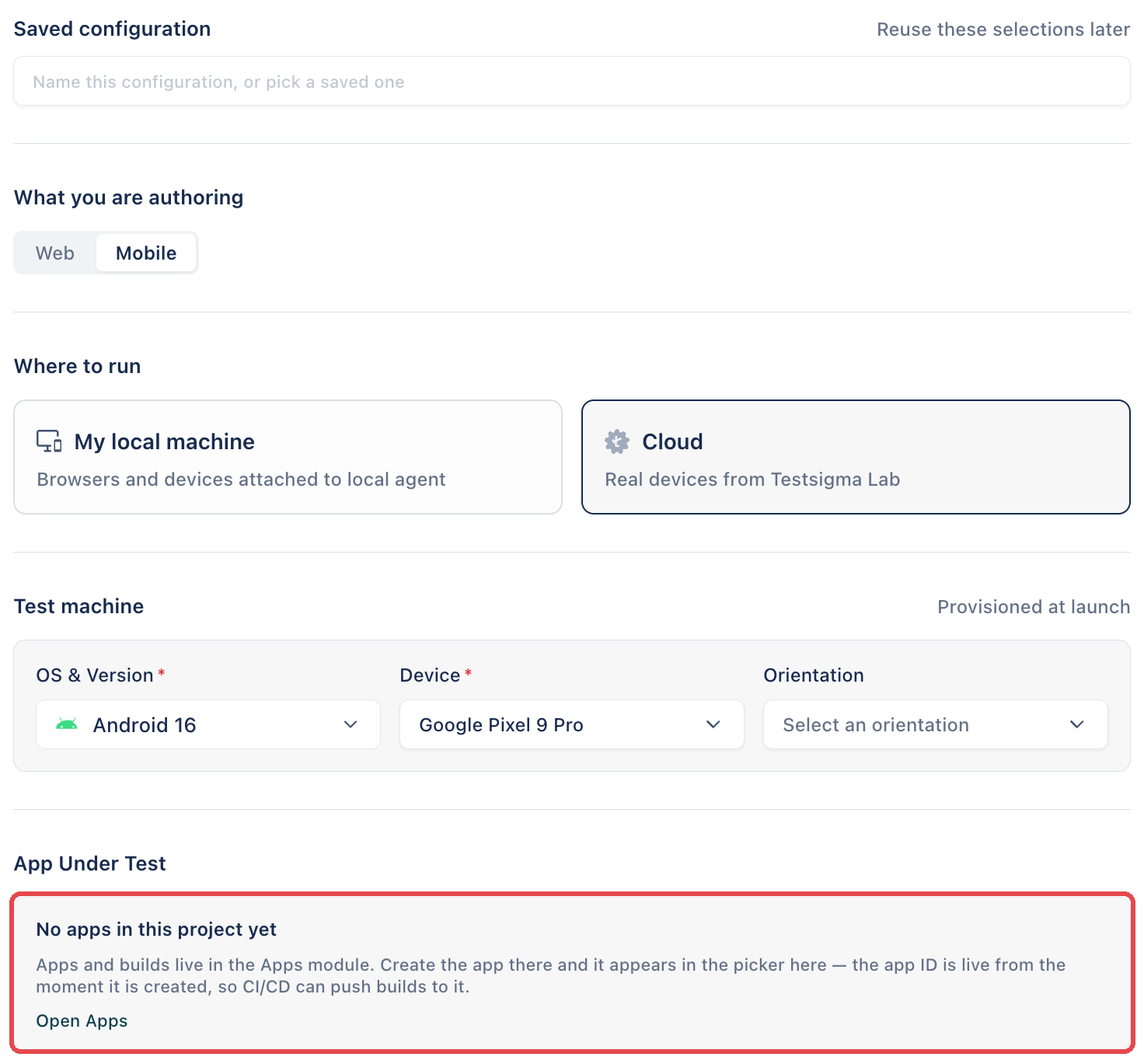
In What you are authoring, select Web or Mobile. If the test case already has automated steps, each option shows how many of them run on that platform, for example Mobile “2 of 6 steps skipped”. Steps that run on web only are skipped on mobile.
-
In Where to run, select My local machine or Cloud.
-
Under Test machine, choose the machine:
- On Cloud for Web, select the OS & Version, Browser, and Resolution.
- On Cloud for Mobile, select the OS & Version and Device, and optionally an Orientation. The session runs on a real device from Testsigma Lab.
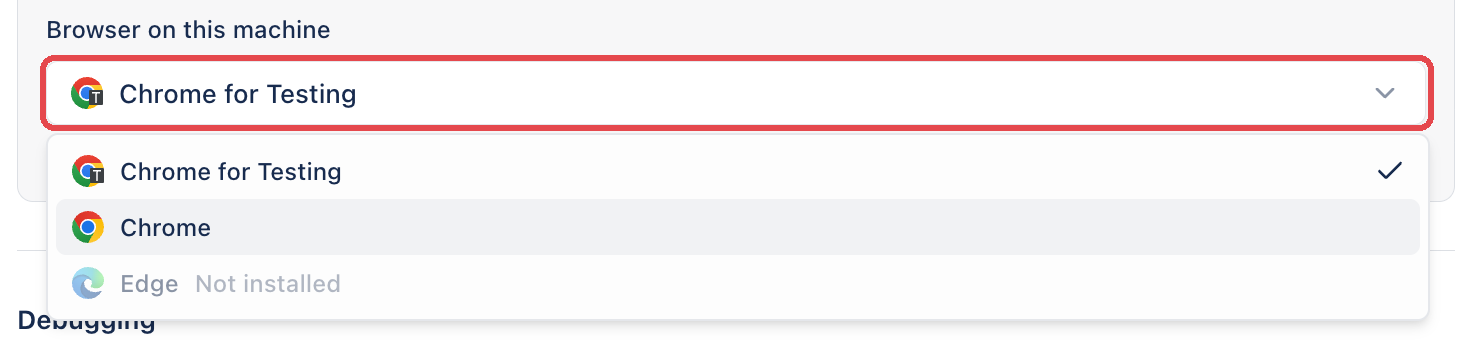
- On My local machine, select a browser in Browser on this machine. The list shows the browsers on your computer and marks missing ones as Not installed.
On Cloud, Arcus provisions the machine when the session starts.
-
For Mobile, select the app under App Under Test. If the project has no apps yet, the section reads “No apps in this project yet”. Click Open Apps to create the app in the Apps module, then return to the panel.
-
(Optional) Under Debugging, select a step in Pause at to stop the session there, or a step in Start from to run the earlier steps without stopping.
-
(Optional) Under Copilot Behaviour, turn on the options you want and enter Instructions to Copilot.
-
(Optional) Under Additional settings, change Page timeout or Step timeout. The values shown are the defaults.
-
Click Start Copilot. The session opens in a new browser tab, with the Copilot panel on the left and the live browser on the right. On Cloud, “Spinning up your cloud browser” shows while the machine starts, which usually takes 10 to 20 seconds.
The Copilot Behaviour options are:
- Self-heal broken locators: Copilot repairs a failed locator mid-run and records the change for review.
- Pause on ambiguity: Copilot stops and asks instead of guessing when a step has more than one match.
- Instructions to Copilot: free-text guidance for this session only, for example
skip the loyalty upsell modal.
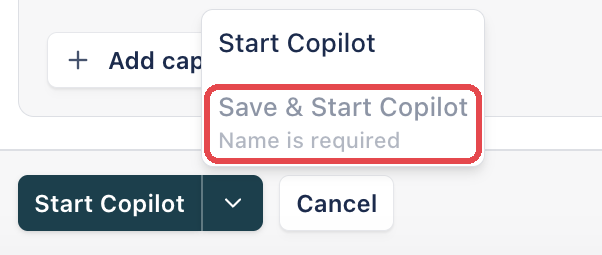
To save these selections for later sessions, enter a name in Saved configuration, then click the arrow next to Start Copilot and select Save & Start Copilot. Until you enter a name, the option shows “Name is required”.
Learn the steps with Copilot
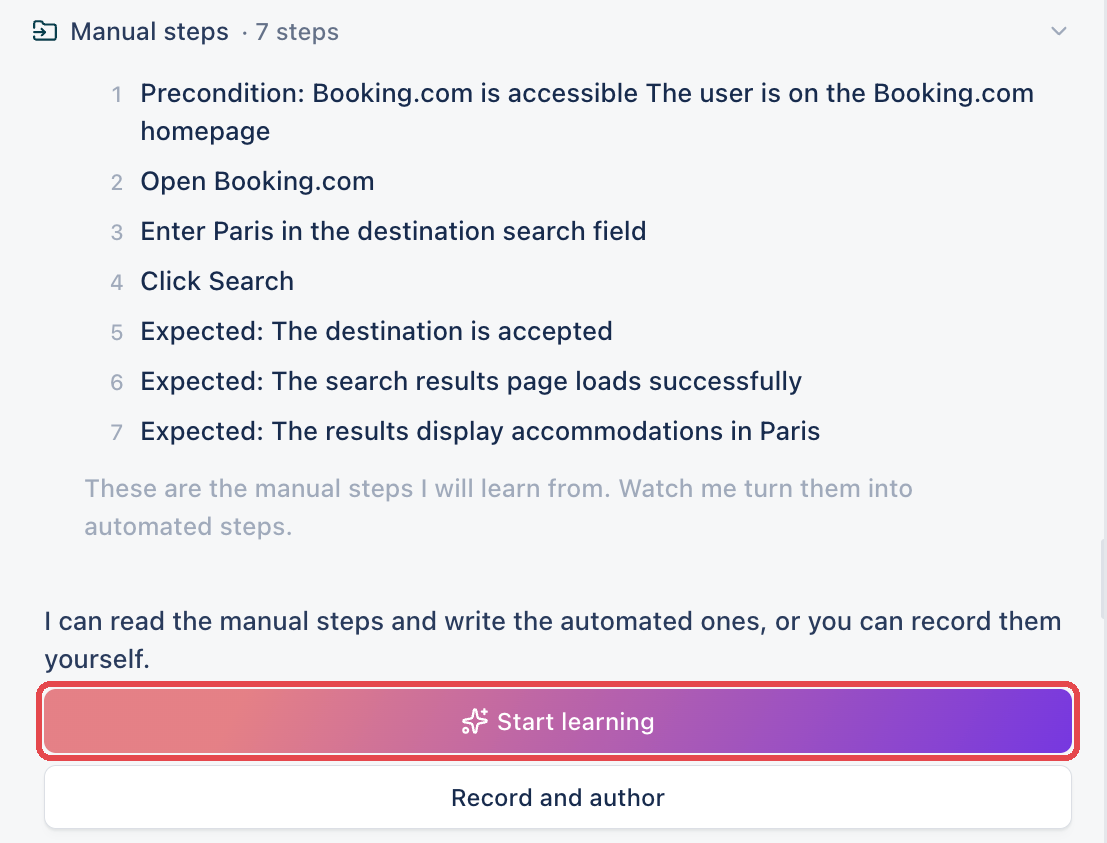
Section titled “Learn the steps with Copilot”Copilot runs the action steps of the test case in the live browser and generates the automated steps that reproduce them. It doesn’t run preconditions or expected results, so it can learn fewer steps than the test case has manual steps.
In the Copilot panel, click Start learning.
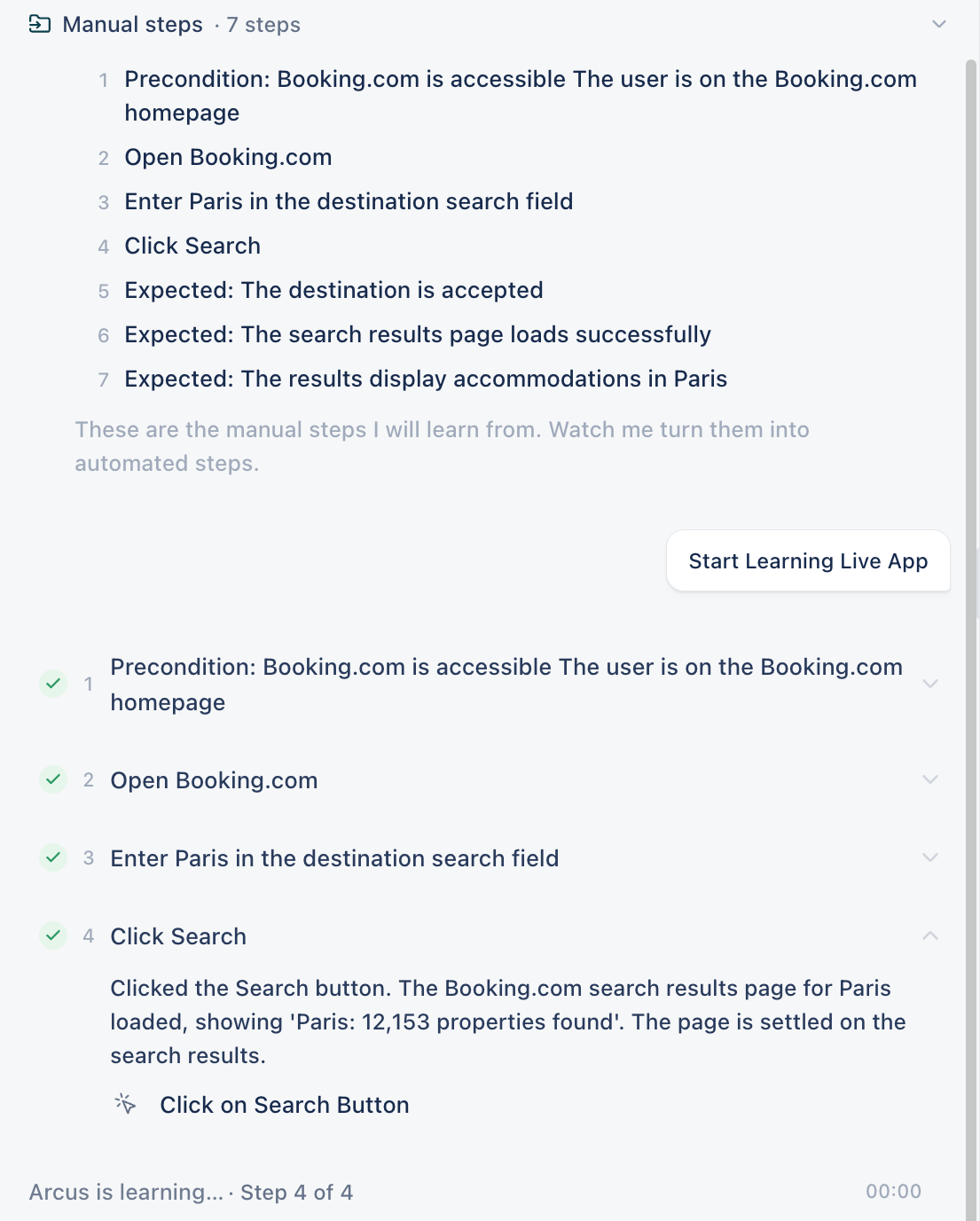
The status line reads “Arcus is learning” with the current step, for example “Step 4 of 4”. As Copilot completes each step, it marks the step done, describes what it did, and shows the automated step it generated, such as Click on Search Button.
Save the learned steps
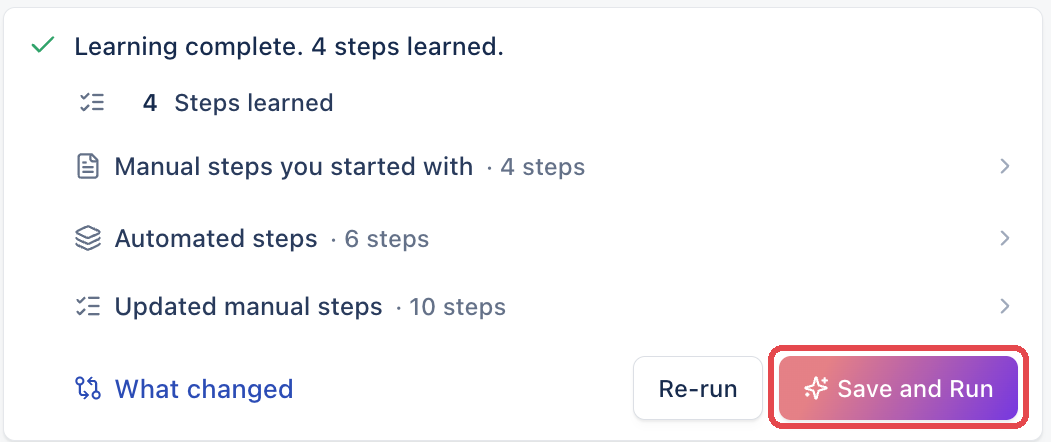
Section titled “Save the learned steps”When learning finishes, the status line reads “Learning done” and the Learning complete card appears. The card lists the Manual steps you started with, the Automated steps Copilot generated, and the Updated manual steps Copilot wrote to match them.
-
(Optional) Click Automated steps or Updated manual steps to review them, or click What changed to compare the updated manual steps with your originals.
-
Click Save and Run. Arcus saves the automated steps, replaces the test case’s manual steps with the Updated manual steps, and runs the test case.
When you’re done, end the session.
Record the steps yourself
Section titled “Record the steps yourself”Perform the test in the live browser, and Copilot records each action you take as an automated step. Use this when the test case has no manual steps.
-
In the Copilot panel, click Record and author. The Start recording panel asks “Which page should I open?”
-
Enter the URL of the page the test starts on, such as
https://www.booking.com/. The first automated step navigates to this page.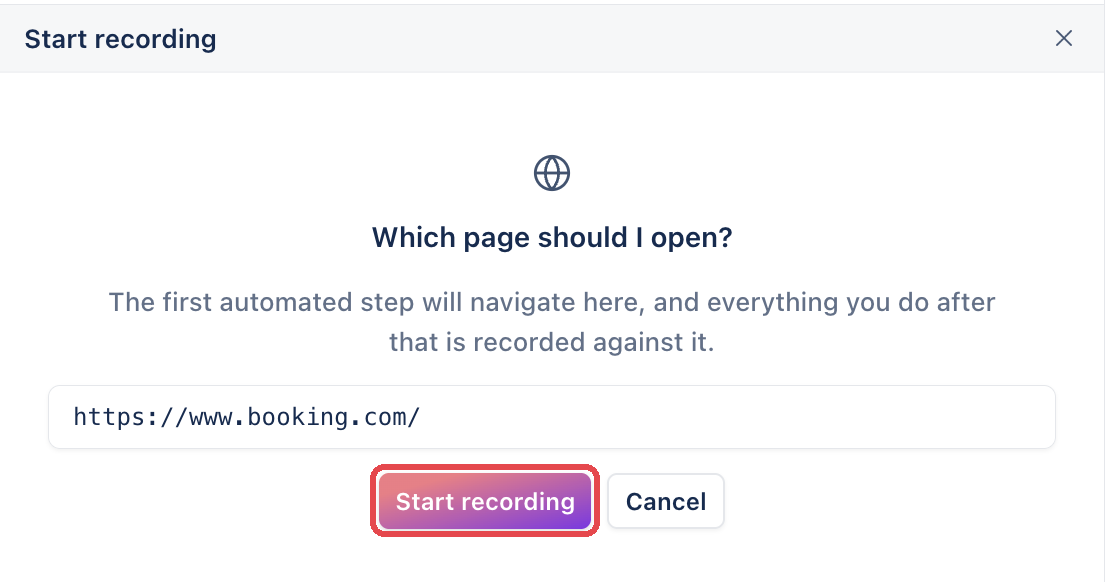
-
Click Start recording. Copilot opens the page in the live browser.
-
Perform the test in the live browser. Copilot records everything you do after the page opens as automated steps.
End the session
Section titled “End the session”-
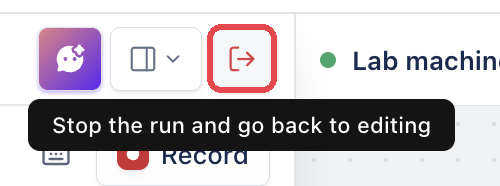
Click the Stop the run and go back to editing icon at the top of the Copilot panel.
-
In the End session and close this tab? dialog, confirm that you want to end the session. Arcus stops the run and, on Cloud, releases the cloud machine.
Back on the test case, the Automated steps tab shows the steps, and Automation Type shows Automated. If it still shows Not Automated, refresh the page. After Save and Run, the run also appears in the runs card at the top of the right panel, for example LAST 2 RUNS.
Write the steps yourself
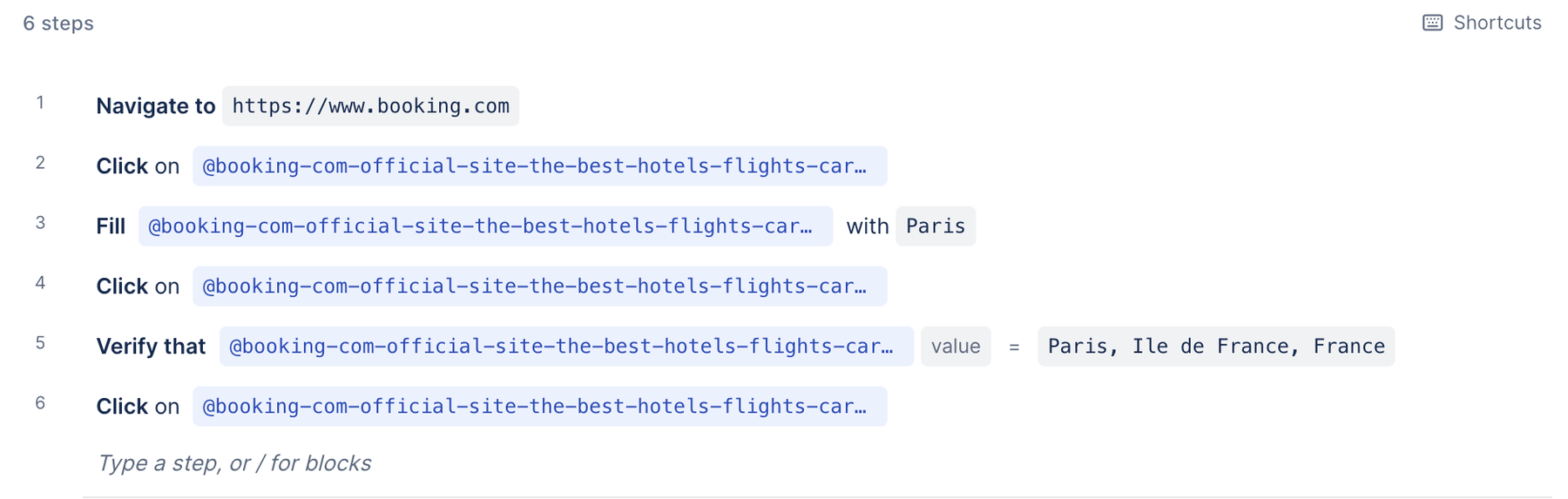
Section titled “Write the steps yourself”On the Automated steps tab, click Write the script manually. The editor opens with an empty row, and Debug with Copilot appears in the header.
Add a step
Section titled “Add a step”-
In the empty row, type the action in your own words, such as
go,enter, orclick. A list of matching steps opens, each with a short hint and its category: Browser, Interact, Wait, or App.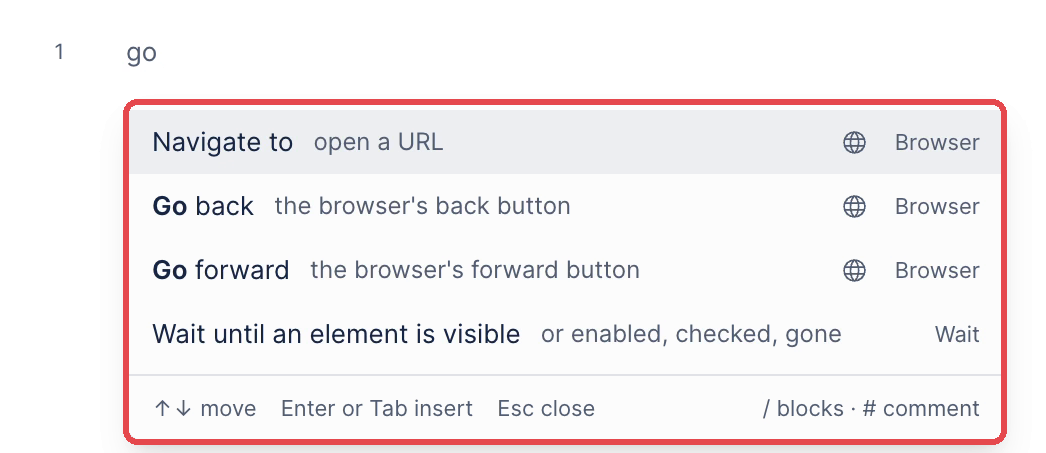
-
Highlight a step with
↑and↓, and pressEnterorTabto insert it. The step shows a chip for each value it still needs, such as URL or target, and the count above the steps shows how many are left, such as “1 to fill”. -
Click each chip and fill it in. See Fill in a value and Pick an element.
-
Press
Enterto start the next step.
Automation Type changes to Automated as soon as you add the first step, even before you fill in its values.
The globe, Android, and Apple icons beside a step show the platforms it runs on: web, Android, and iOS. Some steps run on one platform only. Navigate to, for example, is a web step.
Fill in a value
Section titled “Fill in a value”A value is the text, URL, or key a step uses.
- Click the value chip, for example URL.
- Select where the value comes from:
- Plain text: Arcus uses the value exactly as you write it.
- Runtime: Arcus uses a value created while the test case runs.
- Parameter: Arcus takes the value from a dataset.
- Enter the value.
Pick an element
Section titled “Pick an element”Steps that act on an element, such as Click on and Fill, need a target. Pick an element from the element library, or describe it with a locator.
The element library lists the elements that steps in the project already use. Arcus has no separate page for managing elements.
To pick an element from the library:
-
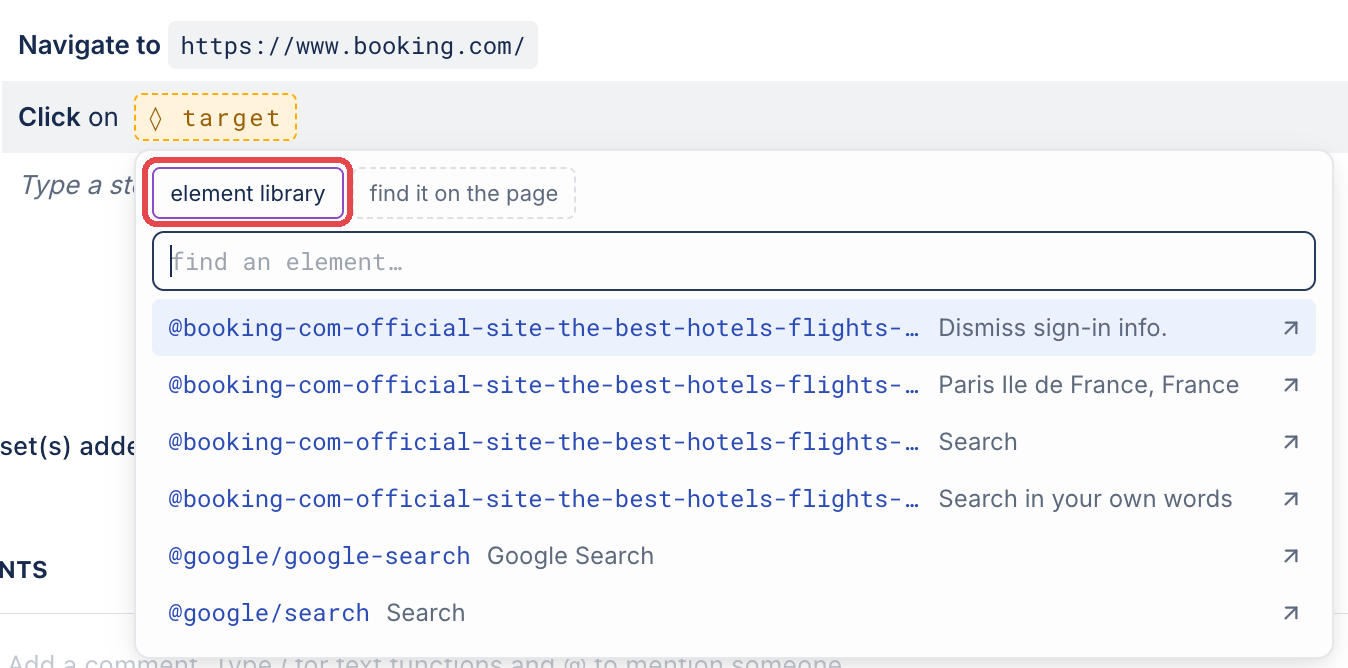
Click the target chip. The popover opens on element library, which lists each element’s name and the text it matches.
-
In the search field, enter part of the element’s name or text.
-
Select the element.
To locate an element on the page:
-
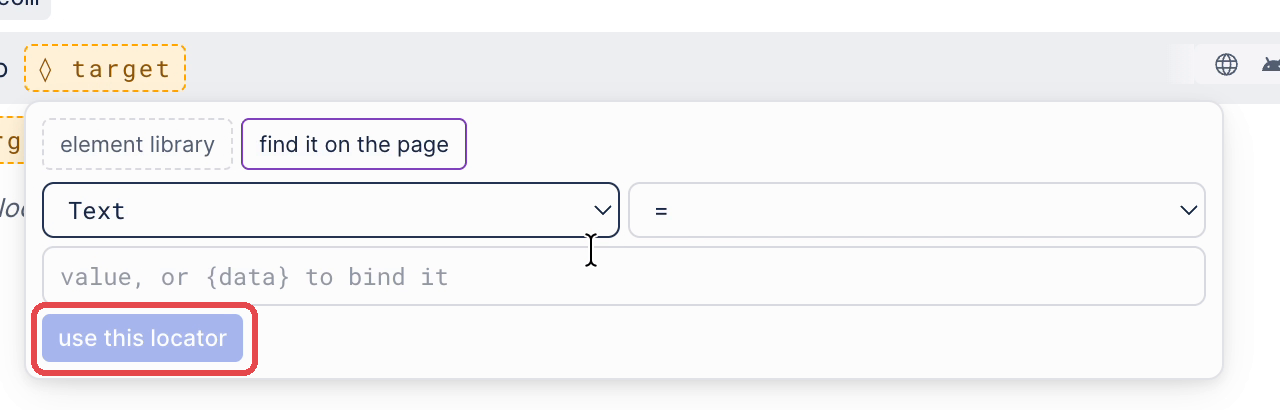
Click the target chip, then click find it on the page.
-
Select the locator type. Text is selected by default.
-
Select the operator.
-
Enter the value.
-
Click use this locator. The chip then shows the locator, for example text search.
The locator types are grouped by platform:
- Web and devices: CSS, XPath, Text, Label, Name
- Web: Role, Placeholder, Title, Index, Alt text, Attribute, AI (describe it)
- Android and iOS: Accessibility ID, Class name
- Android: Android resource ID, Android UiAutomator
- iOS: iOS predicate, iOS class chain
Change a step’s settings
Section titled “Change a step’s settings”Select a step to open Step settings beside the editor, or click the step’s ellipsis icon (⋮) and click Step settings. While a step still needs a value, the panel marks it draft. A warning names what’s missing, for example “This step still needs an element.”
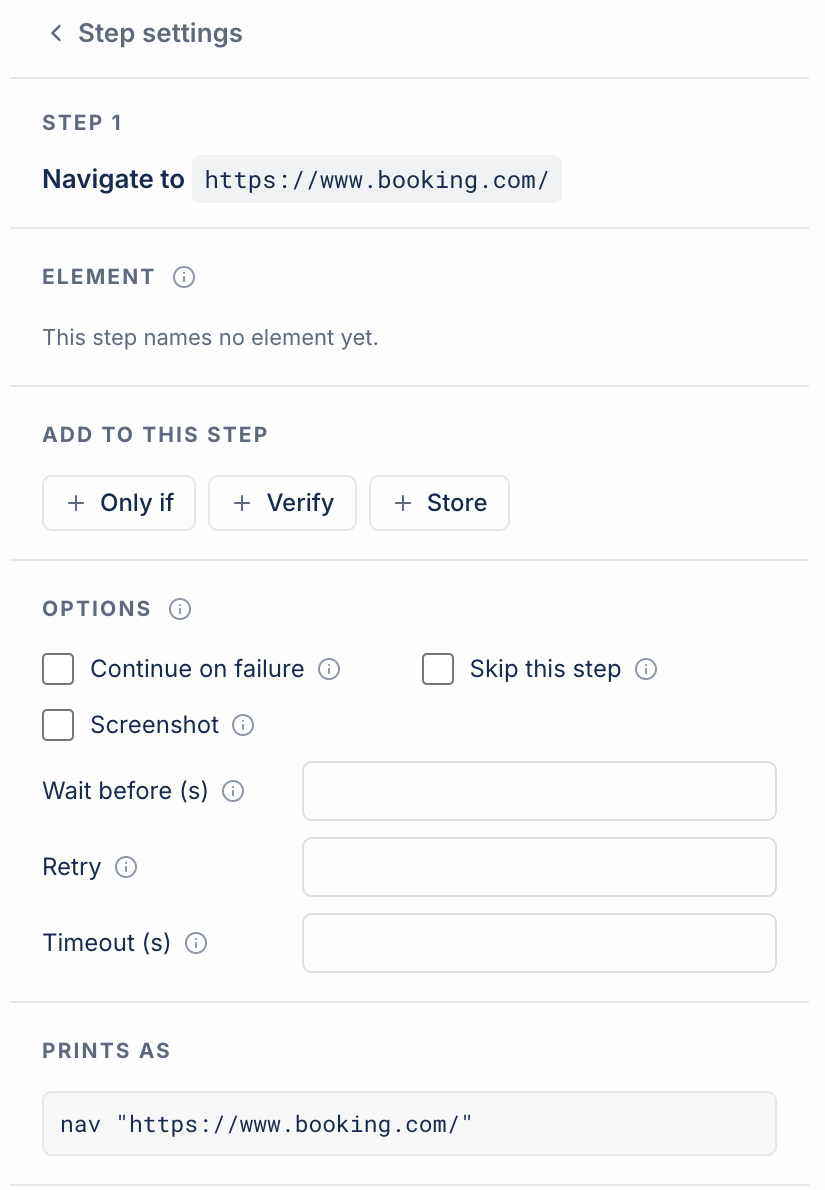
The panel has these sections:
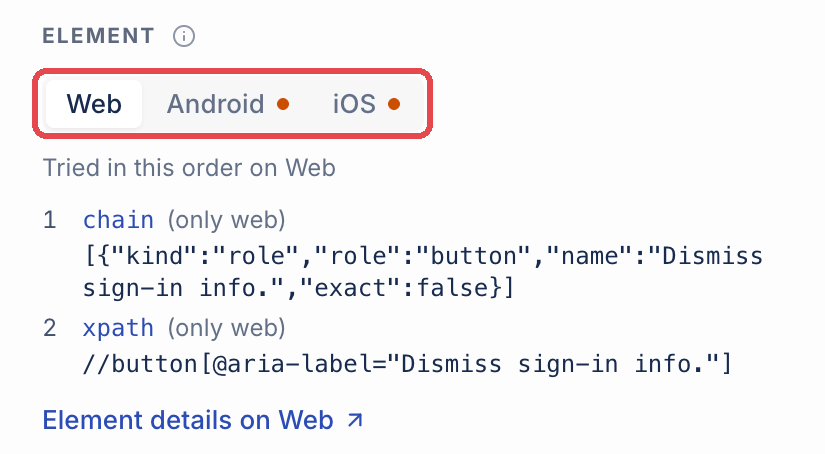
- ELEMENT: the element the step acts on. For an element from the library, the Web, Android, and iOS tabs list the locators Arcus tries on each platform, in order, with a link to the element’s details.
- PRE-CONDITION: on a step with an element, a condition Arcus checks before the action. Click + pre-condition, or click write it as text. When the condition doesn’t hold, the step is skipped or failed.
- ADD TO THIS STEP: Verify and Store. On a step without an element, Only if appears here too.
- OPTIONS: Continue on failure, Skip this step, Screenshot, Wait before (s), Retry, and Timeout (s). On a step with an element, Only if present appears here too, and the step row then shows if present.
- PRINTS AS: the step as script text, for example
nav "https://www.booking.com/".
Reorder or delete a step
Section titled “Reorder or delete a step”Click the step’s ellipsis icon (⋮) and click an action:
- Move up:
⌥+↑ - Move down:
⌥+↓ - Duplicate:
⌘+D - Skip this step:
⌘+/, which also stops skipping a skipped step - Insert a step above and Insert a step below: no shortcut
- Delete:
⌘+Delete
To undo a change, press ⌘+Z. To redo it, press ⇧+⌘+Z. Click Shortcuts above the steps to see every keyboard shortcut in the editor.
Check the Automation Type
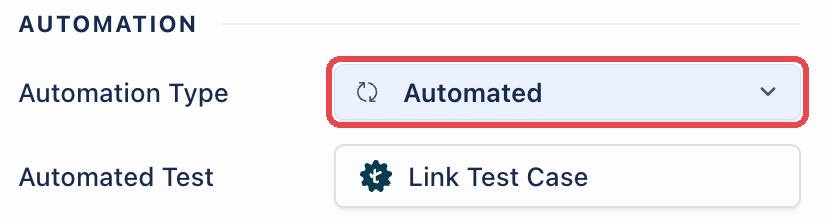
Section titled “Check the Automation Type”Automation Type in the AUTOMATION section of the right panel shows whether the test case is automated:
- Not Automated: the value every new test case starts with.
- Automated: the value Arcus sets when the test case gets its first automated step, whether you write it, record it, or Copilot learns it.
Deleting the automated steps doesn’t change the value back. Automation Type stays Automated until you select another value in the dropdown.
Debug the automated steps
Section titled “Debug the automated steps”Click Debug with Copilot in the test case header to run the automated steps in a live browser. The Copilot configuration panel opens with the same settings as in Start a Copilot session. See Copilot execution.
Was this page helpful?
Thanks for the feedback.