- create test cases
 Organizing Test Cases in Folders
- Test Cases for Web Applications
- Test Cases for Mobile Applications
- Test Cases for Mobile Web Applications
- Manage Test Cases for Web Applications
- Manage Test Cases for Android & iOS Apps
- Manage Test Cases for Mobile Web Applications
- Test Case List Actions
- Importing Postman Collections and Environments
- Custom Fields for Test Cases
- Label Management
- Update Test Case Result in a Test Plan
- Test Case: Advanced Options Guide
- Test Step Types
- Type: Natural Language
- Type: REST API
- Type: Step Group
- Type: For Loop
- Type: While Loop
- Type: Block
- Type: If Condition
- Nested Step Groups
- Image Injection
- Cross-application testing
Test Cases for Mobile Web Applications
Using Testsigma, you can easily create test cases for mobile web applications using Atto and the AI-powered Copilot. This article walks you through all four approaches to help you get started quickly.
Prerequisites
Before you begin, ensure that you have referred to:
- Documentation on creating projects.
- Documentation on creating applications.
- Documentation on Testsigma chrome extension installation.
- Also, you have a mobile web app to test.
Steps to Generate Test Cases Using Atto
Please refer to the documentation on generating test cases using Atto for Mobile Web applications.
Steps to Create Test Cases Using Recorder
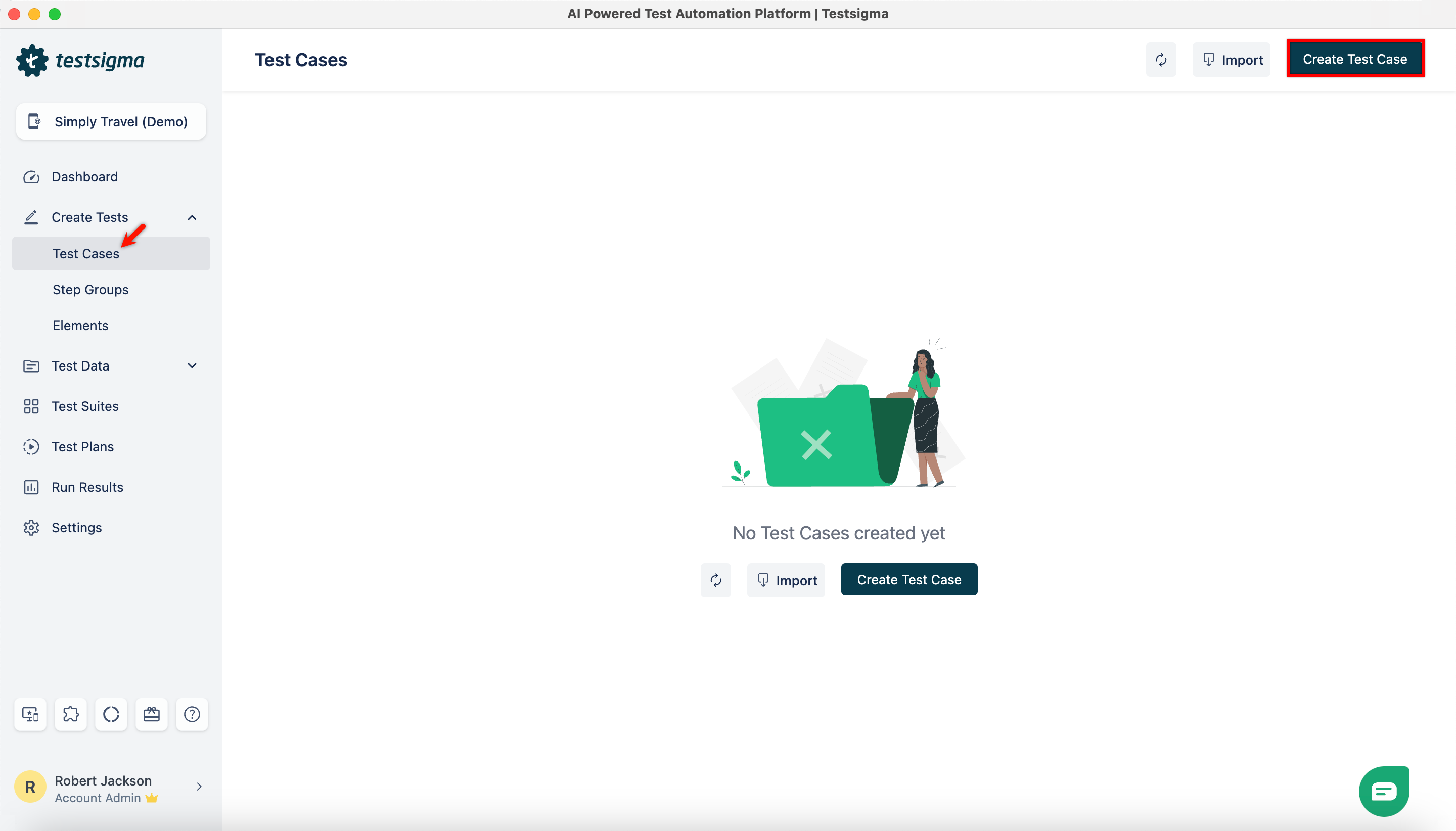
- From the left navigation bar, go to Create Tests > Test Cases, and click Create Test Case.
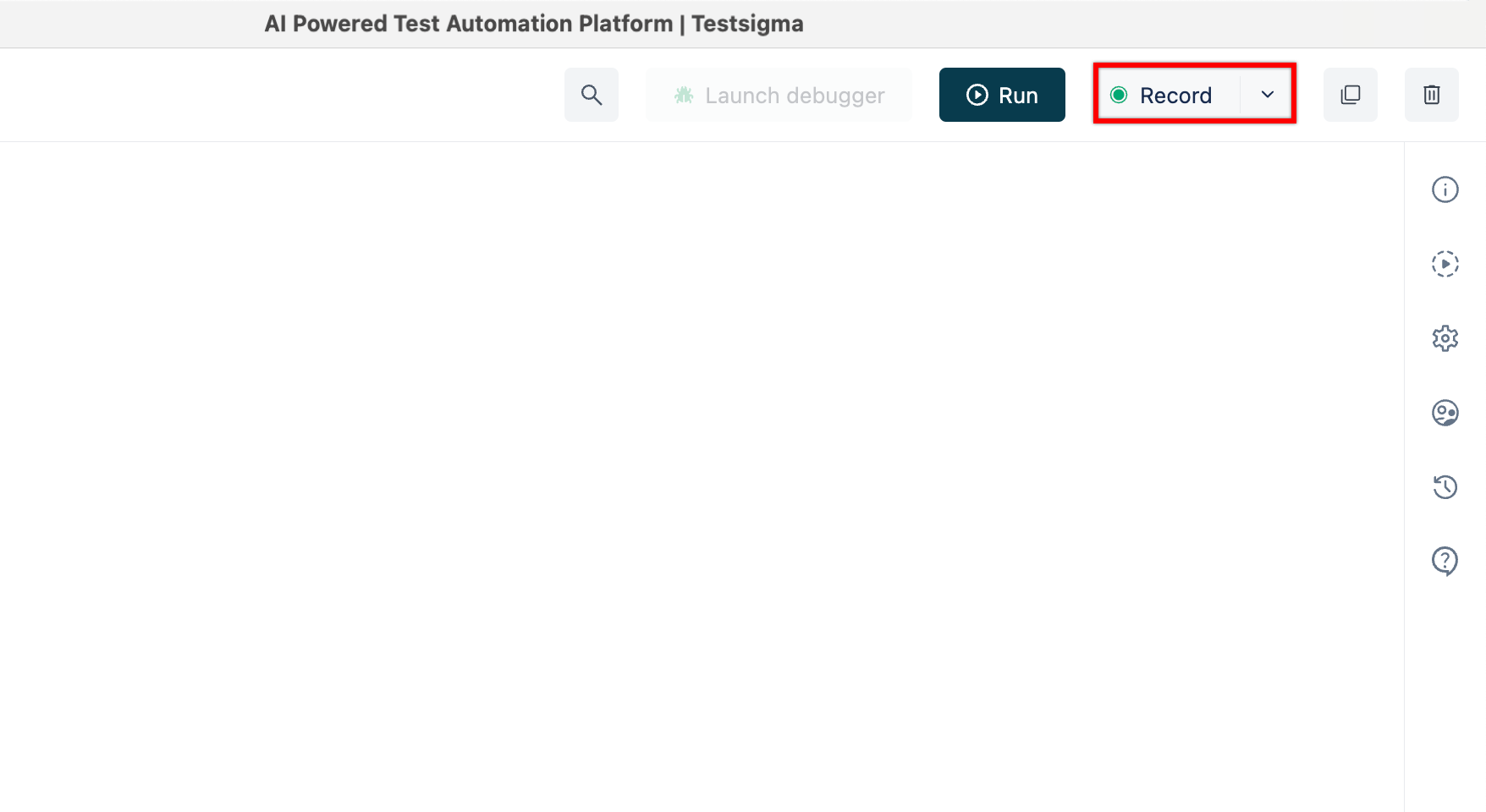
- On the Test Case Details page, click on Record at the top right corner.
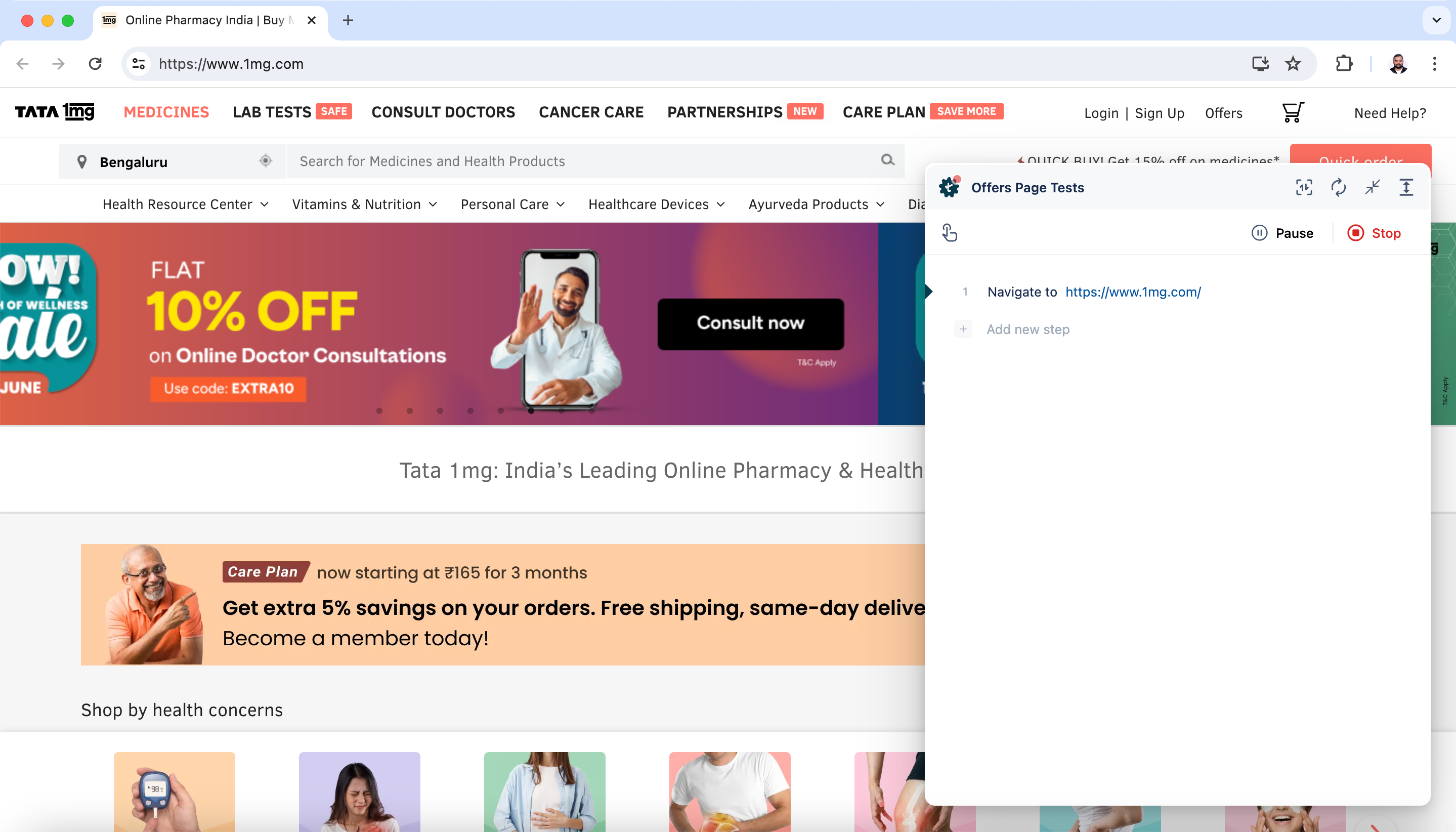
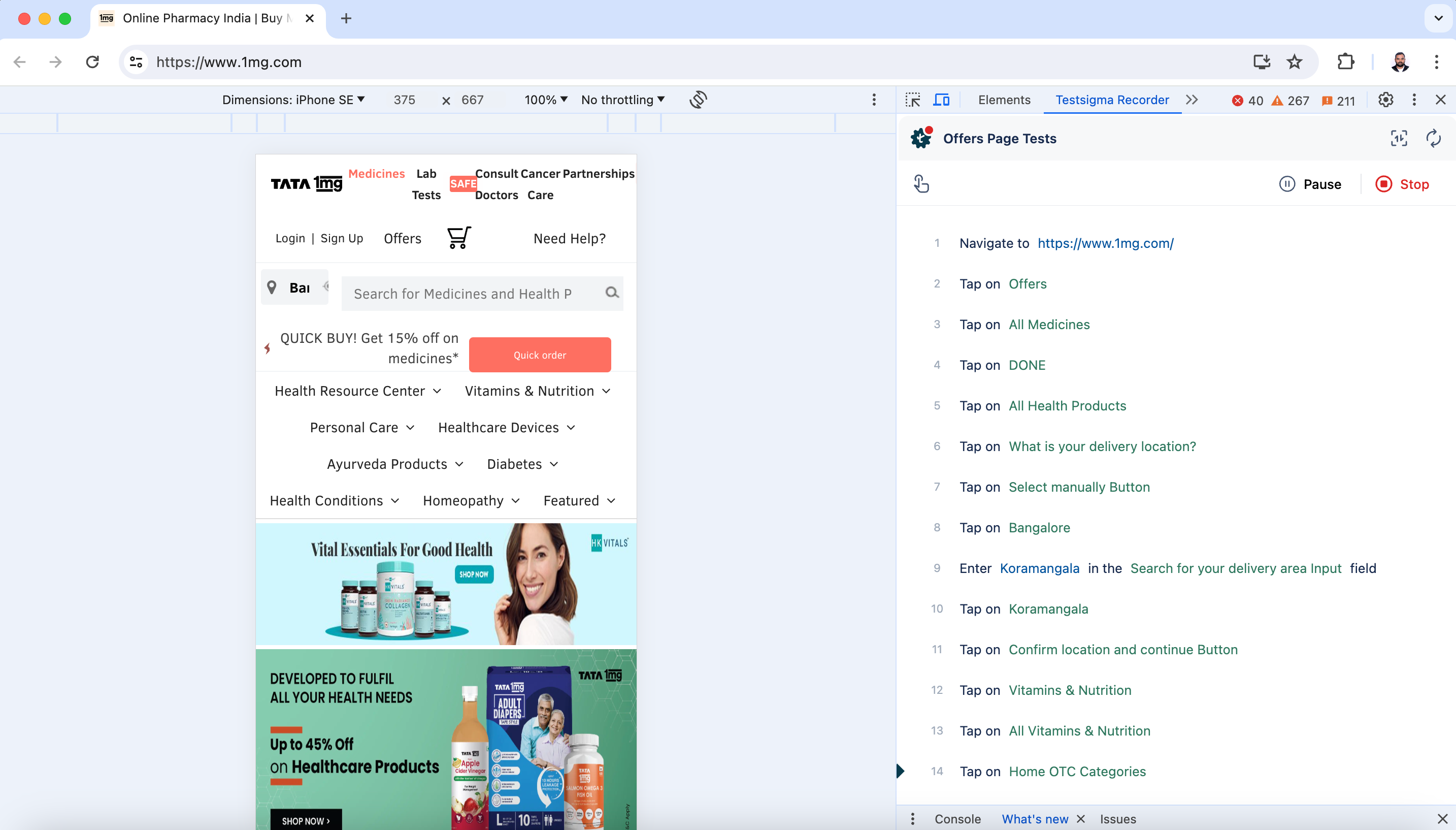
- This will open a new window. Enter the URL from which you want to capture the test cases. The Testsigma Recorder will appear and be ready to start recording. In this case, we are recording a test case for the 1mg website.
- Press F12 to open Chrome Developer Tools and dock the tools to the right side of the window for a better experience.
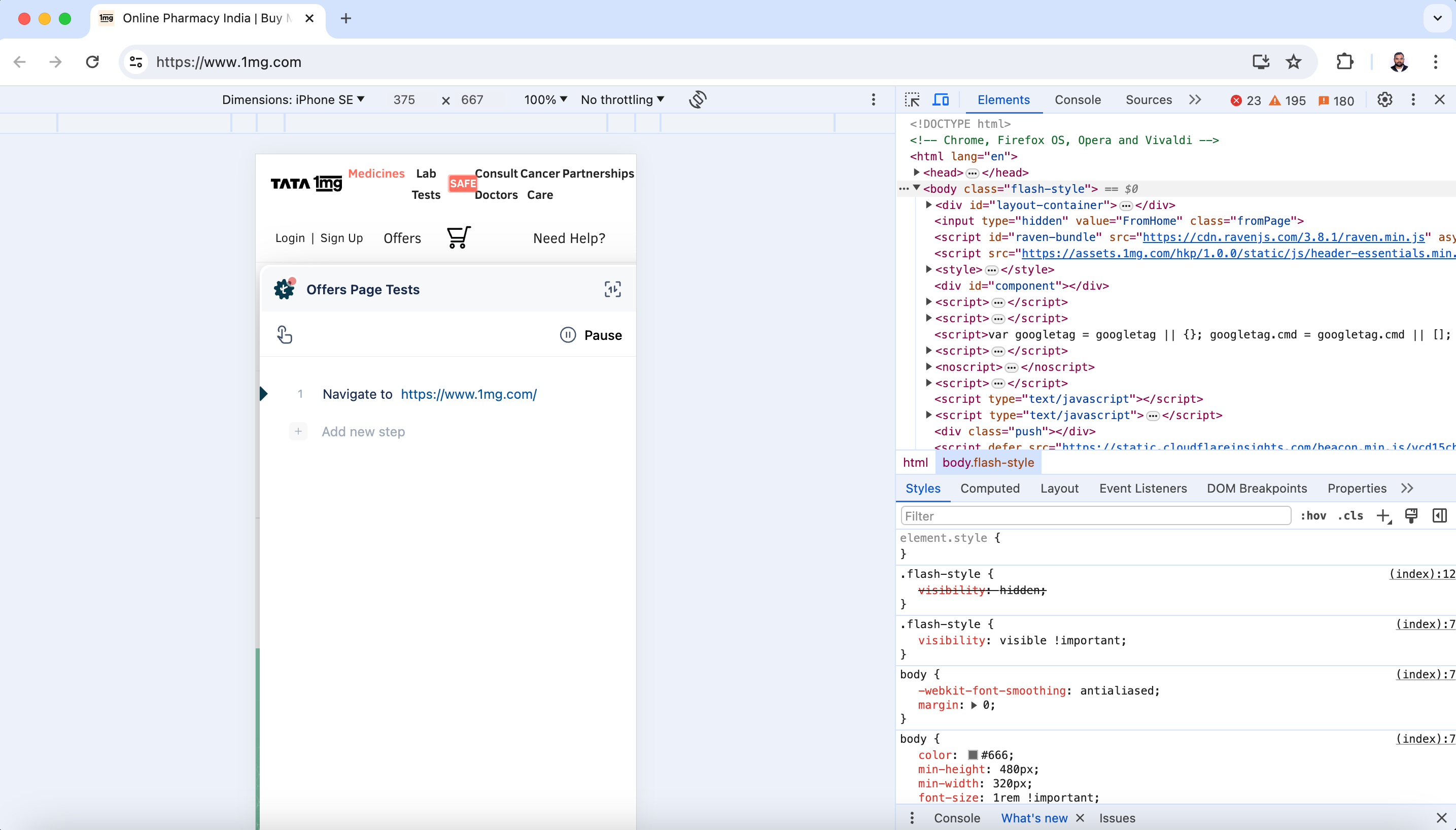
Make sure you have selected Companion Mode located in the action bar at the top.
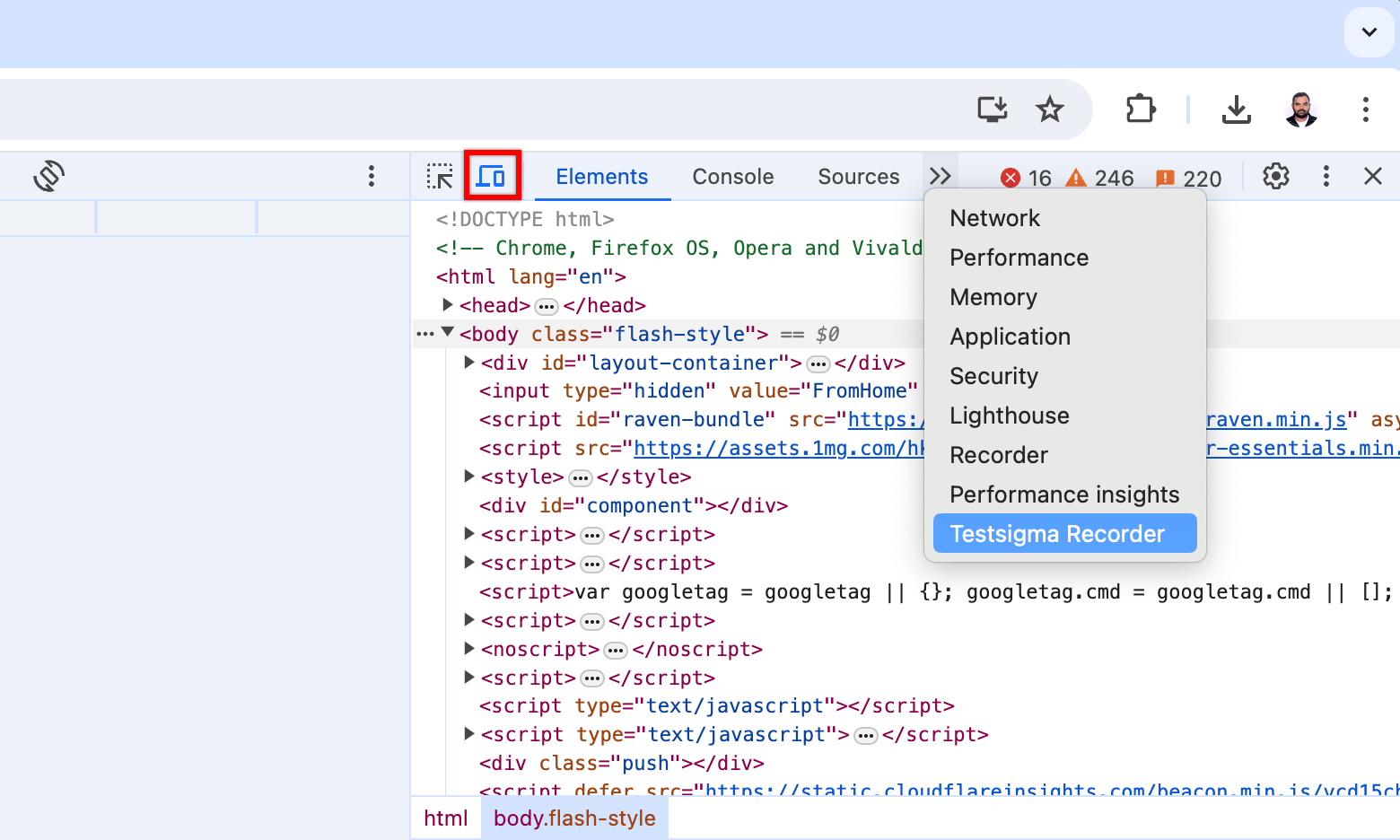
- Click on >> and select Testsigma Recorder from the dropdown menu.
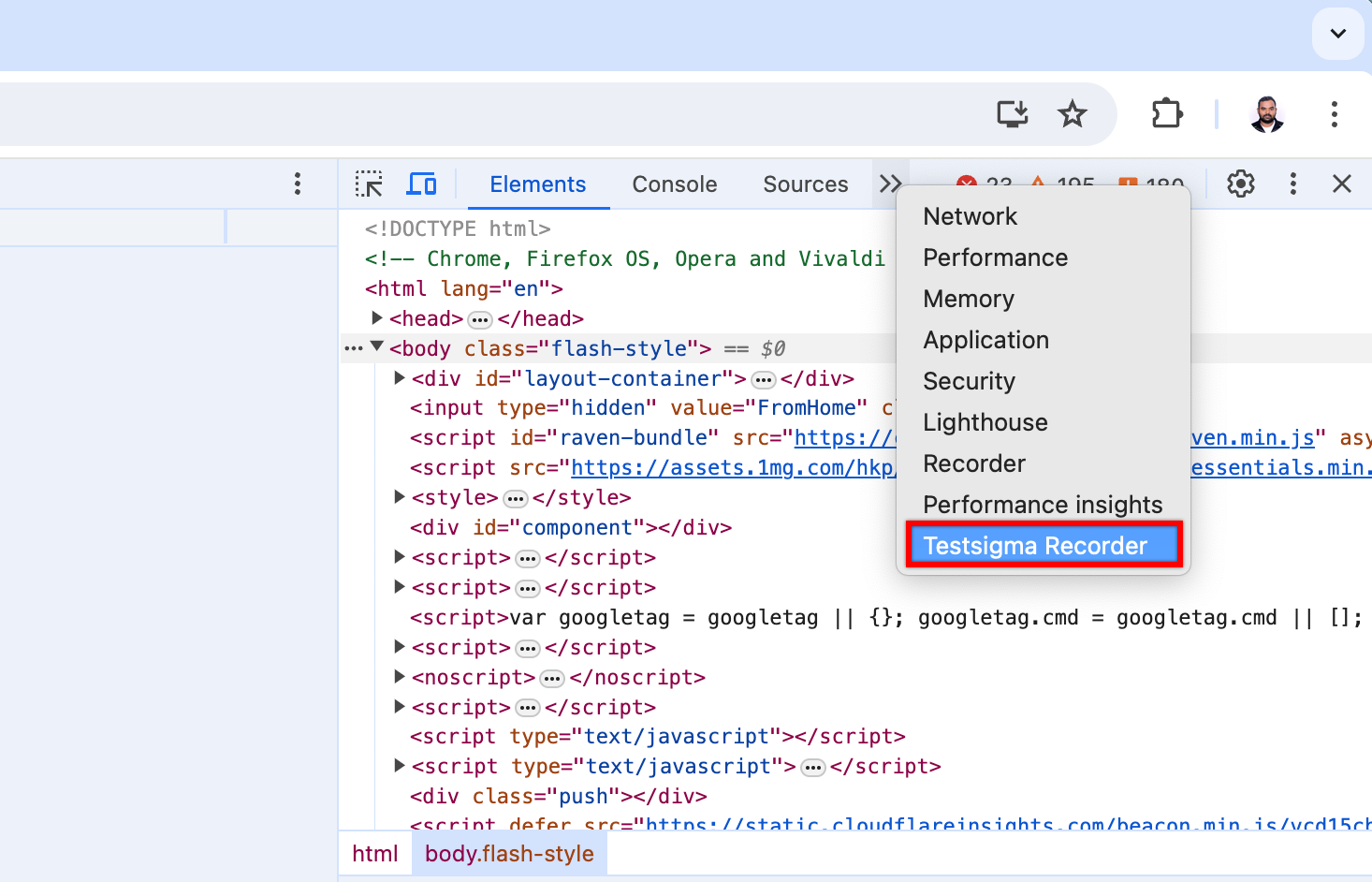
- This will open Testsigma Recorder on the Developer Tools screen.
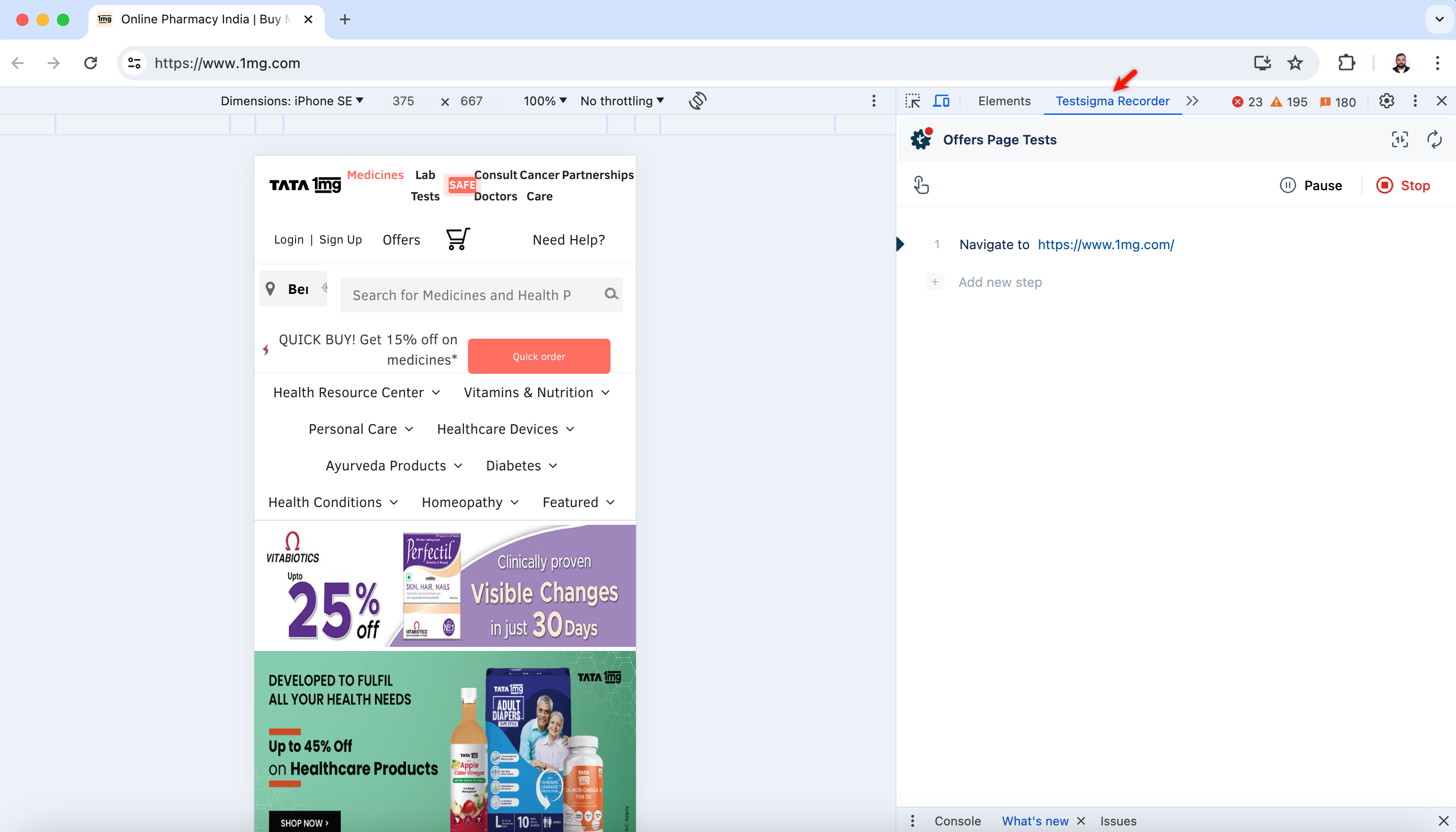
Select the dimension from pre-defined devices on which you want to record the elements. If the device required for your testing is not listed, you can add a custom device by selecting Edit from the Dimensions dropdown menu and clicking Add custom device.
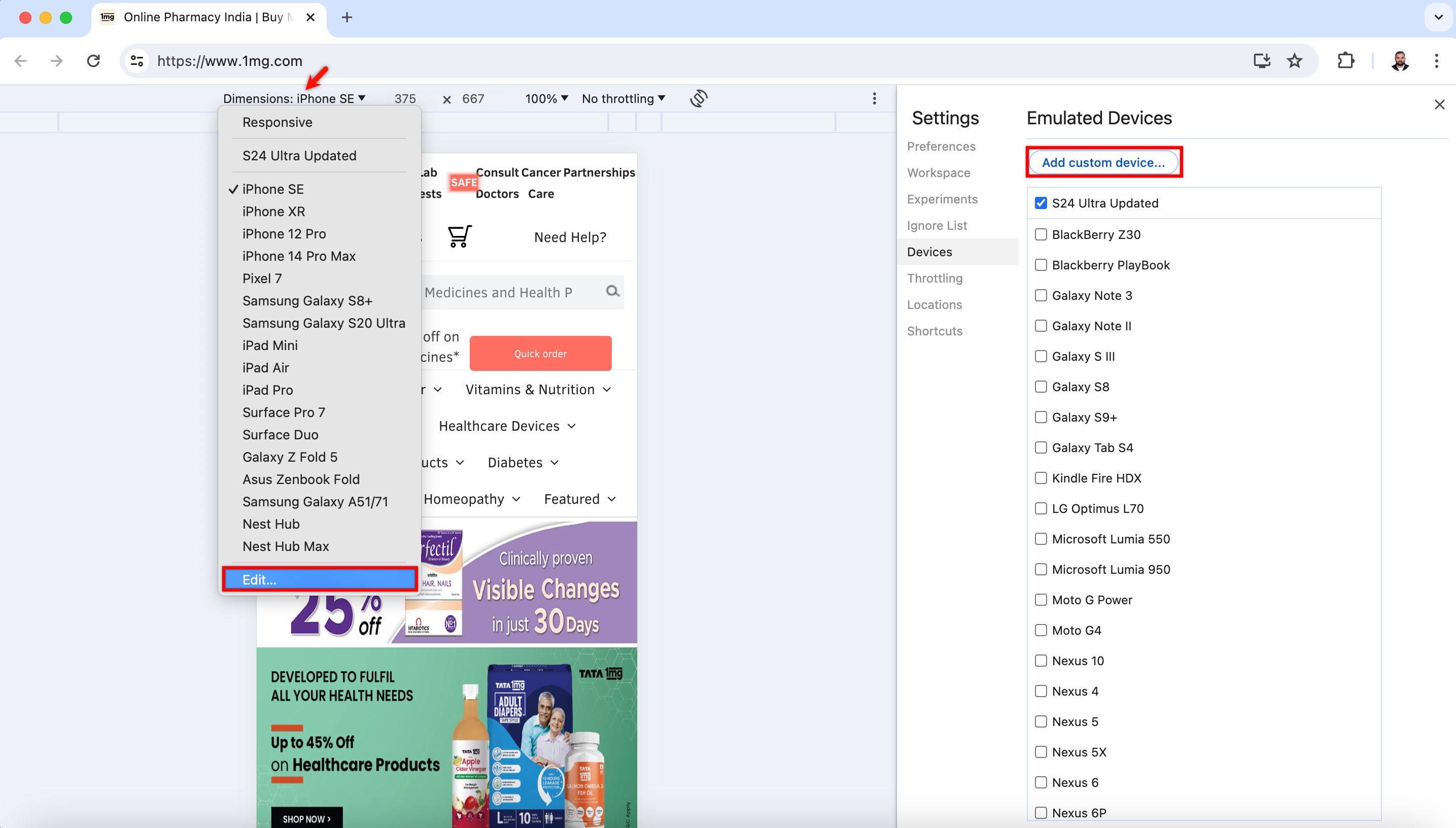
Some devices might have unique characteristics that will affect element display and interaction, and adding a custom device required for your testing is necessary to identify and resolve these issues.
- Once you have selected the dimension, record test steps by performing actions on the website.
Steps to Create Test Cases Using NLPs
- From the left navigation bar, go to Create Tests > Test Cases and create a test case.
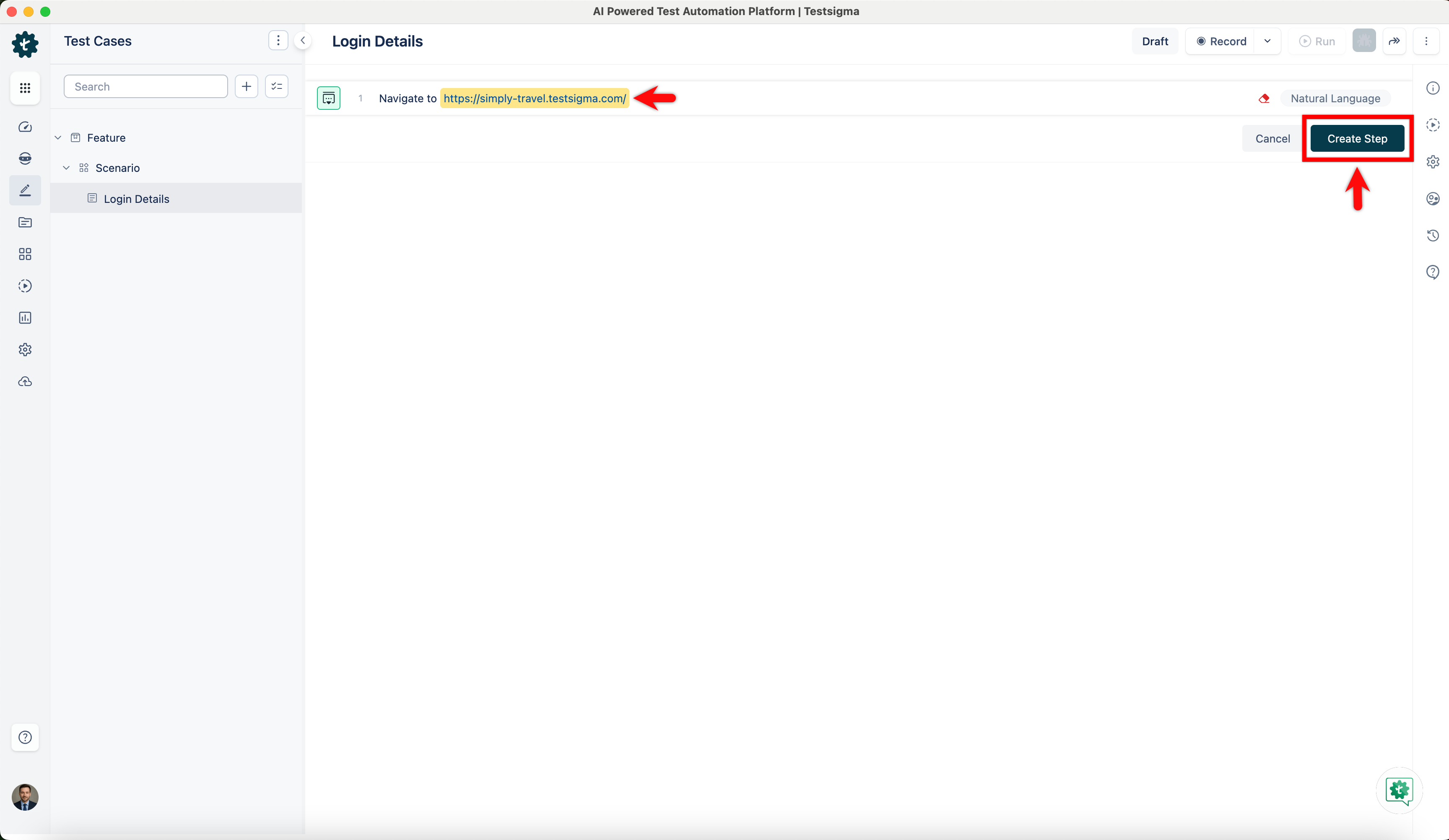
- In the Test Case Details page, enter the URL in which you want to perform the actions and capture the test steps, and click Create Step.
-
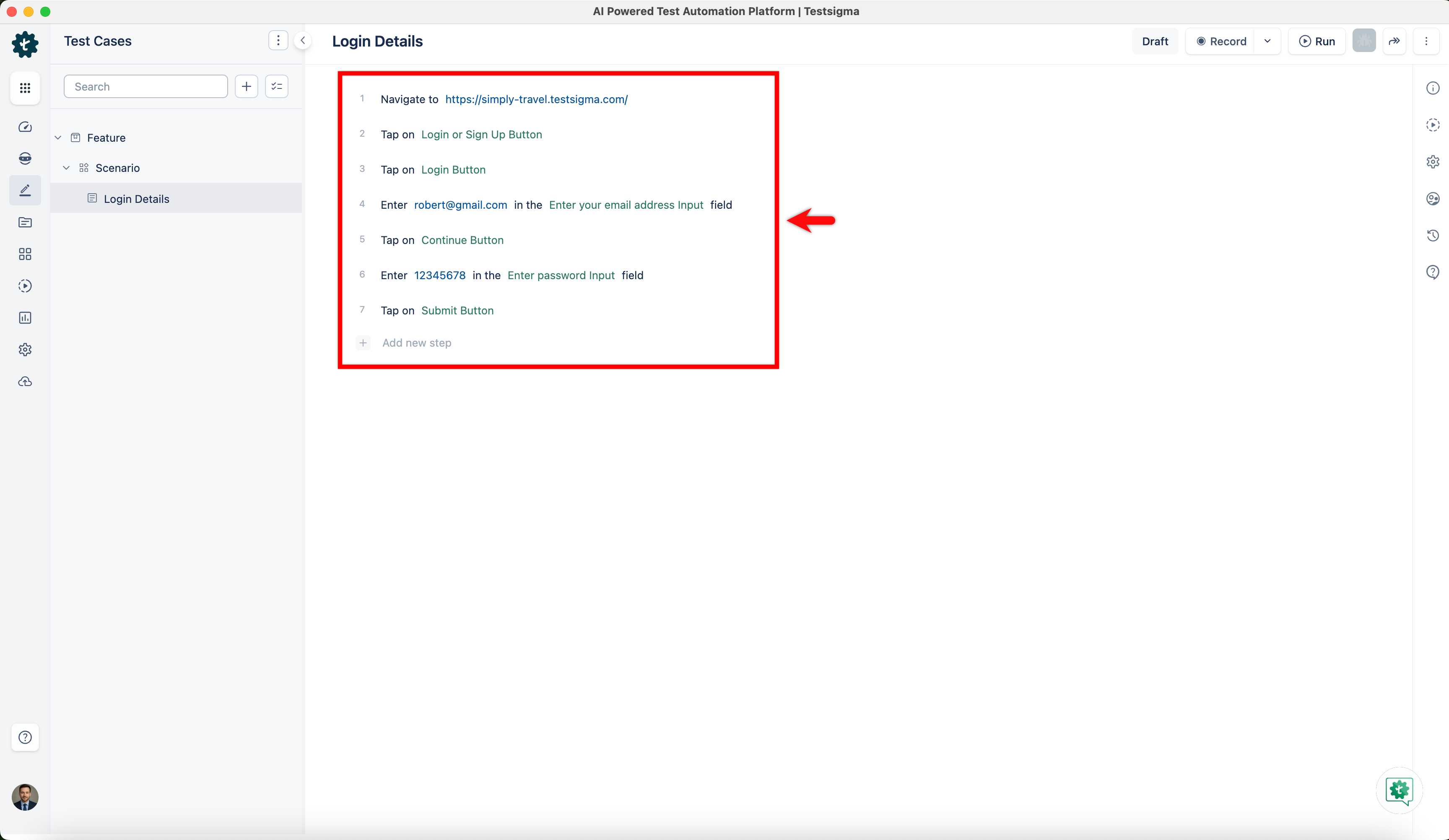
For example, here are the test steps to log in to the Simply Travel website:
- Navigate to https://simply-travel.testsigma.com/
- Tap on Login / Sign Up Button
- Tap on Login Button
- Enter robert@gmail.com in the Email Address Input field
- Tap on Continue Button
- Enter •••••••• in the Password Input field
- Tap on Submit Button

Want to contribute or report missing content?