
Audit Logs: Complete Record of Activities
Audit logs provide a complete record of all key activities in your Testsigma account. They capture every user action, including changes to test assets and account access events, and store them as immutable entries. Administrators can use audit logs to monitor account usage, investigate security incidents, troubleshoot issues, and ensure accountability across the organization. This article discusses Audit Logs in Testsigma.
Prerequisites
Before you begin, ensure you are familiar with Activity Logs for all entities in Testsigma.
Interactive Demo: View & Export Audit Logs
View Audit Logs
- From the left navigation bar, go to Settings > Audit Logs.
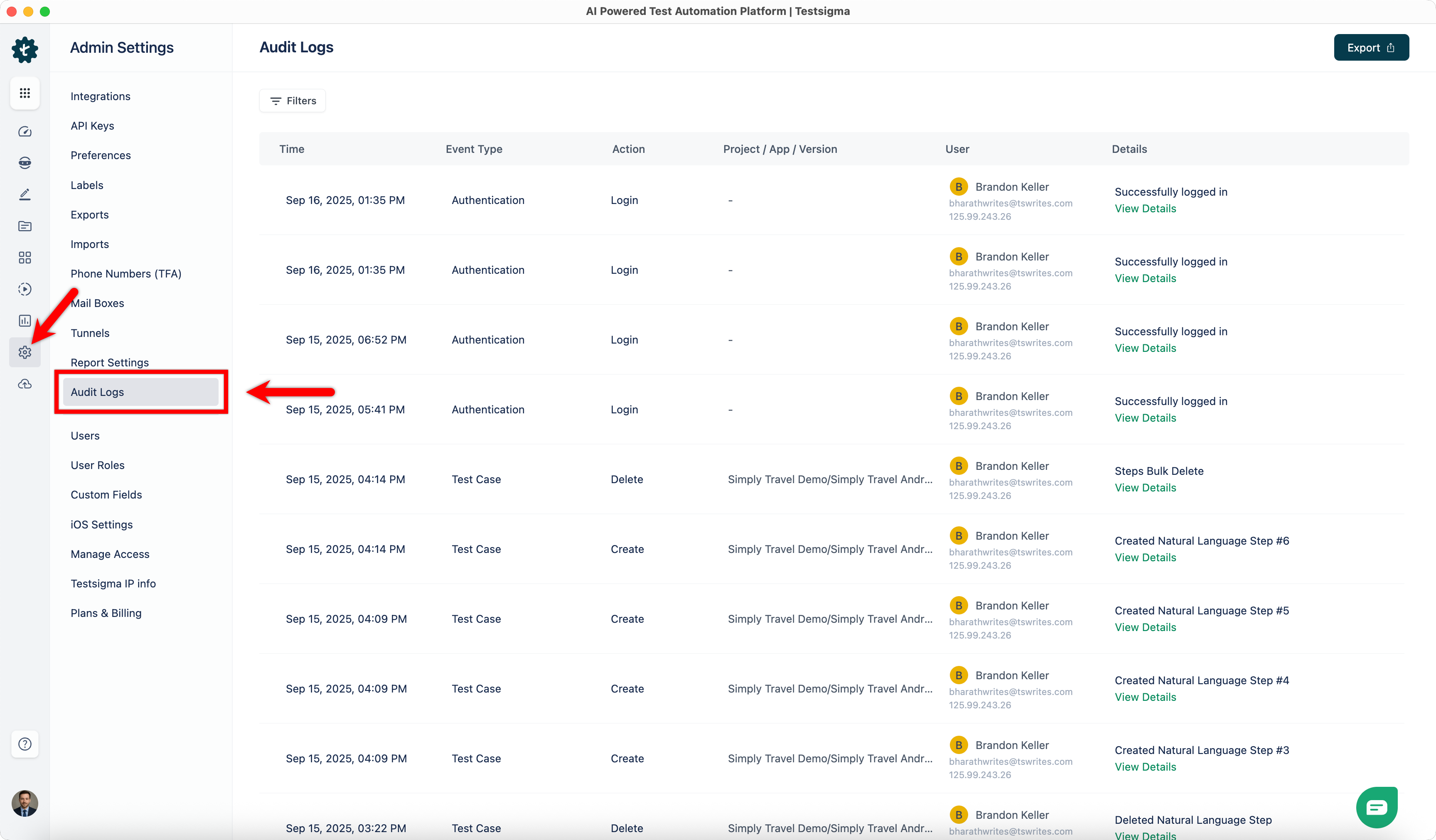
- The Audit Logs page lists all recorded activities.
-
Each log entry includes the following details:
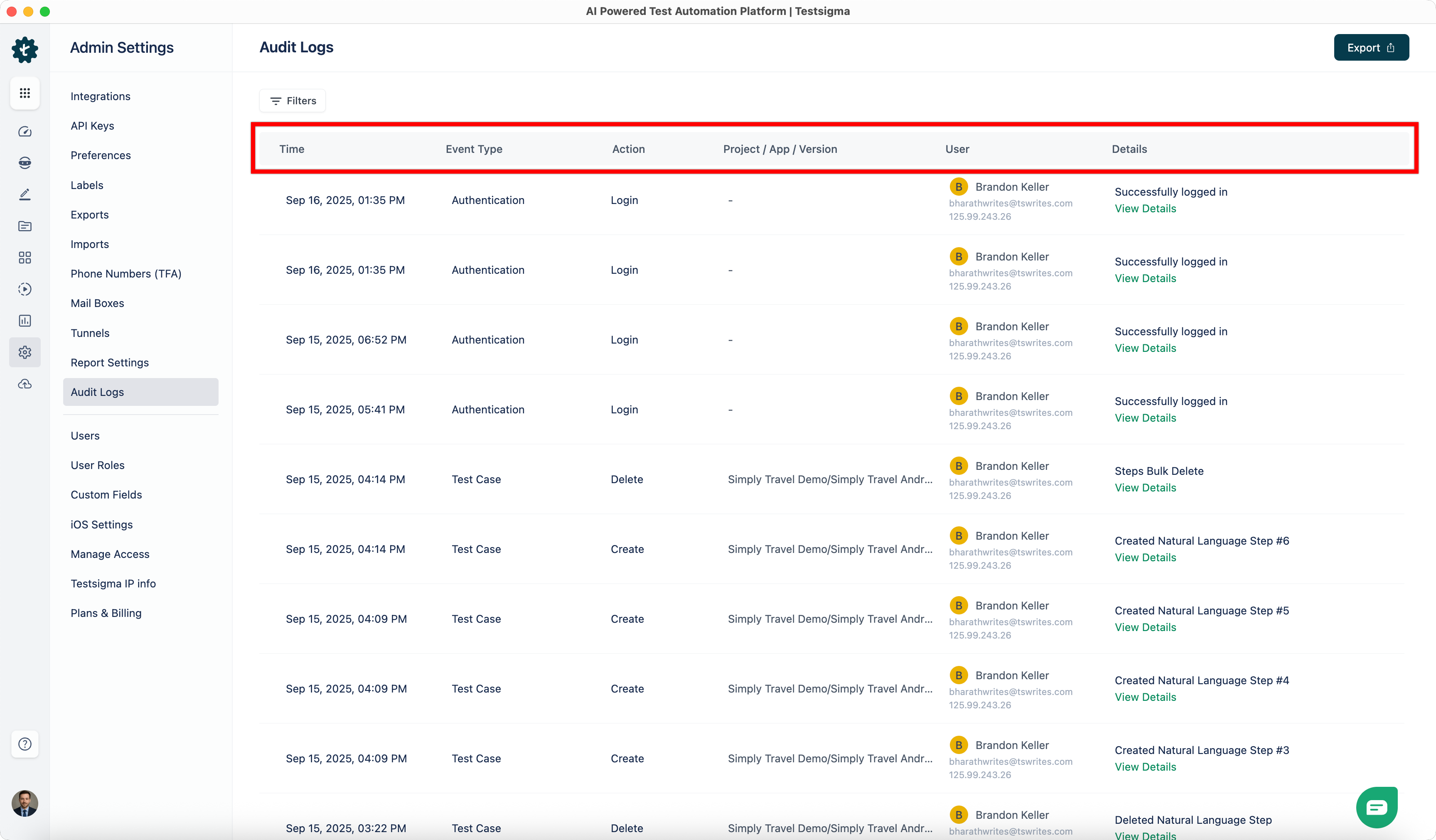
- Time: Date and time when the action occurred.
- Event Type: The entity type in Testsigma (Test Case, Test Suite, Test Plan, Test Data, Element, Environment, REST API Step, Step Group, or Authentication & Access Bridge.).
- Project/App/Version: The project, application, and version where the change was made.
- Action: The action type (Create, Update, Delete, Login, or Logout).
- User: The user who performed the action.
- Details: The fields that were changed, with specific values.
Filter Audit Logs
You can narrow down audit log results using the following filters:
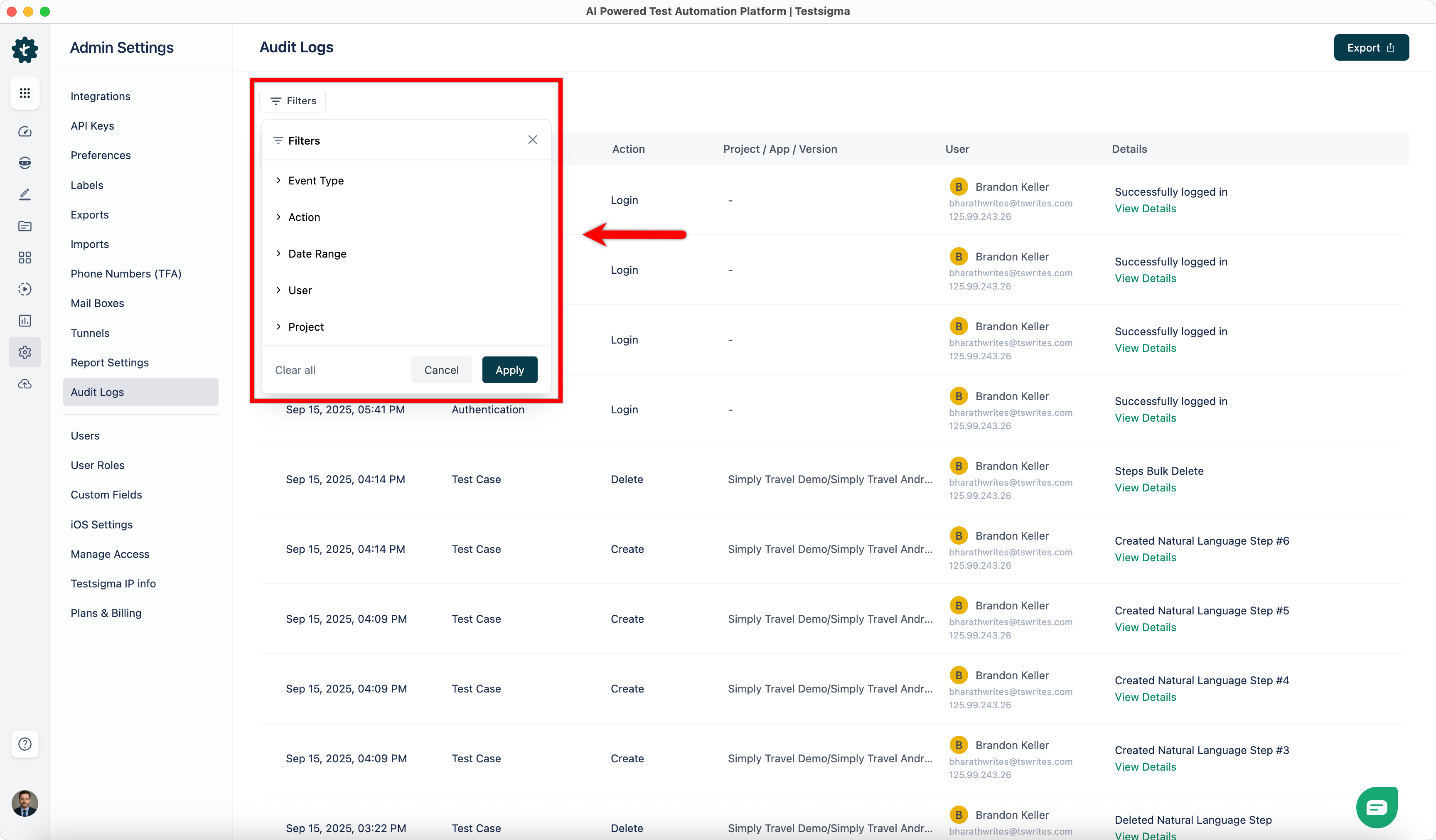
- Event Type: Displays logs for a specific entity, such as Test Case, Test Suite, Test Plan, Test Data, Element, Environment, REST API Step, Step Group, or Authentication & Access Bridge.
- Action: Filters logs by the type of activity performed, such as Create, Update, Delete, Login, or Logout.
- Date Range: Limits results to activities that occurred within a selected time frame. You can choose ranges between From Date & Time and To Date & Time.
- User: Shows activities performed by a specific user in your organization.
- Project: Displays logs for actions within a selected project.
Export Audit Logs
- On the Audit Logs page, apply the required filters.
- In the top-right corner, click Export.
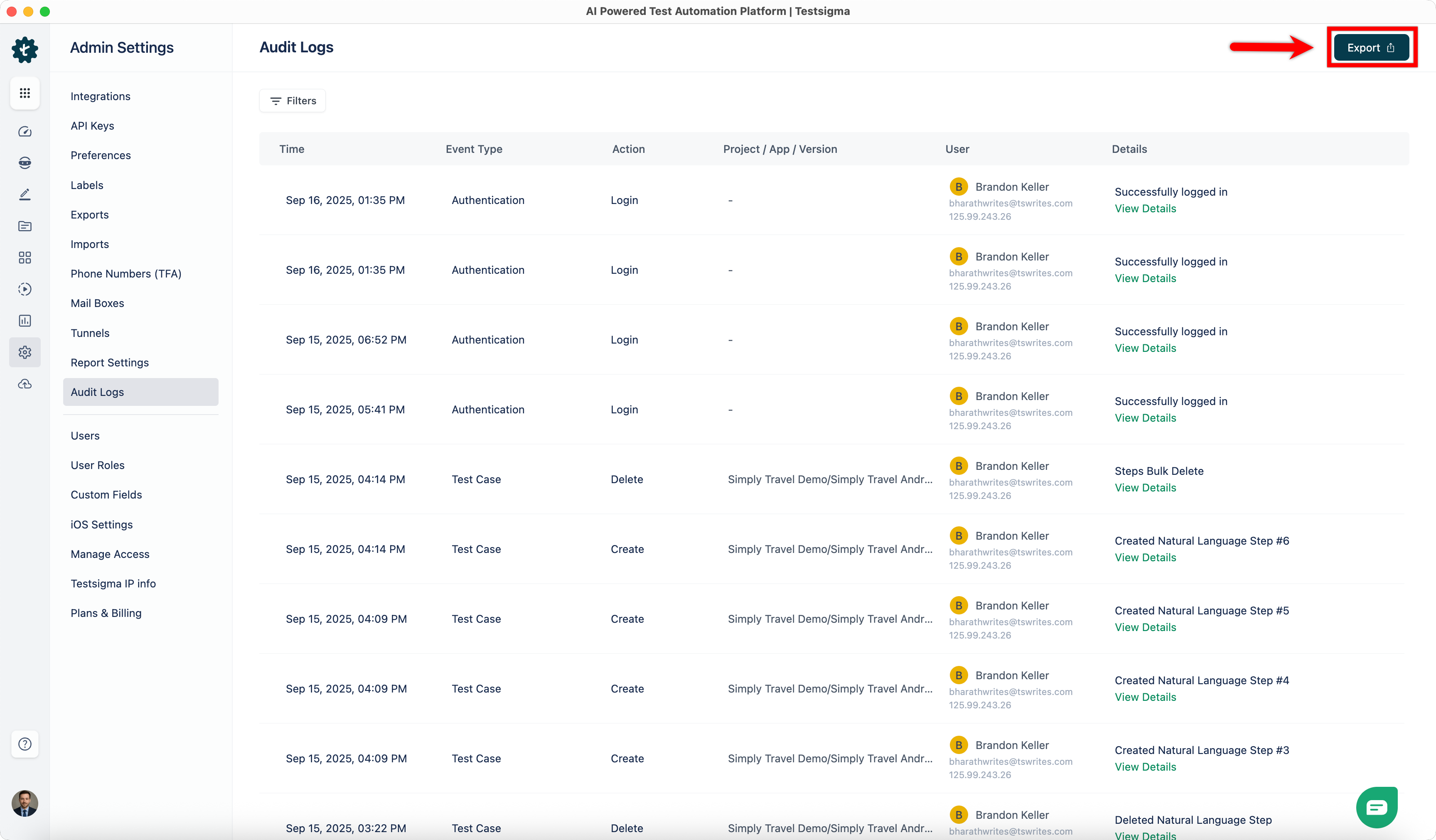
- In the confirmation dialog, click Export. A confirmation message appears indicating that the export has been initiated.
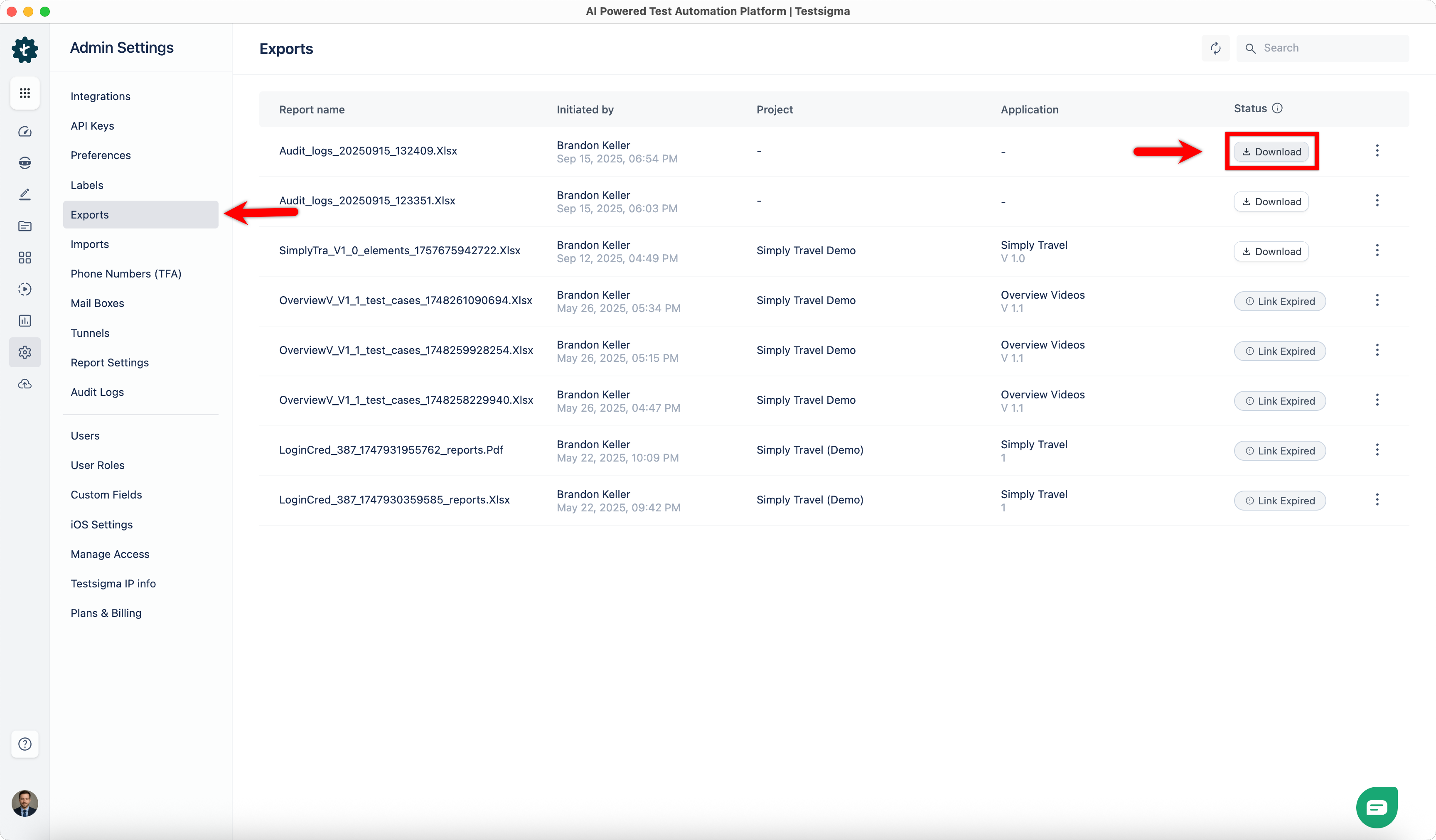
- Once the file is generated, an entry appears in Settings > Exports.
- Go to Settings > Exports.
- On the Exports page, click Download next to the generated audit log report.

Want to contribute or report missing content?