- addons

Addons Overview
An addon is a way to extend Testsigma's built-in repository of actions with custom actions. These actions can be anything from click first, then scroll, click again, scroll indefinitely till the bottom of the page, and so on.
End-to-end testing involves automating a large number of diverse features and functionalities within the Application Under Test (AUT), some of which may be unique to it. Testsigma automates a diverse set of actions via simple English based actions, but sometimes there are unique actions you need to automate in a test. Since it isn't feasible to predict action statements for every scenario beforehand, addons give you a dynamic way to extend Testsigma's built-in actions.
For example, the scroll indefinitely till the bottom of the page action applies to an application with a huge list of items that keeps adding entries as the user scrolls, like Pinterest or an e-commerce site listing products. If your test case involves scrolling to the bottom of the page to verify the copyright, you can create an addon to automate it at scale.
You can use pre-existing addons available in the Community, or create your own and share it with the rest of the test automation community through the Addons Community Marketplace. You can also keep a private repository of addons accessible only to you, handy if your addon has proprietary code for your specific applications.
Addons are engine-specific: Classic applications use Java addons, and Modern applications use TypeScript addons. An addon built for one engine will not appear in an application running on the other. See Addons for Modern Engine and execution engines.
Types of Addons
Both the Classic and Modern engines support all five addon types below. See Addons for Modern Engine for the Modern (TypeScript) equivalents.
- Custom Actions: Testsigma has comprehensive, built-in actions that let you automate most user actions in simple English. But sometimes you may need to automate actions unique to your AUT. You can build your own actions and automate those unique actions using addons. For more information, refer to the documentation on building a custom action in addons.
- Test Data Generator: Testsigma has default data generators to generate test data for your automation. For more information, refer to the documentation on viewing default data generators. But you can also create your own. Refer to the documentation on building a custom data generator.
- Conditional If: You can create an action to execute a sequence of steps if a condition is matched, writing your own logic for the conditional if. Refer to the documentation on adding conditional if actions.
- While Loops: You can create an action to execute a sequence of steps until a condition is matched, writing your own logic for the while loop. Refer to the documentation on adding while actions.
- Post-Plan Hooks: You can define actions that run after a test plan finishes, regardless of its outcome, to automate tasks that need to occur after the test plan finishes. Refer to the documentation on creating a post-plan hook addon.
Prerequisites for Creating an Addon
Creating a Testsigma addon lets you automate non-standard actions easily and at scale. You can use addons created by others and share your own with others through the Addons Community Marketplace. Here's what you need to create an addon, depending on the engine you're building for:
Classic (Java)
- Core Java (Version - OpenJDK 11)
- A modern IDE such as IntelliJ or Eclipse
- Build Tools such as Maven/Gradle
- Selenium Basics
- Lombok Annotations
Modern (TypeScript)
- Node.js 22 or later
- pnpm or npm
- An IDE
- Basic TypeScript
- Modern addon features enabled for your account
See Set up a Modern addon environment for the Modern setup walkthrough.
Addons Community Marketplace
Testsigma provides a Community Marketplace where users can discover and publish addons to enhance their testing experience.
Accessing the Community Marketplace
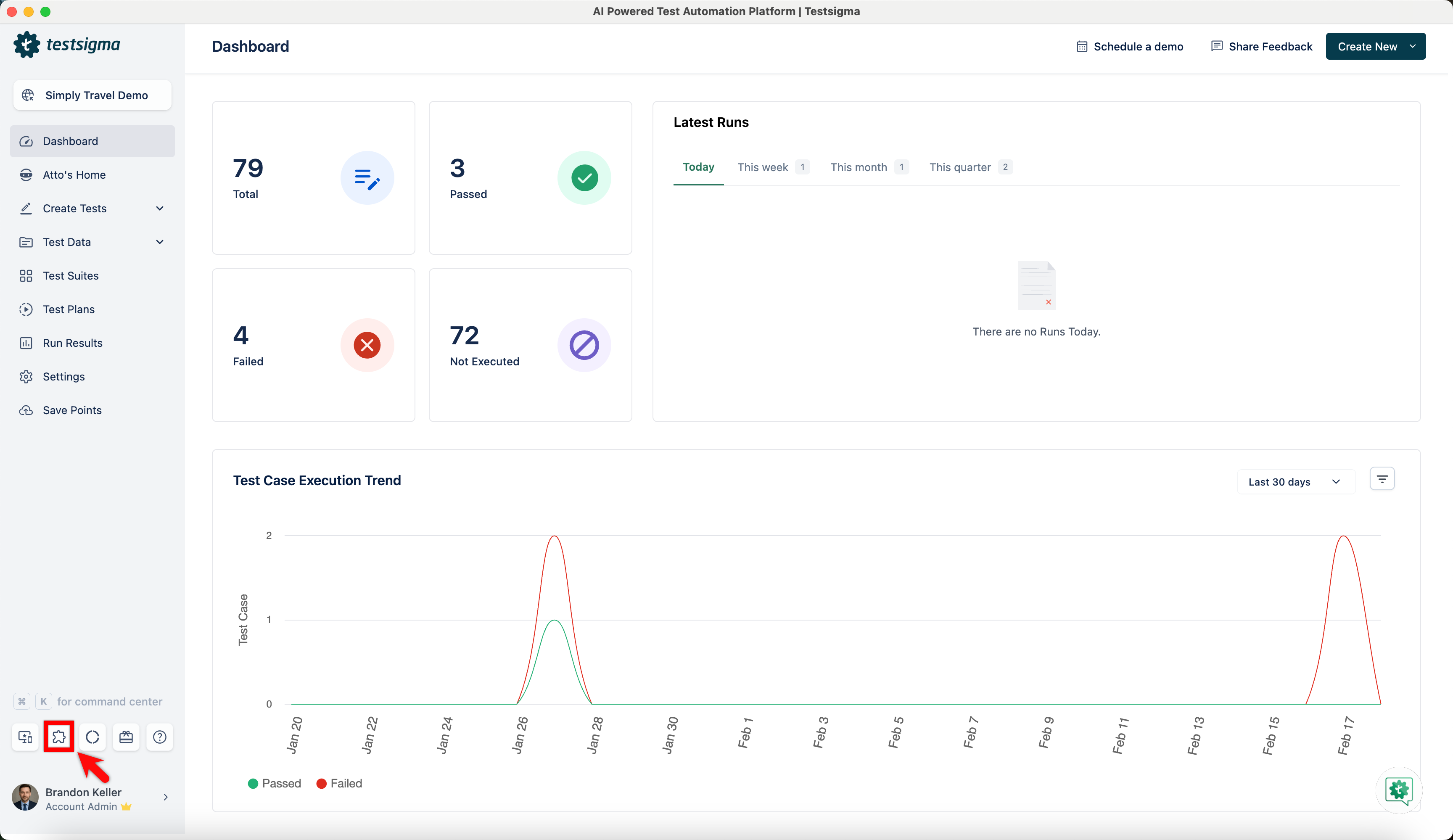
To access the Community Marketplace, click the addons icon in the navigation bar. The marketplace offers a variety of categories to help you find the addons that best meet your needs.
-
Community: Addons published by the community and available to all users.
- Featured: The most popular and top-rated addons.
- New and Updated Addons: Recently added or updated addons.
- Testsigma Addons: Official addons provided by the Testsigma team.
- Installed Addons: Addons that are already installed and activated in your account.
- My Addons: Addons you have created, both public and private.
If you don't find an addon that suits your needs, you can create a new one and publish it to the Marketplace to help other software development engineers in test (SDETs) in the QA Community. For more information, refer to the documentation on creating a Classic addon.
Searching, Sorting, and Filtering Addons
To find a specific addon, use the search bar located below the New Addon button on the marketplace page. You can organize the addon list by:
- Package Name
- Creation Date
- Last Updated Date
Additionally, you can filter the addon by:
- Tag
- Application Type
- Ratings
- Creation Date
- Last Updated Date
These features help you quickly locate the addon that best matches your requirements. 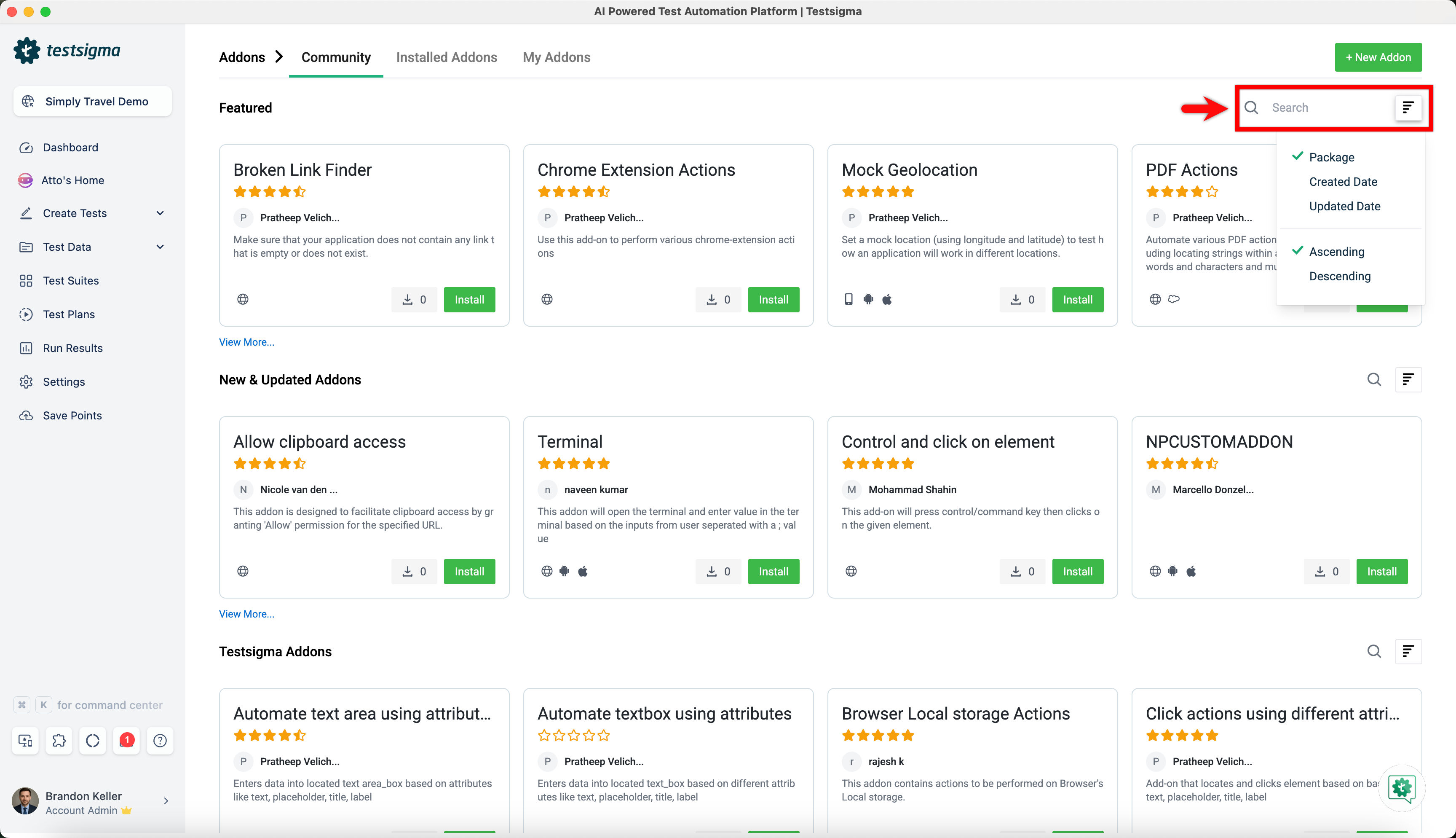
Viewing Addon Details
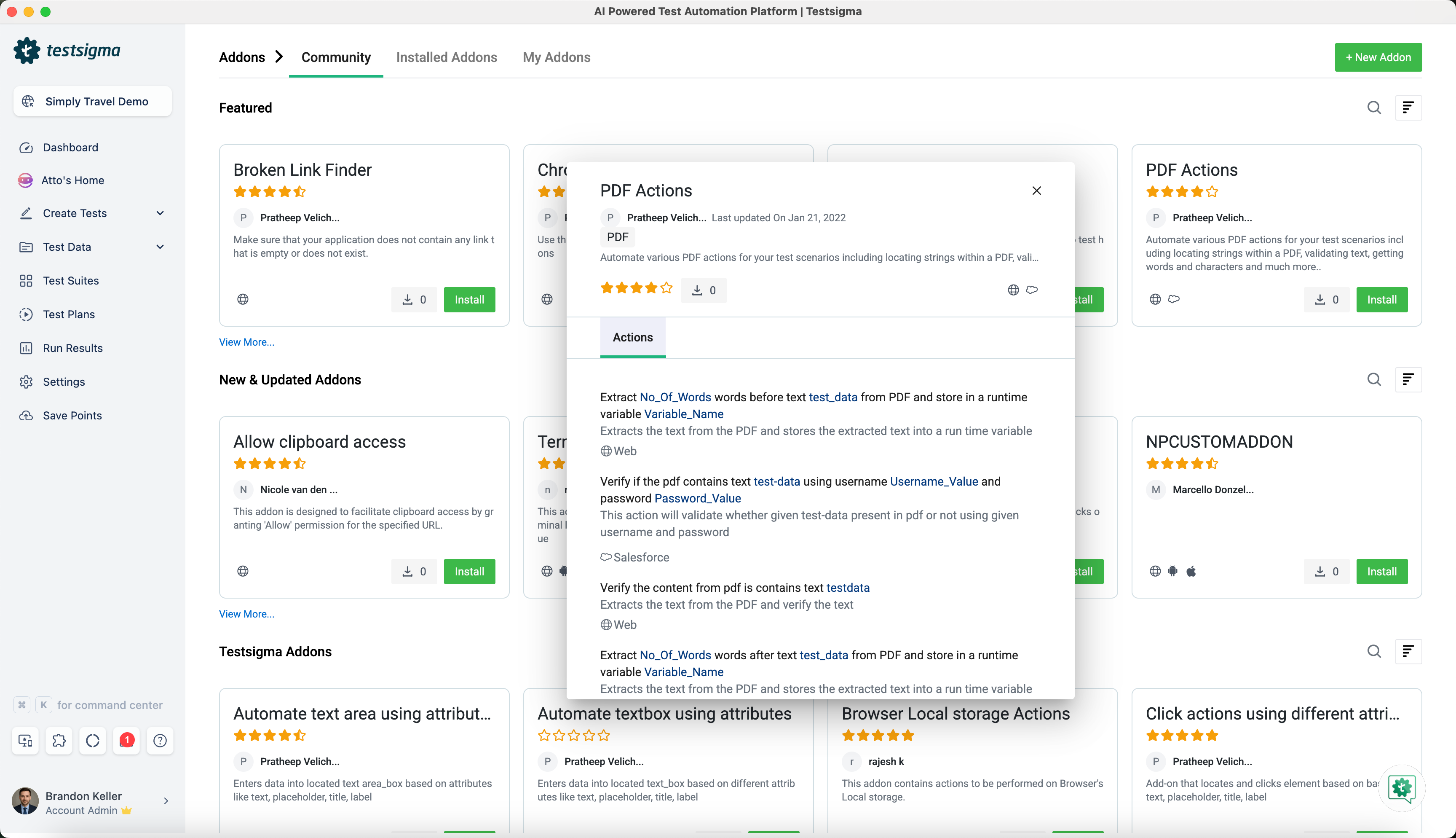
Clicking on an addon in the marketplace opens its details page, where you can find the following information:
- Addon Name
- Download Source Code: A button to download the addon's source code.
- Creator Name: The name of the person who created the addon.
- Creation Date: When the addon was created.
- Addon Description: A brief description of what the addon does.
- Addon Rating: User ratings for the addon.
- Number of Installs: How many times the addon has been installed.
- Supported Application Types: The types of applications compatible with the addon.
- Supported Actions: Actions that can be performed using the addon.
- Data Generators: Data generation features supported by the addon.
Installing and Using a Community Addon
Community addons extend the functionality of your test cases by letting you use pre-built actions created by the community. Addons are engine-specific: an addon built for the Classic engine will not appear in an application running the Modern engine, and vice versa.
Installing a Community Addon
- Click on the Addons icon from the left navigation bar.
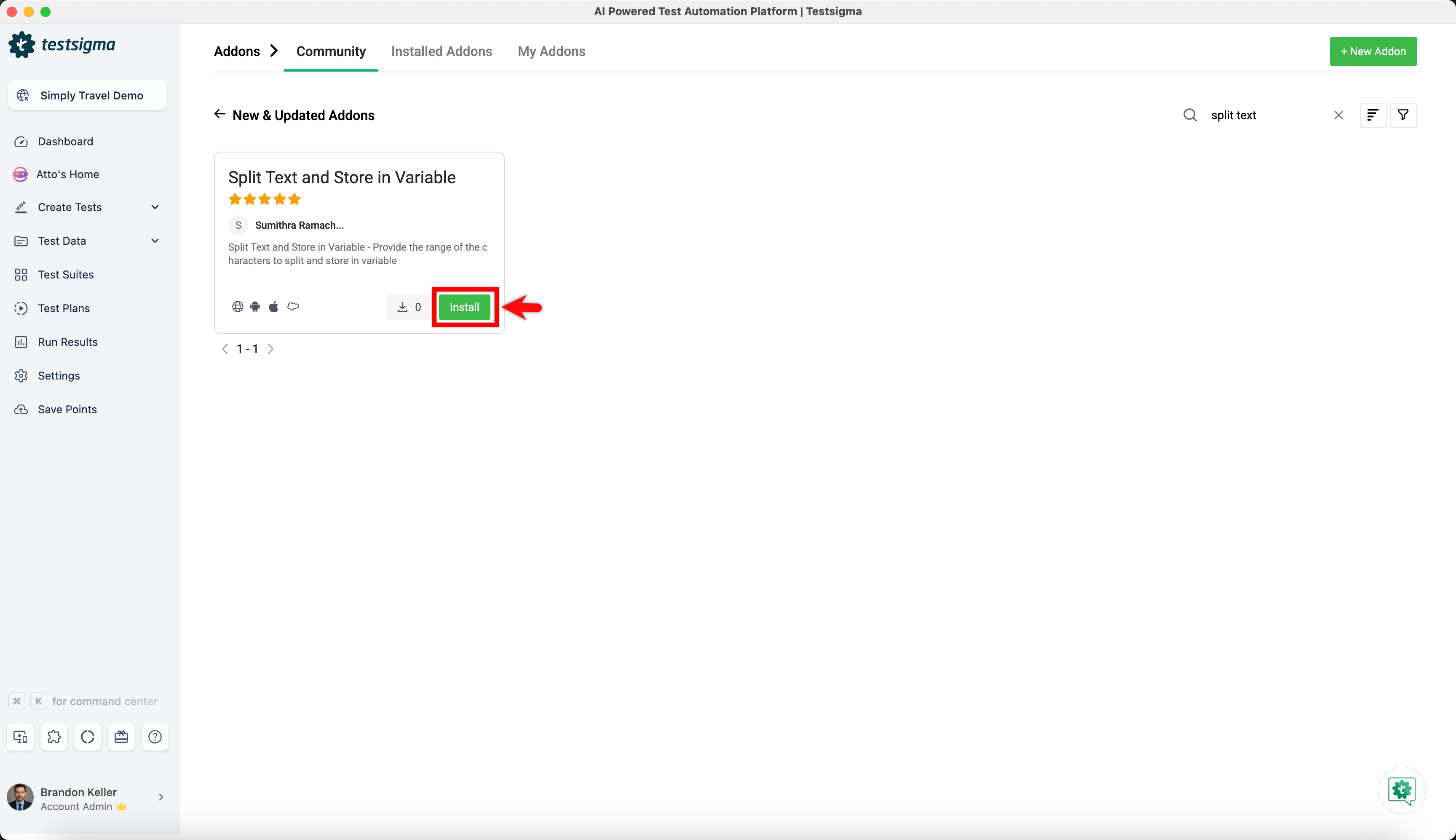
- On the Addon Marketplace page, you'll find a list of all available addons in the Community tab. You can either browse through the list or use the search function to find a specific addon by name or description.
- Click the Install button on the addon you wish to install.
- The addon will be installed and available for use in your test cases after refreshing the page.
Using an Installed Addon
Once you've installed an addon, you can use it in your test cases:
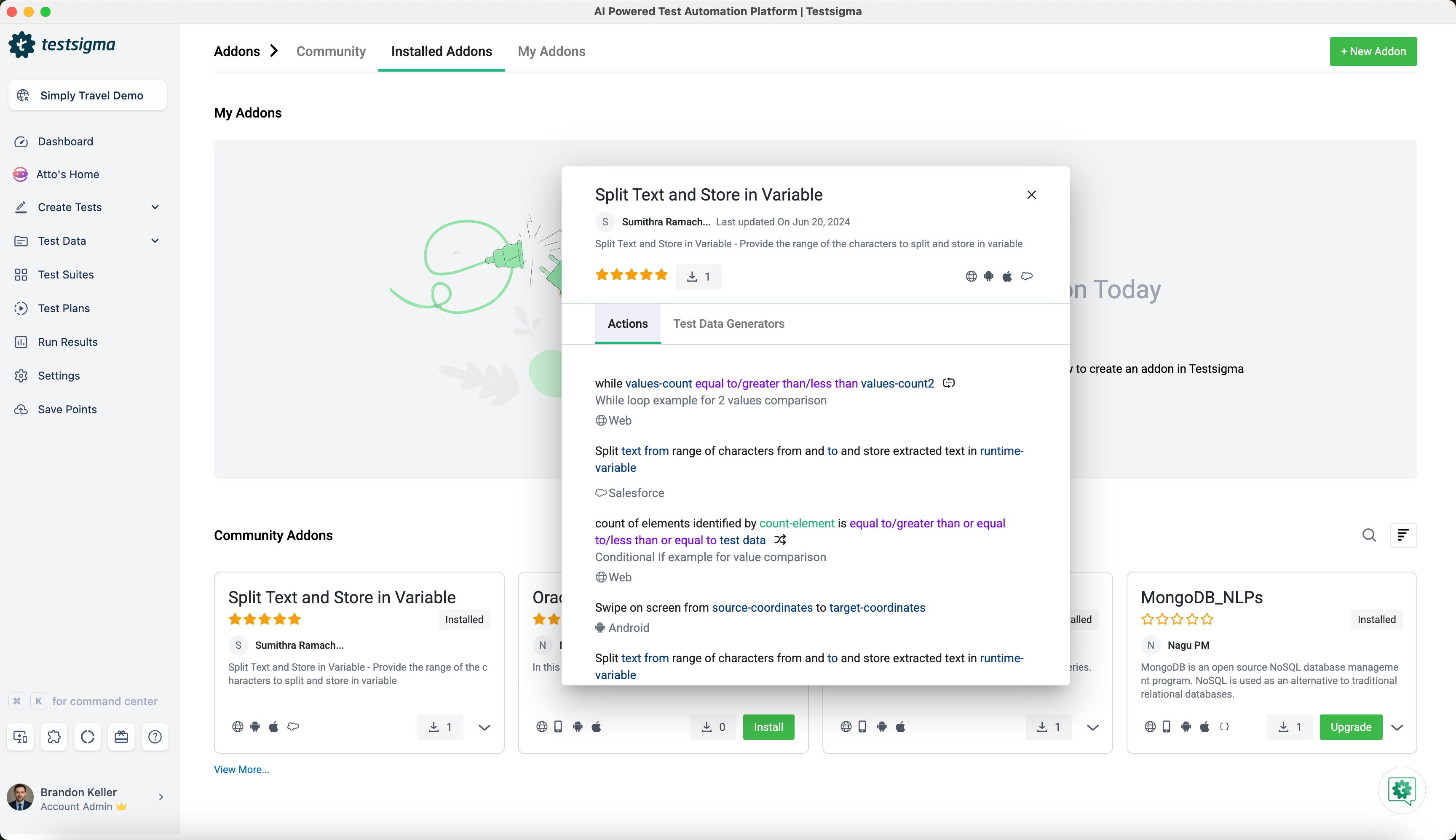
- Go to the Addon page from the Dashboard and switch to the Installed Addon tab.
- Click on the installed addon to view its details. A popup will display the addon's available actions.
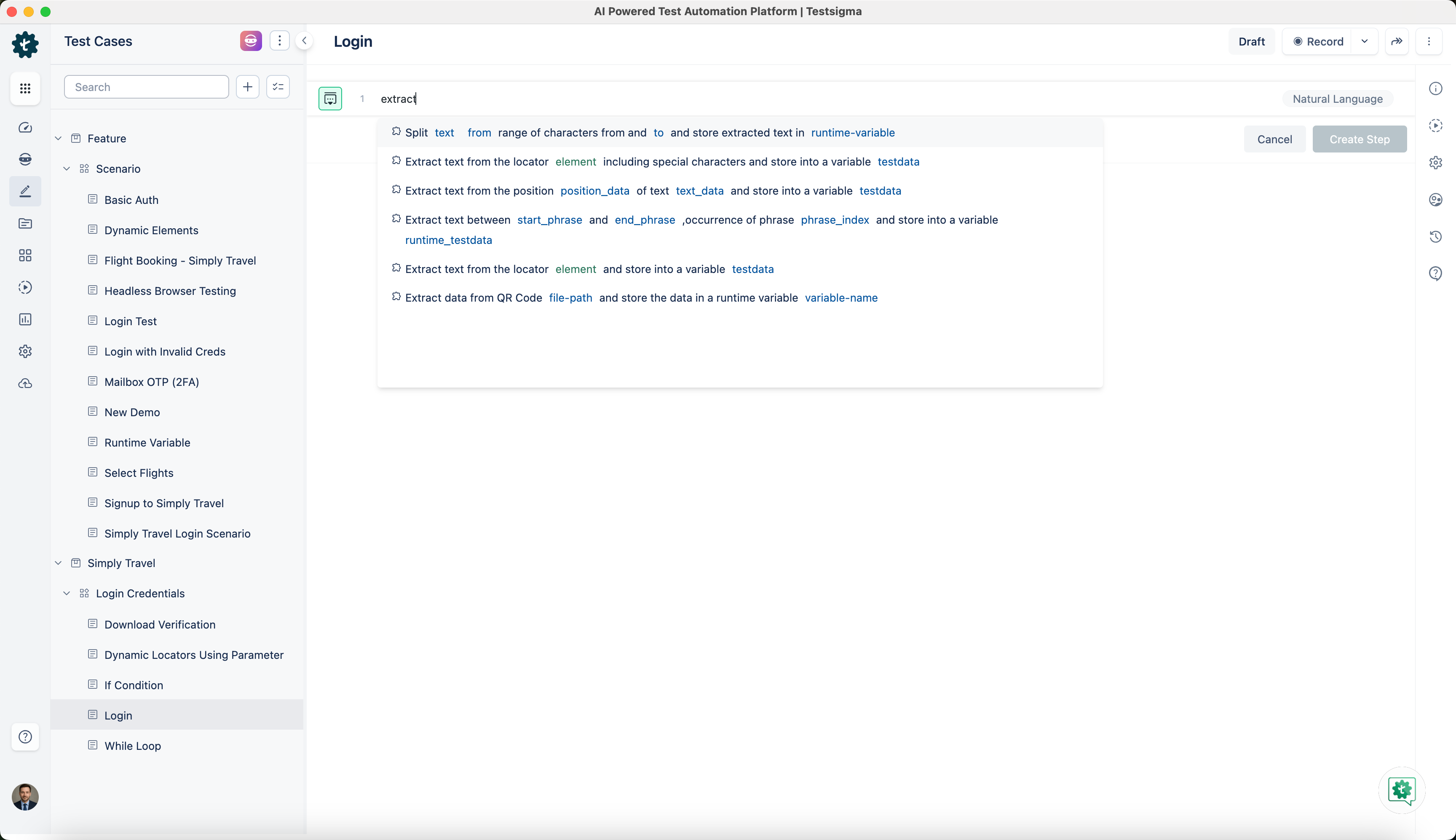
- When authoring a test case, start typing the action related to the installed addon in the test step.
- The action will appear in the suggestions list, and you can select it to include in your test step.
- Refresh the Page: After installing an addon, always refresh the page to ensure the actions become available in your test cases.
- Custom Actions: Installed addons offer custom actions that you can integrate into your test steps, simplifying the test authoring process.

Want to contribute or report missing content?