- create test cases
 Organizing Test Cases in Folders
- Test Cases for Web Applications
- Test Cases for Mobile Applications
- Test Cases for Mobile Web Applications
- Manage Test Cases for Web Applications
- Manage Test Cases for Android & iOS Apps
- Manage Test Cases for Mobile Web Applications
- Test Case List Actions
- Importing Postman Collections and Environments
- Custom Fields for Test Cases
- Label Management
- Update Test Case Result in a Test Plan
- Test Case: Advanced Options Guide
- Test Step Types
- Type: Natural Language
- Type: REST API
- Type: Step Group
- Type: For Loop
- Type: While Loop
- Type: Block
- Type: If Condition
- Nested Step Groups
- Image Injection
- Cross-application testing
Test Case: Advanced Options Guide
The Advanced Options in Testsigma are accessible via the right-side navbar on the Test Case Details page. They help with better management of test cases, test suite grouping, and improving test coverage visibility. This guide discusses how to access a test case's advanced options.
Prerequisites
Before using Advanced Options, ensure the following:
- You have an existing Test Case.
- You have the necessary permissions to edit and configure test cases.
Test Case – Advanced Options
1. Test Case Info
Click Test Case Info in the right-side navbar to:
- Update the Test Case Name and Description.
- View information about the test case's creation date and last updated timestamp.
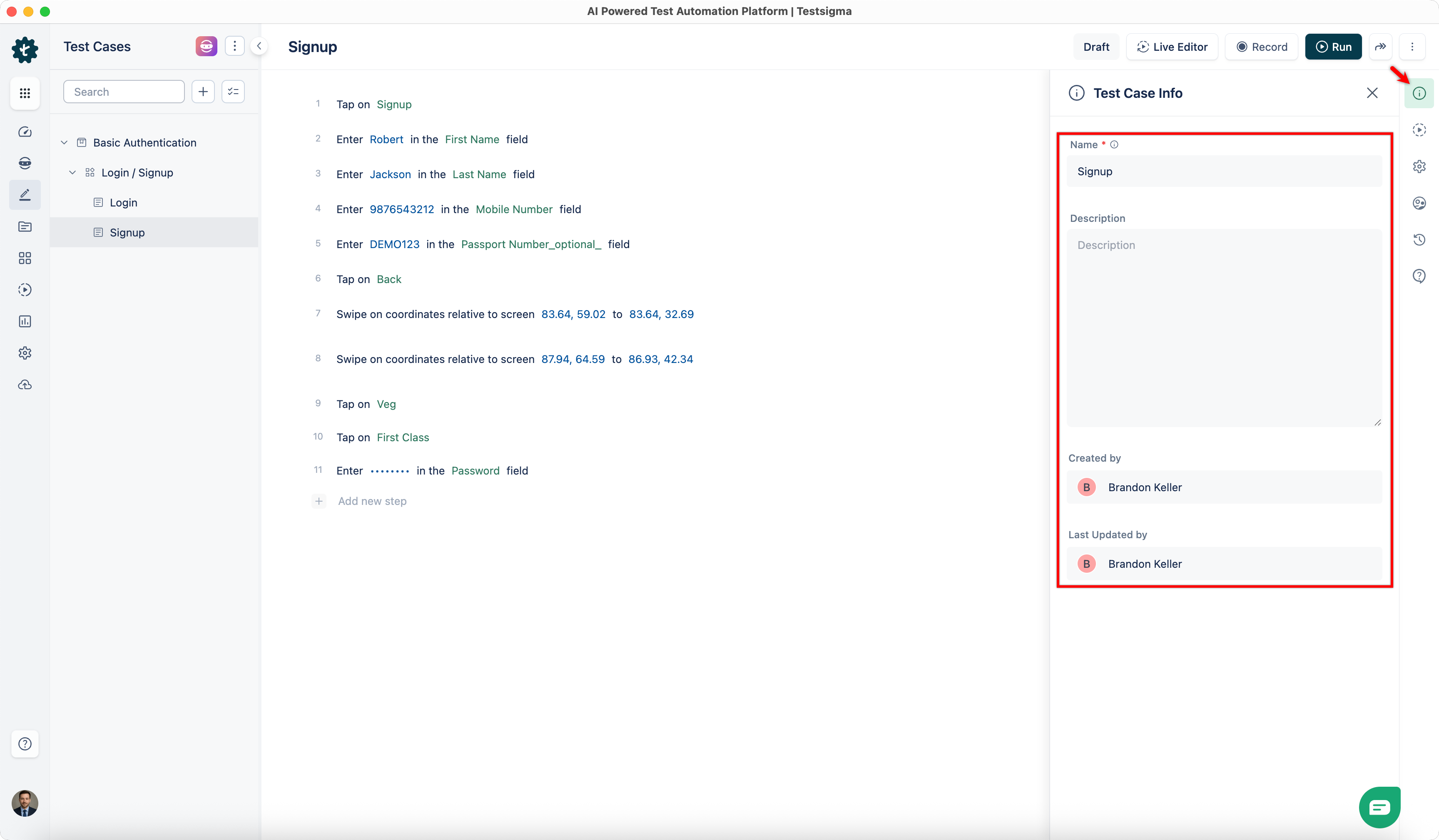
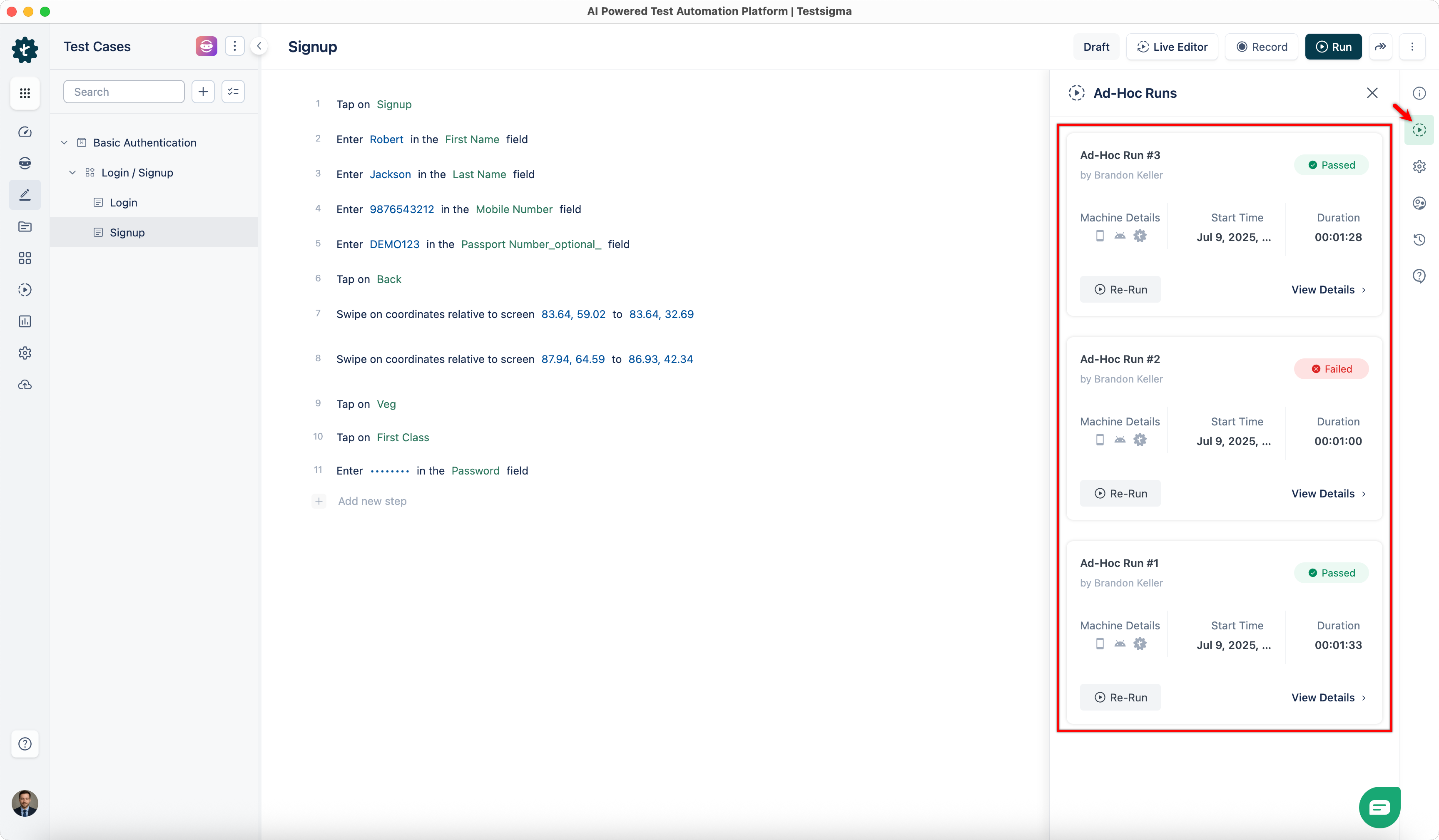
2. Ad-Hoc Runs
Click Ad-Hoc Runs in the right-side navbar to view the history and details of Ad-Hoc Run results for the test case.
3. Test Case Settings
Click Test Case Settings in the right-side navbar to configure the following:
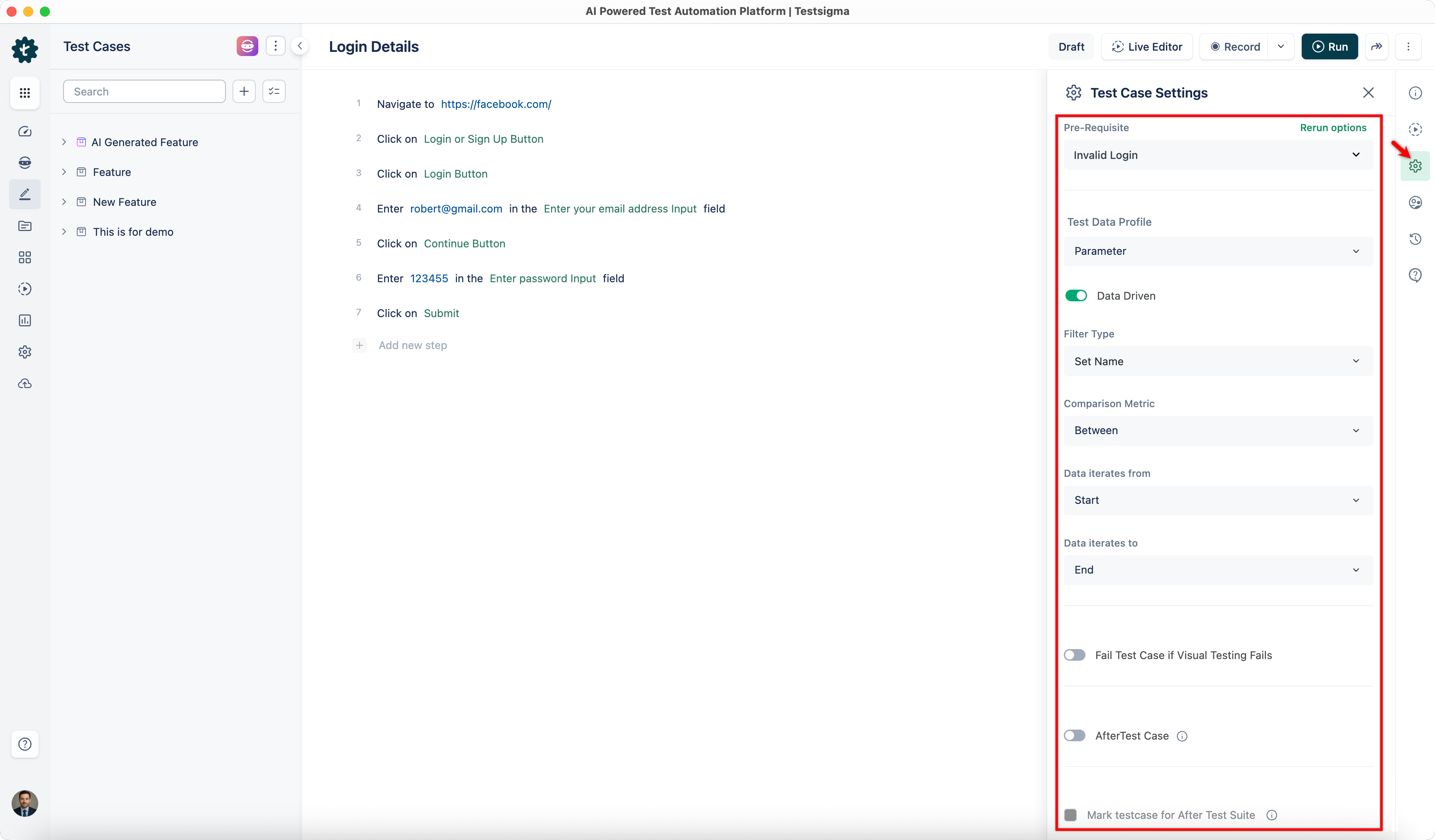
Pre-Requisites
Pre-requisites define any necessary conditions or steps that must be completed before executing a test case, ensuring the test environment is properly set up.
Pre-requisite Execution Options
When executing a test case with pre-requisites, you can choose one of the following execution options:
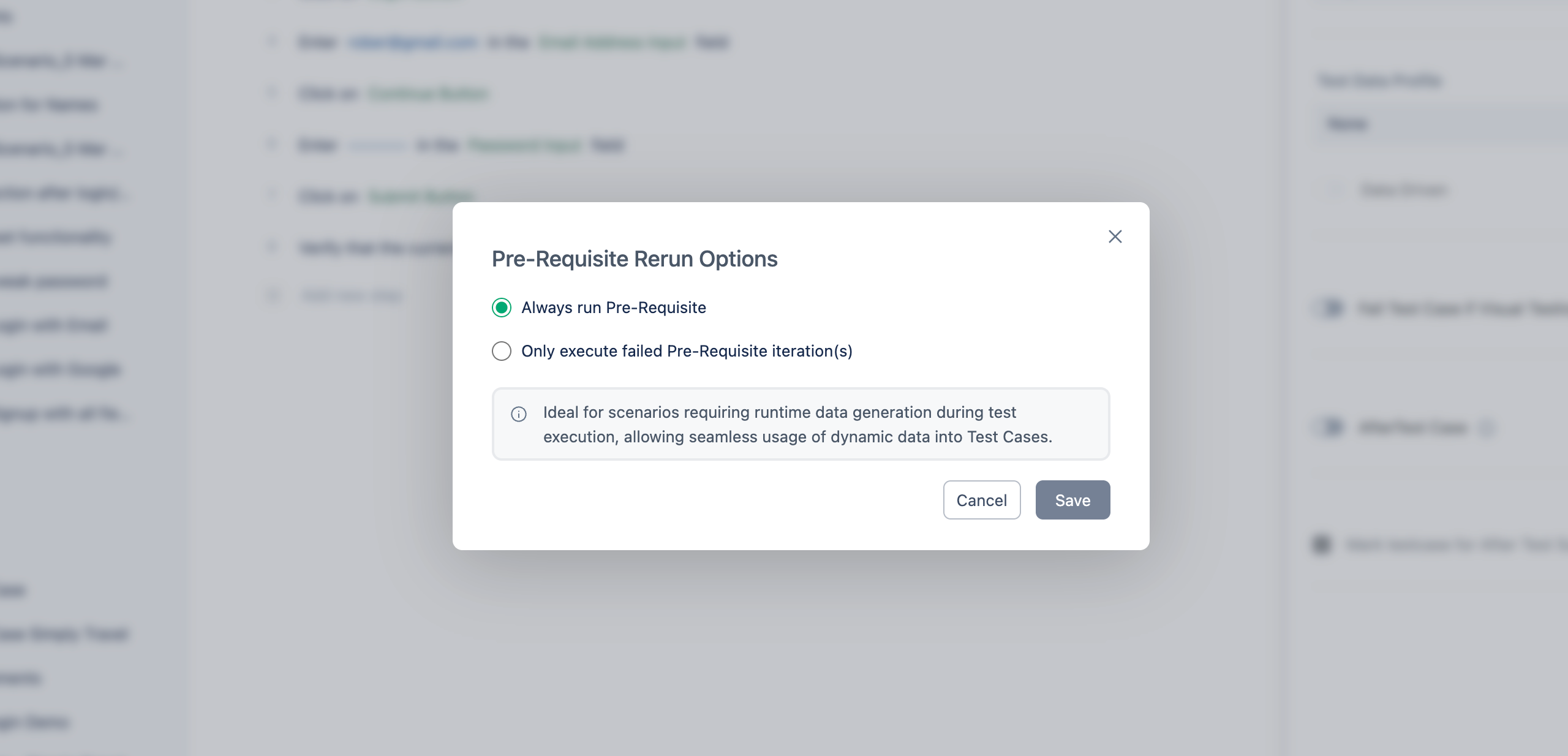
- Always run Pre-requisite – Executes the pre-requisite test case every time the associated test case runs. Useful for scenarios requiring runtime or dynamic data generation.
- Only execute failed Pre-requisite iteration(s) – Reruns only the failed iterations of the pre-requisite. Passed iterations are skipped. Useful when setup is required only once or when rerunning only failed parts improves efficiency.
For a data-driven test case with 4 iterations where Iteration 1 and 3 failed, and Iteration 2 and 4 passed — selecting the second option will rerun only Iterations 1 and 3. Choose the option based on the test case requirement and expected execution behavior.
Test Data Profile
If parameter-type test data is used in test steps, select the appropriate Test Data Profile here. Refer to the documentation on creating test data profiles for more details.
Test Data Set
Specify the data set within the selected Test Data Profile to be used in the test case.
Data-Driven (Toggle)
Enable this toggle to repeatedly run the same test case with different input data sets from a Test Data Profile. Once enabled, you can customise data sets using the following filters:
- Iteration – Filter sequential data sets using greater than, less than, or between operations.
- Set Name – Filter non-sequential data sets by name using operations such as between, equals, contains, starts with, and ends with.
- Parameter – Filter non-sequential data sets using parameters within the data sets.
Fail Test Case if Visual Testing Fails
Enable this option to automatically mark a test case as failed if any visual discrepancies are detected during execution, ensuring UI accuracy and consistency across environments.
After Test Case
Define custom steps or tasks to be performed after the test case executes (e.g., clean-up or preparation for subsequent test cases).
- If After Test Fails – Fail the Test Case: Automatically fails the test case if any post-test actions encounter an error.
- If After Test Fails – Show Test Case Result: Displays the test case result even if after-test actions fail, providing complete visibility into test behaviour.
Mark this for AfterTest Suite
Marks the test case to execute as part of the clean-up or finalisation process after a test suite completes, helping maintain the test environment.
4. Manage Test Case
Click Manage Test Case in the right-side navbar to configure the following:
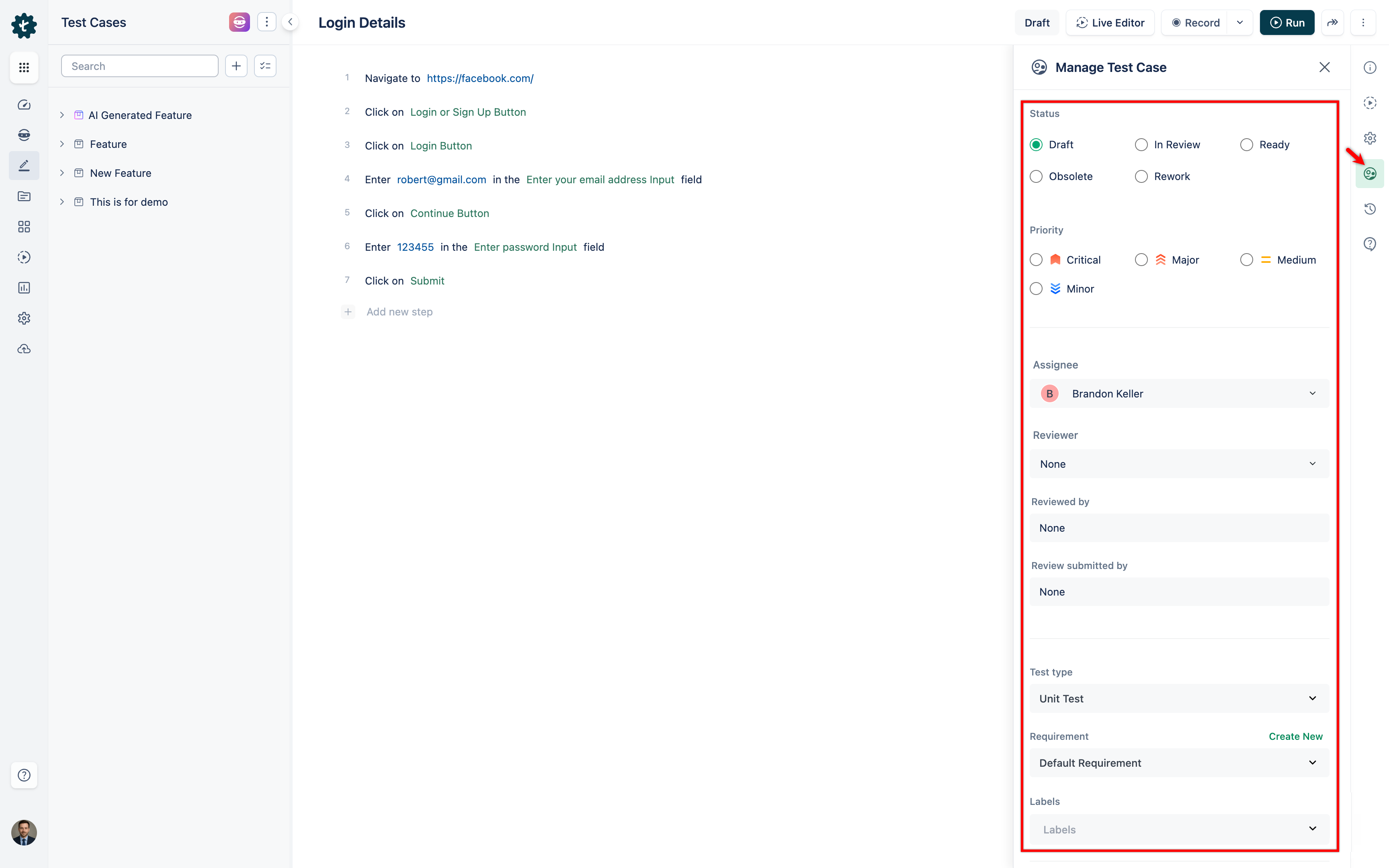
Status
- Draft – The test case is in an abstract/work-in-progress mode.
- Review – The test case is under inspection.
- Ready – The test case is active and ready to be executed.
- Obsolete – The test case is no longer valid.
- Rework – The test case needs to be updated.
Priority
- Critical – Highest priority.
- Major – Test case for a major feature.
- Medium – Medium priority.
- Minor – Test case for a minor feature.
Assignee
Choose a team member to assign to the test case. The assignee will receive notifications regarding test case failures during reviews.
Reviewer
Assign a team member to review the test case for accuracy, completeness, and adherence to testing standards.
Test Type
- Unit Test – Tests individual components in isolation.
- Integration – Tests interaction and compatibility between multiple components.
- Functional – Tests functional requirements against intended specifications.
- Non-functional – Tests performance, usability, security, and similar aspects.
- User Experience – Tests overall usability and interface against user expectations.
Requirement
Create new requirements and associate them with test cases to establish traceability, ensuring all necessary functionalities are adequately tested.
Labels
Apply labels to categorise test cases based on attributes such as modules, components, or testing phases. Labels facilitate efficient filtering and searching.
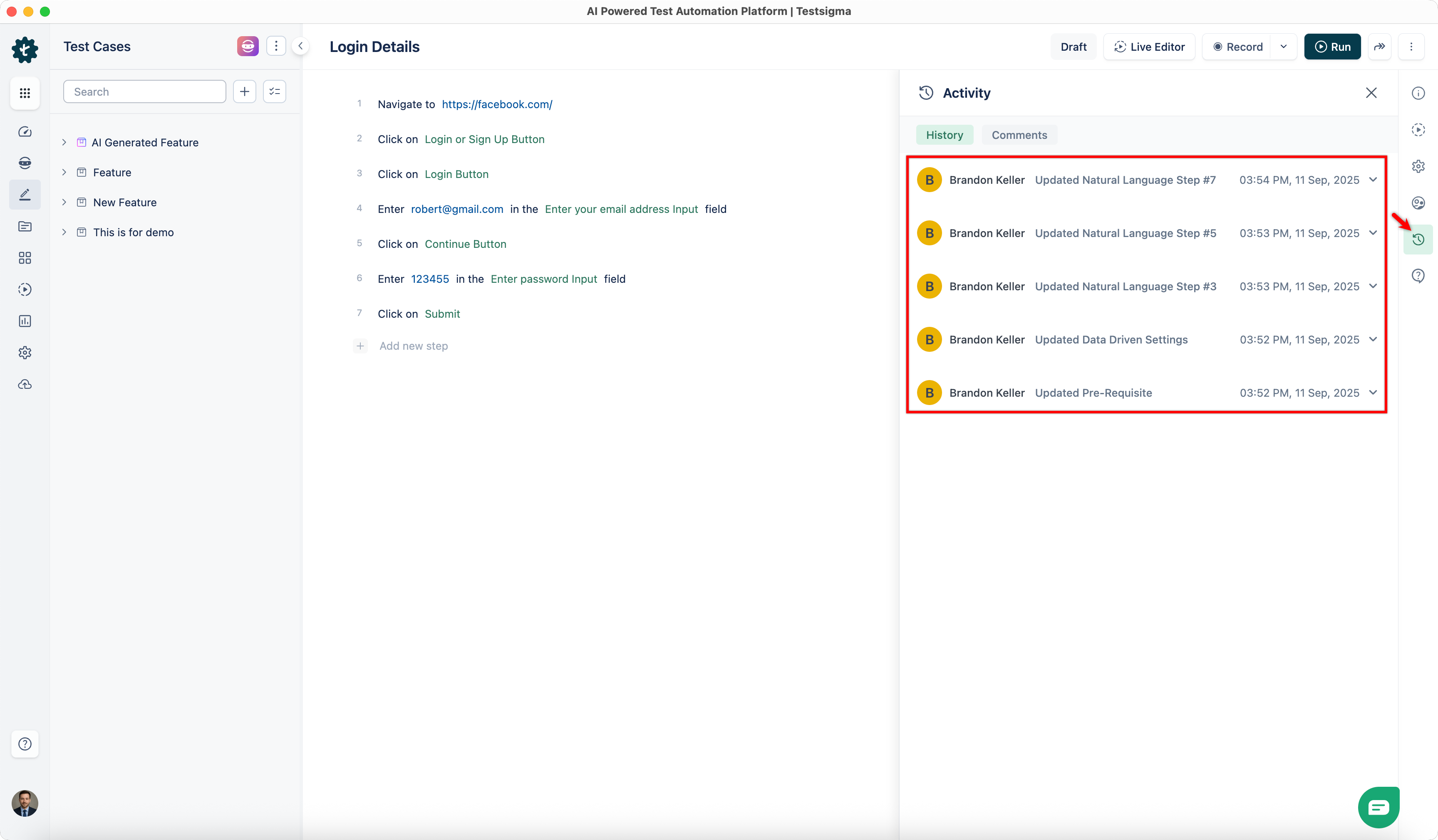
5. Activity
Click Activity in the right-side navbar to view the History and Comments associated with the test case.
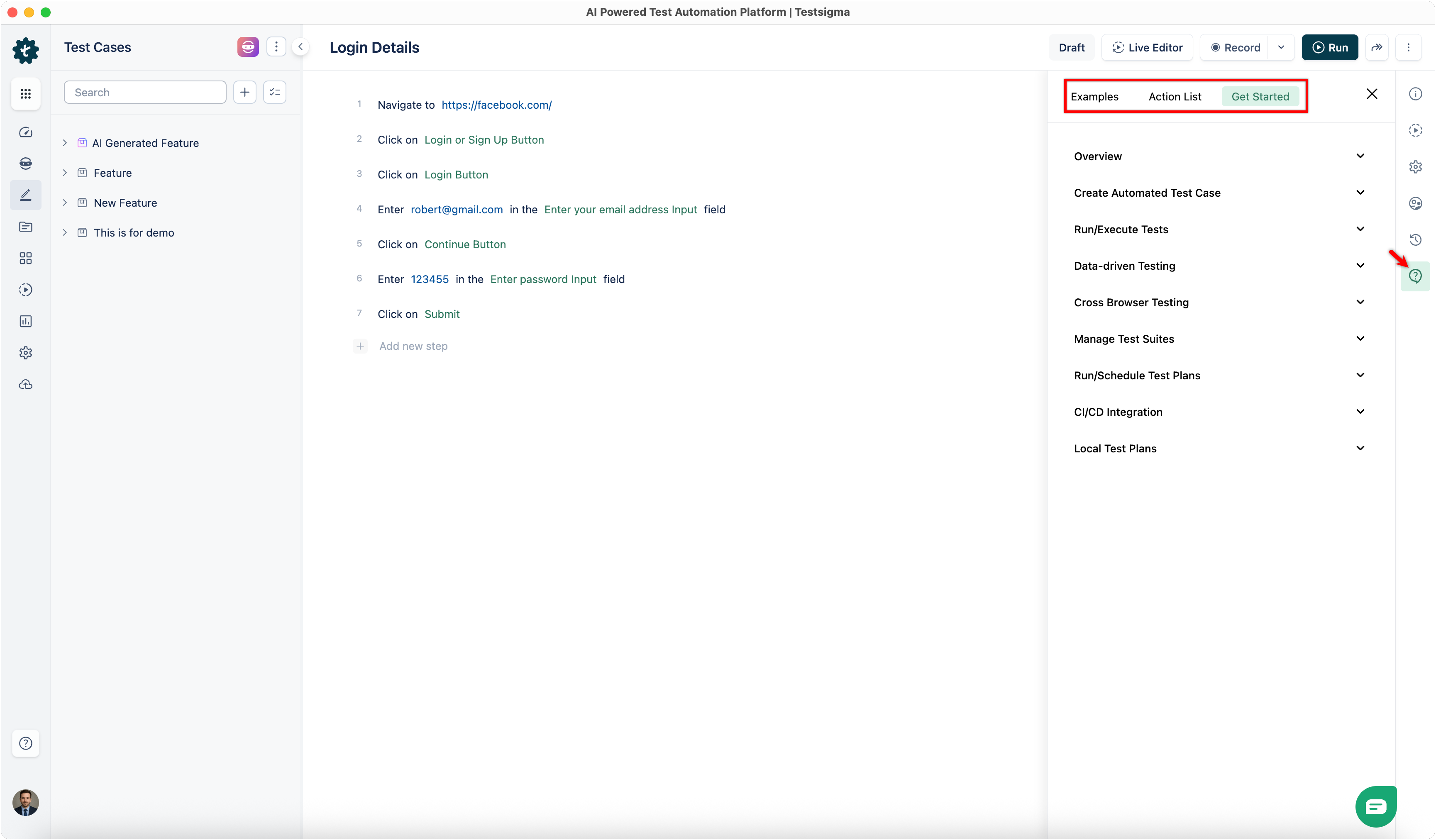
6. Help
Click Help in the right-side navbar to access Examples, the Action List, and Get Started guides for a general understanding of test cases.

Want to contribute or report missing content?