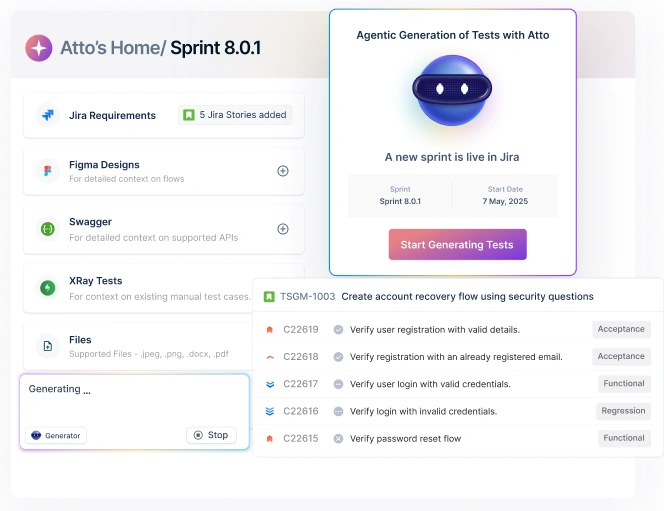



The Amazon Shopping Cart is basically Amazon’s checkout and payment process. When users add items to a shopping cart, they expect the workflow to be simple, accurate, and fast. Customers will quickly abandon the checkout process if anywhere in the flow it appears to not function or be overly complicated.

What are the different types of test cases in Amazon Shopping Cart?
While performing test cases for Amazon Shopping Cart, always make sure to cover all the following types:
– Functional Test Cases
– Usability Test Cases
– User Interface Test Cases
– Boundary Conditions Test Cases
Why should you use Test Management by Testsigma to generate test cases for Amazon Shopping Cart?
Generating test cases for Amazon Shopping Cart using Test Management by Testsigma is a seamless, no-code process that enables you to write, organize, and execute tests effortlessly.
When testing the Amazon shopping cart, remember to include testing the workflow on a variety of devices and browser platforms. If your application includes a mobile app, then be sure to include tests for both web and mobile workflows. Be sure to include integration testing to cover APIs and data transfers as well as any third-party applications for payment processing.
Table Of Contents
- 1 What are test cases in Amazon shopping cart?
- 1.1 Positive Test Cases For Shopping Cart
- 1.2 Negative Test Cases For Shopping Cart
- 1.3 Test Cases For Amazon Shopping Cart
- 1.4 Single Product Add To Cart
- 1.5 Multiple Products Add To Cart
- 1.6 Edit Quantity Validation Cart
- 1.7 Edit Quantity Cart Boundary Value
- 1.8 Cart – Backend Sync Validation of Shopping Cart Page
- 1.9 Single Product Remove From Cart
- 1.10 Multiple Products Remove From Cart
- 1.11 Buy Now Option of Shopping Cart Page
- 1.12 Guest Checkout of Shopping Cart Page
- 1.13 Registered Check Out of Shopping Cart Page
- 1.14 Check Out Mandatory Field Validation
- 1.15 Product Title Max String Length in Shopping Cart
- 1.16 Delivery Location Warning
- 1.17 Order Confirmation Msg OrderId Validation
- 1.18 Order Confirmation Msg Links Validation
- 1.19 Click To Call Validation
- 1.20 Gift Coupon
- 1.21 Product Checkout Based On Quantity
- 1.22 Payment Options of Shopping Cart
- 1.23 COD Pages for Shopping Cart:
- 1.24 Validate Unavailability Of COD for Expensive items – Multiple Products.
- 1.25 Payment Mode Check
- 1.26 Across Platform Cart Update
- 2 Types of Test Cases For Amazon Shopping Cart & Checkout:
- 3 How to Generate Test Cases for Amazon Shopping Cart & Checkout Using Test Management by Testsigma?
- 4 Conclusion
What Are Test Cases in Amazon Shopping Cart?
Test cases for Amazon Shopping Cart or test cases for Amazon website include verifying the checkout function works as expected. When performing test cases for Amazon shopping cart, you’ll want to include a variety of functional, UI, security, integration, and cross-browser/device testing.
Positive Test Cases for Shopping Cart
Create a set of positive tests cases that verify the user can successfully perform the following actions:
- Select a product and add it to the shopping cart.
- Apply coupon code or promotional code.
- Select the delivery date.
- View the final order details including cost, and number of each product ordered.
- Process a form of payment and confirm on accept, the user can finalize the order by clicking to Complete Order.
Essentially, you are walking through the checkout process from end to end, ensuring the application functions as expected. Many testers refer to positive test cases as testing the “happy path.”
Negative Test Cases for Shopping Cart
Negative shopping cart test cases help to ensure there are no defects hiding within the process outside of the happy path. For example, negative tests verify errors appear when expected and can be managed by the user. Additionally, negative tests identify defects when users get creative or veer from the expected workflow.
Negative test cases for Amazon website checkout process include:
- User entering an invalid credit card number
- User entering an invalid credit card expiration date or code
- User trying to use an invalid promotional code or invalid gift card number
- User trying to manipulate the payment system to skip payment and process the order
- User able to add items and change pricing to 0 (zero)
Test Cases for Amazon Shopping Cart
Functional test cases for the Amazon Shopping cart ensure users can complete the purchase or checkout workflow. Starting by adding products to the cart, editing quantities, removing cart items or saving them for later, and ensuring all required fields are populated with valid data before the order is processed or completed.
Single Product Add to Cart
- Search Amazon using the main search tool, and select a product. Verify the product page includes the Add to Cart functionality.
- Go to your Orders page, and click to the order again option on a product. Verify the product is added to your cart.
- Select a product from the main page ad presentation. Click the Add to Cart button for a one time order. Verify the product is added to your cart.
Multiple Products Add to Cart
- Search Amazon using the main search tool, and select 3 different products. Verify each product page includes the Add to Cart functionality.
- Go to your Orders page, and click to the order again option on at least 3 products. Verify the products are added to your cart.
- Select at least 3 products from the main page ad presentation. Click the Add to Cart button for each as a one time order. Verify the products are added to your cart.
Edit Quantity Validation Cart
- Click on the Amazon shopping cart icon in the upper right of the page.
- Select a product and update the quantity to order 2.
- Refresh and verify the price is updated.
- From the Shopping cart page, update the quantity on each order by 2 or more.
- Then, choose a product and reduce the quantity.
- Refresh the page and verify the edits are accurate.
Edit Quantity Cart Boundary Value
- Click on the Amazon shopping cart icon in the upper right of the page.
- Select a product and update the quantity to order 0.
- Refresh and verify the product is removed from the cart.
- From the Shopping cart page, select the quantity field and enter the following values in turn:
- Zero
- Null
- 1
- 50
- 100
- 999
- 9999999 or maximum number of characters allowed in the field.
- Verify the system errors on invalid values.
- Verify the system updates the quantity and price on valid values.
Cart – Backend Sync Validation of Shopping Cart Page
- Verify when the user removes items or updates the quantity to 1+, the page updates as expected.
- Click on a product in the cart and verify the system takes you to that product’s main page.
- If testing in a browser, open the Developer Tools in the Shopping Cart page. Process a valid order checkout, and view the Console and Network tabs for any errors.
- If you have access to the Shopping cart API, create a test to verify the shopping cart checkout process adds/processes data from the API as expected. If you don’t have access to the API, ask a developer for assistance.
Single Product Remove From Cart
- Select the Shopping cart icon.
- Select a single item and click the Delete link.
- Click to confirm deleting the item from the cart.
- Verify the item is removed from display and from the final cost.
- From the Shopping cart page:
- Select an order.
- Select the Save for Later link.
- Verify the item is removed from display and from the final cost.
- Verify the item appears in the Saved for Later list, accessed by scrolling down.
Multiple Products Remove From Cart
- Select the Shopping cart icon.
- Select one or more items and click the Delete link.
- Click to confirm deleting the item from the cart.
- Verify the items are removed from display and from the final cost.
- From the Shopping cart page:
- Select one or more order items.
- Select the Save for Later link on each.
- Verify the items are removed from display and from the final cost.
- Verify each item appears in the Saved for Later list, accessed by scrolling down.
Buy Now Option of Shopping Cart Page
- Select a product and add it to the shopping cart.
- Click the Buy Now option in the checkout area on the right pane.
- Verify the user processes the order and submits payment.
- Once payment is approved, the order process completes.
- Select a product and add it to the shopping cart.
- Click the Buy Now option button.
- Verify the Buy Now popup opens with price and shipping information.
- Click the Place Order button.
- Confirm the order completes.
Guest Checkout of Shopping Cart Page
- Select one or more products and add to the shopping cart.
- Select the option for guest checkout.
- Enter valid payment information.
- Enter valid shipping information.
- Click the place order as guest button.
- Verify order processes.
- Select a product and add to the shopping cart.
- Select the option for guest checkout.
- Enter invalid payment information.
- Verify the system shows an error message in red to indicate the payment information is invalid.
- Users cannot bypass entering valid information and complete the order.
Registered Check out of Shopping Cart Page
- Place one or more products into the shopping cart.
- Select to Complete Checkout.
- Verify the user sees the login popup.
- Login as a valid, registered user.
- Click to review shopping cart, and choose the Place your order button.
- Order is completed.
- Complete checkout on order.
- Add a new product to cart.
- Verify the shopping cart is empty of previous order.
- Login as a valid user.
- Choose the Place your order button.
- Verify user receives the order placed confirmation modal.
Check out Mandatory Field Validation
- Place one or more products in the Shopping cart.
- Click the Proceed to Checkout button.
- Change the address, enter a new but invalid (incomplete) address.
- Verify the system does not allow the user to continue without filling out full street address, state, country, and zip code information.
- Place one or more products in the Shopping cart.
- Click the Proceed to Checkout button.
- Change the payment method. Enter an invalid credit card, or incorrect details.
- Verify the system doesn’t allow the user to continue without valid payment details.
Product Title Max String Length in Shopping Cart
- Search for a product with a name or title greater than 75 characters.
- Add the product to the shopping cart.
- Verify the name is cut off or truncated when the max length is exceeded.
- Place the order.
- Verify the user can complete the order process.
- Search for a product with a name or title greater than 75 characters.
- Add the product to the shopping cart.
- Verify the name is cut off or truncated when the max length is exceeded.
- Attempt to change the order title, or delete the order.
- Verify the user cannot change the order title, but can click the Delete button to remove the order from the cart.
Delivery Location Warning
- Select one or more products and add them to the Shopping cart.
- Enter an invalid address. Or an address that cannot be verified.
- Verify the system generates an error message that the address is invalid.
- Verify the system offers the user the option for alternative delivery options.
- Select one or more products and add them to the Shopping cart.
- Enter an invalid address. Or an address that cannot be verified.
- Verify the system generates an error message that the address is invalid.
- Verify the system offers the user the option for alternative delivery options.
- Choose to have the order delivered to an Amazon box stack.
- Verify user can complete the order.
Order Confirmation Msg Orderid Validation
- Add one or more products to the shopping cart.
- Complete the Checkout process.
- Place the order.
- Verify the user receives an email or SMS notification the order is being processed.
- Add one or more products to the shopping cart.
- Edit the quantity of one item and do a Save for Later on another item.
- Review the order and verify it is correct.
- Complete the Checkout process.
- Place the order.
- Verify the user receives an email or SMS notification the order is being processed
Order Confirmation Msg Links Validation
- Add one or more products to the shopping cart.
- Complete the Checkout process.
- Place the order.
- Verify the user receives an email or SMS notification the order is being processed.
- Click on the order link in the email or SMS notification.
- Verify the link takes the user to a copy of the order, or order page.
- Add one or more products to the shopping cart.
- Edit the quantity of one item and do a Save for Later on another item.
- Review the order and verify it is correct.
- Complete the Checkout process.
- Place the order.
- Verify the user receives an email or SMS notification the order is being processed
- Click on the order link in the email or SMS notification.
- Verify the link takes the user to a copy of the order, or order page.
- Click to Cancel the order.
- Verify the order is canceled and the user receives a cancellation notification.
Click to Call Validation
- Add one or more products to the shopping cart.
- Complete the Checkout process.
- Place the order.
- Verify the user receives an email or SMS notification the order is being processed.
- Select the Click to Call option to contact customer service.
- Verify the user can connect to customer service via chat.
- Add one or more products to the shopping cart.
- Complete the Checkout process.
- Place the order.
- Verify the user receives an email or SMS notification the order is being processed.
- Select the Click to Call option to contact customer service.
- Verify the user can connect to customer service via phone call.
- Confirm the customer service agent verifies the identity of the customer.
Gift Coupon
One-Time Discount Coupon
- Add one or more products to the shopping cart.
- On the payment options enter the coupon code for gift card or promotion.
- Refresh.
- Verify the one time coupon code displays in the pricing display as expected.
- Choose to complete the checkout process using valid data.
- Verify the order is placed.
One-Time Discount Coupon Duplicacy
- Add one or more products to the shopping cart.
- On the payment options enter the coupon code for a previously USED gift card or promotion.
- Refresh.
- Verify the user receives an error message in red text that the code or coupon is invalid.
- Enter a valid code or choose to skip the coupon or code entry.
- Choose to complete the checkout process using valid data.
- Verify the order is placed.
One-Time Discount Coupon Invalid Code
- Add one or more products to the shopping cart.
- On the payment options enter an invalid gift card or promotion code.
- Refresh.
- Verify the user receives an error message in red text that the code or coupon is invalid.
- Enter a valid code or choose to skip the coupon or code entry.
- Choose to complete the checkout process using valid data.
- Verify the order is placed.
Delivery Duration Estimation On Checkout
- Add one or more products to the shopping cart.
- Choose to Complete Checkout.
- Enter valid payment and shipping information.
- Verify the delivery options including dates and prices displayed next to each item or group of items in the order.
- Select a shipping option not selected by default.
- Verify the user can select a shipping option.
- Add one or more products to the shopping cart.
- Choose to Complete Checkout.
- Enter valid payment and shipping information.
- Verify the delivery options including dates and prices displayed next to each item or group of items in the order.
- Accept the selected default option.
- Verify the user can then place the order without error.
Product Checkout Based on Quantity
- Add two or more products to the shopping cart.
- Choose to Complete Checkout.
- Enter valid payment and shipping information.
- Verify the user’s orders are grouped into different shipments.
- Click the Place your order button.
- Verify the order is successfully completed.
- Add two or more products to the shopping cart.
- Choose to Complete Checkout.
- Enter valid payment and shipping information.
- Verify the user’s orders are grouped into different shipments.
- Choose a different shipping option radio button for one order group.
- Click the Place your order button.
- Verify the order is successfully completed.
Payment Options of Shopping Cart
- Add one or more products to the shopping cart.
- Choose to Complete Checkout.
- Choose the non-default or new payment option.
- Enter in valid payment details.
- Click Yes to update this payment method as the default.
- Complete the order.
- Verify the user can successfully complete the order.
- Add one or more products to the shopping cart.
- Choose to Complete Checkout.
- Choose the non-default or new payment option.
- Enter in invalid payment details.
- Verify the system errors on invalid data. Users must enter valid information to continue.
- Enter in valid payment information.
- Click Yes to update this payment method as the default.
- Complete the order.
- Verify the user can successfully complete the order.
COD Pages for Shopping Cart:
- Add one or more products to the shopping cart.
- Choose to Complete Checkout.
- From the shipping options, click on the COD option.
- Verify the system indicates which items are available for COD shipping.
- Click to purchase the order.
- Verify the order is completed without error.
- Add one or more products to the shopping cart that are NOT valid for COD shipping.
- Choose to Complete Checkout.
- From the shipping options, click on the COD option.
- Verify the system indicates to the user that the products are not valid for COD shipping.
- Verify the order cannot be placed unless the user enters a valid payment option.
- Enter a valid payment option and complete the purchase.
- Verify the order is completed without error.
Validate Unavailability of COD for Expensive Items – Multiple Products.
- Add one or more products to the shopping cart that are NOT valid for COD shipping.
- Choose to Complete Checkout.
- From the shipping options, verify there is no COD option displayed.
- Verify the order cannot be placed unless the user enters a valid payment option.
- Enter a valid payment option and complete the purchase.
- Verify the order is completed without error.
Payment Mode Check
- Add one or more products to the shopping cart.
- Choose to Complete Checkout.
- Select a payment method different from the default.
- Enter valid payment information or details and complete the purchase.
- Verify the system accepts all valid payment data.
- Verify the order is completed without error.
- Add one or more products to the shopping cart.
- Remove payment information.
- Pay with a valid gift card from Amazon or generic.
- Enter valid gift card data.
- Complete the order.
- Verify users can edit payment information and pay with gift cards only.
Across Platform Cart Update
- Add one or more products to the shopping cart from the web page.
- Add a product from the Amazon mobile app for the same account.
- Add a product from a tablet device with a browser for the same account.
- Verify the shopping cart updates with all ordered products.
- Complete the purchase.
- Verify the order is placed without error.
- Add one or more products to the shopping cart from the web page.
- Add a product from the Amazon mobile app for an account
- Add a product from a tablet device with a browser for a different account.
- Verify the shopping cart does NOT update when accounts are not the same.
- Complete the purchase.
- Verify the order is placed without error.
Types of Test Cases for Amazon Shopping Cart & Checkout:
Functional Test Cases for Amazon Shopping Cart:
- Ensure that the Shopping Cart button is visible on the product details page.
- Verify that the quantity of the items increases when items are added to the cart.
- Verify that the quantity of items decreases when items are removed from the cart.
- Ensure that an ’empty cart’ message is displayed when all items have been removed from the cart.
- Verify that clicking a product in the cart directs you to its details page.
- Ensure that the checkout button redirects users to the Checkout page.
- Verify that the total price is an accurate sum of the prices of the items added to the cart.
- Ensure that the total price decreases when items are removed from the cart.
Usability Test Cases for Amazon Shopping Cart:
- Ensure that users can modify the number of items in the cart by adding and removing them as needed.
- Verify that users can add notes to individual items in the cart.
- Verify that the items in the shopping cart persist between sessions if users do not complete the purchase in the first session.
- Ensure that users can transfer products from their cart to the wishlist.
- Ensure that duplicate items aren’t allowed in the cart, but quantities are adjustable.
- Verify that items deleted from the cart by users are prevented from proceeding to payment.
- Ensure that the cart displays each product’s name, price, and redirects to the product’s details page when clicked/tapped on.
- Verify that users can add gift messages to the products they purchase.
- Validate error messages for invalid or missing inputs in mandatory fields on the Checkout Address page.
- Ensure that users can modify cart content by using a Back to Cart link.
User Interface Test Cases for Amazon Shopping Cart:
- Verify that the shopping cart icon meets design requirements and is displayed clearly.
- Ensure that the shopping cart page UI meets design specifications.
- Ensure that the Add to Cart button is placed optimally and is clearly visible on the product details page.
- Verify that various cart elements, such as design, labels, and buttons, comply with design requirements.
- Ensure that the Add to Cart button is fully responsive.
- Ensure that clicking/tapping the Add to Cart button adds the selected item to the cart.
- Verify that the correct item appears in the cart when added.
- Verify that the quantity adjustment buttons (+ and -) are displayed properly, and respond correctly when users interact with them.
- Ensure that increasing or decreasing the quantities updates the number of items in the cart correctly.
- Ensure that the cart displays an empty message when the quantity of items is reduced to zero.
Boundary Condition Test Cases for Amazon Shopping Cart:
- Confirm that the system allows editing the quantity to at least one.
- Ensure that the amounts cannot be set to zero or negative numbers.
- Verify that the system prevents checkout when the item quantity exceeds available stock.
- Ensure that the cart allows the maximum number of items to be added.
- Verify if the system accepts discount codes that contain invalid characters.
- Ensure that users cannot place an order where the discount value exceeds the total order value.
- Ensure that items marked as out of stock cannot be added to the cart.
- Validate that the + button becomes inactive when only one item is left in stock.
- Ensure that users can add the same product to the cart multiple times.
- Check if users can add a product to the cart even when it’s out of stock.
How to Generate Test Cases for Amazon Shopping Cart & Checkout Using Test Management by Testsigma?
Creating and managing test cases for Amazon Shopping Cart using Test Management by Testsigma is a smooth, no-code process that allows you to write, organize, and execute tests easily. Follow these steps to generate test cases for Amazon Shopping Cart:
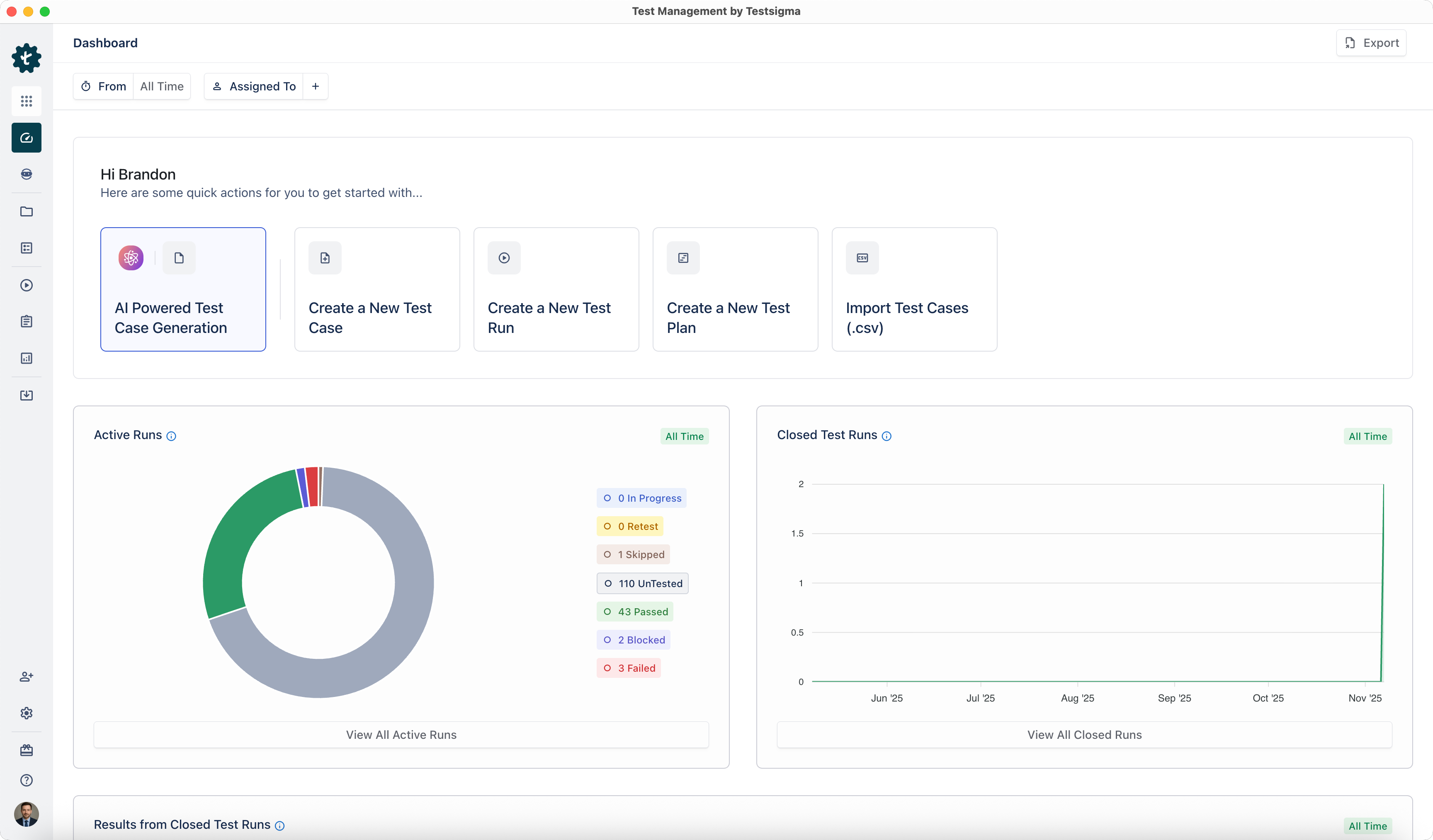
Step 1: Generate Test Cases for Amazon Shopping Cart & Checkout Using AI Agents
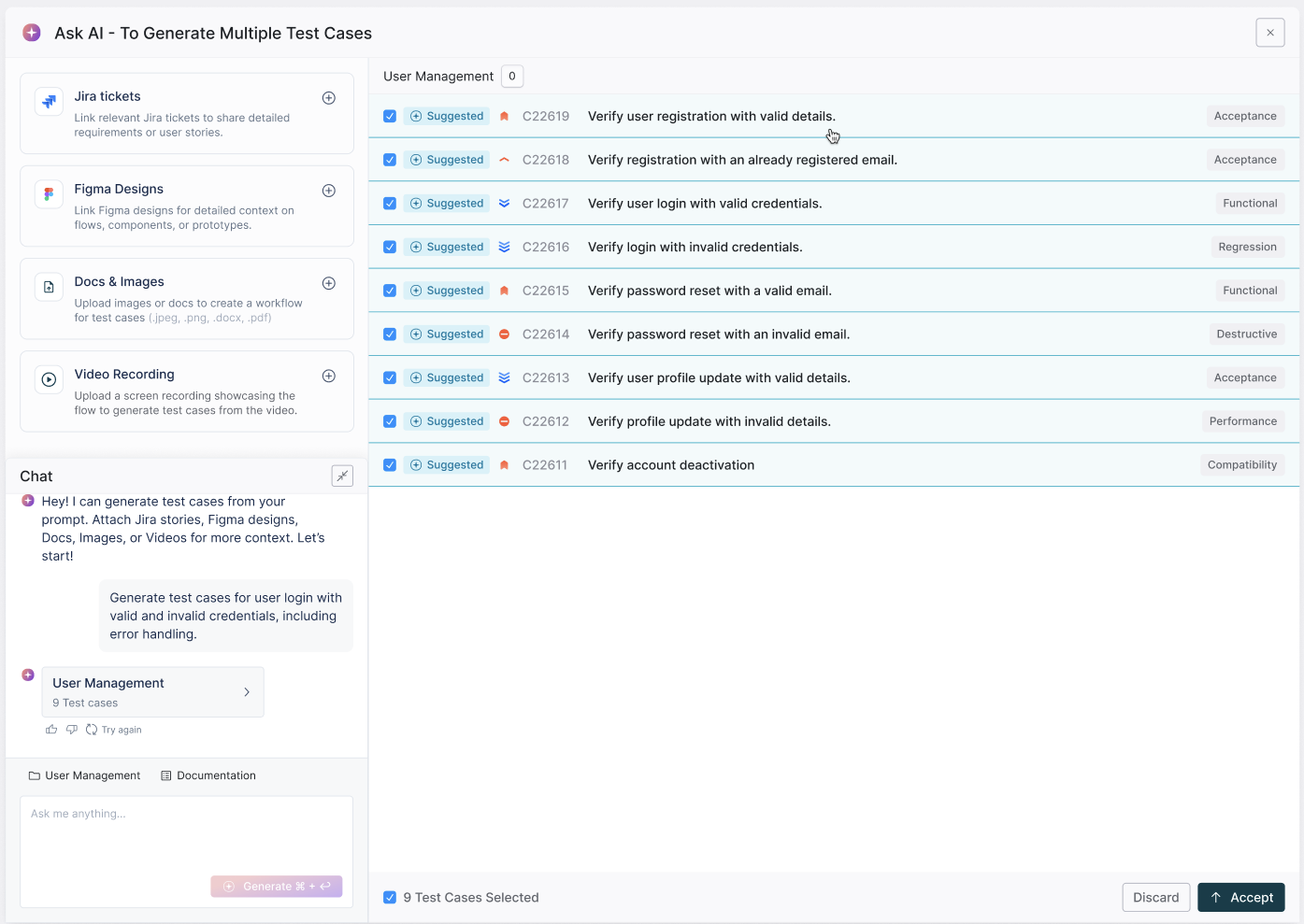
- Go to the Testsigma Test Management dashboard and navigate to the Test Cases tab.
- Create a new folder to organize the test cases for Amazon Shopping Cart & Checkout.
- Click Ask AI and enter a prompt like “add items to cart and add a gift message”.
- You can also use the Generator Agent to generate test cases from JIRA requirements, Figma design files, images of the UI, and walkthrough videos of the Amazon Shopping app.
Once you do, Testsigma will instantly generate relevant test cases tailored to the Amazon Shopping Cart and Checkout page.
Step 2: Create and Configure a Test Run
- Go to Test Runs and select Create Test Run
- Name the test run and select one of the test cases generated in the previous step.
- Launch Atto, Testsigma’s execution agent, and click Execute with Atto.
- Atto will then fetch all selected test cases and prepare them for execution.
Step 3: Execute Amazon Shopping Cart & Checkout Test Cases with Atto
- Click Start next to the test case you want to run.
- Add any required data or input, if prompted.
- Click Send to pass the data to the test case.
- Click Start Testing to begin execution
Atto will then:
- Launch an instance for the test cases.
- Automatically locate the elements on the cart and checkout pages.
- Execute the test steps that have been defined.
Once the testing is complete, Atto will provide a quick summary of the results.
Step 4: Review Results & Manage Status
- Mark the test case status as: Passed/Failed/In Progress/Untested/Retest/Skipped/Blocked
- Click Yes to proceed to the next test case or choose another test case and click Start.
- Repeat the execution flow until all test cases are completed.
Step 5: View Execution Report and Log Bugs
- Access View Results for a detailed step-by-step execution report with visual evidence.
- Expand each step to review logs and screenshots captured during test execution.
- If a bug is detected, click Report to Jira to log it instantly from within Testsigma.
Step 6: Complete the Test Run
- Once all the mobile test cases have been executed, click Exit to finalize the test run.
Conclusion
Test case development for Amazon or other shopping cart functionality is more important than one would think at first glance. Most shopping carts represent critical functionality for a positive customer experience. The better the shopping cart, the more orders are placed for increased business revenue. Need more tips on developing test cases for a shopping cart? Check here to get started with test design.
When developing test cases for shopping cart functionality, be sure to include a variety of testing types, including positive, negative, functional, integration, and usability. Always include tests for error messaging and error handling because shopping carts must validate payment and shipping data before completing a purchase.
Be sure to test against any requirement or acceptance criteria you have first, and then add more testing coverage by incorporating some or all of the example test cases included in this post.
Frequently Asked Questions
When writing test scenarios for a shopping cart start with what you have as requirements or acceptance criteria. Break down requirement details into sections or functions that include all the steps a user must take to complete a purchase. Be sure to include both positive and negative tests. Don’t leave out usability to verify the user experience with the cart is acceptable.