- Testsigma Agent
 Pre-requisites
- Setup: Windows, Mac, Linux
- Setup: Kubernetes (Helm)
- Setup: Android Local Devices
- Setting Up iOS Local Devices
- Arguments Usage Details
- Agent Upgrade Guide
- Update Agent Manually
- Update Drivers Manually
- Delete Corrupted Agent
- Delete Agents: Soft & Permanent
- Triggering Tests on Local Devices
- FAQs
- troubleshooting
- How to Fix Agent Startup & Registration Errors?
- How to Configure Agent Logs?
- How to Upgrade Testsigma Agent Automatically?
- How to Add Max Sessions for Agents?
- How to Resolve Access Blocked Errors When Downloading the Agent?
- Why is Testsigma Agent Not Detecting My Installed Browser?
- How do I Configure Proxy Settings for the Testsigma Agent?
Why is Testsigma Agent Not Detecting My Installed Browser?
In automated testing, browser detection issues often occur when the Testsigma Agent cannot locate the installed web drivers (for example, Chrome or Firefox) during startup. As a result, the agent fails to scan the browsers properly, and test execution cannot proceed.

This article explains how to resolve these browser detection issues.
Steps to Resolve the Browser Detection Issue
- Open your browser (eg, Chrome).
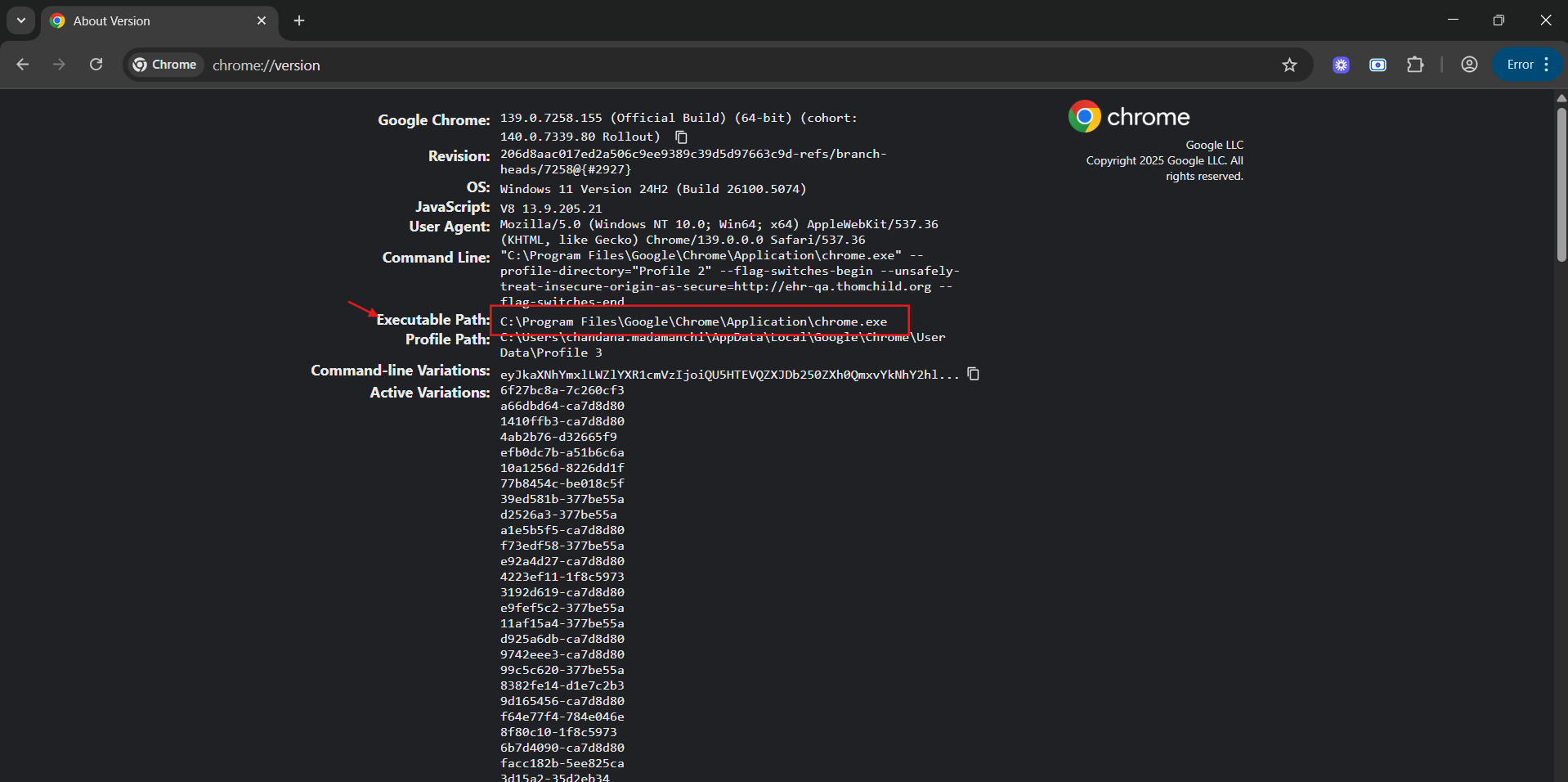
- In Chrome, type chrome://version in the address bar and press Enter/Return.
- Copy the executable path of the Chrome browser.
-
Start the agent with the browser path.
For Mac/Linux:
sudo sh start.sh --TS_CHROME_PATH=<chrome_executable_path>For Windows:
start.bat --TS_CHROME_PATH=<chrome_executable_path> - The agent scans the given path, updates the args.yml file automatically, and detects the browser. Your future runs will work without manual reconfiguration.

Want to contribute or report missing content?