
Setup Browser Profile for Copilot Recording
Configure how Testsigma loads its recorder extension into your browser for Copilot recording sessions, so recording, authoring, and debugging work seamlessly with no manual setup. Choose the profile mode below that matches how much control you need over your browser environment.
Copilot & Recorder Extension Preferences
- From the left navigation bar, go to the Settings > Preferences.
- Scroll down to the Copilot & Recorder Extension section.
- Select one of the three profile options described below.
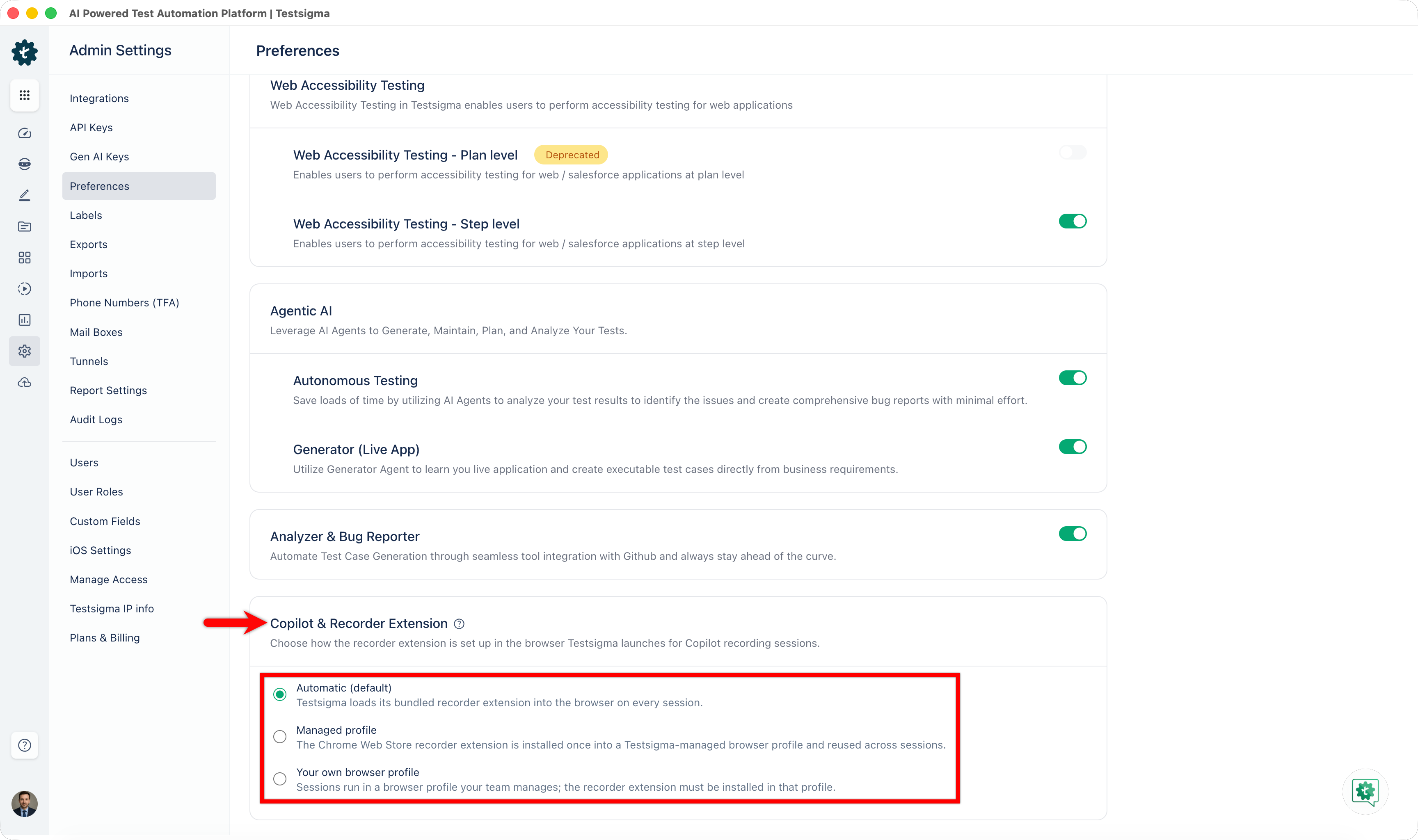
Automatic (default)
Testsigma loads its bundled recorder extension into the browser on every session. Select this mode if you don't need a persistent profile or your own extensions, no setup is required.
Managed profile
The Chrome Web Store recorder extension is installed once into a Testsigma managed browser profile and reused across sessions. Choose this mode if you want the extension pre-installed and persistent, without maintaining it yourself.
Your own browser profile
Sessions run in a browser profile your team manages; the recorder extension must be installed in that profile. Use this mode to point Testsigma at a browser profile you already manage. For example, one with your own extensions, bookmarks, or saved logins.
To set this up:
- Open the browser whose profile you want to use.
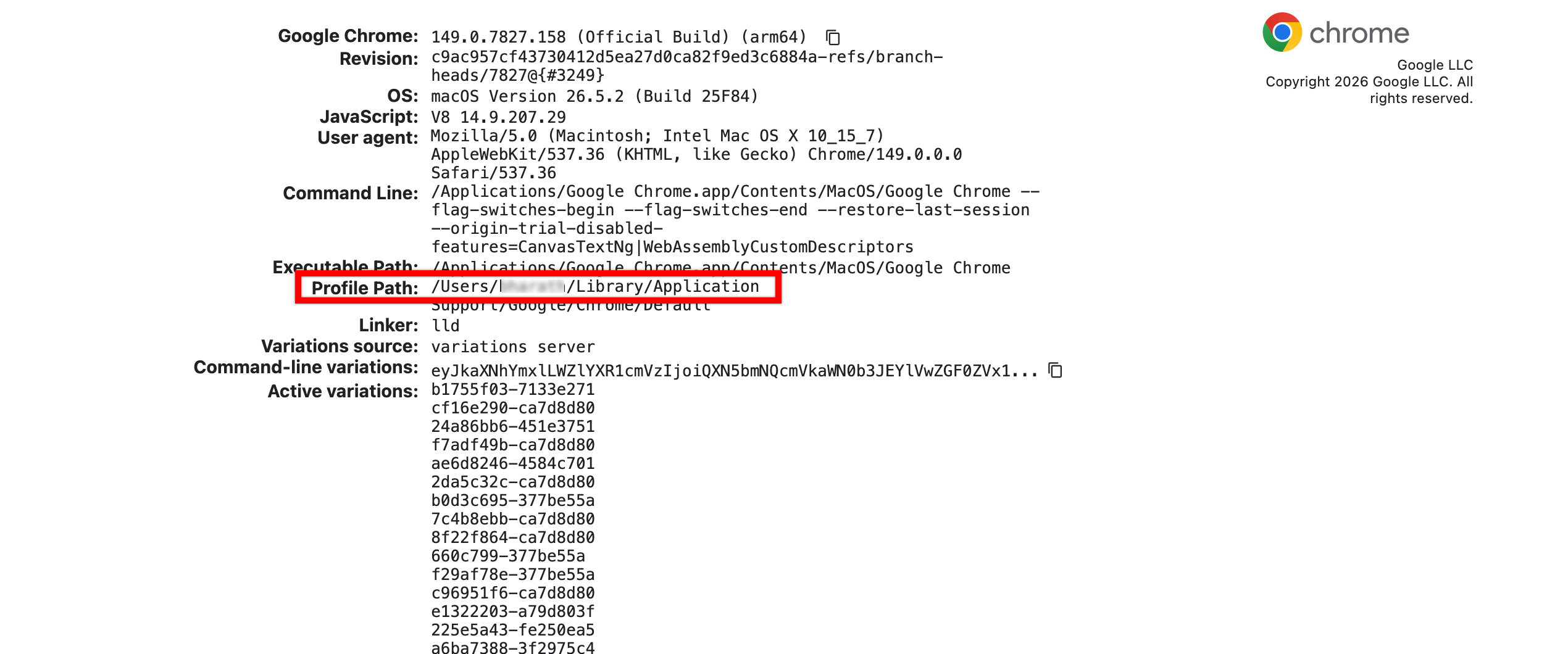
- Go to chrome://version (use edge://version for Microsoft Edge).
- Copy the value in the Profile Path row.
-
In the test confiuration settings, add the following Desired Capabilities:
Key Data type Value goog:chromeOptions String {"args":["--user-data-dir=<Profile Path>"]} Replace
with the path you copied in step 3.
This capability is confirmed for Chrome. If you're using Edge, the profile path lookup works the same way via edge://version.

Want to contribute or report missing content?