- copilot
 Introduction: Copilot
- Key Capabilities
- Launch Copilot
- Record Test Steps
- Copilot Debug Toolbar
- Browser Profile for Copilot
- manage test steps
- Add Test Steps
- Edit and Update Steps
- Delete Test Steps
- Reorder Test Steps
- Bulk Actions
- FAQs on Testsigma Copilot
- troubleshooting for copilot
- Unable to Login to Testsigma Terminal?
- Unable to Download the Terminal Files?
- Unable to Extract the Terminal Files?
- Unable to Start the Terminal Due to Port Unavailability?
- Unable to Start the Agent?
- Unable to Auto-Register Your Device Using Testsigma Terminal?
- Unable to Download the Packages Required to Start the Agent?
- Unable to Update the Packages Required to Start the Agent?
- Unable to Reestablish Connection to Agent?
Record Test Steps
Copilot lets you capture test steps by performing actions directly in your application, recording each interaction in real time, and converting them into automated test steps instantly. Any new steps you record are added and executed in the same session, without leaving Copilot. This article discusses how to record test steps using Copilot.
Prerequisites
Before you begin, ensure that:
- You have created a test case.
- If you are running the session on Local Devices, you have installed and configured the Testsigma Terminal.
- You have referred to the documentation on Launch Copilot.
Steps to Record Test Steps
Once the session is active, you can add recorded steps in two ways, depending on where you are in the execution.
Add Below a Specific Step
- When execution hits a debug point and pauses (or fails), hover over any step and click Step Below, then click Rec.
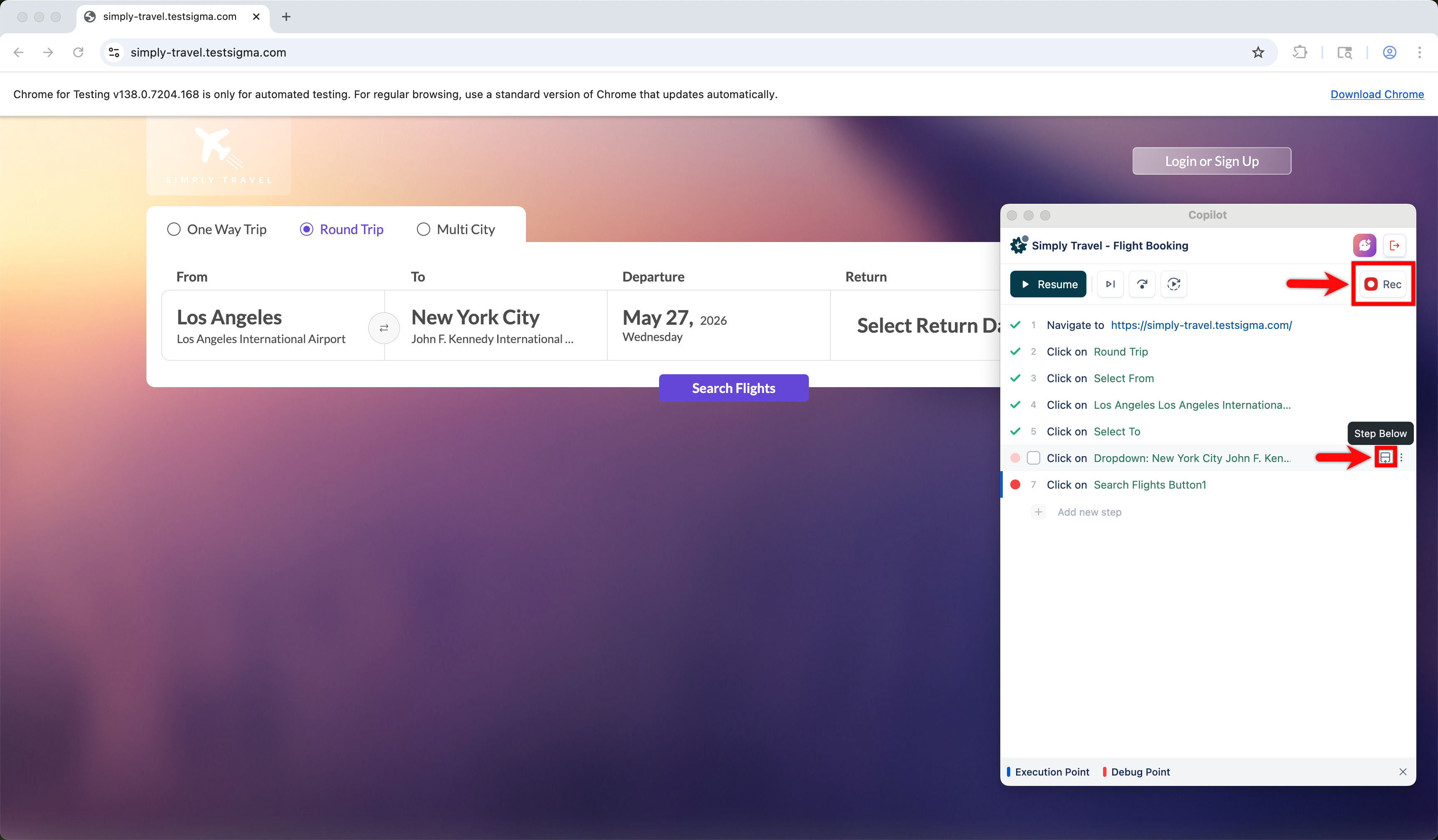
The Rec button is enabled only when execution is paused at a debug point, when execution fails, or once execution is complete.
- Perform actions in your application. The Copilot records each action as a test step in real time.
- Click Stop Recording to end the session.
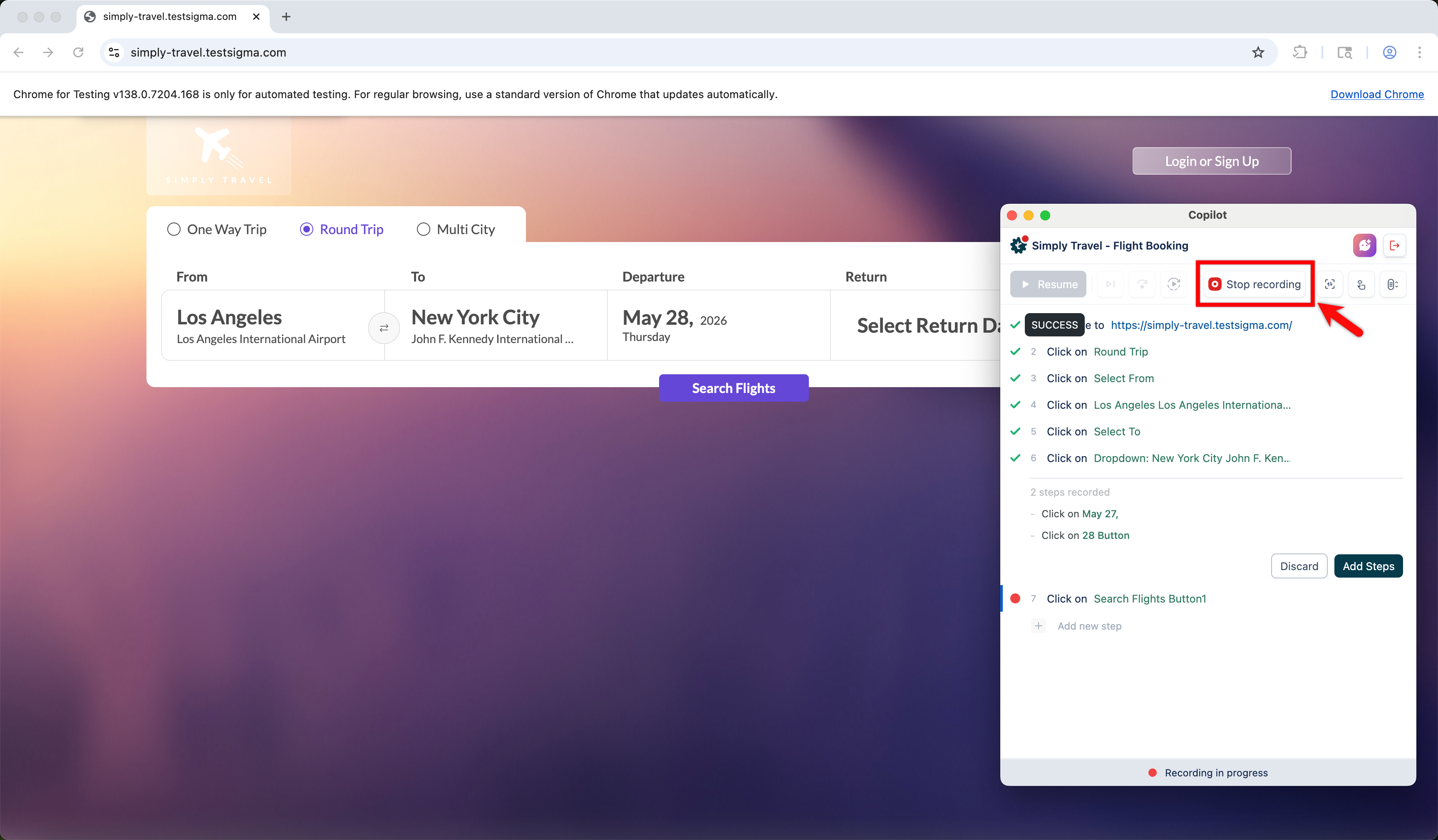
- Review the recorded steps in the steps panel.
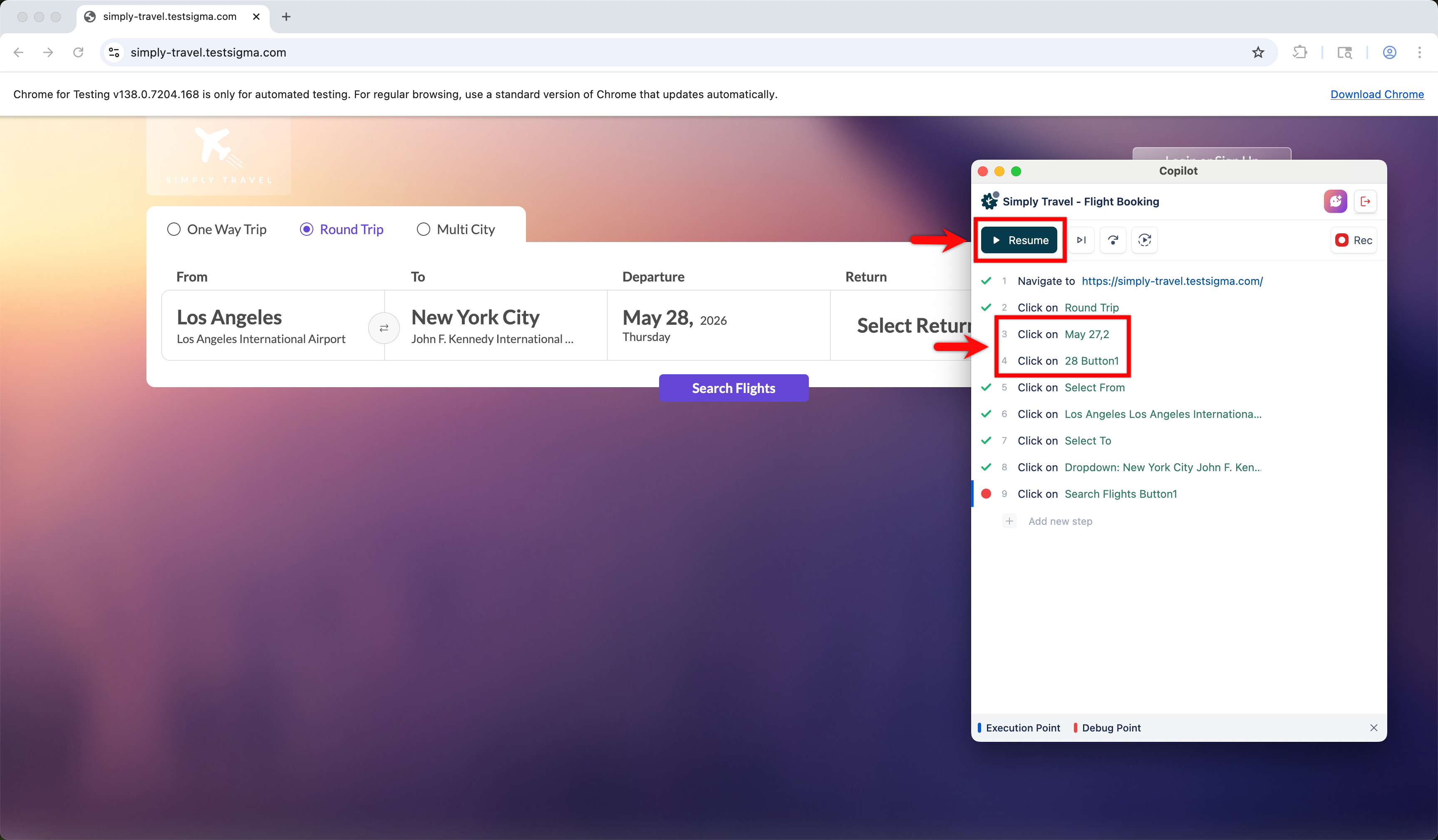
- Click Add Steps to insert them immediately below the selected step, or click Discard to remove them.
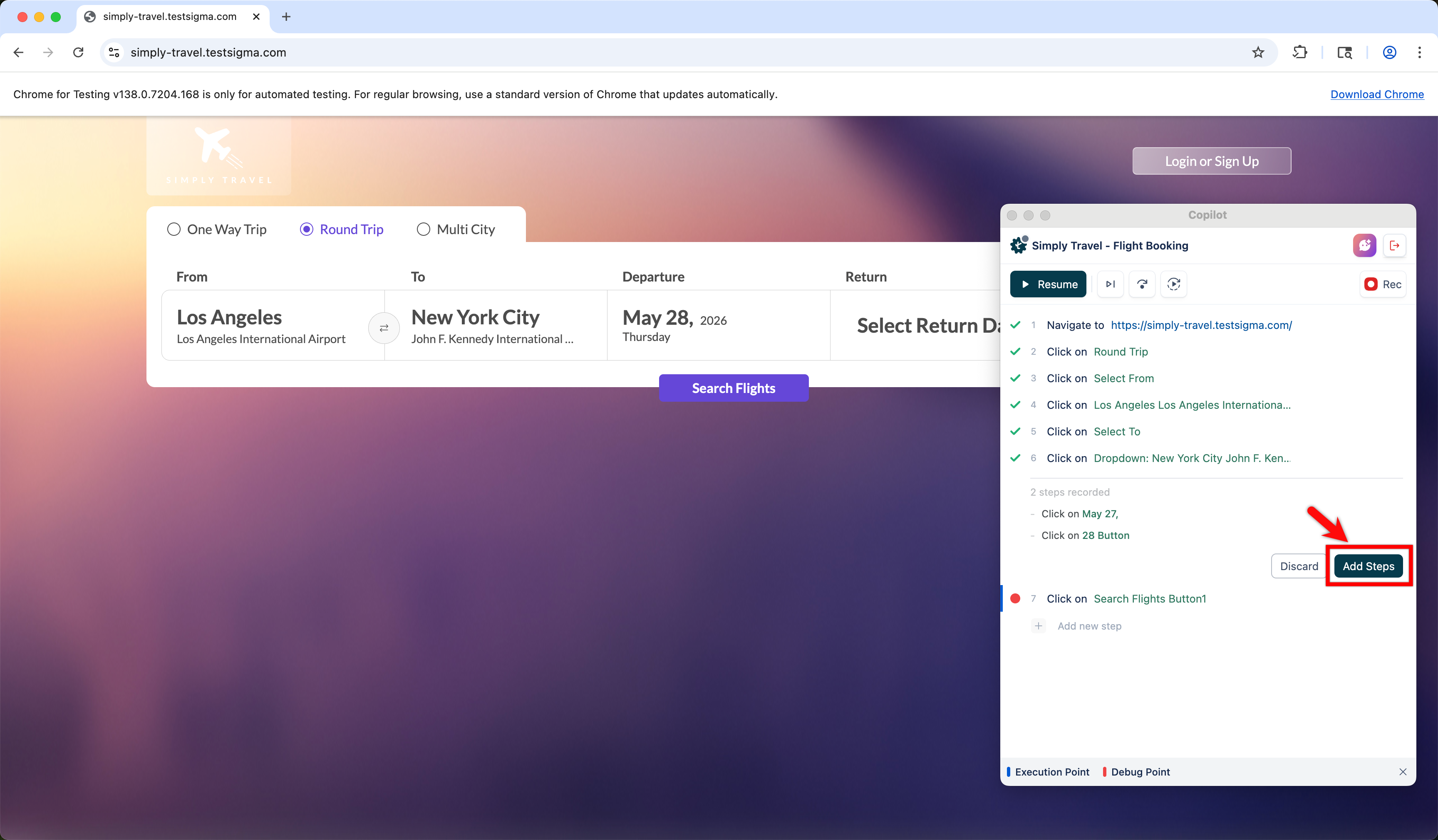
- If you insert steps below the last executed step, the recorded steps are executed automatically once added.
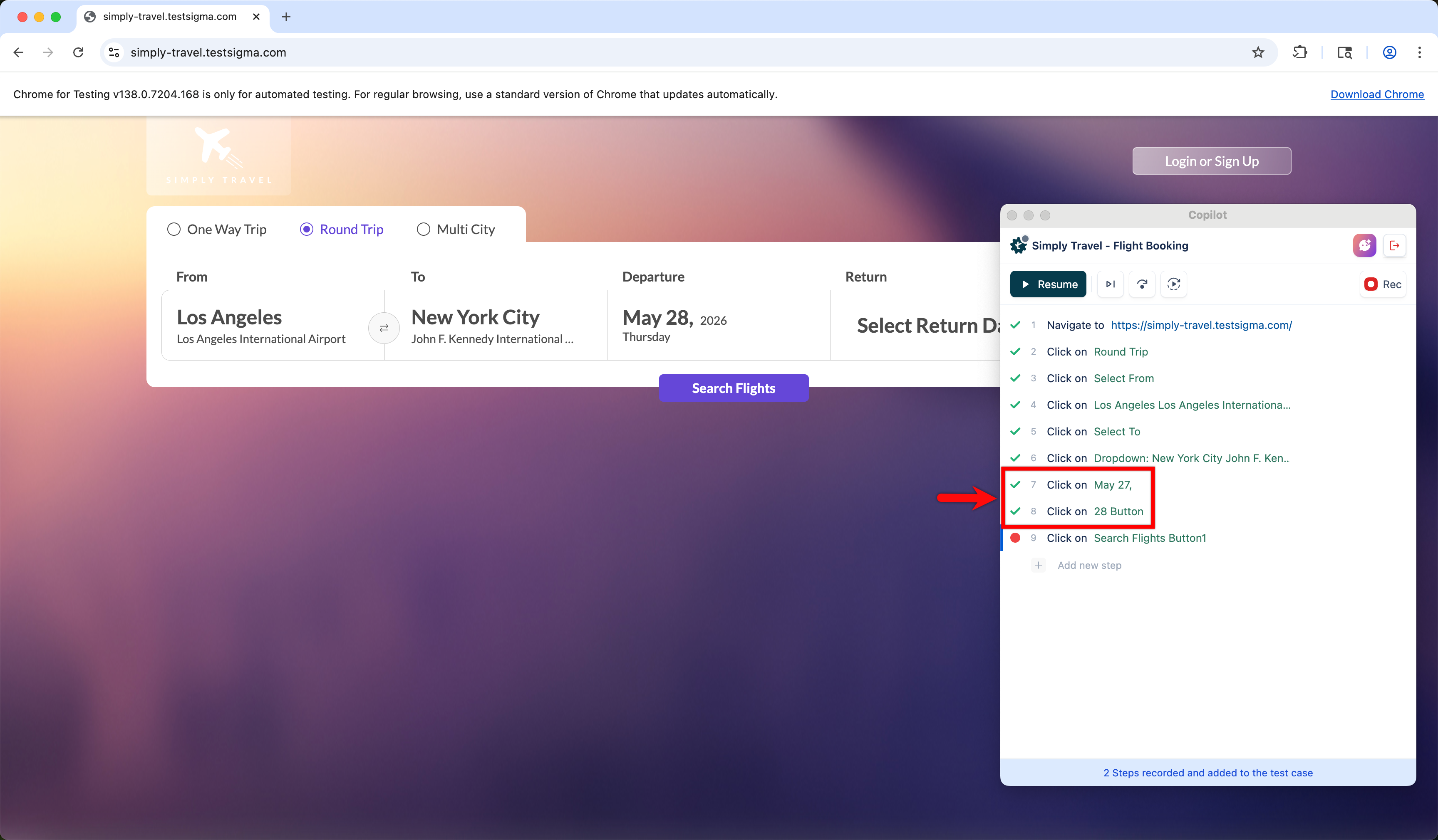
- If you insert steps above the last executed step, click Resume.
-
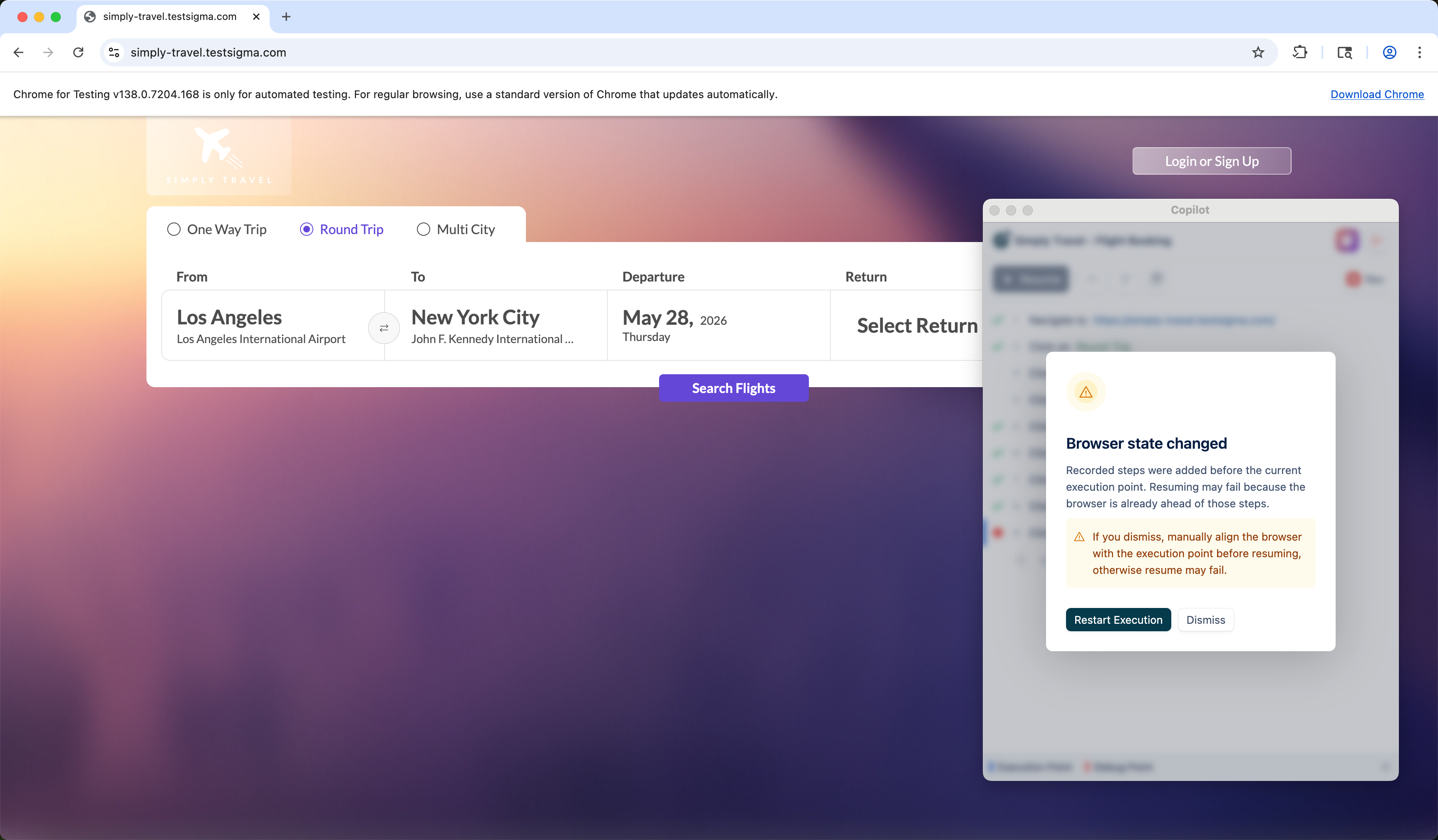
The Browser State Changed dialog appears:
- Click Restart Execution to restart the execution.
- Click Dismiss to continue from where execution stopped. Upon dismissal, manually adjust the state of the application to keep it in sync with the step to be executed.
Add at the End
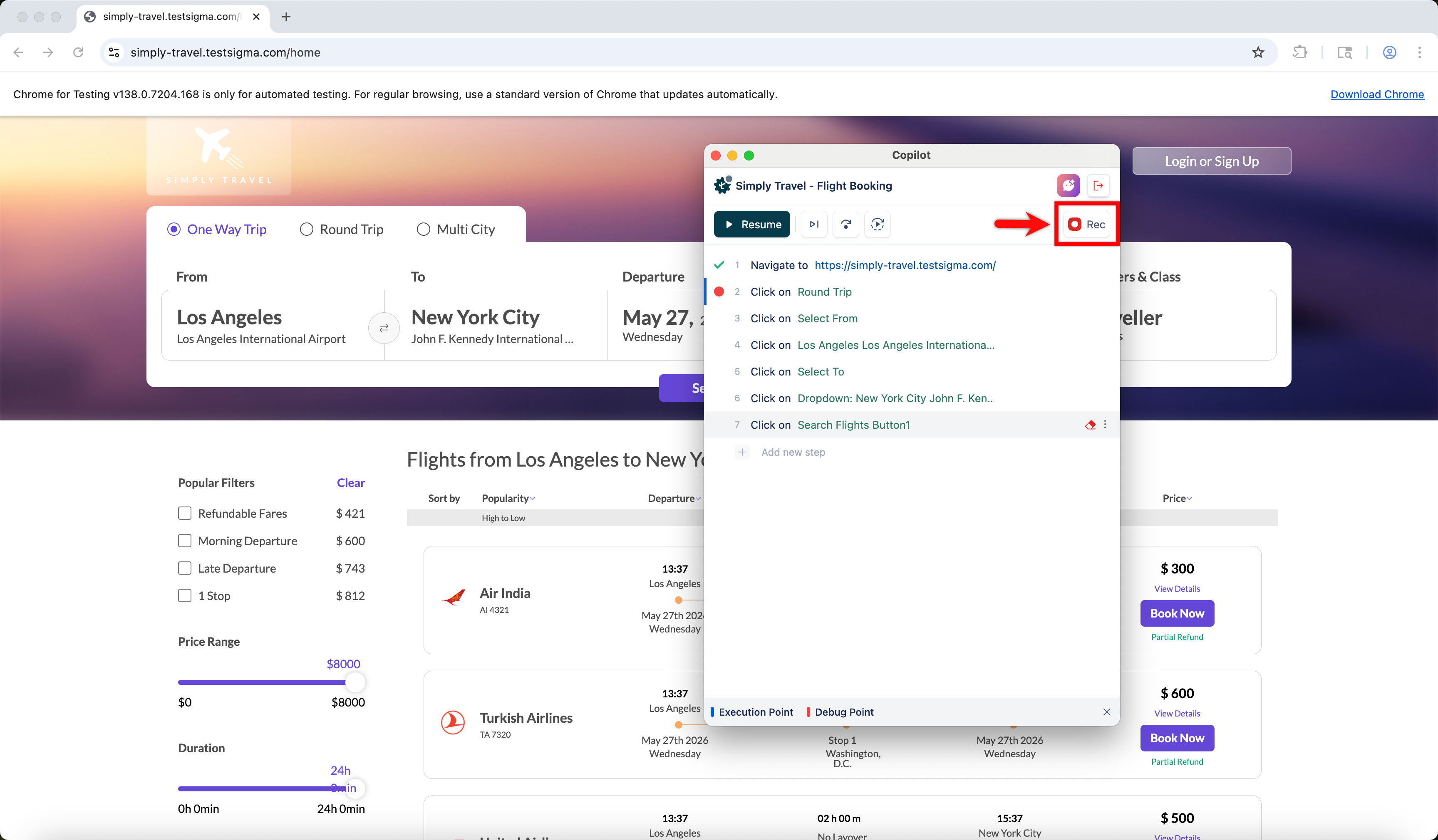
- Once execution is complete or paused at a debug point, click Rec to start a recording session. By default, steps get recorded at the end. You can reorder the steps if required.
- Perform actions in your application. The Copilot records each action as a test step in real time.
- Click Stop Recording.
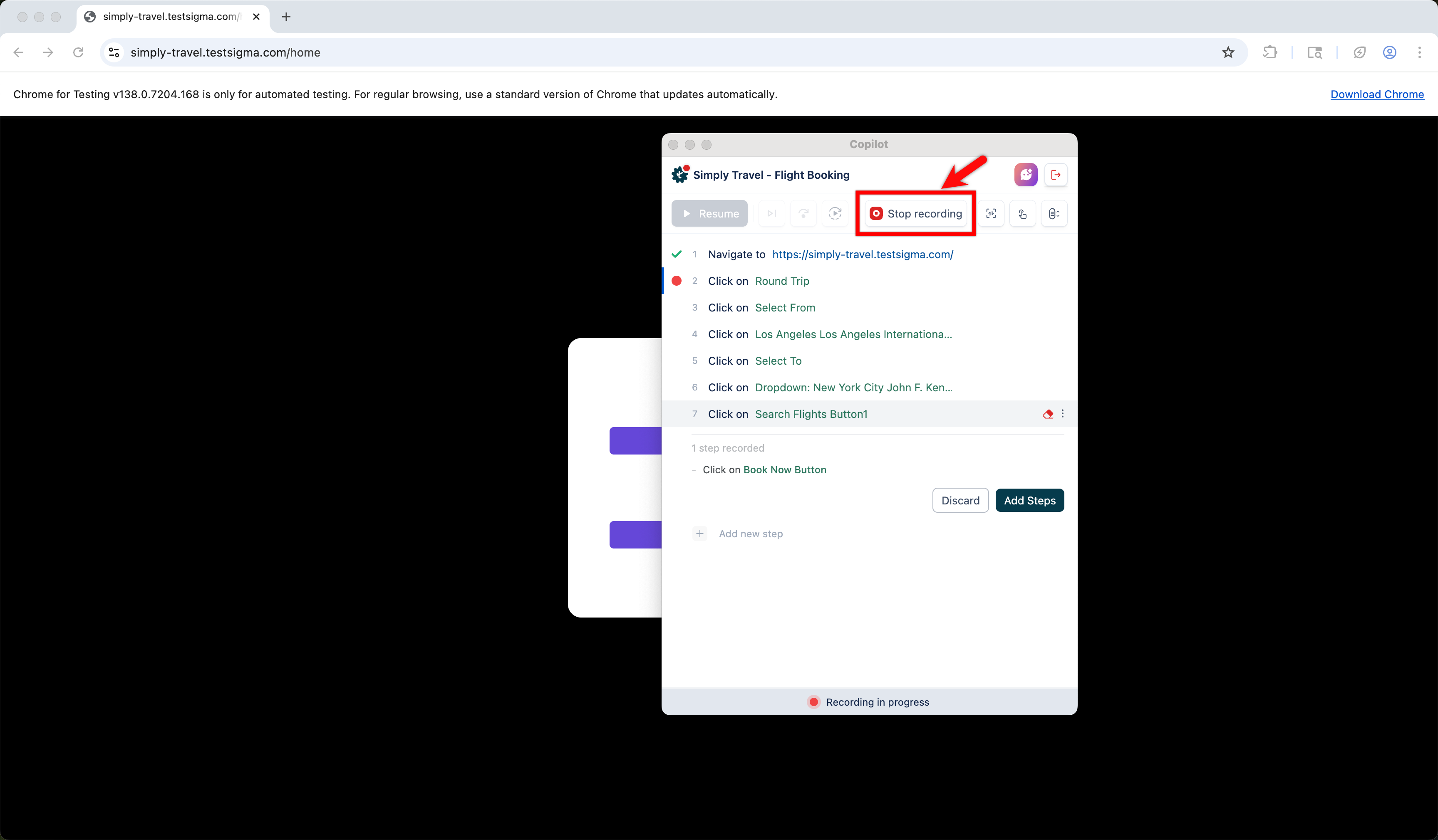
- Review the recorded steps in the steps panel.
- Click Add Steps to append them to the end of the test case, or click Discard to remove them.
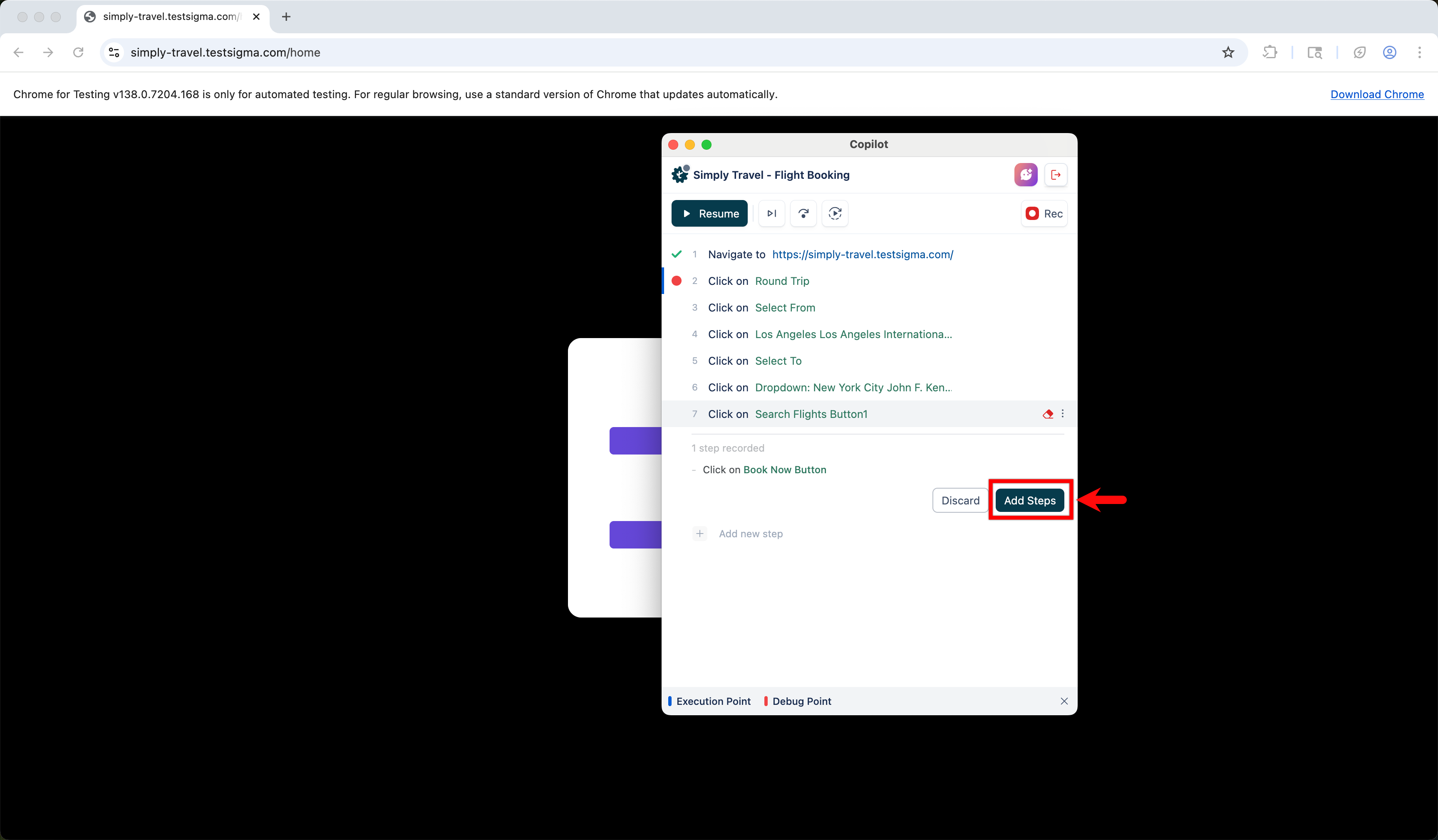
- Once you have added the recorded step(s), click Resume.
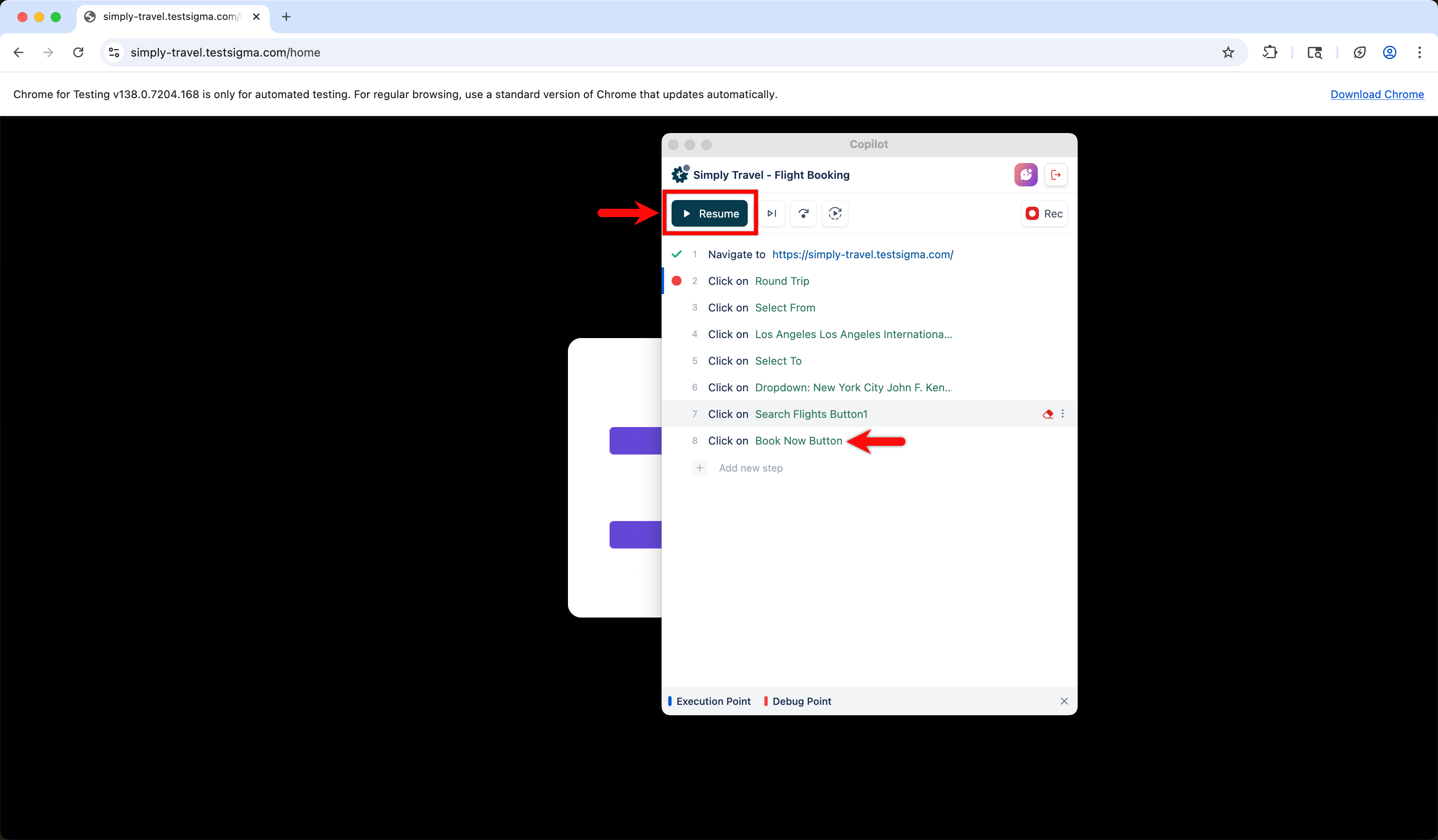
-
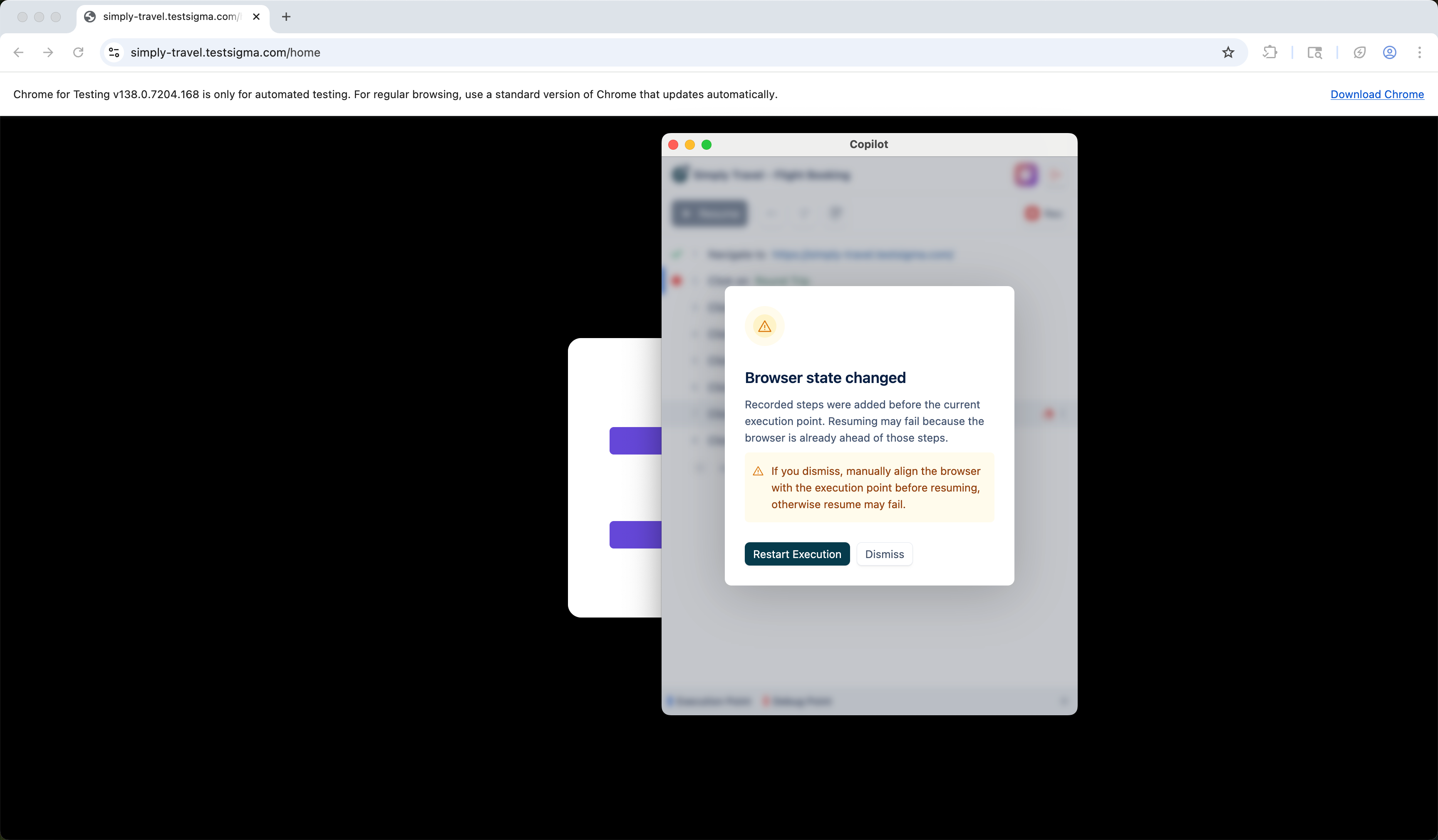
The Browser State Changed dialog appears:
- Click Restart Execution to restart the execution.
- Click Dismiss to continue from where execution stopped. Upon dismissal, manually adjust the state of the application to keep it in sync with the step to be executed.
If execution was complete before starting this action, the recorded steps are executed automatically after clicking Add Steps. 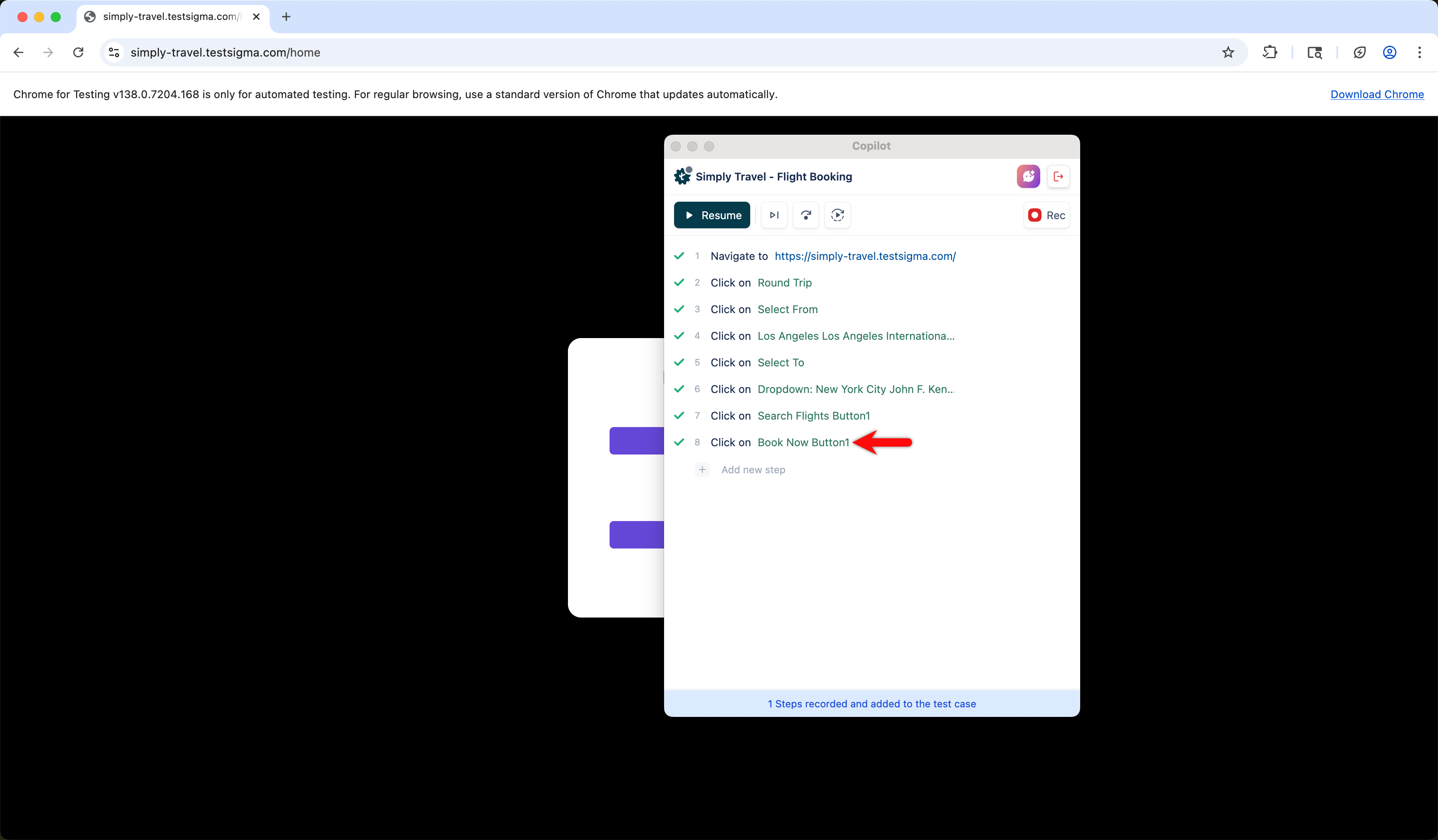

Want to contribute or report missing content?