- copilot
 Introduction: Copilot
- Key Capabilities
- Launch Copilot
- Record Test Steps
- Copilot Debug Toolbar
- Browser Profile for Copilot
- manage test steps
- Add Test Steps
- Edit and Update Steps
- Delete Test Steps
- Reorder Test Steps
- Bulk Actions
- FAQs on Testsigma Copilot
- troubleshooting for copilot
- Unable to Login to Testsigma Terminal?
- Unable to Download the Terminal Files?
- Unable to Extract the Terminal Files?
- Unable to Start the Terminal Due to Port Unavailability?
- Unable to Start the Agent?
- Unable to Auto-Register Your Device Using Testsigma Terminal?
- Unable to Download the Packages Required to Start the Agent?
- Unable to Update the Packages Required to Start the Agent?
- Unable to Reestablish Connection to Agent?
Setup Browser Profile for Copilot Recording
Configure how Testsigma loads its recorder extension into your browser for Copilot recording sessions, so recording, authoring, and debugging work seamlessly with no manual setup. Choose the profile mode below that matches how much control you need over your browser environment.
Copilot & Recorder Extension Preferences
- From the left navigation bar, go to the Settings > Preferences.
- Scroll down to the Copilot & Recorder Extension section.
- Select one of the three profile options described below.
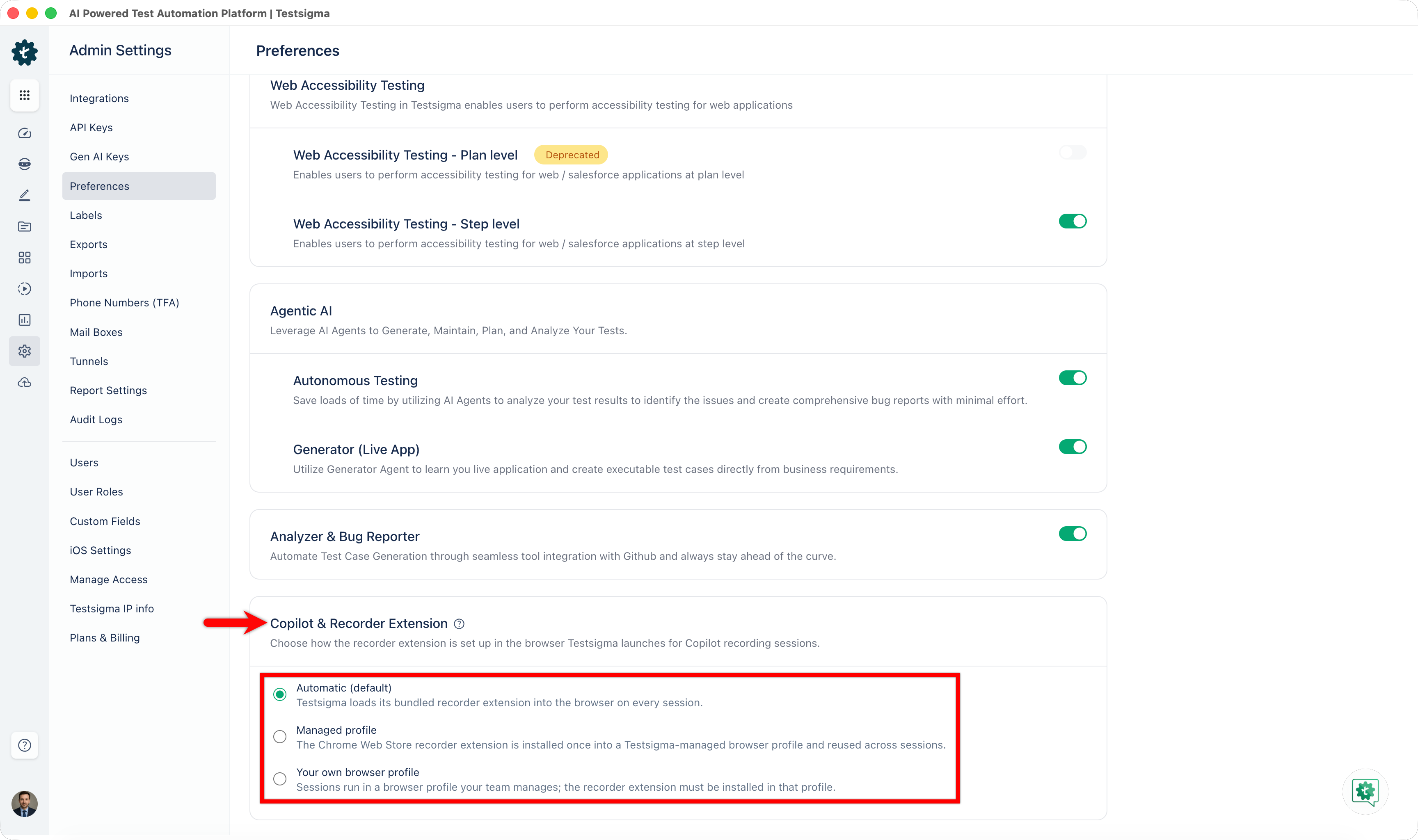
Automatic (default)
Testsigma loads its bundled recorder extension into the browser on every session. Select this mode if you don't need a persistent profile or your own extensions, no setup is required.
Managed profile
The Chrome Web Store recorder extension is installed once into a Testsigma managed browser profile and reused across sessions. Choose this mode if you want the extension pre-installed and persistent, without maintaining it yourself.
The first time you launch a Copilot session in this mode, Testsigma creates a user-data directory for the profile inside the Testsigma data directory and reuses it for every session after that. Testsigma must have permission to create directories there. Install the recorder extension from the Chrome Web Store once, and every later session reuses it along with any browser settings you apply to the profile.
If Testsigma cannot create a directory inside the Testsigma data directory, the profile directory is never created and the session fails to start.
Your own browser profile
Sessions run in a browser profile your team manages; the recorder extension must be installed in that profile. Choose this mode when your security policies require you to control every profile.
Agent cleanup can delete profile data stored inside the Testsigma data directory. Keep the profile you manage outside that directory.
To set this up:
- Create the profile folder outside the default user-data folders listed below, and outside the Testsigma data directory.
- Grant Testsigma read and write access to that folder.
-
In the test configuration settings, add the following Desired Capabilities. The key depends on your browser, while the value stays the same:
Browser Key Data type Value Chrome goog:chromeOptions String {"args":["--user-data-dir=<Profile Path>"]} Microsoft Edge MsOptions String {"args":["--user-data-dir=<Profile Path>"]} Replace <Profile Path> with the path of the folder you created in step 1.
Writing that path literally bakes in a machine-specific username (for example, C:\Users\username\AppData...), so the capability only works on the one agent it was written for. If this configuration needs to run on more than one agent, replace the literal path with a path token instead, such as ${TS_DATA_DIR} or ${TS_USER_HOME}. Testsigma resolves these to the correct machine-specific path on whichever agent the test runs on, so the same capability value works everywhere:
{"args": ["--user-data-dir=${TS_DATA_DIR}/browser-profiles/custom/testprofile"]}
Path tokens (see Path Tokens in Desired Capabilities below) only resolve for Hybrid executions (local machine or Docker). On Testsigma Lab/TSLab/Apex and third-party cloud labs (BrowserStack, Sauce Labs, LambdaTest, Kobiton), or a Hybrid agent pointed at an external Selenium grid, tokens are not resolved and the value is passed through exactly as written — use a literal path for those execution types instead.
- Install the recorder extension in that profile, either from the Chrome Web Store or through your IT extension policy.
Default User-Data Folder Restriction
A profile used for automation cannot live inside the browser's default user-data folder. This restriction comes from Chrome and Edge, not from Testsigma. Anything placed inside these directories is not accessible to automation, and Testsigma cannot launch it.
Do not place automation profiles in the following locations:
| Browser | Windows | macOS | Linux |
|---|---|---|---|
| Chrome | %LOCALAPPDATA%\Google\Chrome\User Data | ~/Library/Application Support/Google/Chrome | ~/.config/google-chrome |
| Microsoft Edge | %LOCALAPPDATA%\Microsoft\Edge\User Data | ~/Library/Application Support/Microsoft Edge | ~/.config/microsoft-edge |
- The browser must be fully closed before launching the session. A profile can't be used by two browser instances at once, including background or tray processes with no visible window. Otherwise, the session fails to start with a "user data directory is already in use" error.
- To use a named profile inside that folder rather than the default one, pass --profile-directory=<folder name> alongside --user-data-dir (for example, Profile 1). The default profile works with just the --user-data-dir argument as documented above.
Path Tokens in Desired Capabilities
A literal path like --user-data-dir=C:\Users\username\AppData\Roaming... only works on one machine. Path tokens let the agent fill in the machine-specific part automatically, so one config works on every agent:
--user-data-dir=${TS_DATA_DIR}/profiles/
| Token | Resolves to |
|---|---|
| ${TS_DATA_DIR} | The Testsigma agent's data directory (honors a custom ENV_TS_DATA_DIR if IT set one at install) |
| ${TS_USER_HOME} | The home directory of the OS account running the agent |
These are the recommended, portable tokens — they work the same on Windows, macOS, and Linux. Native OS aliases (%APPDATA%, $HOME, ~/, etc.) also work but only resolve on their own platform.
Tokens apply inside any string value (args, prefs, extensions, binary) in Chrome, Edge, or Firefox capabilities, but only when the browser runs locally on an agent host (Hybrid, local machine, or Docker). They do not resolve on Testsigma Lab/TSLab/Apex, third-party cloud labs (BrowserStack, Sauce Labs, LambdaTest, Kobiton), a Private Grid, or a Hybrid agent pointed at an external Selenium grid — use a literal path there instead.
An unresolvable token is left exactly as written, never blanked out, and Testsigma logs a warning — a visibly wrong path is safer than silently falling back to the real desktop profile.

Want to contribute or report missing content?