- copilot
 Introduction: Copilot
- Key Capabilities
- Launch Copilot
- Record Test Steps
- Copilot Debug Toolbar
- Browser Profile for Copilot
- manage test steps
- Add Test Steps
- Edit and Update Steps
- Delete Test Steps
- Reorder Test Steps
- Bulk Actions
- FAQs on Testsigma Copilot
- troubleshooting for copilot
- Unable to Login to Testsigma Terminal?
- Unable to Download the Terminal Files?
- Unable to Extract the Terminal Files?
- Unable to Start the Terminal Due to Port Unavailability?
- Unable to Start the Agent?
- Unable to Auto-Register Your Device Using Testsigma Terminal?
- Unable to Download the Packages Required to Start the Agent?
- Unable to Update the Packages Required to Start the Agent?
- Unable to Reestablish Connection to Agent?
Edit and Update Steps
Use Copilot to edit test steps by updating elements, clearing steps, and managing step-level options. Copilot provides inline editing tools to help you refine steps without leaving the session. This article discusses editing and updating test steps using Copilot.
Prerequisites
Before you begin, ensure that:
- You have created a test case.
- You have installed and configured the Testsigma Terminal.
- You have referred to the documentation on Launch Copilot.
Edit an Element in a Step
-
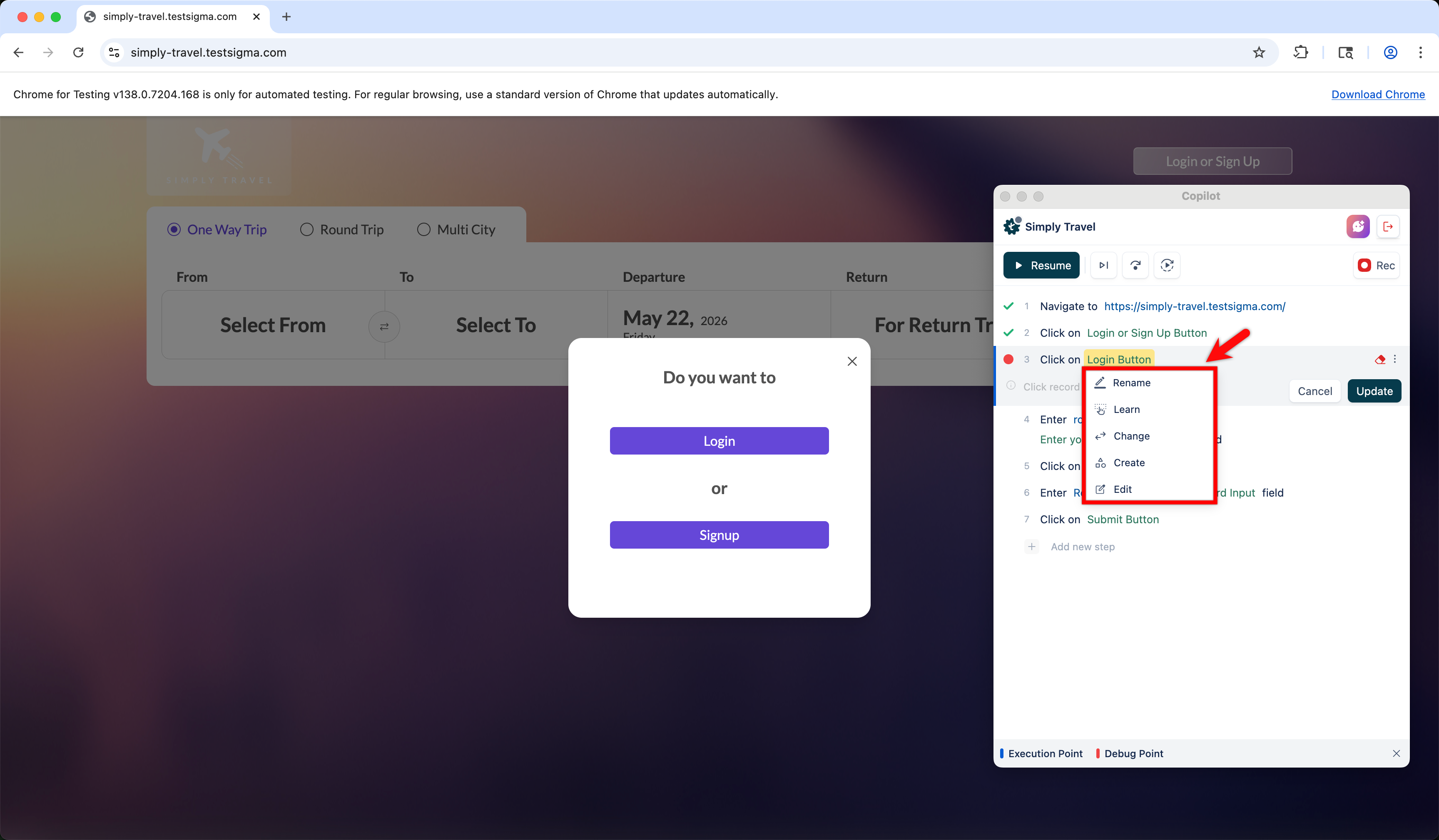
In the Copilot dialog, hover over the step containing the element you want to edit and click the element to open the element options menu. Select the required option from the following available options:
- Rename — Update the display name of the element without changing its locator or configuration.
- Learn — Re-record the element during a live session so that Copilot can identify it on the screen.
- Change — Replace the current element with another existing element from your element repository.
- Create — Create and associate a new element directly within the current step.
- Edit — Open the Update Element overlay to modify the element's name, screen name, type, and value.
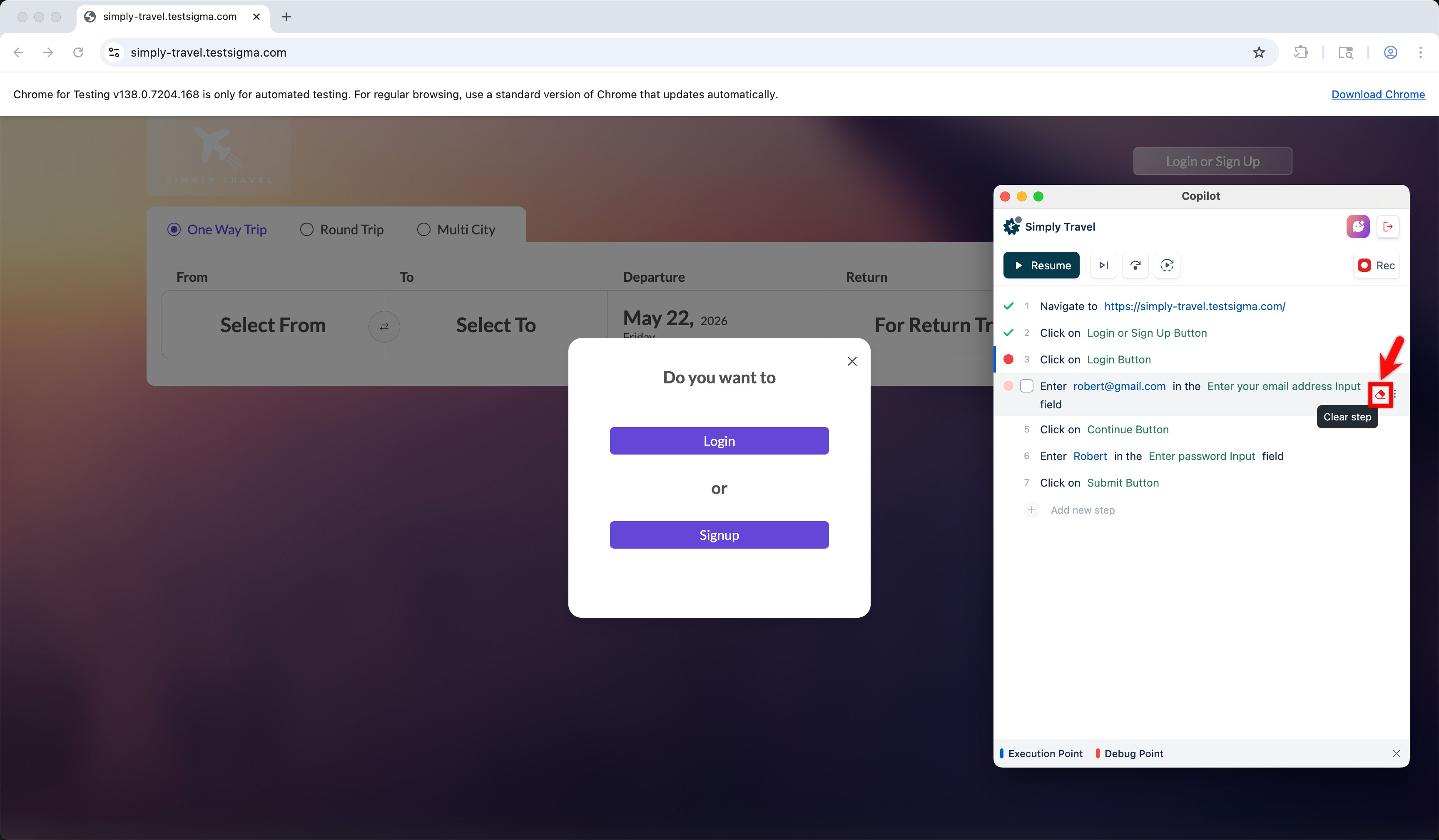
Clear a Step
- Click on the step you want to clear.
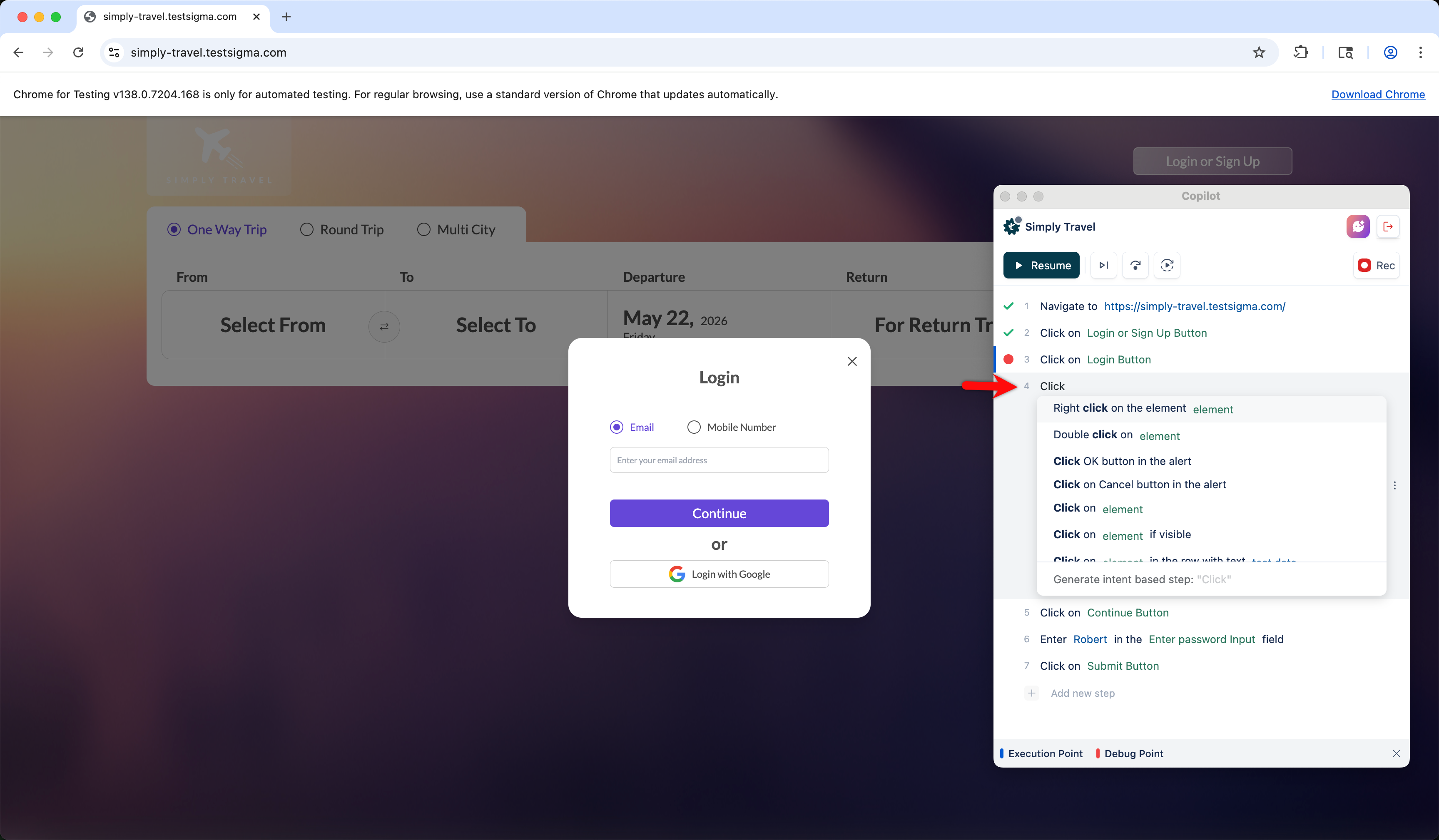
- Start typing the step to view the list of matching NLPs. Select the required NLP and configure it as needed.
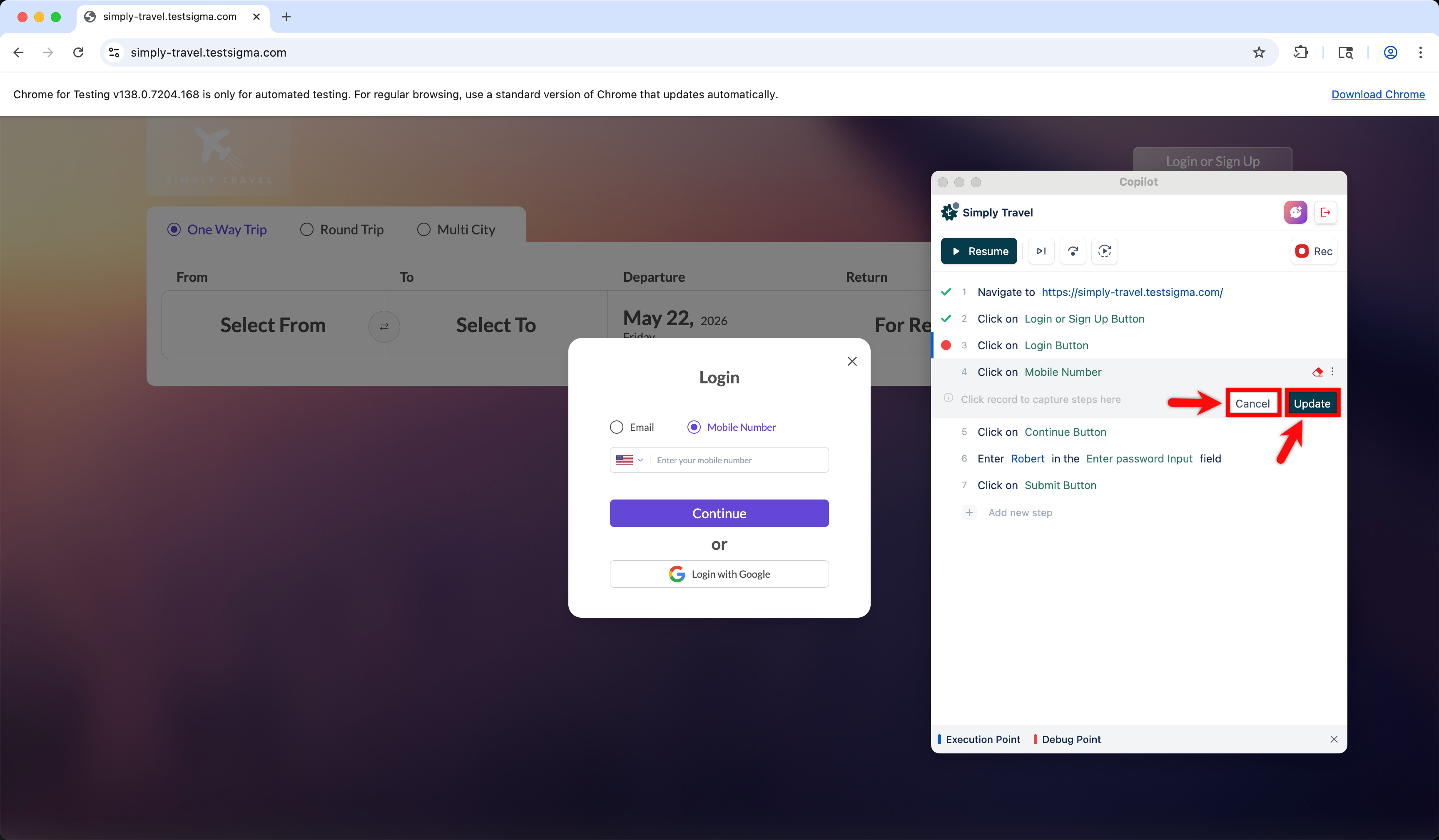
- Click Update to save the new step content, or click Dismiss to cancel and restore the original step.
Step-Level Options via the Ellipsis Menu
- Hover over the step you want to manage and click the ellipsis icon on the right side of the step.
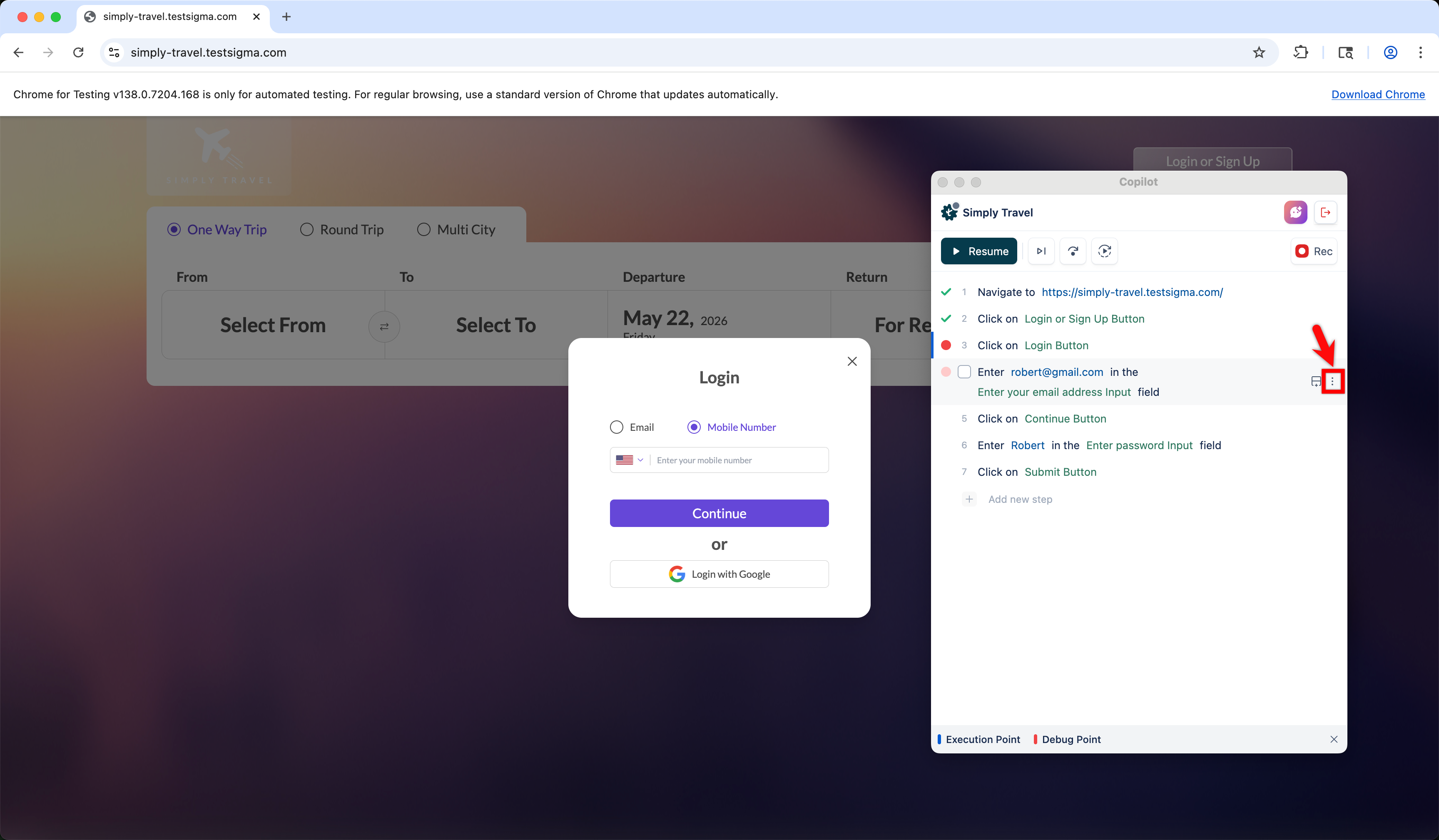
-
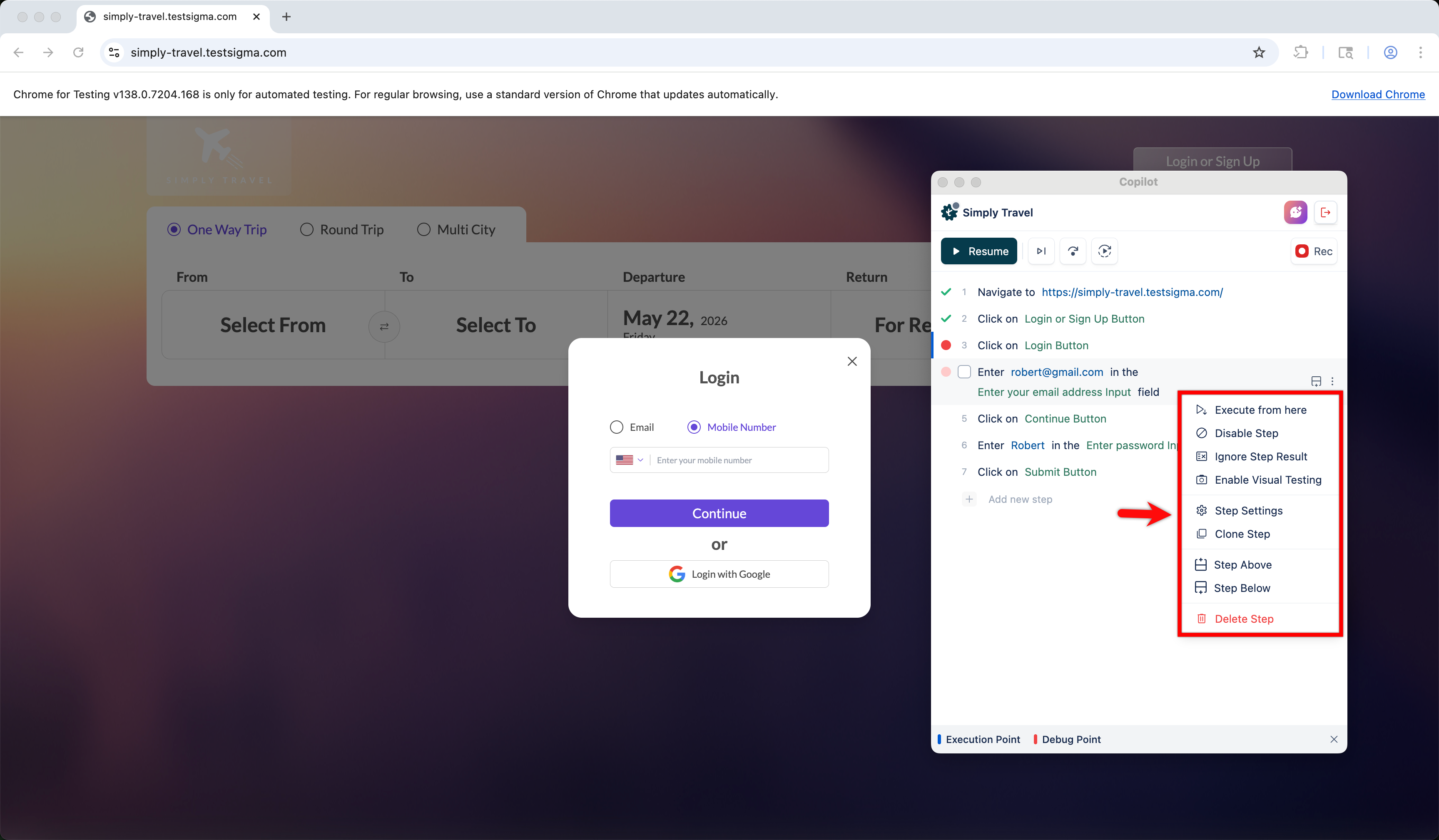
Select the required option from the following available options:
- Execute from Here — Starts execution from this specific step, skipping all prior steps. Since the earlier steps will not run, the browser may not be in the expected state for the current step. Ensure your application is manually set up to reflect the correct state before clicking this option for successful execution.
- Disable Step — Marks the step as disabled so it is skipped during execution without being removed.
- Ignore Step Result — Excludes the step's pass or fail status from impacting the overall test result.
- Enable Visual Testing — Enables visual testing for the step, allowing Copilot to capture and compare screenshots during step execution.
- Step Settings — Opens the Step Details panel, where you can configure step timeout, screenshot behavior, and other advanced options.
- Clone Step — Creates a copy of the step directly below the current step.
- Step Above — Inserts a new empty step directly above the current step and opens the inline editor for input.
- Step Below — Inserts a new empty step directly below the current step and opens the inline editor for input.
- Delete Step — Permanently removes the step from the test case. This action cannot be undone.

Want to contribute or report missing content?